
1. Introduction and Overview
The SURFOU Smart Plug is designed to provide convenient control over your electrical appliances. This compact device allows you to manage connected devices remotely via a smartphone application, voice commands through Amazon Alexa or Google Assistant, and scheduled timers. It supports 2.4GHz Wi-Fi networks only.

Figure 1: SURFOU Smart Plug with smartphone app interface. The plug is compatible with Smart Life, Tuya, SmartThings, Google Assistant, and Amazon Alexa.
2. Product Features
- Compact Design: Space-saving and easy to integrate into any outlet.
- Remote Control: Manage your electrical appliances from anywhere using the free mobile application.
- Voice Control: Activate your smart plug with voice commands via Amazon Alexa or Google Assistant.
- Manual Control: Turn the plug on and off using both the physical button on the device and the virtual button in the application.
- Timer Function: Set individual schedules and timers for connected devices.
- Energy Monitoring: Track real-time electricity consumption by day, week, month, or year.
- Network Compatibility: Supports 2.4GHz Wi-Fi networks.
- Safety Features: Equipped with a fire-resistant casing, overload protection, and child safety design.

Figure 2: Key features and dimensions of the SURFOU Smart Plug, including Consumption Monitor, Remote Control, Timer Function, 13A Load Capacity, 2.4GHz WLAN, and Multi-Compatibility.
3. Setup Instructions
Follow these steps to set up your SURFOU Smart Plug:
- Plug In: Insert the smart plug into a standard electrical outlet.
- Download App: Download the free "Smart Life" application from your mobile device's app store. The app is compatible with iOS 8.0 and above, and Android 4.4 and above.
- Connect to Power: Ensure the mini plug is connected to power and wait for the indicator light to flash rapidly.
- Add Device in App: Open the Smart Life app and navigate to the "Add Device" page.
- Confirm Flashing: In the app, confirm that the indicator light on the plug is flashing rapidly.
- Select Wi-Fi: Select your local 2.4GHz Wi-Fi network. Note: The plug only supports 2.4GHz Wi-Fi, not 5G. If your router provides both 2.4G and 5G networks simultaneously, ensure your device connects to the 2.4G network during setup.
- Enter Password: Enter the corresponding Wi-Fi password and confirm.
- Complete Setup: Follow any remaining in-app instructions to complete the connection process.

Figure 3: Visual guide for the initial setup process, showing plugging in the device, downloading the Smart Life app, and following in-app instructions.
4. Operating Instructions
4.1 App Control
Once connected, you can control your smart plug via the Smart Life app:
- On/Off: Tap the power icon in the app to turn the connected device on or off.
- Scheduling: Set up daily or weekly schedules for your devices to turn on or off automatically.
- Timers: Use the timer function for countdowns or specific duration operations.
- Scenes: Create custom scenes to control multiple devices with a single tap or based on conditions like sunrise/sunset.
- Energy Monitoring: View real-time and historical power consumption data for connected devices.
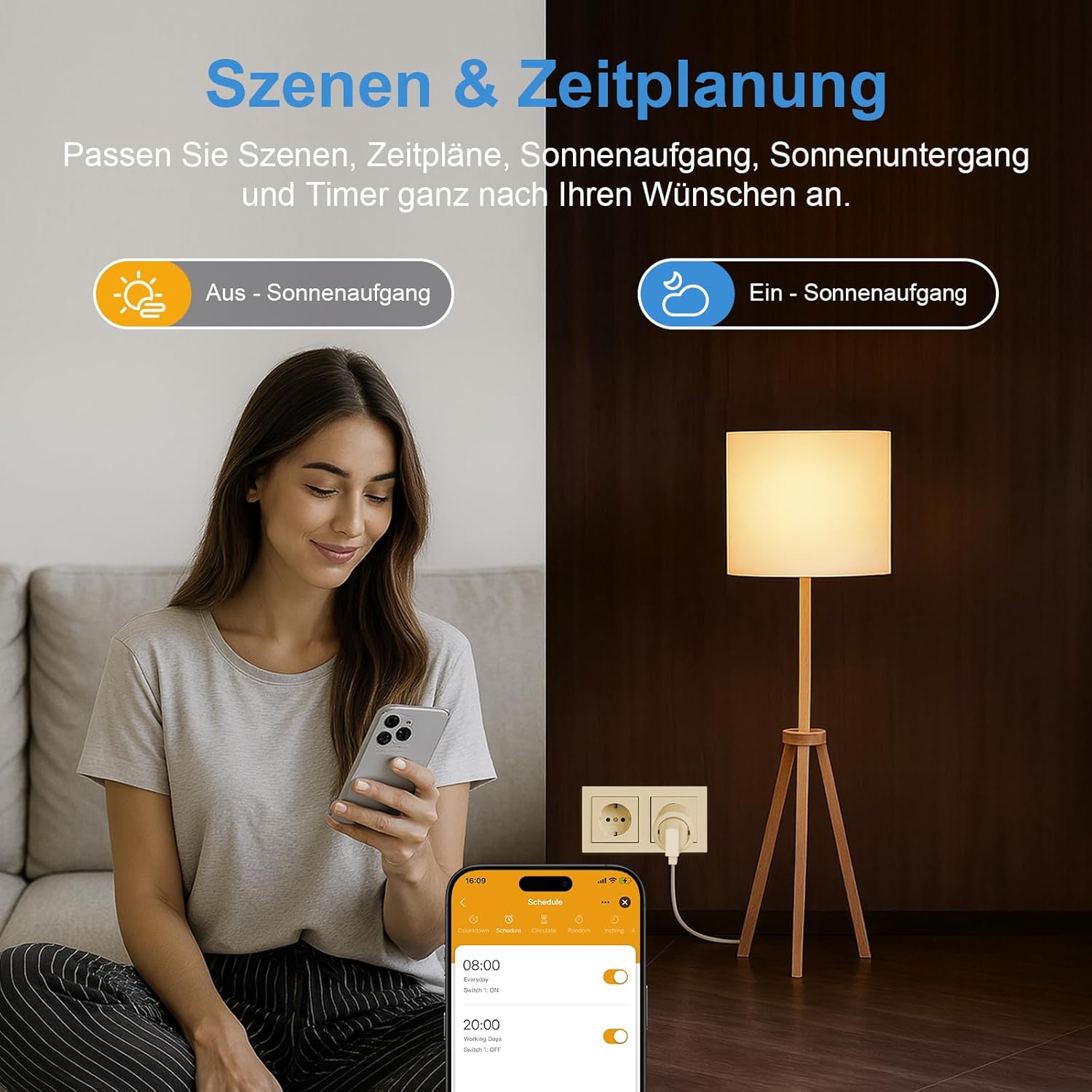
Figure 4: Setting up schedules and scenes for the smart plug using the mobile application.
4.2 Voice Control
Integrate your smart plug with Amazon Alexa or Google Assistant for hands-free control:
- Ensure your smart plug is linked to your Alexa or Google Home account through the respective app.
- Use commands such as:
- "Alexa, turn on the living room light."
- "Hey Google, turn off the fan."

Figure 5: Demonstrating voice control with Amazon Alexa to operate a device connected to the smart plug.
4.3 Manual Control
The smart plug features a physical power button. Press this button to manually turn the connected device on or off.
5. Maintenance
- Cleaning: Disconnect the smart plug from the power outlet before cleaning. Use a dry, soft cloth to wipe the surface. Do not use liquid cleaners or abrasive materials.
- Factory Reset: If you need to restore the plug to its factory settings, press and hold the physical button on the plug for several seconds until the indicator light behaves as it did during initial setup (e.g., rapid flashing). This will unpair the device from your network.
6. Troubleshooting
- Plug Not Connecting or Unreliable:
- Verify that your network is 2.4GHz. The plug only supports 2.4GHz Wi-Fi.
- Check your router settings to ensure the network has not been modified in a way that prevents the plug from being controlled.
- If there are too many devices on your network, it might degrade the signal.
- Restart your router. This can often resolve network signal degradation and delayed control issues.
- Perform a factory reset (long press the button on the plug) and attempt to re-pair the device.
- Delayed Control: Network signal degradation or router caching issues can cause delays. Restarting your router is recommended.
- App Compatibility: Ensure your mobile device supports iOS 8.0 or higher, or Android 4.4 or higher.
7. Specifications
| Specification | Value |
|---|---|
| Model Number | BSD48 |
| Brand | SURFOU |
| Color | White |
| Product Dimensions (L x W x H) | 5 x 5 x 8 cm |
| Weight | 90 grams |
| Voltage | 230 Volts |
| Material | Acrylonitrile Butadiene Styrene (ABS) |
| Connector Type | Plug In System |
| Number of Poles | 2 |
| Number of Wires | 2 |
| Wi-Fi Support | 2.4 GHz only |
| Manufacturer | SURFOU |
| Country of Origin | China |
8. Warranty and Support
For warranty information or technical support, please refer to the product packaging or contact SURFOU customer service directly. Contact details can typically be found on the manufacturer's official website or within the Smart Life application's help section.


