
Introduction
This manual provides instructions for the Smartby Universal Remote Control, designed for use with a wide range of LG Smart TVs. This remote offers a convenient replacement for your original LG TV remote, requiring no complex setup or programming.
It is compatible with various LG Smart TV models, including LCD, LED, OLED, UHD, HDTV, Plasma, Magic, 3D, 4K, and WebOS TVs. Specific compatible LG remote models include AKB75095307, AKB75375604, AKB75675304, AKB74915305, AKB76037601, AKB75675313, AKB75855501, AKB76037002, AKB73715608, AKB74475401, AGF76631064, AKB74915324, AKB73715601, and AKB75095308.
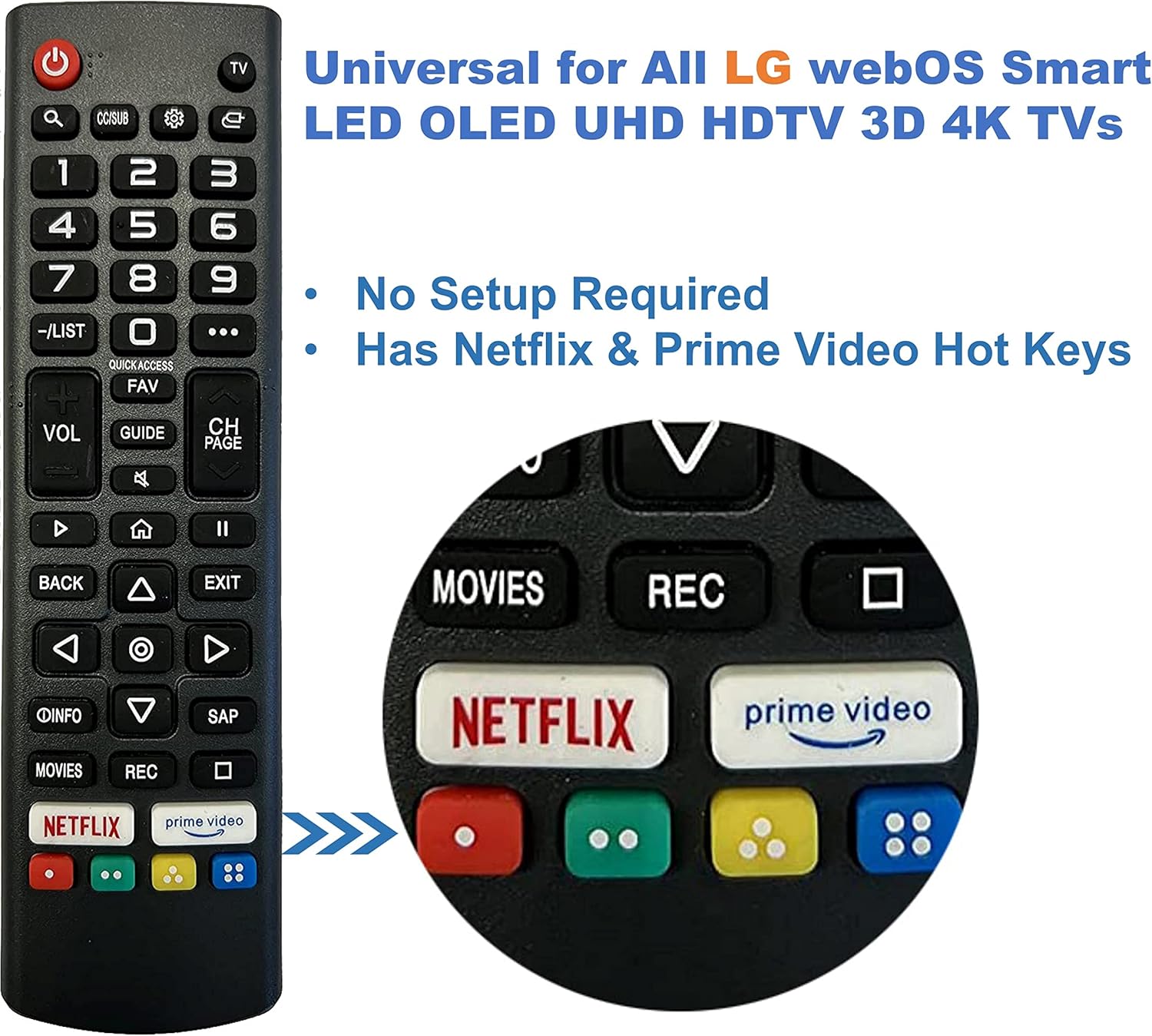
Image: The Smartby Universal Remote Control, highlighting its compatibility with LG webOS Smart LED OLED UHD HDTV 3D 4K TVs.
Setup
Battery Installation
- Locate the battery compartment on the back of the remote control.
- Slide open the battery compartment cover.
- Insert two AAA batteries (not included), ensuring the positive (+) and negative (-) terminals align correctly with the markings inside the compartment.
- Close the battery compartment cover securely.
The Smartby Universal Remote Control is pre-programmed and requires no additional setup or programming. Once batteries are installed, it is ready for immediate use with your compatible LG Smart TV.

Image: The Smartby Universal Remote Control (left) demonstrating its ability to replace various original LG Smart TV remotes (right).
Operating Instructions
Familiarize yourself with the functions of each button on your Smartby Universal Remote Control:

Image: Detailed view of the remote control with button functions labeled.
- Power Button: TV POWER ON/OFF.
- TV: Switch to TV input.
- Q. Search: Search function.
- CC/SUB: Enable/disable subtitles.
- Settings Gear Icon: Enters the Quick Settings menu.
- Input Icon: Selects an input source.
- 0-9: Number selection keys.
- -/LIST: The QUICK ACCESS edit screen appears.
- ... (More): Displays additional buttons on the remote control.
- VOL +/-: Volume UP/Down.
- CH PAGE +/-: Channel UP/Down.
- QUICK ACCESS / FAV: Show the favorite channel list.
- GUIDE: Check the program guide.
- Mute Icon: Mutes the sound.
- Play Triangle: Play.
- Home Icon: Displays the Home menu.
- Pause ||: Pause.
- BACK: Move to the previous step.
- EXIT: Closes the menu.
- OK Circle: Select current option that is highlighted.
- Directional Arrows (Up, Down, Left, Right): Navigate on-screen menus.
- INFO: Press to display information to the TV screen.
- SAP: Screen remote Call.
- MOVIES: Search Movies.
- REC: Launch Record Playback.
- NETFLIX: Direct access to Netflix.
- prime video: Direct access to Prime Video.
- Colored Buttons (Red, Green, Yellow, Blue): Corresponds to various color functions in the menu or teletext.
Maintenance
Cleaning
To clean your remote control, gently wipe it with a soft, dry cloth. Do not use liquid cleaners, sprays, or abrasive materials, as these can damage the remote's surface or internal components.
Battery Replacement
Replace batteries when the remote's response becomes sluggish or stops working. Always replace both batteries at the same time with new AAA batteries. Do not mix old and new batteries, or different types of batteries.
Storage
Store the remote control in a cool, dry place away from direct sunlight and extreme temperatures. If the remote will not be used for an extended period, it is recommended to remove the batteries to prevent leakage.
Troubleshooting
- Remote not responding:
- Ensure batteries are inserted correctly with the correct polarity (+/-).
- Replace old batteries with new ones.
- Check for any obstructions between the remote and the TV's infrared receiver.
- Ensure the TV is powered on.
- Limited range or intermittent response:
- Ensure you are within a reasonable distance from the TV. Some older LG TV models may require closer proximity (e.g., within 2 feet) for optimal signal reception.
- Check for strong light sources (like direct sunlight or bright fluorescent lights) that might interfere with the infrared signal.
- Specific buttons not working:
- Verify that the button is clean and free from debris.
- If only certain buttons fail, it might indicate a fault with the remote. Consider replacing the remote.
Specifications
| Brand | Smartby |
|---|---|
| Model Number | SMTB-LG-WebOS AKB76037002 |
| Compatible Devices | LG Smart TVs (LCD, LED, OLED, UHD, HDTV, Plasma, Magic, 3D, 4K, WebOS TVs) |
| Special Feature | No Programming Required, Universal |
| Color | Black |
| Product Dimensions | 6.5 x 1.8 x 0.6 inches |
| Item Weight | 0.634 ounces |
| Max Number of Supported Devices | 1 |
Warranty and Support
For any questions, concerns, or support regarding your Smartby Universal Remote Control, please contact the manufacturer, Smartby, through your original point of purchase or their official customer service channels. Please refer to your purchase documentation for specific warranty details, as these may vary.