1. Introduction
Welcome to the user manual for your new BLU F91 5G smartphone. This guide provides detailed instructions on how to set up, operate, maintain, and troubleshoot your device. The BLU F91 5G is designed to offer a seamless and powerful mobile experience with its advanced features, including 5G connectivity, a long-lasting battery, a vibrant Full HD+ display, and a versatile quad-camera system.

Image: Front and back view of the BLU F91 5G smartphone, showcasing its sleek design and camera module.
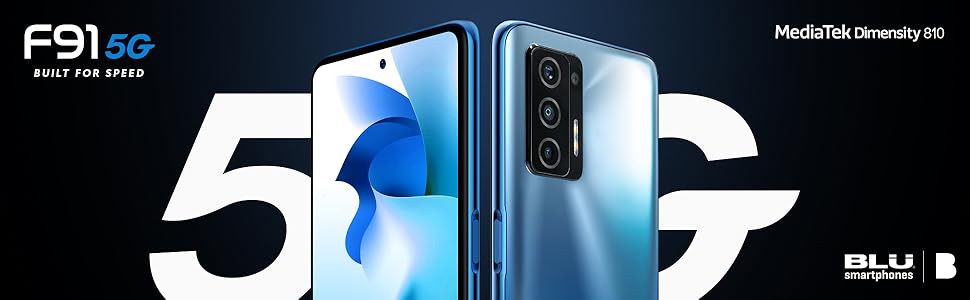
Image: Promotional graphic highlighting the BLU F91 5G's speed capabilities.
2. What's in the Box
Upon opening your BLU F91 5G package, please verify that all the following items are included:
- BLU F91 5G Smartphone
- Screen Protector (pre-applied or included separately)
- Rugged Case
- Quick Guide
- Sticker Charger (Power Adapter)
- Type-C Cable (USB-C)
- Headset
- SIM Key (Ejector Tool)

Image: All items included in the BLU F91 5G retail packaging.
3. Setup
3.1 Inserting the SIM Card
The BLU F91 5G is an unlocked GSM device. It is compatible with T-Mobile, Metro PCS, and other GSM carriers. It is not compatible with AT&T, Cricket, or CDMA networks like Verizon, Sprint, and Boost Mobile.
- Locate the SIM card tray on the side of your phone.
- Insert the SIM key (ejector tool) into the small hole next to the tray and press gently until the tray pops out.
- Place your Nano-SIM card(s) into the designated slots on the tray. Ensure the gold contacts are facing down and the notched corner aligns correctly.
- Carefully push the tray back into the phone until it clicks into place.
3.2 Initial Power On and Basic Setup
- Press and hold the Power button (located on the right side of the phone) until the BLU logo appears.
- Follow the on-screen prompts to select your language, connect to a Wi-Fi network, and set up your Google account.
- You may be prompted to transfer data from an old device or set up as a new phone.
3.3 Charging the Device
Your BLU F91 5G comes with a 5,000mAh battery, providing up to 3 days of usage. It supports 18W Quick Charging and 10W Wireless Charging.
- Wired Charging: Connect the provided Type-C cable to the phone's charging port and the other end to the included power adapter. Plug the adapter into a wall outlet.
- Wireless Charging: Place the phone face up on a compatible 10W wireless charging pad (sold separately). Ensure the phone is centered on the pad for optimal charging.
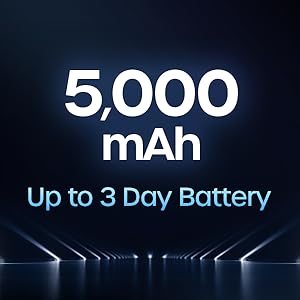
Image: Illustration of the 5,000 mAh battery capacity and its extended life.
4. Operating Your BLU F91 5G
4.1 Android 11 Operating System
Your BLU F91 5G runs on Android 11, offering intuitive controls, enhanced privacy features, and improved performance. Navigate through apps, customize your home screen, and manage notifications with ease.

Image: The Android 11 operating system logo.
4.2 Display and Visuals
Experience boundless views on the 6.8-inch Full HD+ Infinity Dot Display. With a resolution of 1920 x 1080 pixels and a 91.7% screen-to-body ratio, content appears vibrant and immersive.

Image: Details of the BLU F91 5G's display specifications.
4.3 Camera System
Capture stunning photos and videos with the Quad A.I. 48MP Samsung GM1 sensor camera. The rear camera setup includes:
- 48MP HD Main Camera: Samsung GM1, 6P lens, f/1.79 large aperture.
- 5MP Wide-Angle Camera: 115° wide angle, 4P lens, f/2.4 aperture.
- 2MP Macro Camera: 4cm focus, 3P lens, f/2.4 aperture.
- 2MP Depth Camera: 3P lens, f/2.4 aperture.
The front-facing camera allows for high-quality selfies.
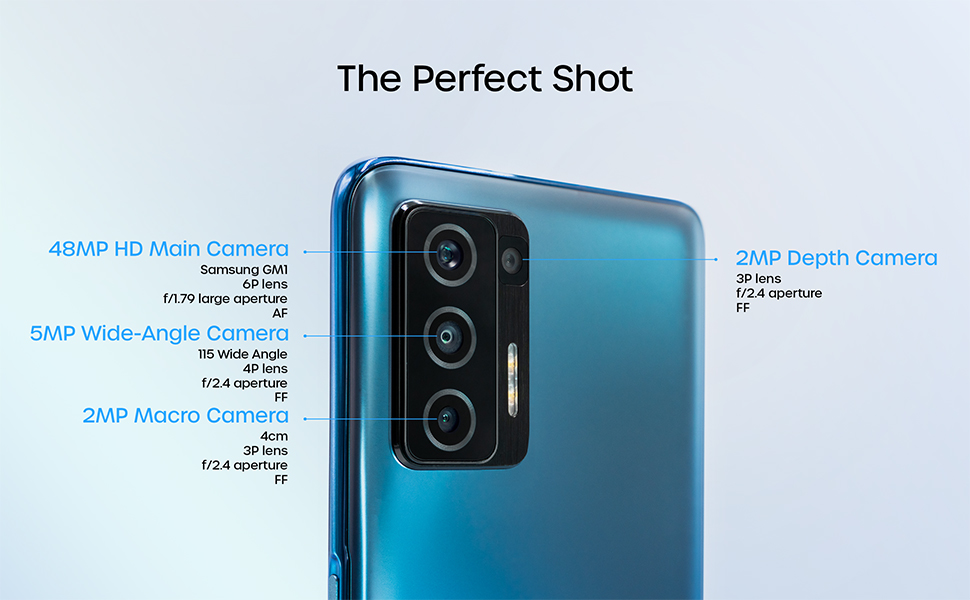
Image: Detailed breakdown of the BLU F91 5G's quad-camera system.
4.4 NFC and Contactless Payments
The BLU F91 5G is NFC capable, allowing you to make secure contactless payments using built-in Android Pay. Simply tap your phone at compatible payment terminals.
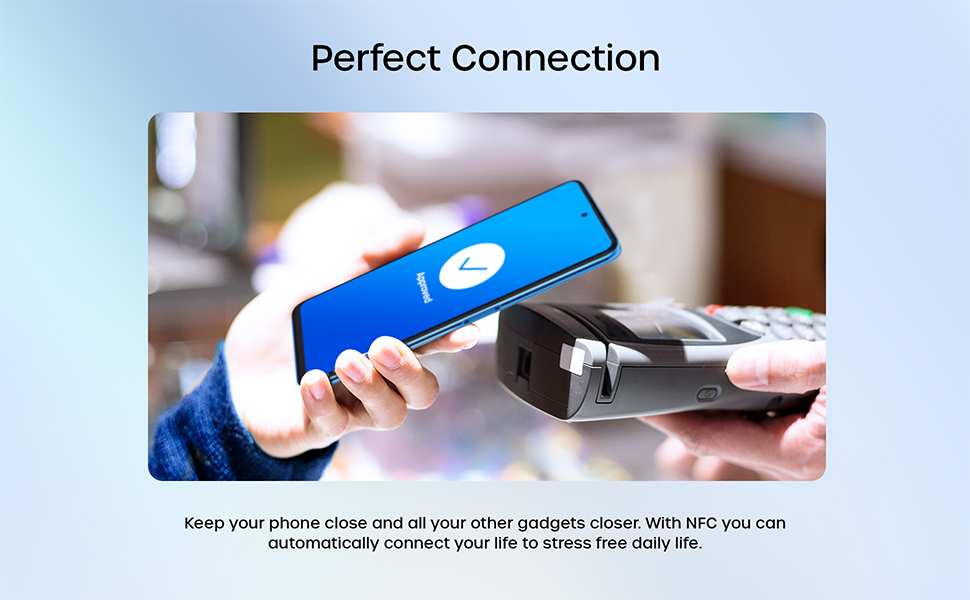
Image: Demonstrating NFC functionality for contactless payments.
4.5 Performance and Storage
Powered by the MediaTek Dimensity 810 Octa-Core 2.4GHz processor and 8GB of RAM, the F91 5G delivers smooth performance for multitasking and gaming. With 128GB of internal memory, you have ample space for apps, photos, and videos.
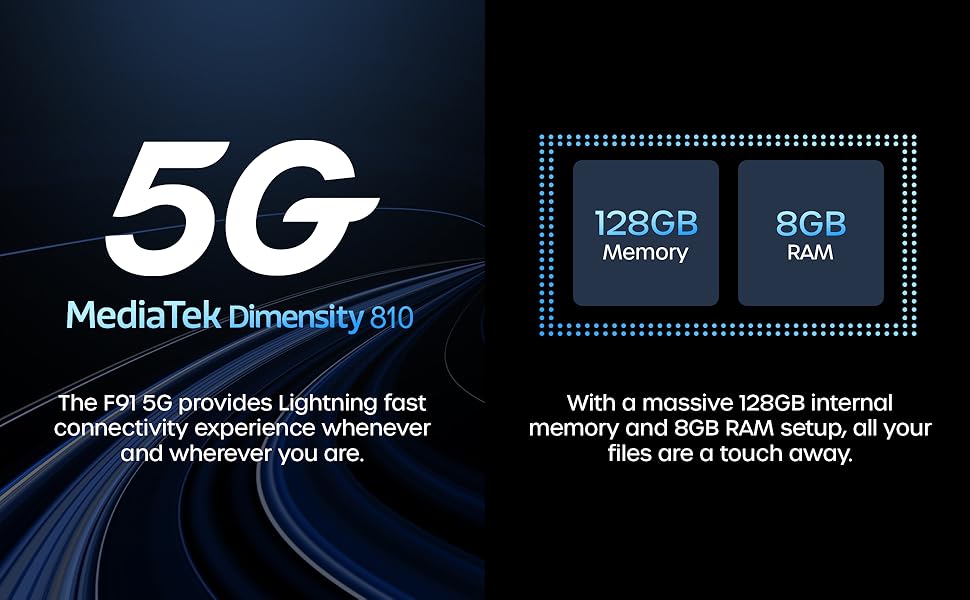
Image: Overview of the BLU F91 5G's processor, RAM, and storage capabilities.
4.6 Security Features
The BLU F91 5G includes modern security features to protect your data, such as facial recognition for convenient unlocking.
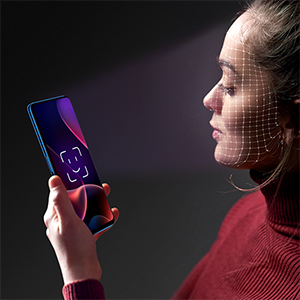
Image: Demonstrating the facial recognition unlock feature.
5. Maintenance
5.1 Cleaning Your Device
To keep your BLU F91 5G in optimal condition, regularly clean its surfaces. Use a soft, lint-free cloth. For stubborn smudges, slightly dampen the cloth with water or a screen cleaner designed for electronics. Avoid harsh chemicals or abrasive materials.
5.2 Software Updates
Ensure your device is always running the latest software version for optimal performance, security, and new features. You can check for updates by navigating to Settings > System > System update.
5.3 Battery Care
To prolong the life of your 5,000mAh battery:
- Avoid extreme temperatures.
- Do not let the battery completely drain frequently.
- Use the original charger and cable for optimal charging.
5.4 Storage Management
With 128GB of internal storage, you have ample space. However, regularly review your installed apps, photos, and videos. Delete unnecessary files or transfer them to cloud storage or a computer to maintain optimal performance.
6. Troubleshooting
This section addresses common issues you might encounter with your BLU F91 5G. If you experience problems not covered here, please refer to the official BLU support resources.
| Problem | Possible Solution |
|---|---|
| Device won't turn on | Ensure the battery is charged. Connect the charger and wait a few minutes before attempting to power on again. If unresponsive, perform a forced restart by holding the Power button for 10-15 seconds. |
| Poor network signal / No service | Check if your SIM card is properly inserted. Verify that your carrier is supported (GSM only, not compatible with AT&T, Cricket, Verizon, Sprint, Boost Mobile). Try restarting the phone. If the issue persists, contact your mobile carrier. |
| Apps crashing or freezing | Close and reopen the app. Clear the app's cache (Settings > Apps & notifications > [App Name] > Storage & cache > Clear cache). Ensure the app and your phone's software are up to date. |
| Battery drains quickly | Reduce screen brightness, disable unnecessary background apps, turn off Wi-Fi/Bluetooth/GPS when not in use. Check battery usage in Settings to identify power-hungry apps. |
| Phone is slow or unresponsive | Clear cache, restart the device. Free up storage space by deleting old files or uninstalling unused apps. Consider a factory reset as a last resort (Note: This will erase all data). |
7. Specifications
Below are the key technical specifications for the BLU F91 5G smartphone:
| Feature | Detail |
|---|---|
| Model Name | F91 5G |
| Item Model Number | F0030UU |
| Operating System | Android 11.0 |
| Processor | MediaTek Dimensity 810 Octa-Core 2.4GHz (Cortex A76) |
| RAM | 8 GB |
| Internal Storage | 128 GB |
| Display Size | 6.8 Inches |
| Display Resolution | 1920 x 1080 (Full HD+) |
| Main Camera | 48MP Quad Camera (Samsung GM1 sensor) |
| Front Camera | 16MP Selfie Camera |
| Battery Capacity | 5000 mAh (Milliampere Hour) |
| Charging | 18W Quick Charging, 10W Wireless Charging |
| Connectivity | 5G, LTE, GSM, HSPA, Bluetooth, NFC, USB, Wi-Fi, GPS |
| Wireless Carrier Compatibility | Unlocked for GSM Carriers (T-Mobile, Metro PCS, etc.) |
| Color | Oceanic Blue |
| Item Weight | 0.176 ounces (approx. 4.99 g) |
| Dimensions | 7.32 x 3.94 x 2.05 inches (Package Dimensions) |
8. Warranty and Support
The BLU F91 5G comes with a US Warranty. For specific warranty terms, conditions, and duration, please refer to the warranty card included in your product packaging or visit the official BLU Products website. For technical support, software updates, or further assistance, please contact BLU customer service through their official channels.
You can find more information and support resources on the official BLU website: www.bluproducts.com


