Introduction
This MAIWO NVMe Cloner M.2 Duplicator is designed for efficient data management, supporting concurrent reading and writing of two M.2 NVMe SSDs. It is compatible with various NVMe SSD sizes (2230/2242/2260/2280/22110mm) and operates seamlessly across Windows, macOS, Linux, and devices such as laptops, desktops, tablets, smart TVs, PS4, PS5, and Xbox. The device offers both online data access and offline cloning functionalities with high-speed data transfer.
Package Contents
- 1x Dual Bay PCIe NVMe M.2 SSD Docking Station with Clone Function
- 1x 10Gbps USB-C to USB-C Data Cable (80cm)
- 1x USB-C to USB-A Power Cable (80cm)
- 1x 5V/3A Charger Plug
- 1x User Manual
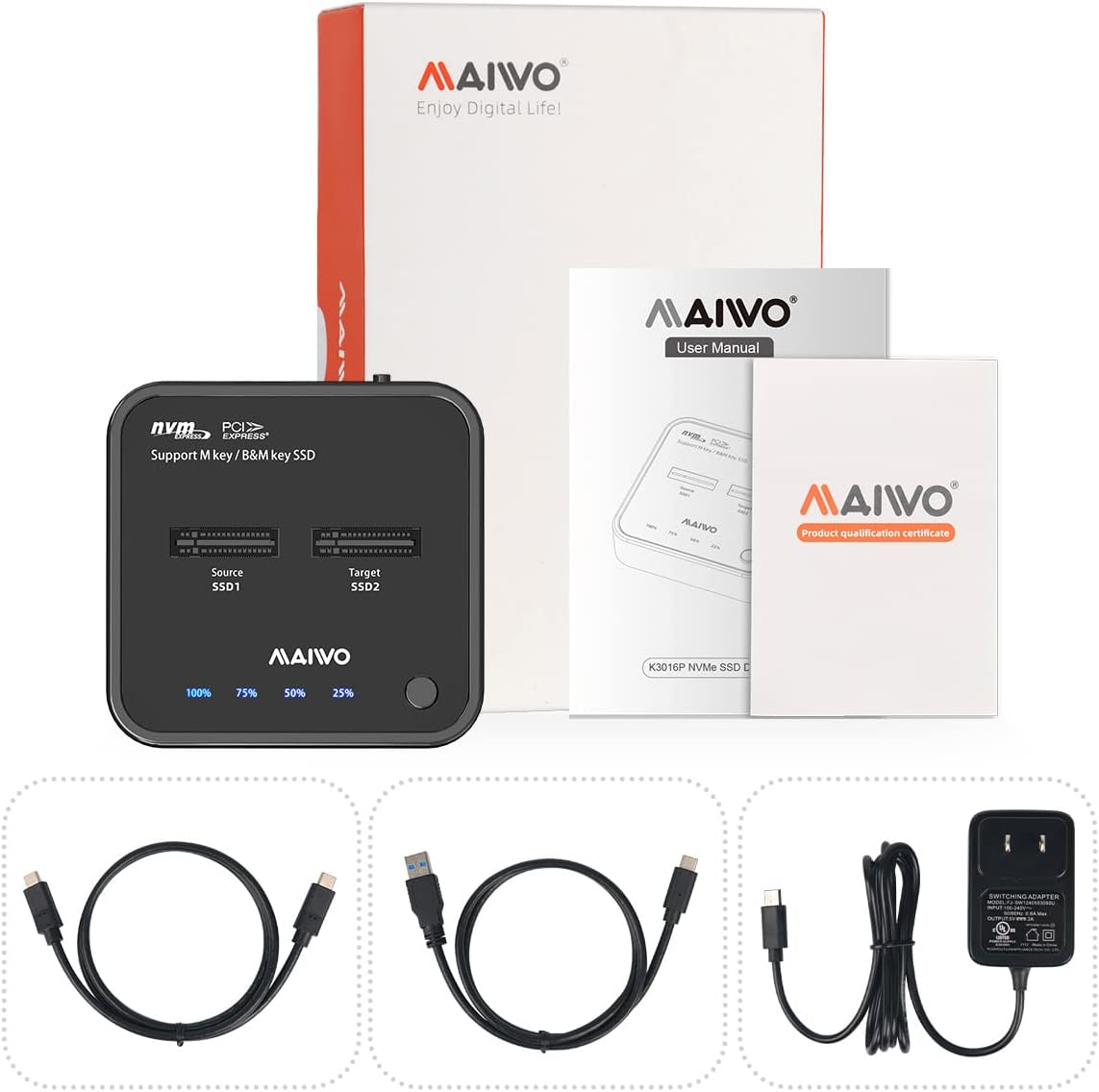
Image: MAIWO NVMe Cloner package contents including the duplicator, cables, power adapter, and user manual.
Product Overview
The MAIWO M.2 NVMe 2 Bay SSD Duplicator features a compact, vertical design for efficient heat dissipation. It includes two M.2 NVMe slots labeled 'Source SSD1' and 'Target SSD2', along with LED indicators for cloning progress (25%, 50%, 75%, 100%). The device is equipped with a power button, a USB-C port for PC connection, and a DC 5V input for power.

Image: Top view of the MAIWO NVMe Cloner with two M.2 NVMe slots, cloning progress indicators, and a clone button.

Image: Back view of the MAIWO NVMe Cloner showing the power button, USB-C port, and DC 5V power input.
Setup
- Insert SSDs: Gently insert your M.2 NVMe SSDs into the designated 'Source SSD1' and 'Target SSD2' slots. Ensure they are M-Key NVMe SSDs, as M.2 SATA protocol is not supported.
- Connect Power: Connect the provided 5V/3A power adapter to the DC 5V input port on the duplicator and plug it into a power outlet.
- Power On: Press the power button located on the device. The LED indicators should light up.
- For PC Connection (Data Access Mode): Use the provided 10Gbps USB-C to USB-C or USB-C to USB-A data cable to connect the duplicator to your computer. Your SSDs should be recognized by the operating system.

Image: Diagram illustrating the insertion of SSDs, connecting the docking station to power and a computer, and the computer recognizing the SSDs.
Operating Instructions
Offline Clone Mode
- Prepare Drives: Insert the Source SSD into 'SSD1' slot and the Target SSD into 'SSD2' slot.
- Capacity Requirement: Ensure the capacity of the Target SSD is equal to or larger than the Source SSD.
- Disconnect from PC: IMPORTANT: Do NOT connect the docking station to a PC or any other device via data cable during the cloning process.
- Initiate Clone:
- Connect the power adapter and turn on the device. Wait until all SSD indicators light up in white.
- Long-press the 'Clone' button for 3-5 seconds until the 25%-100% blue LEDs light up.
- Immediately press the 'Clone' button ONCE again. The 25%-100% LEDs will flash circularly, and SSD indicators will flash, signaling the start of the cloning process.
- Monitor Progress: The LED indicators (25%, 50%, 75%, 100%) will illuminate sequentially to show the cloning progress.
- Completion: All SSD indicators and 25%-100% indicators will light up without flashing, indicating that the clone process is complete.

Image: Two M.2 NVMe SSDs inserted into the duplicator for offline cloning, with the source and target clearly marked.

Image: Two options for initiating the offline cloning process are shown, detailing the sequence of pressing and holding the clone button.

Image: All LED indicators are lit up without flashing, signifying the completion of the cloning process.
Official Product Videos
Video: This video provides a detailed overview of the M.2 NVMe SSD Cloner and Dual Bay Docking Station, demonstrating its features and usage.
Video: This video showcases the M.2 NVMe Duplicator Cloner Docking Station, highlighting its design and functionality for duplicating SSDs.
Maintenance
The MAIWO NVMe Cloner features a vertical insertion design and an integrated aluminum metal cooling mat to expedite heat dissipation. Additional silicone and aluminum cooling mats are included to further curtail heat during operation and safeguard the drives. Regularly ensure the cooling mats are properly placed for optimal performance and drive longevity.
Troubleshooting
- Cloning Failure: Ensure the Target SSD's capacity is equal to or larger than the Source SSD's capacity. Also, verify that the device is NOT connected to a PC during the offline cloning process.
- SSD Not Recognized: Confirm that you are using an M-Key NVMe SSD. This model does not support M.2 SATA protocol.
- Overheating: While some warmth during operation is normal, ensure the included cooling mats are properly installed to assist with heat dissipation.
- Power Issues: Verify the 5V/3A power adapter is correctly connected and functioning.
Specifications
| Feature | Detail |
|---|---|
| Product Dimensions | 3.09 x 3.01 x 0.75 inches |
| Item Weight | 0.33 Pounds (5.3 ounces) |
| Hardware Interface | USB 3.1 Type C |
| Compatible Devices | Desktop, Laptop, Tablet, Xbox, Smart TV, Router, Phone, PS4, PS5, MacBook Air, MacBook Pro, iPad |
| Total USB Ports | 1 |
| Number of Ports | 2 (for M.2 NVMe SSDs) |
| Input Voltage | 5 Volts |
| Max Capacity | 2x 8TB (16TB total) |
| Features | Tool-Free, Plug and Play, Independent 5V 3A Power Adapter, 10mins Auto Sleep, LED Indicator, Compact Mini Size |
Warranty and Support
For warranty information, technical support, or any inquiries regarding your MAIWO M.2 NVMe 2 Bay SSD Duplicator, please refer to the official MAIWO website or contact their customer service department. Keep your purchase receipt for warranty claims.


