
1. Introduction
This manual provides detailed instructions for setting up, operating, and maintaining your DEKCO 2K Outdoor Security Camera (Model DC5L). This camera features 2K QHD resolution, 360-degree pan-tilt motion tracking, full-color night vision, two-way audio, and is designed for outdoor use with an IP66 waterproof rating. Please read this manual thoroughly before use to ensure proper functionality and safety.
2. Package Contents
- DEKCO 2K Outdoor Security Camera (Model DC5L)
- Power Adapter
- Mounting Screws and Wall Plugs
- Mounting Template
- User Manual (this document)

Image 2.1: DEKCO 2K Outdoor Security Camera and included accessories.
3. Product Overview
The DEKCO DC5L camera is engineered for comprehensive outdoor surveillance, offering advanced features for home security.
Key Features:
- 2K QHD Resolution (1296p): Provides clear and detailed video footage.
- 360° Pan & 90° Tilt: Remote rotation for wide area coverage.
- Motion Tracking & Instant Alerts: Automatically tracks moving objects and sends app notifications. Features a loud siren and strobe lights to deter intruders.
- Full-Color Night Vision: Equipped with 4 bright floodlights for infrared, full-color, or auto (smart) night vision modes.
- 2-Way Audio: Built-in microphone and speaker for real-time communication via the DEKCO App.
- IP66 Waterproof: Designed to withstand various weather conditions.
- 2.4GHz Wi-Fi Support: Connects wirelessly to your home network (5GHz Wi-Fi is not supported).
- Local Storage: Supports Micro SD card up to 128GB (not included) for continuous or event-based recording.
- Smart AI Detection: Identifies people and animals to reduce false alarms.
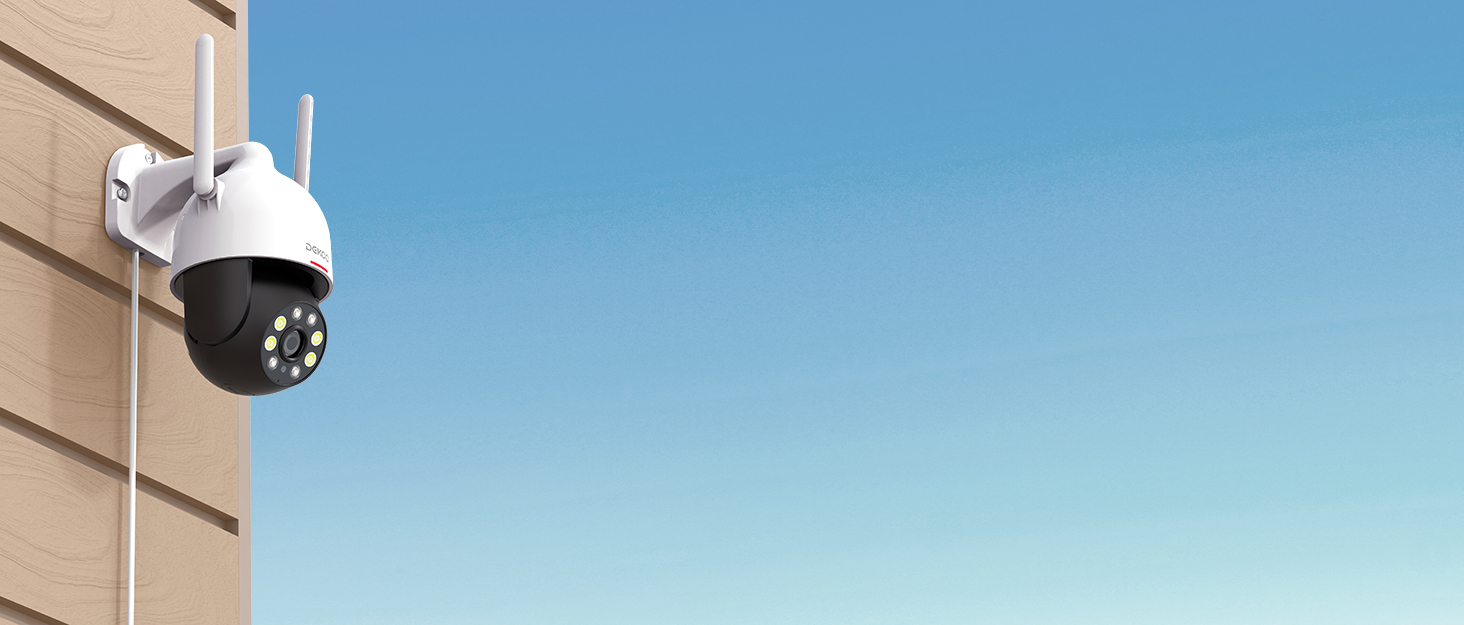
Image 3.1: The DEKCO 2K QHD Outdoor Security Camera.

Image 3.2: Visual representation of 2K QHD clarity.

Image 3.3: The camera's humanoid tracking capability.

Image 3.4: Comparison of color and infrared night vision.

Image 3.5: Using the two-way audio feature via the app.

Image 3.6: The camera is designed for rain, sun, and snow protection.
4. Setup
4.1 App Download and Account Creation
Download the official "DEKCO" app from your smartphone's app store (iOS or Android). Follow the in-app instructions to create an account and log in.
4.2 Powering On and Initial Connection
- Connect the camera to the power adapter and plug it into an electrical outlet.
- Wait for the camera's indicator light to turn blue, indicating it is ready for pairing.
- Open the DEKCO app, tap the "+" icon to add a new device, and follow the on-screen prompts to connect the camera to your 2.4GHz Wi-Fi network. Ensure your Wi-Fi signal is strong at the installation location.
Video 4.1: This video demonstrates the installation guide for an outdoor security camera, including initial setup steps.
Video 4.2: This video provides an overview of a wired security camera, including aspects relevant to its setup and continuous monitoring features.
4.3 Micro SD Card Installation
The camera supports local storage via a Micro SD card (up to 128GB, not included). Locate the SD card slot, typically protected by a rubber cover, insert the card with the contacts facing down, and ensure it clicks into place. Format the SD card through the DEKCO app settings after installation.

Image 4.1: Location of the Micro SD card slot for local recording.
4.4 Mounting the Camera
Choose a suitable outdoor location with a clear view and strong Wi-Fi signal. Use the provided mounting template to mark drill holes. Secure the mounting bracket to the wall using the screws and wall plugs. Attach the camera to the bracket, ensuring it is firmly in place. Adjust the camera's angle as needed.

Image 4.2: Example of camera mounting for optimal 360-degree viewing.
5. Operating Instructions
5.1 Live View and Pan-Tilt Control
Open the DEKCO app and select your camera to access the live view. Use the on-screen controls to pan (horizontal rotation) and tilt (vertical rotation) the camera to monitor different areas. The camera offers 360° horizontal and 90° vertical rotation.
Video 5.1: This video demonstrates the 360-degree coverage feature of the camera.
5.2 Motion Tracking and Alerts
Enable motion tracking in the app settings. The camera will automatically follow detected movement. When motion is detected, you will receive instant notifications on your smartphone. You can also configure the camera to activate a loud siren and strobe lights to deter intruders. Adjust motion detection sensitivity in the app to minimize false alarms.

Image 5.1: The camera's sound-light alarm system to deter unwanted visitors.
5.3 Two-Way Audio
From the live view in the DEKCO app, tap the microphone icon to initiate two-way audio. Speak into your phone to communicate with anyone near the camera, and listen through the camera's speaker.
5.4 Night Vision Modes
The camera offers three night vision modes: Infrared, Full-Color, and Auto (Smart). You can select your preferred mode in the app settings. Full-Color mode utilizes the built-in floodlights for clear, colored images in low light conditions.
5.5 Recording and Playback
Recordings are stored on the Micro SD card (if installed) or via optional cloud storage. Access recorded footage through the "Playback" or "History" section in the DEKCO app. You can review events by date and time.

Image 5.2: Timeline view of recorded motion events in the app.
5.6 Smart Home Integration
The DEKCO DC5L camera is compatible with smart home platforms like Alexa and Google Assistant, allowing for voice control and integration into your smart home ecosystem.

Image 5.3: The camera's compatibility with smart home voice assistants.
6. Maintenance
- Cleaning: Regularly wipe the camera lens and housing with a soft, damp cloth to remove dust and dirt. Do not use harsh chemicals.
- Firmware Updates: Check the DEKCO app periodically for firmware updates to ensure optimal performance and security.
- Connection Check: Periodically verify the camera's Wi-Fi connection and power supply to ensure continuous operation.
- SD Card Management: If using an SD card, regularly back up important footage and consider formatting the card periodically through the app to maintain performance.
7. Troubleshooting
7.1 Camera Not Connecting to Wi-Fi
- Ensure your Wi-Fi network is 2.4GHz. The camera does not support 5GHz Wi-Fi.
- Check that the camera is within range of your Wi-Fi router and has a strong signal.
- Verify the Wi-Fi password entered in the app is correct.
- Restart your router and the camera, then attempt to reconnect.

Image 7.1: The camera requires a 2.4GHz Wi-Fi connection.
7.2 Poor Video Quality or Night Vision
- Clean the camera lens to remove any obstructions or smudges.
- Ensure adequate lighting for full-color night vision. If it's too dark, switch to infrared mode.
- Check your Wi-Fi signal strength; a weak signal can affect video streaming quality.
7.3 Motion Detection Issues
- Adjust the motion detection sensitivity in the DEKCO app.
- Ensure there are no objects (e.g., tree branches, flags) that could cause false triggers within the detection zones.
- Verify that motion tracking is enabled in the app settings.
7.4 Camera Not Responding
- Check the power connection and ensure the camera is receiving power.
- Restart the camera by unplugging and re-plugging the power adapter.
- If the issue persists, perform a factory reset (refer to the app or product for specific reset instructions).
8. Specifications
| Feature | Specification |
|---|---|
| Model Number | DC5L |
| Resolution | 2K QHD (1296p), 3 MP Effective Still Resolution |
| Pan/Tilt Range | 360 Degrees Field of View (Pan), 90 Degrees Viewing Angle (Tilt) |
| Connectivity | Wireless (2.4GHz Wi-Fi only) |
| Night Vision | Full-Color Night Vision (with floodlights), Infrared |
| Audio | 2-Way Audio |
| Waterproof Rating | IP66 |
| Storage | Micro SD Card (up to 128GB, not included) |
| Power Source | Corded Electric (12 Volts DC) |
| Frame Rate | 15 fps |
| Zoom Type | Digital Zoom (4X) |
| Compatible Devices | Smartphone, Tablet |
| Material | Plastic |
| Item Dimensions | 33 x 14 x 19.8 Centimetres |
9. Warranty & Support
9.1 Manufacturer Warranty
The DEKCO 2K Outdoor Security Camera (Model DC5L) comes with a 1-year manufacturer warranty from the date of purchase. Please retain your proof of purchase for warranty claims.
9.2 Customer Support
For any questions, technical assistance, or warranty inquiries, please contact the DEKCO customer support team:
- Phone: 1-877-277-5797
- Online Support: Refer to the "DekcoCare" Online Support Team mentioned in the app or product packaging for further contact options.


