
1. Introduction
This manual provides detailed instructions for the installation, operation, and maintenance of your WOSTOKE 9-inch Octa-Core CarPlay Android Auto Head Unit. Please read this manual thoroughly before using the device to ensure proper functionality and to prevent damage.
2. Product Overview
The WOSTOKE 9-inch Octa-Core Head Unit is an advanced in-dash media player designed to enhance your driving experience. It features a 9-inch IPS touchscreen display, an Octa-Core processor, 6GB RAM, and 128GB internal storage. Key functionalities include CarPlay, Android Auto, GPS navigation, Bluetooth connectivity, FM/AM radio, and support for a car reverse camera.
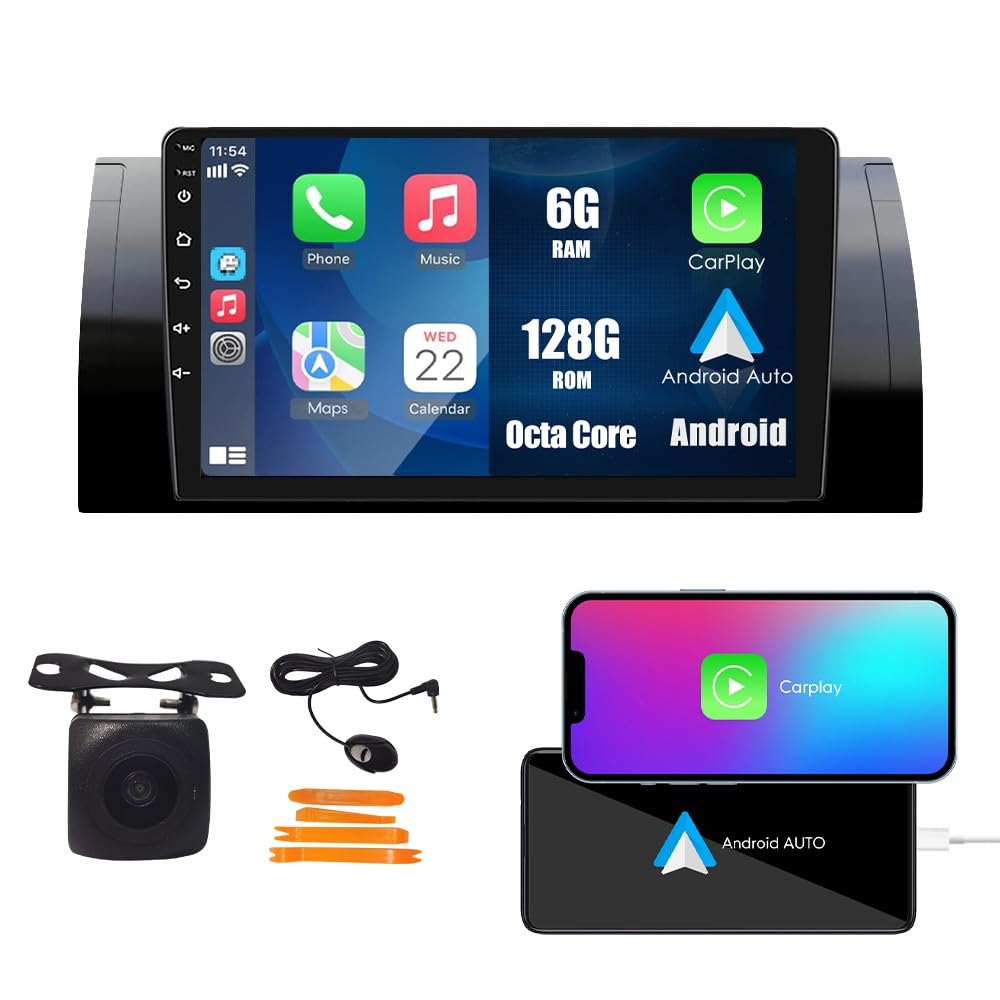
Image 2.1: Front view of the WOSTOKE 9-inch Octa-Core Head Unit.
3. Vehicle Compatibility
This head unit is designed for specific BMW models. Please verify your vehicle's compatibility before installation.
- BMW M5 E39: 1995, 1996, 1997, 1998, 1999, 2000, 2001, 2002, 2003
- BMW X5 E53: 2000, 2001, 2002, 2003, 2004, 2005, 2006, 2007

Image 3.1: Diagram showing compatibility with BMW M5 E39 and X5 E53 models.
4. Key Features
- CarPlay/Android Auto: Seamless integration with iOS and Android devices for navigation, music, calls, and voice assistant control.
- GPS Navigation: Real-time satellite GPS with support for various navigation applications.
- Connectivity: Built-in Wi-Fi for internet access and app downloads, Bluetooth for hands-free calling and audio streaming, USB connectivity.
- Multimedia: Video playback, music streaming, FM/AM/RDS radio.
- Steering Wheel Control (SWC): Supports integration with existing vehicle steering wheel controls for convenient operation.
- Car Reverse Camera Support: Input for a rear-view camera to assist with parking and reversing.
- High Performance: Octa-Core processor with 6GB RAM and 128GB ROM for smooth operation and ample storage.
5. Setup and Installation
Professional installation is recommended for this device. Ensure the vehicle's power is disconnected before beginning installation.
5.1 Package Contents
Verify that all components are present in the package:
- 9-inch Head Unit
- Power Cable
- Canbus Cable Plug
- Camera Input Cable
- USB Cable (4-pin)
- USB Cable (6-pin)
- GPS Antenna
- RCA Wire Harness
- AHD Reverse Camera (Gift)
- External Mic (Gift)
- Crowbar (Gift)

Image 5.1: All items included in the product package.
5.2 Installation Steps (General)
- Carefully remove the original car stereo unit from your vehicle's dashboard.
- Connect the provided power cable and Canbus cable plug to the corresponding ports on the new head unit and the vehicle's wiring harness.
- Connect the GPS antenna, USB cables, and RCA wire harness as needed for desired functionalities.
- If installing a reverse camera, route the camera input cable and connect the camera to the rear of the vehicle and the head unit.
- Carefully mount the new head unit into the dashboard opening, ensuring all connections are secure and no wires are pinched.
- Reconnect the vehicle's power and test all functions before fully reassembling the dashboard.

Image 5.2: Visual comparison of the dashboard before and after installing the head unit.
6. Operating Instructions
6.1 Basic Operation
- Power On/Off: Press and hold the power button (usually on the front panel) to turn the unit on or off.
- Touchscreen: Navigate the interface by tapping, swiping, and pinching on the 9-inch IPS touchscreen.
- Volume Control: Adjust volume using the physical buttons or on-screen controls.
6.2 CarPlay and Android Auto
Connect your iPhone or Android smartphone via USB to activate CarPlay or Android Auto. This allows you to access phone features, navigation, music, and messaging directly on the head unit's display.

Image 6.1: Display showing the CarPlay and Android Auto interfaces.
6.3 GPS Navigation
The unit comes with pre-installed navigation capabilities. Connect to Wi-Fi for real-time traffic updates and map downloads. You can use various navigation apps available on the Android system.

Image 6.2: Screen displaying GPS navigation with map applications.
6.4 Bluetooth Functionality
Pair your smartphone via Bluetooth for hands-free calling and wireless audio streaming. Access your phone's contact list and call history directly from the head unit.

Image 6.3: Interface showing Bluetooth call and music playback features.
6.5 FM/AM/RDS Radio
Tune into your favorite radio stations. The RDS (Radio Data System) feature provides additional information like station name and song title where available. Long press to save preferred stations.

Image 6.4: Display showing the FM/AM/RDS radio tuner.
6.6 Steering Wheel Control (SWC)
Configure the head unit to work with your vehicle's existing steering wheel controls. This allows you to manage audio, calls, and other functions without taking your hands off the wheel.

Image 6.5: Screen illustrating the steering wheel control learning interface.
6.7 Car Reverse Camera
When a compatible reverse camera is connected, the display automatically switches to the camera view when the vehicle is put into reverse gear, providing visual assistance for parking.

Image 6.6: Display showing the rear-view camera feed with parking guidelines.
7. Maintenance
- Screen Cleaning: Use a soft, lint-free cloth to clean the touchscreen. Avoid abrasive cleaners or solvents.
- Software Updates: Periodically check for software updates via Wi-Fi to ensure optimal performance and access to new features.
- General Care: Avoid exposing the unit to extreme temperatures, direct sunlight for prolonged periods, or excessive moisture.
8. Troubleshooting
| Problem | Possible Cause | Solution |
|---|---|---|
| Unit does not power on. | Incorrect wiring, blown fuse, power supply issue. | Check power connections and vehicle fuses. Consult a professional installer. |
| No sound output. | Speaker wiring issue, amplifier not connected/powered, volume too low. | Verify speaker connections and amplifier power. Adjust volume settings. |
| CarPlay/Android Auto not connecting. | Faulty USB cable, phone software issue, incorrect settings. | Try a different USB cable. Ensure phone software is updated. Check head unit settings for CarPlay/Android Auto. |
| GPS signal weak or inaccurate. | GPS antenna placement, environmental interference. | Ensure GPS antenna has a clear view of the sky. Move vehicle to an open area. |
| Touchscreen unresponsive. | Temporary software glitch. | Restart the unit by pressing the reset button (if available) or cycling vehicle ignition. |
If problems persist, please contact customer support for assistance.
9. Specifications
| Feature | Detail |
|---|---|
| Brand | WOSTOKE |
| Screen Size | 9 Inches |
| Resolution | 1024 x 600 |
| Operating System | Android |
| Memory Storage Capacity | 128 GB |
| RAM | 6 GB |
| Processor | Octa Core |
| Connectivity Technology | USB, Bluetooth, Wi-Fi |
| Map Type | North America |
| Audio Output Mode | Stereo |
| Mounting Type | Panel Mount |
| Human-Interface Input | Touch Pad, Touchscreen |
| Compatible Devices | Smartphone |
| Control Method | Touch |
| UPC | 751300647623 |
| ASIN | B09W4LT5JR |

Image 9.1: Diagram illustrating the Octa-Core processor architecture.
10. Warranty and Support
10.1 Warranty Information
This product comes with a one-year warranty covering non-human damage. Please retain your proof of purchase for warranty claims.
10.2 Customer Support
For any questions, technical assistance, or warranty claims, please contact the seller directly. Your consultation is always welcomed.