Download PDFFree PDF. The Save button below keeps a bookmark and private notes in your account.
DAREU EK807G Wireless TKL Mechanical Keyboard User Manual
Model: EK807G | Brand: DAREU
1. Introduction
This manual provides comprehensive instructions for the DAREU EK807G Wireless TKL Mechanical Keyboard. Designed for office use, this keyboard features an aluminum alloy panel, function keys, and stable 2.4G wireless connectivity, compatible with PC, Mac, and Windows systems. Please read this manual thoroughly to ensure proper use and longevity of your device.
What's in the Box
DAREU EK807G Wireless TKL Mechanical Keyboard
USB Receiver (2.4G)
Keycap Puller
User Manual
Image 1.1: The DAREU EK807G Wireless TKL Mechanical Keyboard in a typical office setup.
2. Setup
2.1 Inserting Batteries and USB Receiver
The DAREU EK807G keyboard requires two AAA batteries (not included) for operation. The 2.4G USB receiver is conveniently stored within the keyboard's battery compartment.
Locate the battery compartment cover on the underside of the keyboard.
Remove the cover to access the battery slots and the stored USB receiver.
Carefully remove the 2.4G USB receiver from its storage slot.
Insert two AAA batteries into the compartment, ensuring correct polarity (+/-).
Replace the battery compartment cover.
Image 2.1: The battery compartment and USB receiver storage on the keyboard's underside.
2.2 Connecting to Your Device
The keyboard uses a 2.4G wireless connection for stable and reliable performance.
Plug the 2.4G USB receiver into an available USB port on your computer, laptop, or tablet.
Locate the ON/OFF switch on the upper side of the keyboard.
Slide the switch to the "ON" position.
Your device should automatically detect and connect to the keyboard. No additional drivers are typically required.
Image 2.2: The keyboard features 2.4G wireless connectivity.
3. Operating Instructions
3.1 Basic Typing and Ergonomics
The DAREU EK807G features a classic TKL (Tenkeyless) 87-key layout, providing a comfortable typing experience. The keyboard is designed with an ergonomic 5° optimum slope when the folding holder is used, preventing wrist strain during long typing sessions. Anti-slide pads ensure stability.
This model is equipped with DAREU Red Switches, known for their linear and quiet operation, making them suitable for office and study environments where minimal noise is preferred.
Image 3.1: The DAREU EK807G features quiet Red Switches for comfortable typing.
3.2 Function (Fn) Key Shortcuts
The keyboard includes 12 hotkeys accessible via the Fn key, allowing for quick access to various functions.
Fn + F1: My Computer
Fn + F2: Homepage
Fn + F3: Email
Fn + F4: Calculator
Fn + F5: Stop (Media)
Fn + F6: Last Song (Media)
Fn + F7: Play/Pause (Media)
Fn + F8: Next Song (Media)
Fn + F9: Volume Down
Fn + F10: Volume Up
Fn + F11: Mute
Fn + F12: Switch Left Win & Left Alt keys
Image 3.2: Shortcut keys activated by pressing the Fn key in combination with F1-F12.
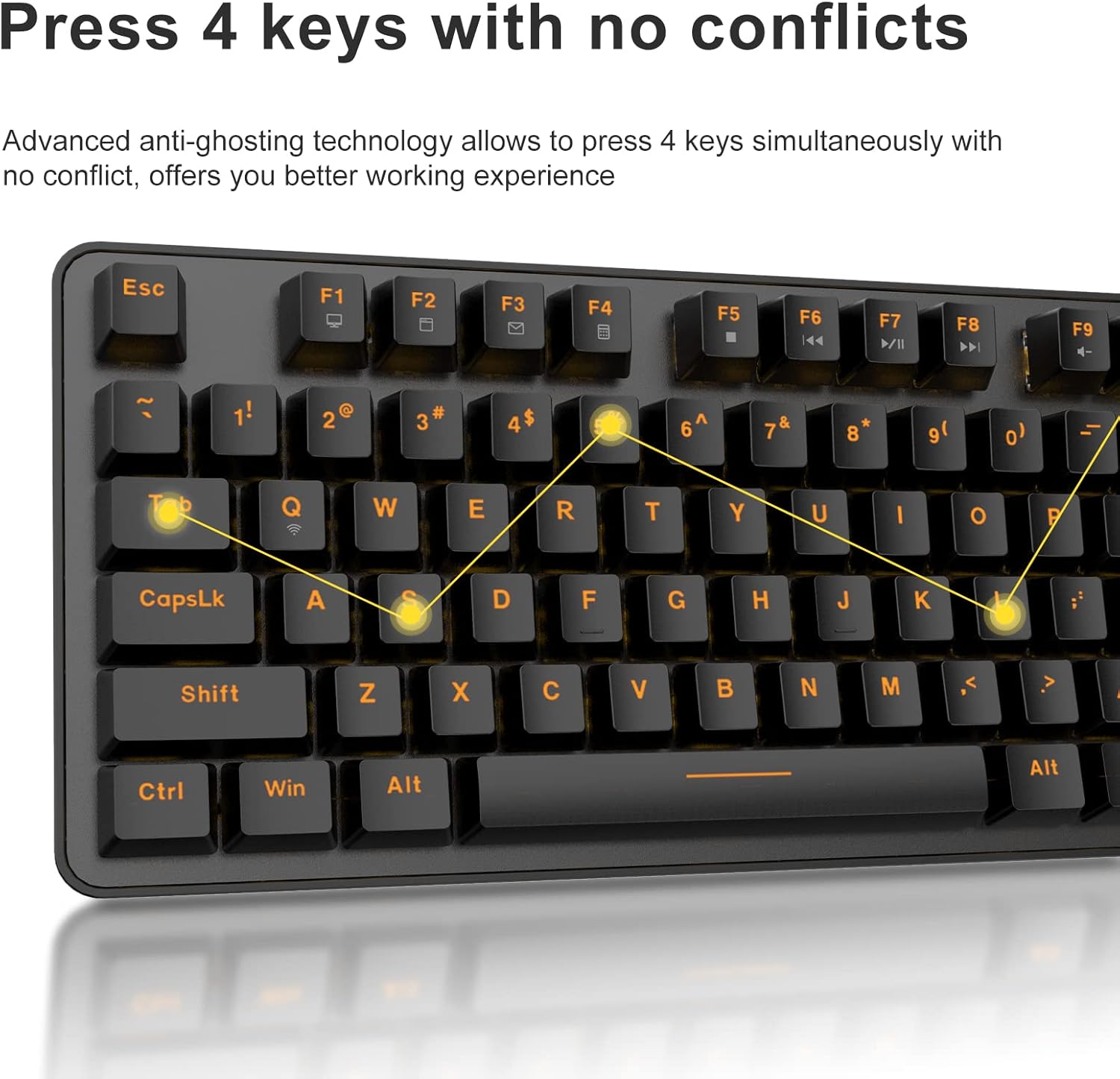
3.3 Anti-Ghosting Technology
The DAREU EK807G features advanced anti-ghosting technology, allowing up to 6 keys to be pressed simultaneously without conflict. This ensures all your commands are registered accurately, improving efficiency.
To conserve battery life, the keyboard enters an automatic sleeping mode after 6 seconds of inactivity. To wake the keyboard, simply press any key. With this feature, the keyboard can last approximately 90 days of continuous use, and up to half a year between battery changes.
Image 3.4: The keyboard features automatic power saving for extended battery life.
4. Maintenance
4.1 Cleaning the Keyboard
Regular cleaning helps maintain the keyboard's performance and appearance.
General Cleaning: Use a soft, dry cloth to wipe the surface of the keyboard. For stubborn dirt, a slightly damp cloth with mild soap can be used, ensuring no liquid enters the keyboard.
Keycap Cleaning: The DAREU EK807G features removable double-shot keycaps, which are resistant to fading and easy to clean. Use the included keycap puller to carefully remove keycaps. Clean them with a soft brush or a damp cloth. Ensure keycaps are completely dry before reattaching.
Aluminum Alloy Panel: The aluminum alloy panel is designed to be sweat-resistant and anti-rust. Wipe it with a soft cloth to keep it clean.
5. Troubleshooting
5.1 Connectivity Issues
Keyboard not responding:
Ensure the keyboard's ON/OFF switch is in the "ON" position.
Check if the AAA batteries are correctly inserted and have sufficient charge. Replace if necessary.
Verify that the 2.4G USB receiver is securely plugged into a working USB port on your device. Try a different USB port.
Restart your computer or device.
Intermittent connection:
Ensure the keyboard is within the operating distance of 33 feet (10m) from the USB receiver.
Avoid placing the keyboard near strong electromagnetic interference sources (e.g., Wi-Fi routers, other wireless devices).
5.2 Key Functionality Issues
Keys not registering or ghosting:
While the keyboard has anti-ghosting for up to 6 keys, excessive simultaneous presses beyond this limit may not register.
Ensure keycaps are properly seated. If a key feels stuck, gently remove the keycap with the puller and reattach it.
Clean any debris under the keycaps (refer to Maintenance section).
Fn key shortcuts not working:
Ensure you are pressing the Fn key simultaneously with the desired F-key.
If Fn + F12 (Switch L-Win & L-Alt) was accidentally activated, press it again to revert the key functions.
DAREU provides a 180-day warranty service for the EK807G Wireless TKL Mechanical Keyboard from the date of purchase. This warranty covers manufacturing defects and issues arising from normal use.
7.2 Customer Support
If you encounter any problems during the use of your DAREU keyboard, please contact DAREU customer support. Our team is available to assist you with troubleshooting, product inquiries, and warranty claims.
Please refer to the contact information provided on the product packaging or the official DAREU website for the most up-to-date support channels.
Ask about setup, troubleshooting, compatibility, parts, safety, or missing instructions. Manuals+ will review the question and use this page’s manual context to help answer it.