
1. Introduction
This manual provides essential information for the setup, operation, and maintenance of your HP 14" Laptop. Please read this manual thoroughly before using your device to ensure proper functionality and to maximize its lifespan. This product is an Amazon Renewed item, meaning it has been professionally inspected, tested, and cleaned by Amazon-qualified suppliers to function and look like new.
2. What's in the Box
Upon opening the package, verify that all items are present:
- HP 14" Laptop
- AC Power Adapter
- Documentation (this manual)
Note: Accessories may not be original but will be compatible and fully functional. The product may come in a generic box.
3. Product Overview
3.1 Key Features
- Display: 14-inch HD (1366 x 768) BrightView WLED-Backlit display with Intel Graphics. Features a micro-edge design for an enhanced viewing experience.
- Processor: Intel Celeron Dual-Core Processor, capable of speeds up to 2.60GHz.
- Memory & Storage: 4GB RAM and a 64GB SSD for efficient performance and quick boot times.
- Operating System: Pre-installed with Windows 11.
- Connectivity: Integrated 802.11a/b/g/n/ac (2x2) Wi-Fi and Bluetooth 5.3.
- Webcam: HP Webcam with an integrated digital microphone for video conferencing.
- Design: Lightweight and portable, measuring 0.9 inches in thickness and weighing approximately 4 pounds.
3.2 Ports and Connectors
Familiarize yourself with the various ports available on your laptop for connecting peripherals and accessories.
- 3x USB Type-A ports
- 1x SD Card Reader
- 1x Headphone/Microphone combo jack
- 1x HDMI port (for external display output)
- 1x RJ-45 (Ethernet) port
- 1x AC Smart Pin (power input)

Image: Side view of the HP 14" Laptop highlighting its multi-port configuration, including USB Type-A, HDMI, RJ-45, Headphone Jack, USB Type-C, and AC Smart Pin.
4. Setup
4.1 Initial Power-On
- Connect Power: Plug the AC power adapter into the laptop's AC Smart Pin port and then into a wall outlet.
- Open Laptop: Carefully open the laptop lid.
- Power On: Press the power button, usually located on the keyboard deck or side.
- Initial Configuration: Follow the on-screen prompts to complete the Windows 11 setup process. This includes selecting your region, connecting to a Wi-Fi network, creating a user account, and accepting terms and conditions.
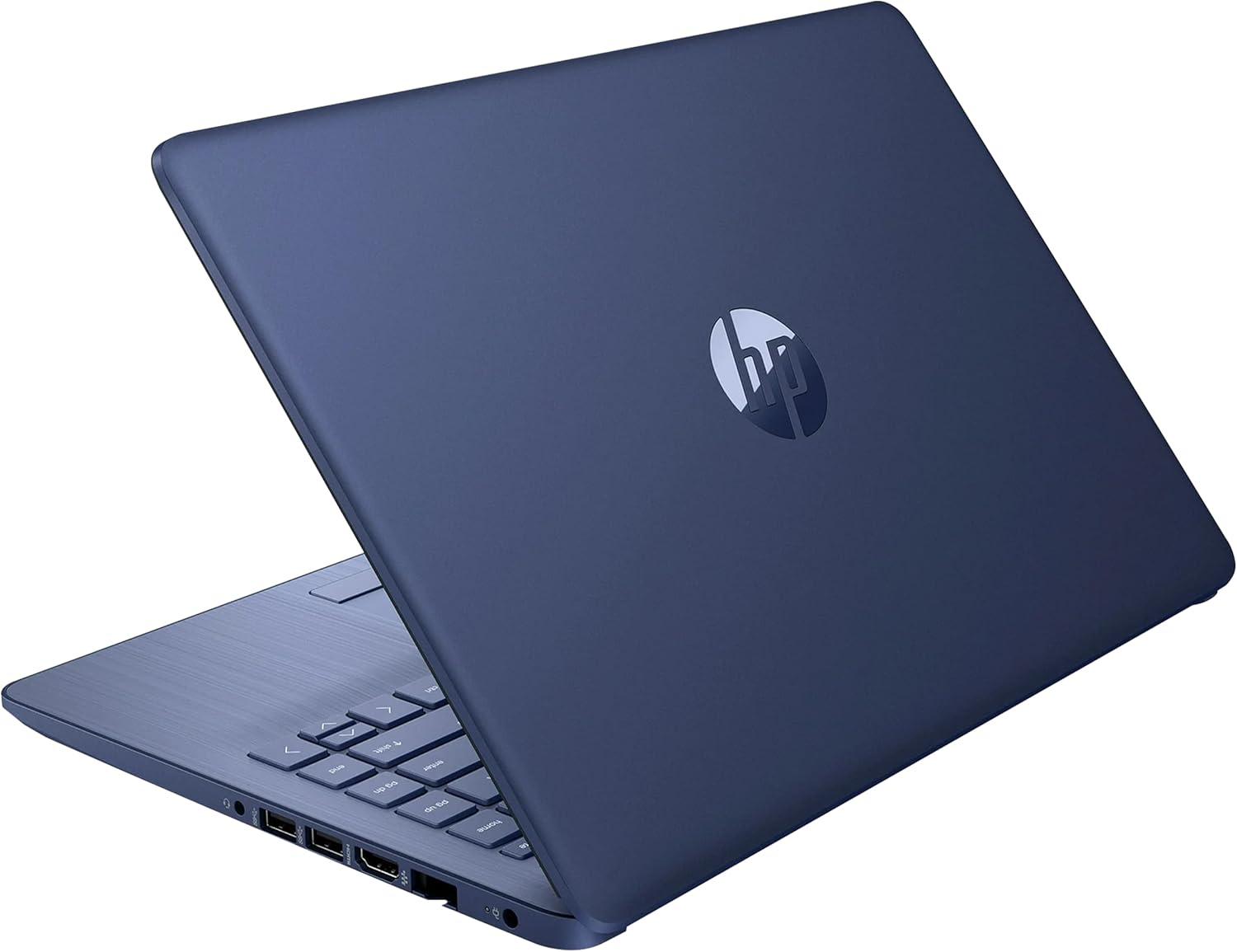
Image: The HP 14" Laptop in an open position, showcasing its display and keyboard, ready for initial setup.
4.2 Connecting to Wi-Fi
- During the initial Windows 11 setup, you will be prompted to connect to a network. Select your desired Wi-Fi network from the list.
- Enter the network security key (password) if prompted.
- If you skip this step, you can connect later via the Wi-Fi icon in the taskbar (bottom right corner of the screen).
5. Operating Instructions
5.1 Basic Navigation
- Touchpad: Use the integrated touchpad for cursor control. Tap to click, two-finger tap for right-click, and pinch-to-zoom for scaling.
- Keyboard: The laptop features a standard QWERTY keyboard. Function keys (F1-F12) often have secondary functions (e.g., volume, brightness) accessible by pressing the Fn key simultaneously.
- Windows 11 Interface: Explore the Start Menu, Taskbar, and Action Center for quick access to applications, settings, and notifications.
5.2 Power Management
- Shut Down: Click the Start button, then the Power icon, and select "Shut down."
- Restart: Click the Start button, then the Power icon, and select "Restart."
- Sleep: Click the Start button, then the Power icon, and select "Sleep," or simply close the laptop lid.
- Battery Life: The laptop offers approximately 9 hours of battery life under typical usage conditions.

Image: The HP 14" Laptop screen showing the Windows 11 desktop environment, illustrating the operating system interface.
6. Maintenance
6.1 Cleaning the Laptop
- Screen: Use a soft, lint-free cloth slightly dampened with water or a screen cleaner. Avoid harsh chemicals.
- Keyboard and Chassis: Use a soft, dry cloth. For stubborn dirt, a slightly damp cloth can be used, ensuring no liquid enters openings. Compressed air can remove dust from between keys.
- Ports: Keep ports free of dust and debris. Use compressed air if necessary.
6.2 Software Updates
Regularly update your Windows 11 operating system and drivers to ensure optimal performance and security. You can check for updates through Windows Settings > Windows Update.
6.3 Battery Care
- Avoid fully discharging the battery frequently.
- Store the laptop in a cool, dry place when not in use for extended periods.
- If storing for a long time, ensure the battery is charged to about 50%.
7. Troubleshooting
This section addresses common issues you might encounter with your HP 14" Laptop.
7.1 Laptop Does Not Power On
- Ensure the AC power adapter is securely connected to both the laptop and a working power outlet.
- Verify the power outlet is functional by plugging in another device.
- If the battery is completely drained, it may take a few minutes of charging before the laptop can power on.
7.2 Wi-Fi Connectivity Issues
- Check if Wi-Fi is enabled in Windows settings.
- Restart your router and modem.
- Ensure you are within range of the Wi-Fi network.
- Verify the Wi-Fi password is correct.
7.3 Slow Performance
- Close unnecessary applications running in the background.
- Check for and install any pending Windows updates.
- Run a disk cleanup to free up storage space.
- Consider performing a factory reset if issues persist, after backing up your data.
8. Specifications
| Brand | HP |
| Model Name | HP 14" Laptop |
| Screen Size | 14 Inches |
| Display Resolution | 1366 x 768 (HD) |
| Processor | Intel Celeron Dual-Core (up to 2.60GHz) |
| RAM Memory | 4 GB DDR4 |
| Storage | 64 GB SSD |
| Operating System | Windows 11 |
| Graphics | Integrated Intel Graphics |
| Connectivity | 802.11a/b/g/n/ac Wi-Fi, Bluetooth 5.3 |
| Ports | 3x USB Type-A, 1x SD Card Reader, 1x Headphone/Microphone, 1x HDMI, 1x RJ-45 |
| Webcam | HP Webcam with Integrated Digital Microphone |
| Battery Life | Up to 9 Hours |
| Dimensions (L x W x Th) | 12.9" x 8.9" x 0.9" |
| Weight | 4 Pounds |
9. Warranty and Support
9.1 Amazon Renewed Guarantee
This HP 14" Laptop is backed by the 90-day Amazon Renewed Guarantee. This means the product works and looks like new. If you are not satisfied within 90 days of receipt, you are eligible for a replacement or refund under this guarantee.
For more details on the Amazon Renewed Guarantee, please visit the Amazon Renewed program page or contact Amazon customer service.
9.2 Technical Support
For technical assistance or further inquiries, please refer to the official HP support website or contact Amazon customer support for issues related to your Amazon Renewed purchase.


