
1. Introduction
Thank you for choosing the ANTELA Smart WiFi Plug. This device allows you to control your home appliances remotely, monitor energy consumption, and automate tasks using your smartphone or voice commands. Please read this manual carefully before use to ensure proper installation and operation.
2. Safety Information
- Do not disassemble or modify the device.
- Do not expose the device to water or humid environments.
- Ensure the connected appliance's power consumption does not exceed the plug's maximum rating (16A, 3680W).
- Keep out of reach of children.
- Use only in dry indoor locations.
3. Package Contents
- ANTELA Smart WiFi Plug (2 pieces)
- User Manual
4. Product Overview
The ANTELA Smart WiFi Plug is designed for ease of use and integration into your smart home system. It features a compact design and a power button with an LED indicator.

Image: Front and side view of the ANTELA Smart WiFi Plug with dimensions (5.5 cm x 5.5 cm x 8.2 cm) and icons indicating WiFi Connection, Voice Control, Remote Control, Timer Setting, APP Control, Energy Monitoring, and Security Protection.
5. Specifications
| Feature | Detail |
|---|---|
| Model Number | F1s202-EU |
| Dimensions (L x W x H) | 5.5 x 5.5 x 8.2 cm |
| Weight | 220 grams |
| Material | V0 Flame Retardant Material |
| Power Source | Electric Cable |
| Voltage | 250 Volts (AC) |
| Max Wattage | 3680 Watts |
| Max Current | 16 Amperes |
| Connectivity | 2.4 GHz WiFi |
| Compatibility | Alexa, Google Assistant, Smart Life App, Tuya Smart App |
6. Setup
6.1. App Installation
- Download the "Smart Life" or "TUYA Smart" application from your smartphone's app store (Google Play Store for Android or Apple App Store for iOS).
- Register or log in to your account.
6.2. Device Pairing
- Plug the ANTELA Smart WiFi Plug into a power outlet.
- Press and hold the power button on the plug for 5 to 10 seconds until the LED indicator starts blinking rapidly. This indicates the plug is in pairing mode.
- Open the "Smart Life" or "TUYA Smart" app.
- Tap the "+" icon in the top right corner to add a device.
- Select "Electrical Outlet" or "Smart Plug" from the device list.
- Confirm that the indicator light is blinking rapidly.
- Enter your 2.4 GHz WiFi network password. Note: The smart plug only supports 2.4 GHz WiFi networks.
- Wait for the app to connect to the device. Once connected, you can rename the plug for easier identification.

Image: Illustration of the easy setup process, showing a smartphone displaying the Smart Life app connecting to the smart plug, which is plugged into a wall outlet with a coffee machine connected.
7. Operating Instructions
7.1. Remote Control
Once paired, you can control your smart plug from anywhere using the "Smart Life" or "TUYA Smart" app on your smartphone. Simply tap the power icon in the app to turn the connected appliance on or off.

Image: A person's hands holding a smartphone displaying the Smart Life app with a large power button, indicating remote control functionality.
7.2. Voice Control
The ANTELA Smart WiFi Plug is compatible with Amazon Alexa and Google Assistant. To enable voice control:
- Link your "Smart Life" or "TUYA Smart" account to your Alexa or Google Home app.
- Discover devices in your Alexa or Google Home app.
- You can now control your plug using voice commands such as:
- "Alexa, turn on [Plug Name]"
- "Hey Google, turn off [Plug Name]"

Image: A woman relaxing on a bed, using voice commands to control a light, with a speech bubble showing "Alexa, turn on my light" and "ok".
7.3. Scheduling and Timer Functions
Automate your appliances by setting schedules or timers through the app. This feature helps save energy by ensuring devices are only on when needed.
- In the app, navigate to the specific smart plug's settings.
- Select "Schedule" or "Timer" to set desired on/off times.
- You can set daily, weekly, or one-time schedules.
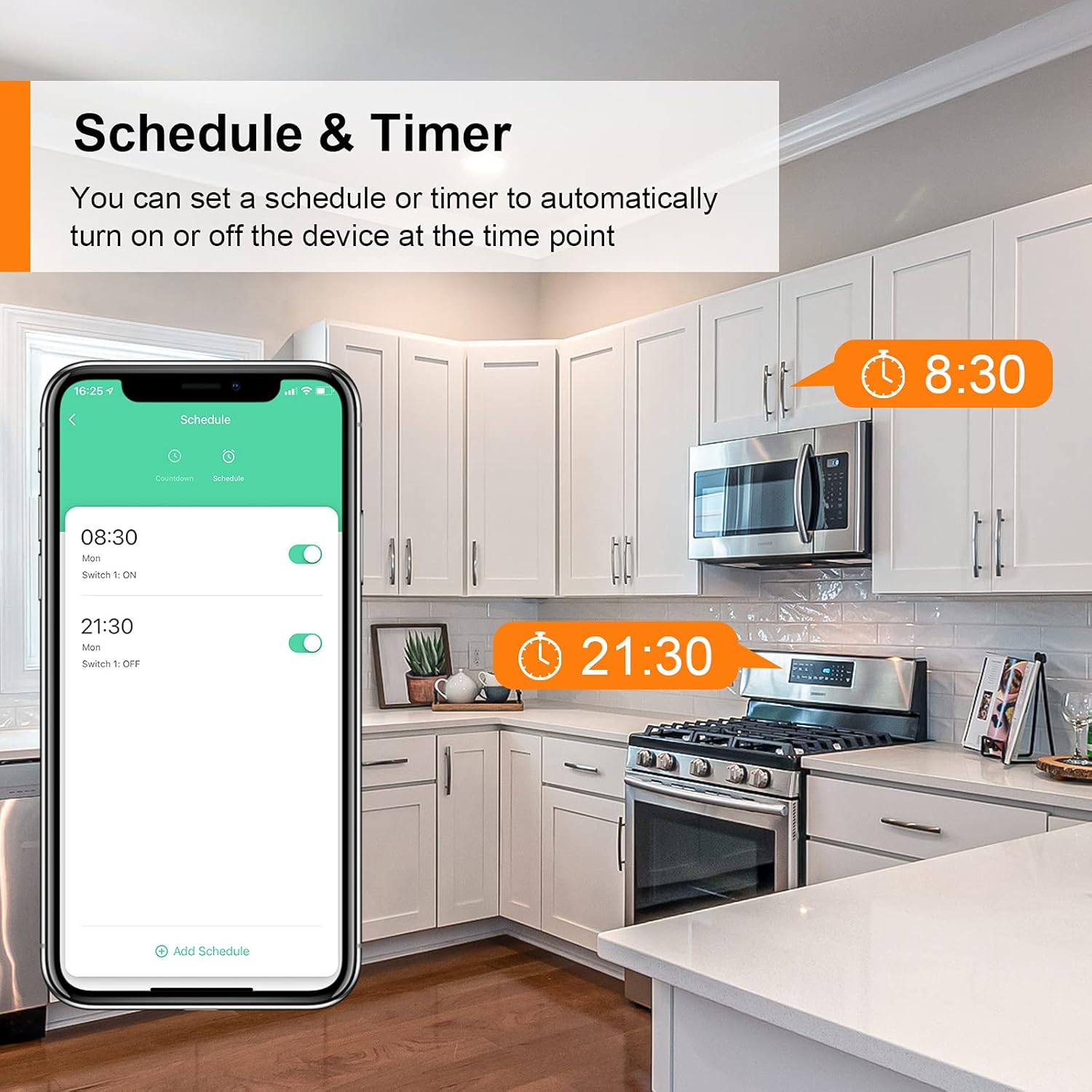
Image: A smartphone displaying the Smart Life app with a schedule set for 08:30 (ON) and 21:30 (OFF), overlaid on a kitchen background.
7.4. Energy Monitoring
The smart plug provides real-time and historical electricity consumption data for connected devices. This helps you understand and manage your energy usage.
- Open the app and select the desired smart plug.
- Tap on the "Energy Monitoring" or "Electricity Statistics" section to view consumption data.
- Data can typically be viewed by day, month, or year.

Image: A child reading a book, with a smartphone displaying an energy monitoring graph showing daily electricity usage in kWh.
7.5. Family Sharing
Share control of your smart plugs with family members through the app, allowing multiple users to manage devices.
- In the app, go to the device settings for the smart plug.
- Select "Share Device" or "Family Sharing".
- Add family members by entering their account details (e.g., email or phone number associated with their Smart Life/Tuya account).

Image: Three people looking at their smartphones, with one phone displaying the "Add Sharing" screen for a smart plug, showing options to share via various messaging apps.
8. Maintenance
- Clean the smart plug with a dry, soft cloth. Do not use liquid cleaners.
- Ensure the plug is disconnected from the power outlet before cleaning.
- Regularly check for any signs of damage or wear. If damaged, discontinue use and contact support.
9. Troubleshooting
| Problem | Possible Cause | Solution |
|---|---|---|
| Plug not connecting to WiFi |
|
|
| Voice control not working |
|
|
| Plug is unresponsive |
|
|
10. Warranty and Support
ANTELA products come with a standard manufacturer's warranty. For detailed warranty information, please refer to the warranty card included with your purchase or visit the official ANTELA website.
If you encounter any issues or have questions regarding your ANTELA Smart WiFi Plug, please contact our customer support team:
- Email: support@antela.com
- Website: Visit the ANTELA Store on Amazon
Please have your model number (F1s202-EU) and purchase details ready when contacting support.


