
NOVOO NVHUB8P60N5DNS
NOVOO 8-in-1 USB C Hub
User Manual
1. Introduction
The NOVOO 8-in-1 USB C Hub is a versatile docking station designed to expand the connectivity of your USB-C enabled devices. It provides a comprehensive solution for connecting multiple peripherals, external displays, and network connections through a single USB-C port. This manual provides detailed instructions on how to set up, operate, and maintain your NOVOO USB C Hub.

Figure 1: NOVOO 8-in-1 USB C Hub overview.
2. Product Features
The NOVOO 8-in-1 USB C Hub offers a wide range of features to enhance your productivity and connectivity:
- 8-in-1 Multiport Expansion: Expands a single USB-C port into 8 essential ports, including HDMI, Power Delivery, Gigabit Ethernet, SD/TF card readers, and three USB-A 3.0 ports.
- 4K@60Hz HDMI Output: Connect to an HDTV or monitor for high-resolution 4K@60Hz video output, providing a smoother and clearer visual experience. Requires DP 1.4 version device for 4K@60Hz.
- 100W Power Delivery (PD): Provides continuous charging up to 92W for your USB-C devices, allowing you to power your laptop while using the hub.
- Gigabit Ethernet (RJ45): Instantly connect to a stable wired network with speeds up to 1 Gbps, ensuring reliable internet access.
- Super-Fast Data Transfer: Three USB 3.0 ports offer data transfer speeds up to 5Gbps. SD and TF card slots support various memory card formats (SD, SDHC, Micro SD, MMC, SDXC) and can read both simultaneously.

Figure 2: The 8-in-1 USB C Hub expanding laptop connectivity.

Figure 3: High-resolution 4K@60Hz display output via HDMI.
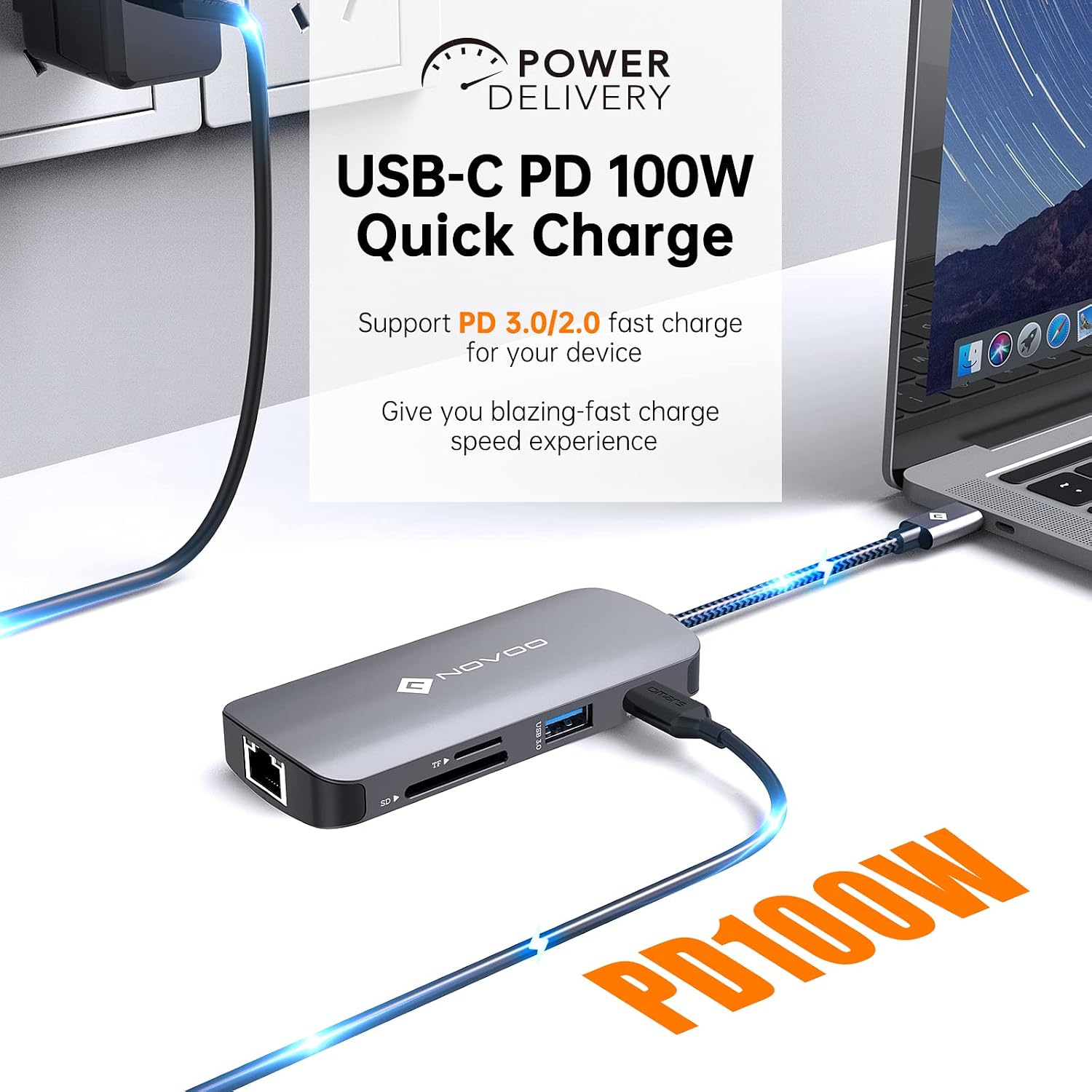
Figure 4: USB-C PD 100W Quick Charge capability.

Figure 5: Three Super-Speed USB 3.0 Ports for fast data transfer.

Figure 6: RJ45 Gigabit Ethernet port for stable network connection.

Figure 7: SD & Micro SD Card Reader for easy file access.
3. Setup Instructions
Before connecting the NOVOO 8-in-1 USB C Hub, ensure your laptop's USB-C port supports Power Delivery, DisplayPort, and Data Transfer (full function). Refer to your laptop's specifications or the diagram below for compatibility.
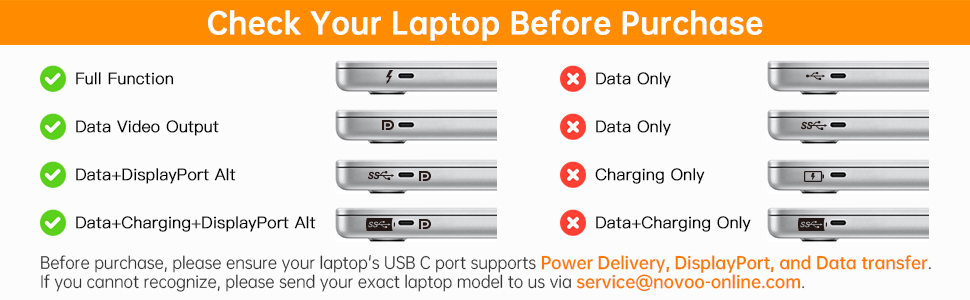
Figure 8: Check your laptop's USB-C port compatibility before purchase.
- Connect the Hub: Plug the USB-C connector of the NOVOO 8-in-1 USB C Hub into a compatible USB-C port on your laptop or device.
- Power Connection (Optional): For charging your device and stable operation, connect your USB-C power adapter to the 100W PD port on the hub.
- External Display: Connect an HDMI cable from your monitor or TV to the HDMI port on the hub. Ensure your display is set to the correct input source.
- Network Connection: For a wired internet connection, plug an Ethernet cable into the RJ45 Gigabit Ethernet port on the hub.
- USB Devices: Connect your USB-A peripherals (e.g., mouse, keyboard, flash drives) to the USB 3.0 ports.
- Memory Cards: Insert SD or TF cards into their respective slots for data access.
4. Operating Instructions
The NOVOO 8-in-1 USB C Hub is designed for plug-and-play functionality. No drivers are typically required for most operating systems.
- HDMI Display: Once connected, your operating system should automatically detect the external display. You can configure display settings (e.g., mirror, extend) through your device's display settings. For optimal 4K@60Hz performance, ensure your device and HDMI cable support DP 1.4.
- Ethernet Connection: The RJ45 port provides a stable wired network connection. An LED light on the port indicates an active internet connection. Your device should automatically connect to the network.
- USB Data Transfer: Plug in your USB flash drives, external hard drives, or other USB devices into the USB 3.0 ports. Files can be transferred at speeds up to 5Gbps.
- SD/TF Card Reader: Insert your SD or TF card into the corresponding slot. The card will appear as a removable drive on your computer, allowing you to access and transfer files. Both slots can be used simultaneously.
- Power Delivery: Connect your laptop's original USB-C power adapter to the PD port on the hub. This will charge your laptop while the hub is in use. The hub reserves approximately 8W for its own operation.
- OTG Function: For compatible phones and tablets that support OTG (On-The-Go) functionality, you can connect them to the hub to display content on a larger screen via HDMI or connect USB flash drives for data transfer.
Video 1: Demonstration of NOVOO 8-in-1 USB C Hub features including 4K@60Hz display, Ethernet speed, PD charging, and data transfer.

Figure 9: OTG Functionality for connecting phones/tablets to external displays or USB drives.
5. Maintenance
To ensure the longevity and optimal performance of your NOVOO 8-in-1 USB C Hub, follow these maintenance guidelines:
- Keep the hub clean and free from dust. Use a soft, dry cloth to wipe the surface.
- Avoid exposing the hub to extreme temperatures, humidity, or direct sunlight.
- Do not drop or subject the hub to strong impacts.
- Disconnect all cables before cleaning or when not in use for extended periods.
6. Troubleshooting
If you encounter issues with your NOVOO 8-in-1 USB C Hub, refer to the following common problems and solutions:
- No Display Output:
- Ensure your laptop's USB-C port supports DisplayPort Alt Mode.
- Check if the HDMI cable is securely connected to both the hub and the display.
- Verify the display's input source is correctly selected.
- Try a different HDMI cable or monitor to rule out external issues.
- No Charging via PD Port:
- Confirm your laptop's USB-C port supports Power Delivery.
- Ensure your power adapter is connected to the hub's PD port and is functioning correctly.
- Check the power output of your adapter; it should be sufficient for your device and the hub.
- USB Devices Not Recognized:
- Ensure the USB device is properly inserted into the hub's USB 3.0 port.
- Try connecting the USB device directly to your laptop to confirm it's working.
- Some high-power USB devices may require external power if the hub's PD port is not connected or providing sufficient power.
- Ethernet Connection Issues:
- Check if the Ethernet cable is securely connected to both the hub and your router/modem.
- Verify your network settings on your computer.
- Ensure your internet connection is active.


Figure 10: Common troubleshooting scenarios and visual indicators.
7. Specifications
| Feature | Specification |
|---|---|
| Product Dimensions | 4.33 x 1.81 x 0.59 inches |
| Item Weight | 3.17 ounces |
| Model Number | NVHUB8P60N5DNS |
| Brand | NOVOO |
| Color | Black, Grey, Silver |
| Hardware Interface | USB Type C |
| Special Feature | Play, Plug |
| Compatible Devices | Laptops, Monitors, Projectors, Televisions, Mouse, Keyboards, Card Readers, Smartphones, USB-C Devices (with full function support: Power Delivery + DisplayPort + Data Transfer) |
8. Warranty and Support
NOVOO is committed to providing high-quality products. For warranty information, technical support, or any inquiries regarding your NOVOO 8-in-1 USB C Hub, please refer to the official NOVOO website or contact their customer service directly. Contact details are typically found on the product packaging or the manufacturer's website.
For more information, visit the NOVOO Store on Amazon.
Related documentsNVHUB8P60N5DNS


Ask a question about this manual
Ask about setup, troubleshooting, compatibility, parts, safety, or missing instructions. Manuals+ will review the question and use this page’s manual context to help answer it.