EMEET C970L Webcam User Manual
Your comprehensive guide to setting up and using your EMEET C970L Webcam.
1. Introduction
The EMEET C970L is a high-performance webcam designed for superior video conferencing, live streaming, and online communication. It features Full HD 1080P resolution at 60 frames per second, an integrated adjustable ring light, autofocus, and a built-in noise-reduction microphone to ensure clear visuals and audio in any environment.

Image: The EMEET C970L webcam, showcasing its sleek design and integrated ring light.
2. Package Contents
Please check the box for the following items:
- EMEET C970L Webcam
- USB Cable (integrated)
- Instruction Manual
3. Product Features
Full HD 1080P 60FPS Superior Image Quality
The EMEET C970L webcam delivers crisp and smooth video at Full HD 1080p and 60 frames per second (FPS), effectively minimizing image delay during meetings. With the eMeetLink software, you can select from four filters (Default, Customize, Black & White, Cartoon) to stream and record vivid, colorful, and clear video with a strong sense of presence, maintaining beautiful and lively broadcast footage.

Image: Comparison of 30FPS versus 60FPS video quality, demonstrating the smoother motion at 60FPS.
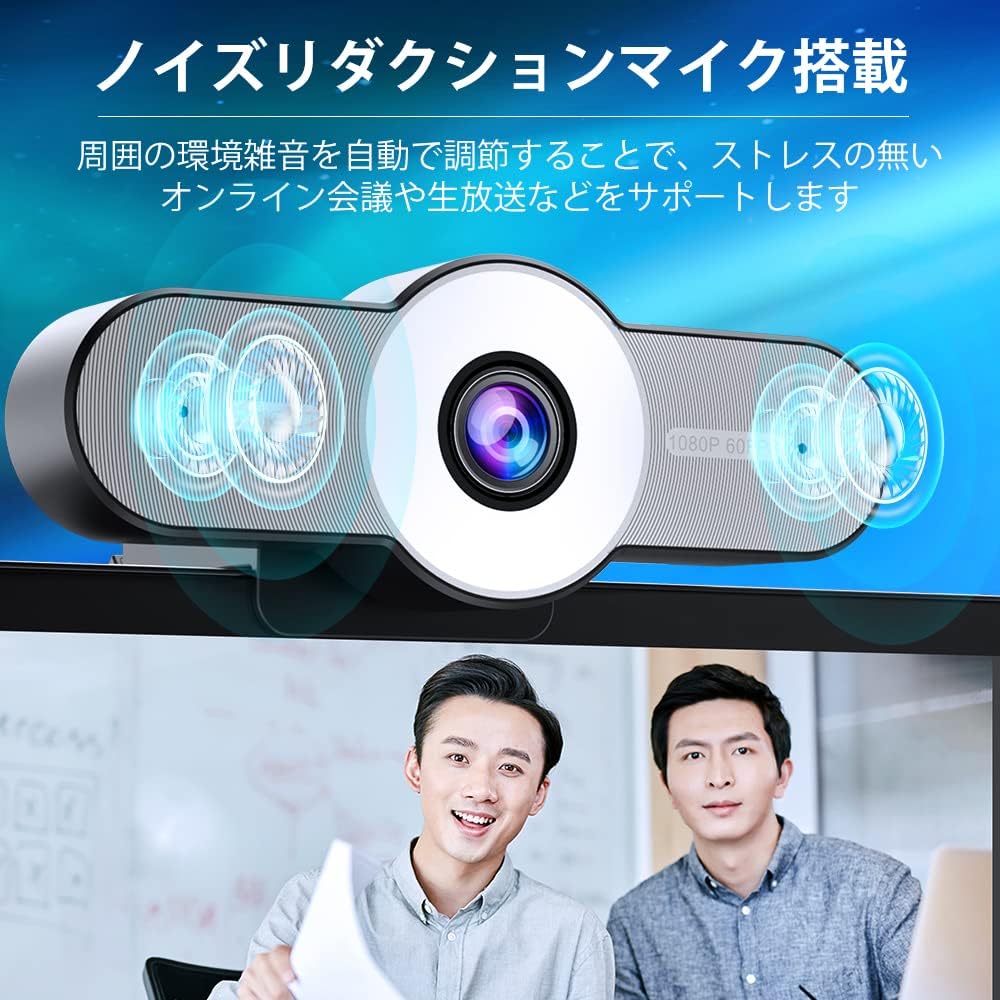
Image: Screenshot of the eMeetLink software interface showing various filter options for video customization.
Integrated Ring Light for Enhanced Appearance
The EMEET C970L webcam features an 11-LED ring light with a 5600K color temperature, adjustable across three levels. This adjustable fill light around the camera lens helps restore a more natural facial appearance and ensures you look good, regardless of time or location during live streaming. The soft light also prevents disturbance to others, even when used at night.

Image: A split image showing a user's appearance without the ring light (left, darker) and with the ring light activated (right, brighter and clearer).

Image: Illustrates the three levels of touch-dimmable light adjustment on the webcam, showing different brightness levels on a user's face.
Adjustable 75°-90° Field of View with Autofocus
Equipped with autofocus and HD automatic light correction, the EMEET webcam automatically focuses on both distant scenes and close-up text, providing clear and sharp images. The eMeetLink software allows you to adjust the field of view from 75° to 90°, making it ideal for individual meetings, group conferences, video calls, live streaming, and gaming.

Image: Depicts the adjustable field of view, showing how the webcam can capture a wider or narrower angle (75 to 90 degrees) suitable for different meeting scenarios.
Built-in Noise Reduction Microphone
The EMEET webcam features an integrated microphone with noise reduction, allowing for clear audio communication by eliminating background noise. It ensures rich vocal expression even in noisy environments. Additionally, a privacy mode function is included to protect your personal privacy.
Image: Illustrates the noise reduction microphone technology, showing sound waves being processed to enhance clarity.

Image: Shows the webcam's privacy mode, where tilting the camera down turns off the video feed, indicated by a visual representation of the camera being off.
Excellent Compatibility
The EMEET webcam is compatible with various operating systems, including Windows XP, Windows Vista, Windows 7/8/8.1/10, and Mac OS 10.4 and later. It also supports YouTube streaming. Simply connect it to your computer's USB port for immediate use. It features a versatile stand that can be attached to laptops, placed on desktop surfaces, or mounted on commercially available tripods.
4. Setup
Setting up your EMEET C970L webcam is straightforward thanks to its plug-and-play design.
- Mounting the Webcam: The webcam features a versatile clip/stand. You can securely attach it to the top of your laptop screen or desktop monitor. Ensure the webcam is stable and facing you. Alternatively, the stand allows it to be placed on a flat surface or mounted on a standard tripod (not included).
- Connecting to Your Computer: Locate an available USB port on your computer. Plug the integrated USB cable from the EMEET C970L webcam into the USB port.
- Driver Installation: The webcam is plug-and-play, meaning it typically does not require manual driver installation. Your operating system should automatically detect and install the necessary drivers.
- Verification: Open a video conferencing application (e.g., Zoom, Skype, Microsoft Teams) or a camera application on your computer. Select the EMEET C970L as your video and audio input device. You should see your video feed and hear audio if you speak.
Image: The EMEET C970L webcam mounted on a laptop screen, demonstrating a typical setup.
5. Operating Instructions
Adjusting the Ring Light
The integrated ring light can be adjusted to three different brightness levels. To change the brightness, gently touch the designated area on the webcam (refer to the product diagram for exact location). Cycle through the levels to find the optimal illumination for your environment.
Using Privacy Mode
The EMEET C970L features a privacy mode. By tilting the webcam downwards by more than 10 degrees, the video feed will automatically turn off, ensuring your privacy. Tilting it back up will reactivate the camera.
Adjusting Field of View and Video Settings (eMeetLink Software)
For advanced control over your webcam's settings, including adjusting the field of view (75° to 90°) and applying video filters, download and install the eMeetLink software from the official EMEET website. This software allows for customization of image parameters such as brightness, contrast, sharpness, and white balance.
6. Maintenance
To ensure the longevity and optimal performance of your EMEET C970L webcam, follow these maintenance guidelines:
- Cleaning the Lens: Use a soft, lint-free cloth (e.g., microfiber cloth) to gently wipe the camera lens. Avoid using abrasive materials or harsh cleaning chemicals, which can scratch the lens.
- Cleaning the Body: Wipe the body of the webcam with a dry or slightly damp soft cloth. Do not allow water or other liquids to enter the device.
- Storage: When not in use, store the webcam in a cool, dry place, away from direct sunlight and extreme temperatures.
- Cable Care: Avoid bending or twisting the USB cable excessively, as this can damage the internal wires.
7. Troubleshooting
If you encounter issues with your EMEET C970L webcam, please refer to the following common problems and solutions:
| Problem | Possible Cause | Solution |
|---|---|---|
| No video output / Camera not detected | Loose USB connection, incorrect camera selection, driver issue. | Ensure the USB cable is securely plugged into both the webcam and the computer. Try a different USB port. In your video application settings, confirm that 'EMEET C970L' is selected as the video device. Restart your computer. |
| No audio input / Microphone not working | Incorrect microphone selection, muted microphone. | In your video application settings, confirm that 'EMEET C970L' is selected as the audio input device. Check if the microphone is muted in your system settings or the application. |
| Blurry image | Lens obstruction, out of focus. | Clean the camera lens with a soft cloth. The webcam has autofocus; ensure there are no obstructions in front of the lens. If using eMeetLink, check focus settings. |
| Poor lighting / Dark image | Insufficient ambient light, ring light off or too dim. | Activate or adjust the brightness of the integrated ring light. Ensure adequate room lighting. The webcam has automatic light correction, but extreme conditions may require additional light. |
8. Specifications
| Feature | Specification |
|---|---|
| Brand | EMEET |
| Product Model Number | C970Lgray |
| Video Capture Resolution | 1080p |
| Image Capture Speed | 60 fps |
| Field of View | 75°-90° (Adjustable via software) |
| Ring Light | 11 LED, 5600K color temperature, 3-level adjustable |
| Microphone | Built-in, Noise Reduction |
| Autofocus | Yes |
| Automatic Light Correction | Yes |
| Connectivity Technology | USB |
| Compatible Devices | Windows XP/Vista/7/8/8.1/10, Mac OS 10.4 and later |
| Supported Applications | Zoom, Skype, Facebook, Twitter, YouTube, etc. |
| Product Dimensions | 12 x 4.4 x 5.3 cm |
| Weight | 210 g |
| Included Accessories | USB cable, Instruction Manual |
9. Warranty and Support
EMEET provides a 24-month long-term product warranty for the C970L webcam. Should you require assistance or have any questions, please feel free to contact us through the following channels:
- Call Center: 080-0805-1955 (Toll-free)
- Operating Hours: 10:00 AM - 6:00 PM (Monday - Friday)
- Amazon Support: You can also contact us via your Amazon order history. Navigate to your orders, select the relevant order, view order details, click on the product, then click on the store name, and finally, select 'Ask a question'.


