
Introduction
This user manual provides comprehensive instructions for the setup, operation, and maintenance of your Andonstar AD249S-M Digital Microscope. Designed for a wide range of applications from electronics repair and coin inspection to biological observation, this microscope offers high-resolution imaging and versatile functionality. Please read this manual thoroughly before use to ensure optimal performance and longevity of your device.
Product Components
The Andonstar AD249S-M Digital Microscope package includes the following items:
- Microscope host with 10.1-inch LCD display
- Pro Boom Arm Stand (Metal bracket)
- Lens A (for general observation: 12mm-320mm object distance)
- Lens D (for biological slides: 4mm-5mm object distance)
- Lens L (for soldering/repairing: 90mm-300mm object distance)
- 32GB Micro SD card
- USB cable
- Switch cable (Dimmer cable for LED lights)
- HDMI cable
- Wireless Remote control
- 5x Prepared Slides
- Observation box
- Tweezers
- Instruction Manual (this document)

Figure 1: Complete set of Andonstar AD249S-M Digital Microscope components.
Setup
Follow these steps to assemble your Andonstar AD249S-M Digital Microscope:
- Assemble the Boom Arm Stand: Attach the vertical column to the base plate using the provided screws. Secure the horizontal arm to the vertical column.
- Attach the Microscope Host: Mount the microscope host (with the LCD screen) to the end of the horizontal arm. Ensure it is securely fastened.
- Connect LED Lights: The stand includes two flexible LED lights. Connect their power cable to the designated port on the microscope base or the dimmer cable.
- Install Desired Lens: Select the appropriate lens (A, D, or L) for your intended use. Align the lens with the microscope objective and gently screw it into place.
- Power Connection: Connect the power adapter to the microscope and plug it into a power outlet.

Figure 2: Assembled Andonstar AD249S-M Digital Microscope.
Operating Instructions
Basic Operation
- Power On/Off: Press the power button on the microscope or remote control to turn the device on or off.
- Focus Adjustment: Rotate the focusing wheel on the microscope body to achieve a clear image. Adjust the object distance using the bracket knob on the stand for optimal viewing.
- LED Lighting: Use the dimmer cable or remote control to adjust the intensity of the LED lights. There are eight intensity levels available. The flexible arms allow for adjustable irradiation direction.
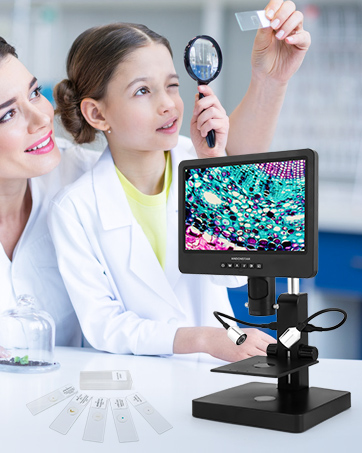
Figure 3: Adjusting focus and object distance.
Lens Usage
The AD249S-M comes with three specialized lenses:
- Lens A (General Purpose): Object distance 12mm-320mm. Ideal for observing whole coins, parts, plants, or stones. Magnification: 4.5-180x (on screen), 18-720x (on 28-inch HDMI monitor).
- Lens D (Biological): Object distance 4mm-5mm. Designed for observing biological slides. Magnification: 450-510x (on screen), 1800-2040x (on 28-inch HDMI monitor).
- Lens L (Long Working Distance): Object distance 90mm-300mm. Best suited for soldering and electronics repair due to its extended working distance. Magnification: 15-60x (on screen), 60-240x (on 28-inch HDMI monitor).

Figure 4: Three lenses and their applications.
Connectivity
- HDMI Output: Connect the microscope to a larger HDMI monitor or TV using the provided HDMI cable for a wider view and higher magnification (up to 2040x).
- USB Connection to PC: Connect the microscope to a Windows PC (Windows 7/8/10 compatible) via the USB cable. Download the professional measurement software to measure objects, calculate area, and capture photos/videos directly from your PC.

Figure 5: HDMI connectivity for larger display.

Figure 6: USB connection to a computer for software functionality.
Photo and Video Recording
- The microscope supports UHD 2160P video recording and photo capture.
- Insert the provided 32GB Micro SD card into the designated slot on the microscope.
- Use the "OK/Start video record" button on the microscope or remote control to start/stop video recording.
- Press the "Picture capture" button to take still images.
- Captured photos and videos are saved directly to the Micro SD card.

Figure 7: Photo and video recording features.
Wireless Remote Control
The included wireless remote control allows for convenient operation from a distance, supporting functions such as image discoloration, digital zoom, and menu navigation. This is particularly useful for educational demonstrations or when precise adjustments are needed without touching the microscope directly.

Figure 8: Wireless remote control for convenient operation.
Maintenance
- Cleaning: Use a soft, lint-free cloth to clean the LCD screen and microscope body. For lenses, use a specialized lens cleaning solution and cloth to avoid scratches.
- Storage: Store the microscope in a dry, dust-free environment when not in use. Keep lenses covered to prevent dust accumulation.
- Handling: Handle the microscope and its components with care to prevent damage. Avoid dropping or subjecting the device to strong impacts.
- Lens Exchange: When exchanging lenses, do so carefully by removing and installing screws as instructed.
Troubleshooting
| Problem | Possible Cause | Solution |
|---|---|---|
| No image on screen | Power not connected; Lens not properly installed; Device not powered on. | Check power connection; Ensure lens is securely attached; Press power button. |
| Image blurry/out of focus | Focus wheel not adjusted; Incorrect object distance; Dirty lens. | Rotate focus wheel; Adjust bracket knob for object distance; Clean the lens. |
| Cannot record video/take photos | SD card full or not inserted; SD card corrupted. | Insert/replace SD card; Format SD card (backup data first). |
| Remote control not working | Batteries low/dead; Remote out of range; Obstruction. | Replace batteries; Ensure clear line of sight to microscope; Move closer. |
Specifications
- Model: AD249S-M
- Display: 10.1-inch LCD
- Video Resolution: UHD 2160P
- Magnification (on 28-inch HDMI monitor):
- Lens A: 18-720x
- Lens D: 1800-2040x
- Lens L: 60-240x
- Connectivity: HDMI output, USB to Windows PC
- Storage: Micro SD card (up to 32GB included)
- Lighting: Adjustable LED lights (8 intensity levels)
- Stand: Pro Boom Arm Stand (Metal material, adjustable)
- Product Dimensions: 7.8"L x 7"W x 13"H
- Item Weight: 5.44 pounds (2.47 Kilograms)
Warranty and Support
Andonstar provides 24-hour professional after-sales service for this product. For any inquiries, technical assistance, or warranty claims, please refer to the contact information provided in your product packaging or visit the official Andonstar website.
An official Installation Manual (PDF) is also available for download: Download Installation Manual


