
ANTELA F1s302-UK
ANTELA Smart Plug User Manual
Model: F1s302-UK
1. Introduction
This manual provides comprehensive instructions for the setup, operation, maintenance, and troubleshooting of your ANTELA Smart Plug. Please read this manual carefully before using the product to ensure safe and efficient operation.

Image: Four ANTELA Smart Plugs shown alongside a smartphone displaying the energy monitoring interface of the Smart Life app, indicating real-time power usage and historical data.
2. Key Features
- Energy Monitoring: Track real-time and historical energy consumption of connected appliances via the app.
- Schedule and Timer Function: Automate power on/off for devices at specific times or intervals.
- Voice Control: Compatible with Amazon Alexa and Google Home for hands-free operation.
- Remote Control: Manage your devices from anywhere using the Smart Life app on your smartphone.
- Group Control: Control multiple smart plugs simultaneously by grouping them in the app.
- Easy Connection: Simple setup process using the Smart Life or Tuya Smart app over 2.4GHz Wi-Fi.

Image: An ANTELA Smart Plug plugged into a wall outlet, illustrating its compatibility with a range of household appliances for smart control.
3. Setup Guide
3.1. What's in the Box
Your ANTELA Smart Plug package includes:
- ANTELA Smart Plugs (4 units)
- User Manual (this document)

Image: The retail packaging for the ANTELA Smart Plug, highlighting the product quantity (4 packs) and smart home compatibility.
3.2. App Installation
The ANTELA Smart Plug operates with the Smart Life app. Follow these steps to install:
- Scan the QR code on the product packaging or search for "Smart Life" in your device's app store (App Store for iOS, Google Play Store for Android).
- Download and install the "Smart Life" app.
- Register a new account or log in if you already have one.

Image: The side of the product box, detailing key features and providing a QR code for easy download of the Smart Life application.
The Smart Life app can be downloaded from smartapp.tuya.com/smartlife.
3.3. Connecting the Smart Plug
Ensure your Wi-Fi network is 2.4GHz. The smart plug does not support 5GHz Wi-Fi.
- Plug the ANTELA Smart Plug into a standard wall socket.
- Open the Smart Life app.
- Tap the "+" icon in the top right corner to add a device.
- Select "Electrical Outlet" or "Socket (Wi-Fi)" from the device list.
- Follow the on-screen instructions to connect the plug to your 2.4GHz Wi-Fi network. This typically involves confirming the indicator light on the plug is blinking rapidly and entering your Wi-Fi password.
- Once connected, you can rename the device for easier identification (e.g., "Living Room Lamp").

Image: Illustration of the easy connection process for the smart plug using the Smart Life app, highlighting the 2.4GHz Wi-Fi requirement.
4. Operating Instructions
4.1. Manual Control
Each smart plug has a physical power button. Press it once to turn the connected appliance on or off.
4.2. App Control (Remote Control)
Once connected to the Smart Life app, you can control your smart plug from anywhere with an internet connection:
- Open the Smart Life app.
- Select the desired smart plug from your device list.
- Tap the power icon to toggle the connected appliance on or off.

Image: A user's hand interacting with the Smart Life app on a smartphone, demonstrating the remote control functionality of the smart plug.
4.3. Voice Control (Alexa/Google Home)
To enable voice control, link your Smart Life account to Amazon Alexa or Google Home:
- Open the Alexa or Google Home app.
- Navigate to "Skills & Games" (Alexa) or "Works with Google" (Google Home).
- Search for "Smart Life" and enable the skill/service.
- Link your Smart Life account using your Smart Life credentials.
- Discover devices.
Once linked, you can use voice commands such as:
- "Alexa, turn on [device name]."
- "Hey Google, turn off [device name]."

Image: A visual representation of using voice commands with a smart speaker to control devices connected to the ANTELA Smart Plug.
4.4. Scheduling and Timers
Automate your appliances with schedules and timers:
- In the Smart Life app, select the smart plug.
- Tap on "Schedule" or "Timer" options.
- Set desired times for the plug to turn on or off. You can create daily, weekly, or one-time schedules.
- Use the "Countdown" feature for a specific duration.

Image: The Smart Life app's scheduling feature, demonstrating how to set specific times for the smart plug to activate or deactivate connected devices.
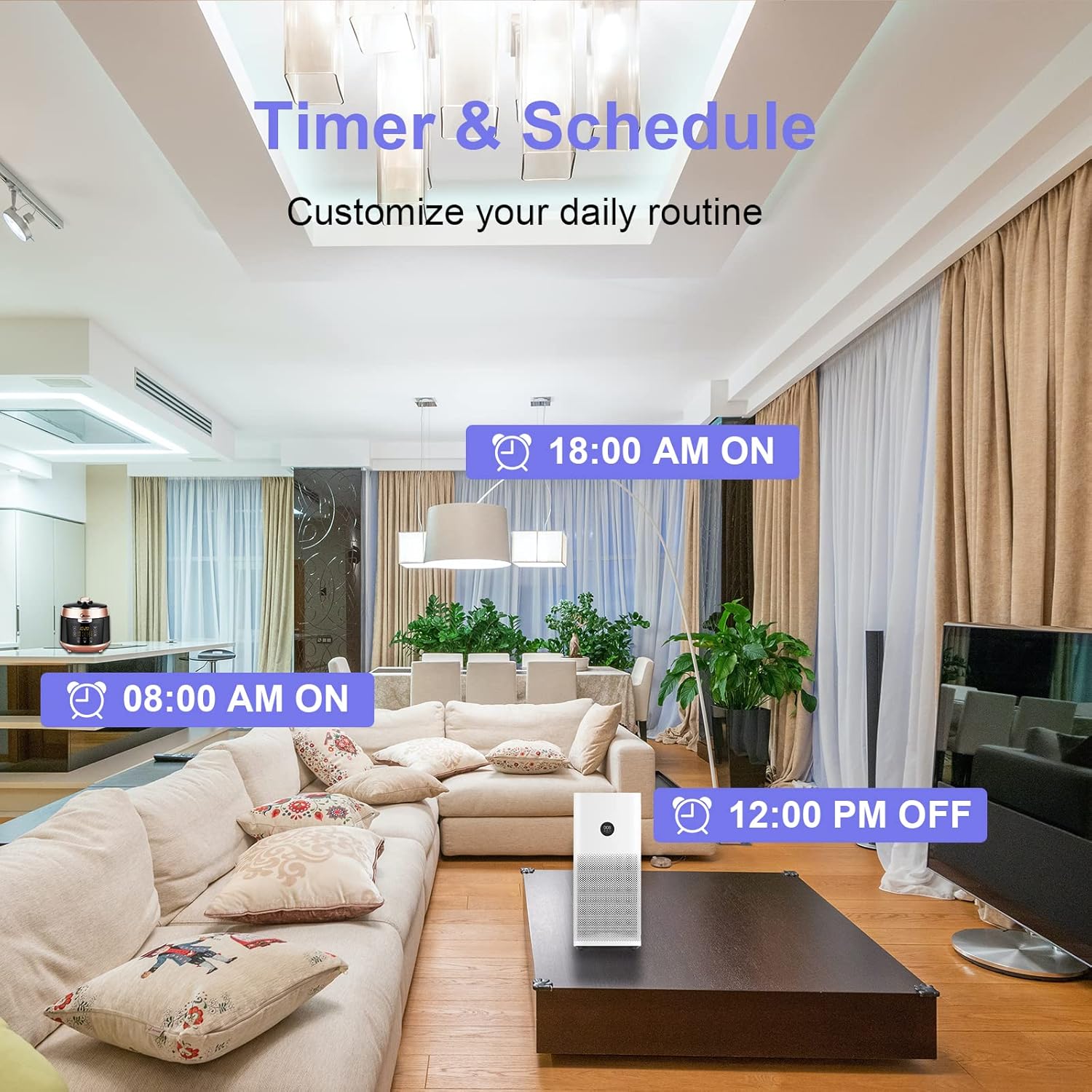
Image: A visual representation of how the timer and schedule functions can automate daily routines in a home environment.
4.5. Energy Monitoring
The smart plug provides energy consumption data:
- In the Smart Life app, select the smart plug.
- Look for the "Energy Monitoring" or "Electric" section.
- View real-time power (W), current (mA), voltage (V), and total energy consumption (kWh).
- Historical data is displayed in graphs (daily/monthly).
Note: The plug will display energy data after usage for at least 1 hour.

Image: The energy monitoring feature of the Smart Life app, showing a graph of electricity consumption over time, with a note about data availability after 1 hour of use.

Image: A graphical representation of electricity monitoring within the app, set against a home backdrop, illustrating how users can track and manage their daily power consumption.
4.6. Group Control and Family Sharing
To control multiple plugs or share access:
- Group Control: In the Smart Life app, select multiple devices and create a group. You can then control all devices in that group with a single command.
- Family Sharing: Share control of your smart plugs with family members by inviting them through the app's "Family Management" or "Device Sharing" settings.

Image: The family sharing interface within the Smart Life app, allowing multiple users to control the smart plug devices.
5. Maintenance
- Keep the smart plug dry and clean.
- Do not expose the device to extreme temperatures or humidity.
- Clean the exterior with a soft, dry cloth. Do not use harsh chemicals or abrasive cleaners.
- Ensure the plug is unplugged from the wall socket before cleaning.
- Regularly check for firmware updates within the Smart Life app to ensure optimal performance and security.
6. Troubleshooting
| Problem | Possible Cause | Solution |
|---|---|---|
| Smart Plug cannot connect to Wi-Fi. |
|
|
| Voice control not working. |
|
|
| Energy monitoring not showing data. |
|
|
| Plug is unresponsive. |
|
|
7. Specifications
| Parameter | Value |
|---|---|
| Model Number | F1s302-UK |
| Manufacturer | ANTELA |
| Rated Voltage | 250V~ |
| Rated Current | 13 Amps |
| Wattage | 3680 watts |
| AC Frequency | 50 Hz |
| Wireless Type | 2.4GHz Wi-Fi (IEEE 802.11 b/g/n) |
| Working Temperature | -5°C to 35°C |
| Humidity | ≤85%RH |
| Product Dimensions | 12.7 x 8.5 x 12.7 cm |
| Item Weight | 340 g (for 4 packs) |
| Connector Type | BS 1363 (UK Standard) |
| International Protection Rating | IP20 |
| Batteries Required | No |

Image: The product packaging displaying detailed technical specifications and physical dimensions of the smart plug.
8. Warranty Information
Specific warranty details are not provided in the product information. Please refer to the retailer's return policy or contact ANTELA customer support for warranty inquiries.
9. Customer Support
For further assistance or technical support, please contact ANTELA customer service through the contact information provided on the product packaging or the official ANTELA website. You may also refer to the Smart Life app's help section for common queries.
Related documentsF1s302-UK


Ask a question about this manual
Ask about setup, troubleshooting, compatibility, parts, safety, or missing instructions. Manuals+ will review the question and use this page’s manual context to help answer it.