
Introduction
This manual provides essential information for the installation, operation, and maintenance of your ANTELA Smart WiFi LED Bulb. Please read these instructions carefully before use and retain them for future reference.

Image: ANTELA E14 A60 LED Bulb showing dimensions (60mm width, 115mm height), E14 base, 7W power equivalent to 60W incandescent, CRI 80+, and energy efficiency rating.
Product Features
- RGB, Cool White, Warm White: Offers 16 million colors, adjustable brightness, and saturation for personalized lighting.
- App Remote Control: Control bulbs using the "Smart Life" or "Tuya Smart" app on your smartphone or tablet.
- Simple Installation: Designed for 2.4 GHz Wi-Fi networks; no additional hub required.
- Voice Control: Compatible with Amazon Alexa and Google Assistant for hands-free operation (on/off, dim/brighten).
- Timer Function: Schedule automatic on/off times to manage your home lighting efficiently.
Safety Information
- Ensure power is off before installing or removing the bulb.
- Do not use in fully enclosed fixtures as this may shorten bulb lifespan.
- Suitable for indoor use only.
- Avoid exposure to water or high humidity.
- Do not disassemble the bulb.
Package Contents
Your package should contain the following items:
- ANTELA Smart WiFi LED Bulb (2 units)
- User Manual (this document)
Setup
1. Physical Installation
- Ensure the power to the light fixture is turned off at the main switch.
- Carefully screw the ANTELA Smart WiFi LED Bulb into an E14 socket. Ensure it is securely fastened.
- Turn on the power to the light fixture. The bulb should flash rapidly, indicating it is in pairing mode. If it does not flash, turn the bulb off and on three times consecutively until it flashes.

Image: Illustration comparing the E14 base (smaller screw base) and E27 base (larger screw base) to ensure correct bulb selection.
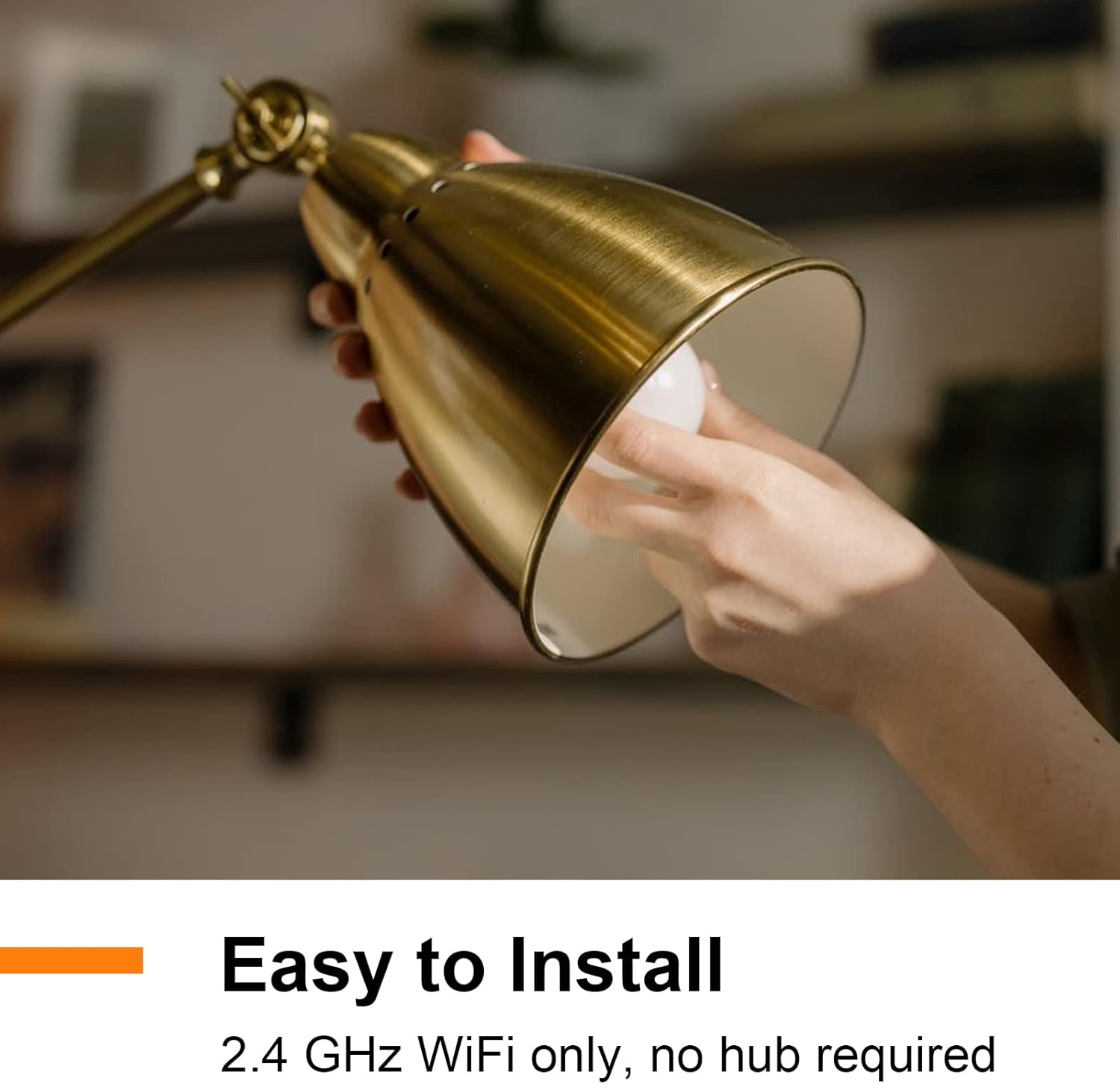
Image: A hand installing an ANTELA smart bulb into a lamp, demonstrating the ease of installation. The bulb requires a 2.4 GHz WiFi connection and no hub.
2. App Installation and Pairing
- Download the "Smart Life" or "Tuya Smart" app from your smartphone's app store (iOS or Android).
- Register or log in to your account within the app.
- In the app, tap the "+" icon to add a device. Select "Lighting" then "Light Source (Wi-Fi)" or similar.
- Confirm that the bulb is flashing rapidly. If not, reset it by turning it off and on three times.
- Enter your 2.4 GHz Wi-Fi network name and password. The bulb does not support 5 GHz Wi-Fi.
- Follow the on-screen instructions to complete the pairing process. Once connected, the bulb will stop flashing and appear in your app.
Operating Instructions
1. Color and Brightness Control
Within the "Smart Life" or "Tuya Smart" app, you can:
- Select from 16 million RGB colors.
- Adjust the color temperature from 2700K (warm white) to 6500K (cool white).
- Dim or brighten the light intensity.

Image: Four panels illustrating different lighting modes: Warm Light, Cool Light, 16 Million Colors, and Adjustable & Dimmable via the app interface.
2. Voice Control
Integrate your ANTELA Smart WiFi LED Bulb with Amazon Alexa or Google Assistant for voice commands:
- Link your "Smart Life" or "Tuya Smart" account in the Alexa or Google Home app.
- Discover devices.
- Use commands such as "Alexa, turn on the light" or "Hey Google, dim the bedroom light."
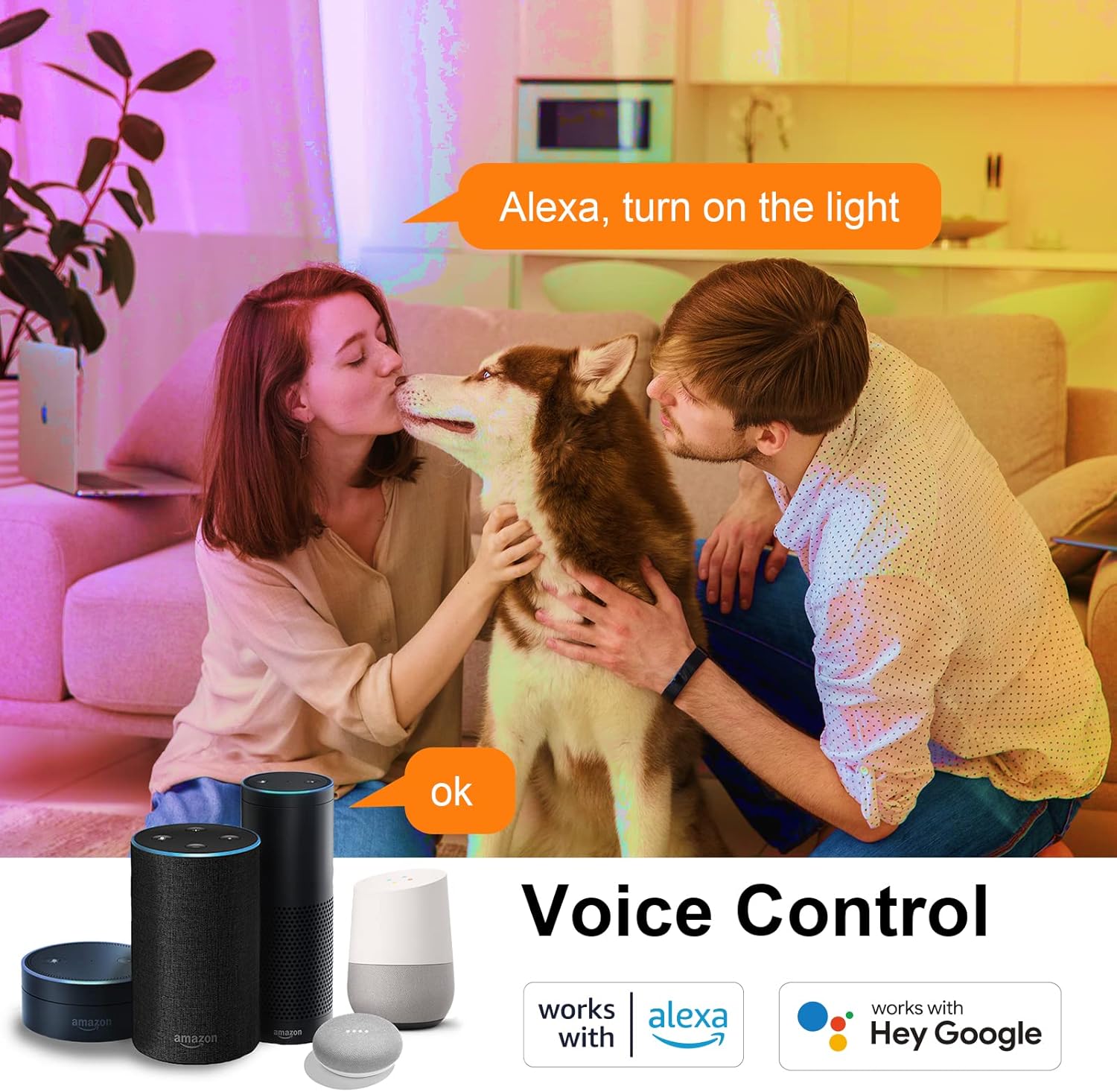
Image: A couple interacting with a dog, with speech bubbles indicating voice commands like "Alexa, turn on the light" and "ok," demonstrating voice control functionality with Alexa and Google Home devices.
3. Timer Function
Set schedules for your bulb to turn on or off automatically:
- In the app, navigate to the bulb's settings and find the "Schedule" or "Timer" option.
- Create new schedules by setting desired times for the bulb to activate or deactivate.

Image: A split image showing a person sleeping with a schedule of 8:00 TURN ON and 22:00 TURN OFF, illustrating the timer function. The lower panel shows two people sharing device control via the app, highlighting the family sharing feature.
4. Group Control
Control multiple bulbs simultaneously by grouping them in the app:
- In the app, select one of your bulbs and look for the "Create Group" option.
- Add other ANTELA smart bulbs to this group.
- Once grouped, commands applied to the group will affect all bulbs within it.

Image: An illustration of a house with different rooms (Bedroom, Bathroom, Kitchen, Living Room) and a smartphone app interface showing how to create a group to control multiple ANTELA smart bulbs together.
5. Remote Control
Control your smart bulbs from anywhere with an internet connection:
- Ensure your smartphone has an active internet connection (Wi-Fi or mobile data).
- Open the "Smart Life" or "Tuya Smart" app to manage your bulbs remotely.
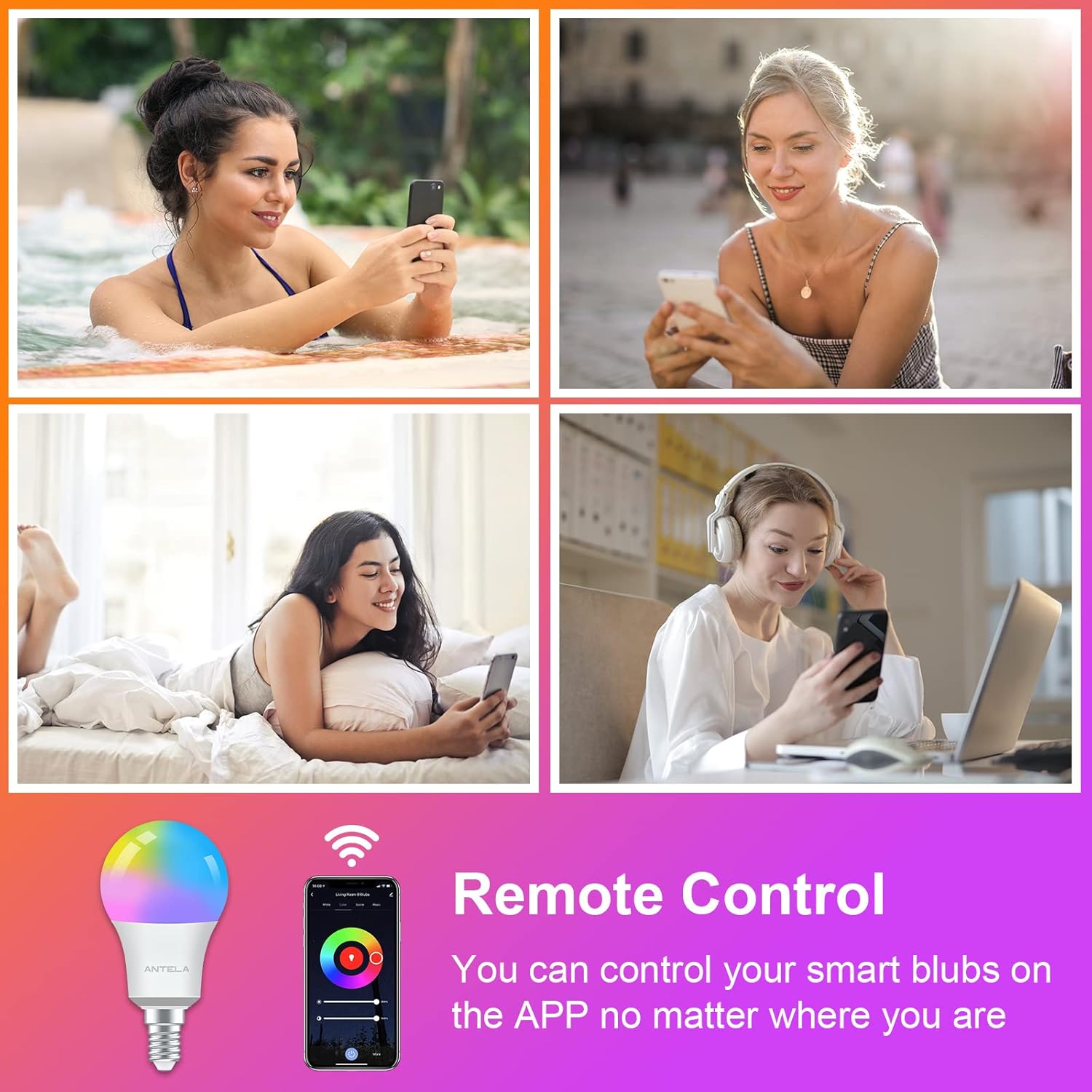
Image: Multiple individuals in various settings (hot tub, outdoors, bed, office) using their smartphones, with a smart bulb and app interface shown, indicating the ability to control the bulbs remotely.
6. Family Sharing
Share control of your smart bulbs with family members:
- In the app, go to the device settings and select "Share Device" or "Family Management."
- Invite other users by entering their account details. They will then be able to control the shared bulbs from their own app.
Maintenance
- Clean the bulb with a soft, dry cloth. Do not use liquid cleaners.
- Ensure the bulb is cool before handling or cleaning.
- Regularly check for firmware updates within the "Smart Life" or "Tuya Smart" app to ensure optimal performance and security.
Troubleshooting
| Problem | Possible Cause | Solution |
|---|---|---|
| Bulb not flashing rapidly for pairing. | Not in pairing mode. | Turn the bulb off and on three times consecutively until it flashes rapidly. |
| Bulb fails to connect to Wi-Fi. | Incorrect Wi-Fi band (5 GHz), weak signal, or wrong password. | Ensure your router is broadcasting a 2.4 GHz Wi-Fi signal. Move the bulb closer to the router. Double-check your Wi-Fi password. |
| Voice control not working. | Not linked to Alexa/Google Assistant, or incorrect commands. | Verify that the "Smart Life" or "Tuya Smart" skill/service is enabled and linked in your Alexa/Google Home app. Ensure device names are consistent. |
| Bulb disconnects frequently. | Unstable Wi-Fi connection. | Check your Wi-Fi signal strength. Restart your router. Ensure no interference from other devices. |
Specifications
| Specification | Detail |
|---|---|
| Model Number | AN-EU-A60-E14-2pack-TD |
| Dimensions (L x W x H) | 6 x 6 x 11.5 cm |
| Weight | 100 grams |
| Bulb Base | E14 |
| Bulb Shape Size | A19 |
| Light Type | LED |
| Power Consumption | 7 Watts (8 Watts max) |
| Incandescent Equivalent | 80 Watts |
| Luminous Flux | 806 Lumens |
| Color Temperature | 2700K-6500K (RGB+CCT) |
| Color Rendering Index (CRI) | 80.00 |
| Voltage | 220-240 Volts |
| Frequency | 50 Hz |
| Connectivity Technology | Wi-Fi (2.4 GHz only) |
| Control Method | App, Voice (Alexa, Google Assistant) |
| Lifespan | 15,000 Hours |
| Material | Plastic |
| Certifications | CE, RoHS |
| EPREL Product Page | View EPREL Data |

Image: A detailed product data sheet table providing technical specifications for the ANTELA smart bulb.

Image: The EU Energy Label for the ANTELA A60-PA-WIFILIC-TY-RGBCW smart bulb, indicating an energy efficiency class F and 8 kWh/1000h consumption, with a QR code for more information.
Warranty and Support
For warranty information and technical support, please refer to the official ANTELA website or contact their customer service directly. Contact details are typically available on the product packaging or the brand's official online presence.


