
1. Introduction
Thank you for purchasing the Inscabin D2/D4 Internet Radio. This device offers a versatile audio experience, combining access to thousands of internet radio stations with modern connectivity options like Bluetooth and Spotify Connect. Please read this manual carefully to ensure proper setup and operation of your new radio.
2. Safety Information
- Do not expose the unit to rain or moisture to prevent fire or electric shock.
- Do not open the casing. Refer all servicing to qualified personnel.
- Ensure proper ventilation around the unit. Do not block ventilation openings.
- Use only the power adapter supplied with the unit.
- Keep the unit away from direct sunlight, heat sources, and strong magnetic fields.
- Clean the unit with a soft, dry cloth. Do not use abrasive cleaners or solvents.
3. Package Contents
Carefully unpack your Inscabin D2/D4 Internet Radio and check that all items are present and in good condition. If any items are missing or damaged, please contact your retailer.
- Inscabin D2/D4 Internet Radio Unit
- Power Adapter
- Remote Control
- User Manual (this document)
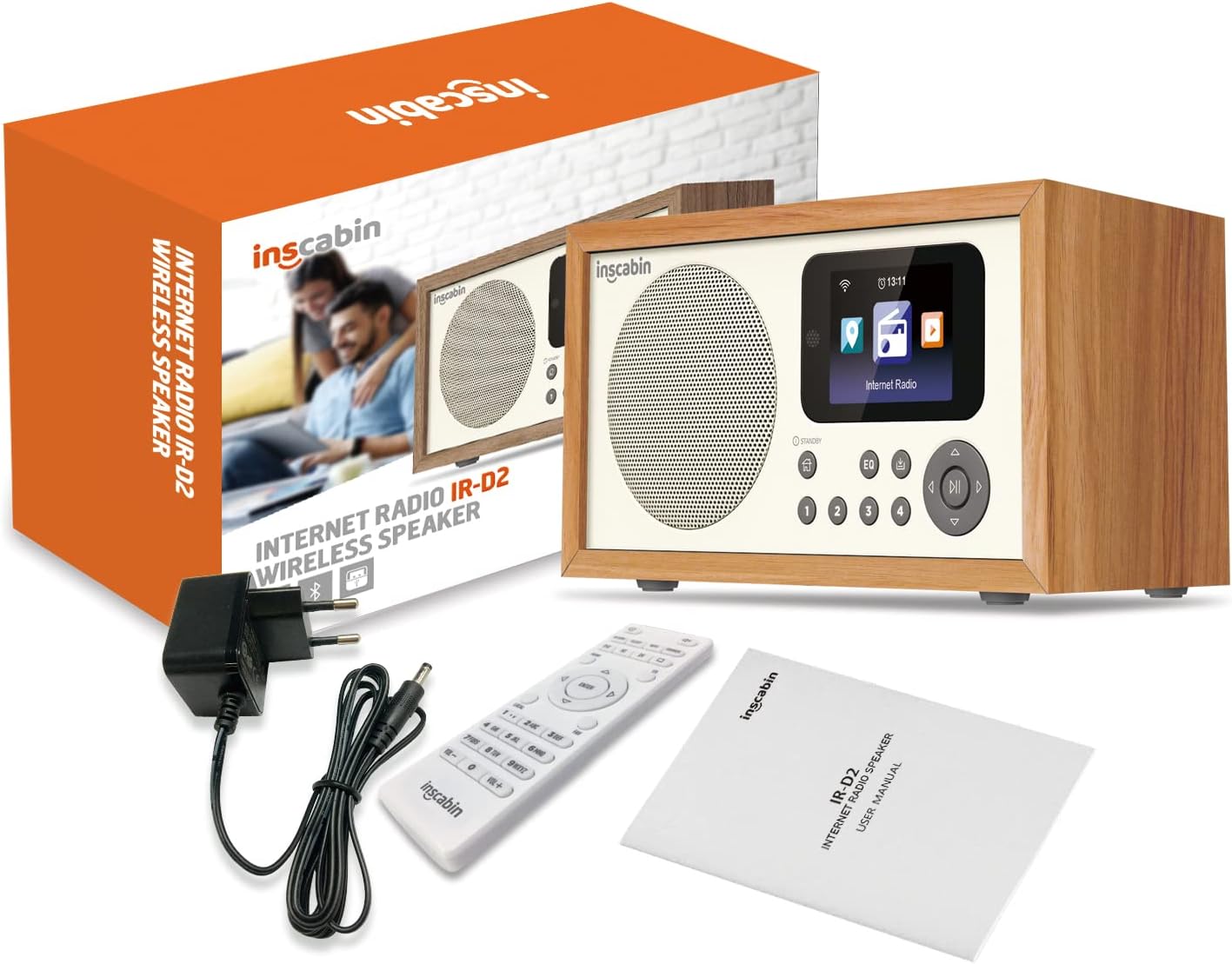
Image: The Inscabin D2/D4 Internet Radio, power adapter, remote control, and user manual as included in the product packaging.
4. Product Overview
Familiarize yourself with the main components and controls of your Inscabin D2/D4 Internet Radio.

Image: Front view of the Inscabin D2/D4 Internet Radio, showing the speaker grille on the left, a color display screen on the right, and various control buttons below the screen. The screen displays icons for different functions like Internet Radio.
4.1 Front Panel Controls
- Speaker: Audio output.
- Color TFT Display: Shows program information, track details, album art, and weather.
- Standby Button: Powers the unit on or off.
- Home Button: Returns to the main menu.
- EQ Button: Accesses equalizer settings.
- Preset Buttons (1-4): Quick access to saved radio stations.
- Navigation Buttons (Up, Down, Left, Right, OK): For menu navigation and selection.
- Play/Pause Button: Controls playback.
4.2 Rear Panel Connections
The rear panel typically includes the power input and potentially other ports like auxiliary input/output.
5. Setup
5.1 Power Connection
- Connect the supplied power adapter to the DC IN port on the back of the radio.
- Plug the power adapter into a standard wall outlet.
- Press the Standby button to power on the unit.
5.2 Initial Setup (Wi-Fi and Language)
Upon first power-on, the radio will guide you through the initial setup process.
- Language Selection: Use the navigation buttons to select your preferred language and press OK.
- Network Setup: The radio will scan for available Wi-Fi networks. Select your network from the list.
- Enter Password: Use the navigation buttons to enter your Wi-Fi password. Press OK to confirm.
- The radio will attempt to connect to the internet. Once connected, the Wi-Fi icon will appear on the display.
6. Operating Instructions
6.1 Internet Radio
Access thousands of radio stations from around the world.
- From the main menu, select "Internet Radio" using the navigation buttons and press OK.
- You can browse stations by location, genre, or use the search function.
- Select a station and press OK to start playback.
- To save a station as a preset, press and hold one of the preset buttons (1-4) until the display confirms it's saved.
6.2 Bluetooth Mode
Stream audio wirelessly from your smartphone or tablet.
- From the main menu, select "Bluetooth" and press OK. The radio will enter pairing mode.
- On your smartphone or tablet, enable Bluetooth and search for available devices.
- Select "Inscabin D2/D4" (or similar name) from the list to pair.
- Once connected, you can play audio from your device through the radio.
6.3 Spotify Connect
Control your Spotify music directly from the Spotify app.
- Ensure your radio and the device running the Spotify app are connected to the same Wi-Fi network.
- Open the Spotify app on your smartphone or tablet.
- Play a song and tap the "Devices Available" icon (usually a speaker or computer icon).
- Select your Inscabin D2/D4 radio from the list of available devices.
- Your Spotify audio will now play through the radio, controlled by your app.
6.4 Dual Alarm Clock
Set up to two independent alarms.
- From the main menu, navigate to "Alarm" or "Settings" and then "Alarm".
- Select Alarm 1 or Alarm 2.
- Set the alarm time, source (e.g., buzzer, internet radio station), volume, and frequency (daily, once, weekdays, weekends).
- Ensure the alarm is enabled.
6.5 App Control
Control your radio using a dedicated smartphone application (e.g., UNDOK app).
- Download the compatible control app (e.g., UNDOK) from your device's app store.
- Ensure your smartphone and the radio are connected to the same Wi-Fi network.
- Open the app and follow the on-screen instructions to discover and connect to your Inscabin D2/D4 radio.
- You can now control various functions of the radio, such as changing stations, adjusting volume, and managing presets, directly from your smartphone.
7. Maintenance
- Cleaning: Use a soft, dry, lint-free cloth to clean the radio's surface. Do not use liquid or aerosol cleaners.
- Storage: If storing the radio for an extended period, disconnect it from the power supply and store it in a cool, dry place.
- Software Updates: Periodically check the radio's settings menu for available software updates to ensure optimal performance and access to new features.
8. Troubleshooting
| Problem | Possible Cause | Solution |
|---|---|---|
| No power | Power adapter not connected or faulty outlet. | Check power connections. Try a different outlet. |
| Cannot connect to Wi-Fi | Incorrect password, weak signal, or router issue. | Verify Wi-Fi password. Move radio closer to router. Restart router. |
| Internet radio stations not playing | No internet connection, station offline, or buffering. | Check Wi-Fi connection. Try other stations. Internet speed may be slow. |
| Bluetooth pairing fails | Device not in pairing mode, or too far away. | Ensure radio is in Bluetooth pairing mode. Keep devices within range. |
| Sound distortion | Volume too high, poor signal, or EQ settings. | Adjust volume. Check signal strength. Reset EQ settings. |
9. Specifications
| Feature | Detail |
|---|---|
| Brand | Inscabin |
| Model Number | 054114379934 |
| Color | D2-WT |
| Connectivity Technology | Bluetooth, Wi-Fi (Internet Radio) |
| Special Features | Portable, Wireless, Dual Alarm, Spotify Connect, App Control |
| Compatible Devices | Smartphone, Tablet |
| Power Source | Electric Cable (AC Adapter) |
| Included Components | Power Adapter |
| Recommended Uses | Music, Podcasts, Internet Radio, Bluetooth Speaker |
| Display | Color TFT Screen |
| Dimensions (Approx.) | 210mm (Width) x 110mm (Height) x 90mm (Depth) |

Image: The Inscabin D2/D4 Internet Radio with approximate dimensions: 210mm width, 110mm height, and 90mm depth.
10. Warranty and Support
For warranty information and customer support, please refer to the documentation provided with your purchase or visit the official Inscabin website. Information regarding spare parts availability and software update guarantees is not available at this time.
