
PETLIBRO PLAF103-DT
PETLIBRO 5L Automatic Cat Feeder (PLAF103-DT) User Manual
1. Introduction
This manual provides detailed instructions for the setup, operation, maintenance, and troubleshooting of your PETLIBRO 5L Automatic Cat Feeder (Model: PLAF103-DT). This device is designed to provide scheduled and portion-controlled feeding for up to two pets, ensuring a consistent diet and convenience for pet owners. Please read this manual thoroughly before using the product to ensure proper function and safety.

Image 1.1: PETLIBRO 5L Automatic Cat Feeder with dual bowls and smartphone app interface.
2. Safety Information
- Use only dry pet food with a kibble diameter between 2-15mm. Do not use wet food or kibble larger than 15mm to prevent clogging.
- Ensure the original 5V power adapter is used.
- If using battery backup, change batteries every 6 months, especially if the feeder is not in use for extended periods.
- The feeder is suitable for all cats (except kittens under 3 months) and small to medium-sized dogs (adult weight approximately 10kg, shoulder height approximately 40cm).
- Do not wash the base unit. Only detachable components such as the food tank, stainless steel bowls, and bowl holder are washable.
- Keep out of reach of children and pets when not in use or during assembly/disassembly.
3. Product Components
The PETLIBRO 5L Automatic Cat Feeder package includes the following items:
- 1 x PETLIBRO Automatic Pet Feeder (5L)
- 1 x 5V Power Adapter
- 1 x Desiccant Bag
- 1 x User Guide (this manual)
- 2 x Stainless Steel Bowls (pre-installed in the dual tray)

Image 3.1: Front view of the feeder, highlighting the dual bowls.
4. Setup Guide
4.1 Unpacking and Initial Cleaning
- Remove all components from the packaging.
- Wash the food tank, stainless steel bowls, and bowl holder with water and mild detergent. Rinse thoroughly and dry completely before assembly. The main base unit is not washable.
4.2 Power Supply Installation
The feeder supports both AC adapter power and battery backup.
- AC Adapter: Connect the 5V power adapter to the feeder's power port and plug it into a wall outlet.
- Battery Backup (Optional): For power outage protection, install three D-cell batteries (not included) into the battery compartment at the bottom of the feeder. This ensures continuous feeding even if AC power is lost.

Image 4.1: Power supply options, including battery backup for power outages.
4.3 Assembling the Feeder
- Place the main base unit on a flat, stable surface.
- Attach the food tank to the base, ensuring it is securely locked.
- Insert the stainless steel bowls into the dual bowl holder.
- Place the dual bowl holder onto the front of the feeder base.
- Install the desiccant bag into the designated slot under the lid to maintain food freshness. Replace the desiccant bag every half a month.
- Close the lid securely with the twist-lock mechanism to create an airtight seal.

Image 4.2: Components for maintaining food freshness, including the desiccant bag and sealing strip.
4.4 Filling the Food Tank
Open the lid and pour dry kibble into the food tank. Ensure the kibble size is between 2-15mm. Close the lid securely.
4.5 Wi-Fi Connection and App Setup
The PETLIBRO feeder connects to both 2.4GHz and 5GHz Wi-Fi networks for stable control via the app.
- Download the PETLIBRO app from the App Store (iOS) or Google Play Store (Android).
- Create an account or log in.
- Follow the in-app instructions to add your feeder. This typically involves powering on the feeder, entering your Wi-Fi credentials, and pairing the device.
- Ensure your smartphone is connected to the same Wi-Fi network during the initial pairing process.

Image 4.3: Feeder's compatibility with 2.4GHz and 5GHz Wi-Fi networks.
5. Operating Instructions
5.1 Setting Feeding Schedules
Use the PETLIBRO app to program your pet's feeding schedule:
- Open the app and select your feeder.
- Navigate to the 'Schedule' section.
- You can set up to 10 meals per day. For each meal, specify the feeding time and the number of portions (1-50 portions).
- Adjust the meal splitter to the rightmost position to ensure relatively equal food distribution between the two bowls. The error value for food distribution is approximately 3%.

Image 5.1: App interface for setting feeding schedules.

Image 5.2: Balanced feeding for two pets using the adjustable meal splitter.
5.2 Personalized Voice Recording
Record a custom voice message (up to 10 seconds) that will play at feeding times to call your pets.
- In the app, go to the 'Voice Call' or 'Meal Call' section.
- Record your message. The app automatically deletes old recordings to maintain freshness.
- Adjust the volume as needed.
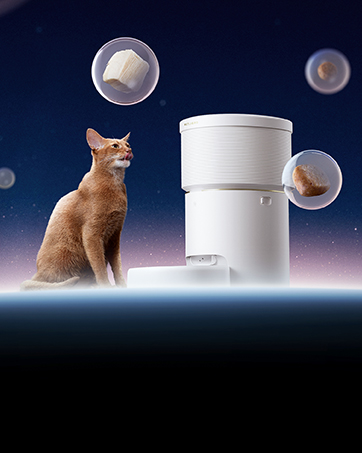
Image 5.3: Personalized voice recording feature.
5.3 Manual Feeding
You can dispense food instantly outside of the scheduled times:
- Via App: Use the 'Feed Now' option in the app to dispense a specified number of portions.
- Via Feeder Button: Press the manual feed button on the feeder's control panel to dispense one portion.
5.4 Monitoring Feeding Logs
The app keeps a record of all feeding activities.
- Access the 'Logs' section in the app to view detailed feeding records, including time and amount dispensed.
- The feeder stores the last 70 logs even if the device is offline.

Image 5.4: App interface displaying feeding logs.
5.5 Smart Alerts and Notifications
The feeder provides real-time notifications to your phone for important events:
- Food Shortage: Notifies you when the food level is low.
- Clogging: Alerts if food is jammed, with an infrared sensor to prevent further dispensing.
- Low Battery: Indicates when backup batteries need replacement.
- Rotor Stuck: Notifies if the internal rotor mechanism is obstructed.

Image 5.5: Smart alerts for low food levels and other issues.
5.6 Device Sharing
You can share control of the feeder with up to five other users through the app, allowing multiple family members to manage feeding schedules and monitor the device.
6. Maintenance and Cleaning
Regular cleaning ensures hygiene and extends the life of your feeder.
6.1 Disassembly for Cleaning
The feeder features a detachable design for easy cleaning.
- Unplug the feeder from the power outlet and remove any backup batteries.
- Remove the food tank, stainless steel bowls, and bowl holder from the base unit.

Image 6.1: Detachable components for easy cleaning.
6.2 Cleaning the Food Tank and Bowls
- Wash the food tank, stainless steel bowls, and bowl holder with water and mild, pet-safe detergent.
- Rinse all parts thoroughly to remove any soap residue.
- Ensure all parts are completely dry before reassembling to prevent mold or bacterial growth.
- The stainless steel bowls are food-grade and designed to prevent grease accumulation and chin acne.
6.3 Desiccant Bag Replacement
Replace the desiccant bag every half a month to ensure optimal food freshness and prevent moisture buildup.
6.4 General Care
- Wipe the main base unit with a clean, damp cloth. Do not submerge it in water.
- Ensure the feeder is placed on a stable surface. Bottom silicone pads provide stability.
- The power cable is a nylon braided cable to prevent pet chewing. Inspect it regularly for damage.
7. Troubleshooting
| Issue | Possible Cause | Solution |
|---|---|---|
| Uneven food distribution between bowls | Meal splitter not correctly positioned. | Move the splitter to the rightmost position until it cannot be moved further. This optimizes for relatively equal distribution. |
| Feeder not connecting to Wi-Fi | Incorrect Wi-Fi credentials; feeder too far from router; network interference; app issues. | Ensure correct 2.4GHz or 5GHz Wi-Fi password. Move feeder closer to router. Restart feeder and router. Reinstall app if necessary. |
| Food jamming or not dispensing | Kibble size outside recommended range (2-15mm); food tank obstruction; rotor stuck. | Check kibble size. Clear any obstructions in the food outlet. The app will notify you if the rotor is stuck. Clean the food tank and rotor area. |
| Feeder not working during power outage | No backup batteries installed or batteries are depleted. | Install three fresh D-cell batteries. Replace batteries every 6 months for optimal performance. |
| No notifications from the app | App notification settings disabled; feeder offline. | Check app notification permissions on your phone. Ensure the feeder is connected to Wi-Fi. |
8. Specifications
| Feature | Detail |
|---|---|
| Model Name | PLAF103-DT |
| Capacity | 5 Liters |
| Dimensions (LxWxH) | 10.16 x 7.72 x 14.17 inches |
| Item Weight | 4.21 Pounds |
| Material | Plastic, Stainless Steel |
| Power Supply | 5V Power Adapter, 3 x D-cell batteries (backup) |
| Wi-Fi Connectivity | 2.4GHz & 5GHz |
| Kibble Size Compatibility | 2-15mm diameter dry food |
| Max Meals/Day | 10 |
| Portions/Meal | 1-50 |
9. Warranty and Support
The PETLIBRO 5L Automatic Cat Feeder (PLAF103-DT) comes with a 12-month warranty from the date of purchase.
For technical support, warranty claims, or any questions regarding your product, please contact PETLIBRO customer service through their official website or the contact information provided in your product packaging.
Ask a question about this manual
Ask about setup, troubleshooting, compatibility, parts, safety, or missing instructions. Manuals+ will review the question and use this page’s manual context to help answer it.