
4DRC V8 Mini Drone
4DRC V8 Mini Drone User Manual
Model: V8 Mini Drone
1. Introduction
Thank you for purchasing the 4DRC V8 Mini Drone. This manual provides essential information for the safe operation, maintenance, and troubleshooting of your new drone. Please read this manual thoroughly before operating the drone to ensure proper use and to maximize your flying experience. This drone is designed for beginners and children, offering easy controls and stable flight characteristics.
2. Product Overview
2.1 Package Contents
- 4DRC V8 Mini Drone
- Remote Controller
- Rechargeable Lithium-Ion Batteries (2 included)
- USB Charging Cable
- Spare Propellers
- User Manual

Figure 2.1: Complete package contents of the 4DRC V8 Mini Drone.
2.2 Key Features
- 720P HD Camera: Real-time FPV (First Person View) video transmission for immersive flight.
- Easy Control: Features like Altitude Hold, Headless Mode, and One-Key Take-off/Landing simplify operation for beginners.
- Multifunctional Flight: Includes custom flight path (Trajectory Flight), 360° Flips, Gesture Control for selfies, and 3-speed settings.
- Extended Flight Time: Comes with two rechargeable batteries, providing up to 20 minutes of flight time.
- Safe and Durable Design: Propellers are protected by four frames, and the high-quality ABS shell protects against impacts.
- Gravity Induction: Allows control by tilting your smartphone.
3. Setup
3.1 Charging the Drone Battery
- Connect the drone battery to the USB charging cable.
- Plug the USB cable into a 5V/1A USB adapter (not included) or a computer USB port.
- The indicator light on the USB cable will show charging status (refer to cable instructions for specific light behavior).
- Charging typically takes approximately 60-90 minutes. Do not overcharge.
3.2 Installing Drone Battery
- Ensure the drone is powered off.
- Carefully insert the charged battery into the battery compartment on the drone.
- Ensure the battery is securely latched to prevent dislodging during flight.
3.3 Installing Remote Controller Batteries
- Open the battery compartment on the back of the remote controller.
- Insert 3 AAA batteries (not included) according to the polarity markings (+/-).
- Close the battery compartment.
3.4 Propeller Installation/Replacement
The drone comes with pre-installed propellers. If replacement is needed:
- Identify the correct propeller type (A or B) by checking the marking on the propeller and the drone arm.
- Gently pull off the damaged propeller.
- Press the new propeller firmly onto the motor shaft, ensuring it is fully seated.
4. Operating Instructions
4.1 Pairing the Drone with the Remote Controller
- Place the drone on a flat, level surface.
- Power on the drone. The drone's indicator lights will flash.
- Power on the remote controller.
- Push the left joystick (throttle) all the way up, then pull it all the way down. The drone's lights will stop flashing and become solid, indicating successful pairing.
4.2 One-Key Take-off and Landing
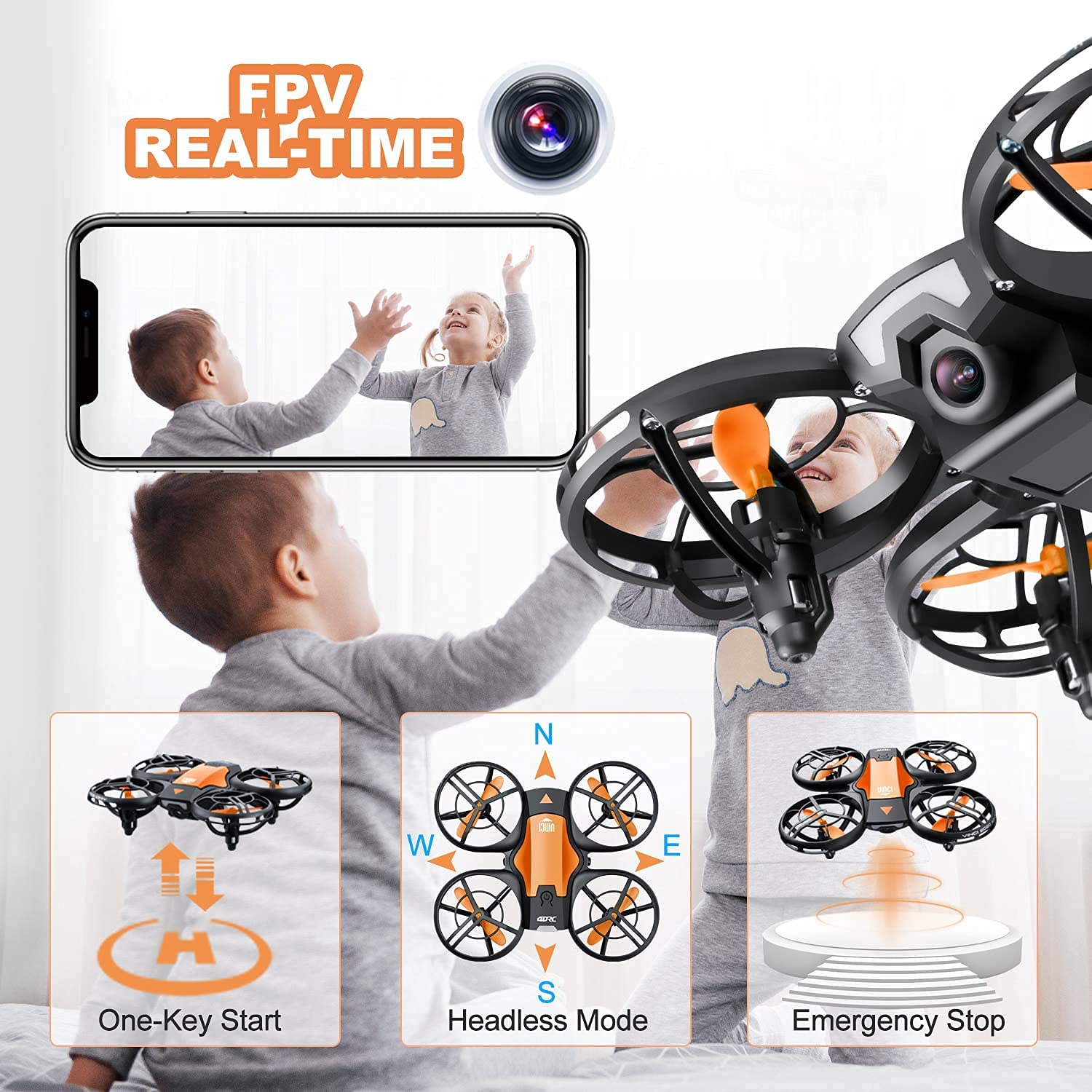
Figure 4.2: Visual representation of One-Key Start, Headless Mode, and Emergency Stop functions.
- Take-off: After pairing, press the One-Key Take-off button (usually indicated by an upward arrow or drone icon). The drone will automatically ascend to a stable hovering height.
- Landing: Press the One-Key Landing button (usually indicated by a downward arrow or drone icon). The drone will slowly descend and land automatically.
4.3 Basic Flight Controls
| Control Stick | Action | Drone Movement |
|---|---|---|
| Left Joystick (Throttle) - Up/Down | Push up/down | Ascend/Descend |
| Left Joystick (Yaw) - Left/Right | Push left/right | Rotate Left/Right |
| Right Joystick (Pitch) - Up/Down | Push up/down | Fly Forward/Backward |
| Right Joystick (Roll) - Left/Right | Push left/right | Fly Left/Right (Sideways) |
4.4 Headless Mode
In Headless Mode, the drone's orientation is irrelevant. The drone will move relative to the pilot's position. For example, pushing the right joystick forward will always make the drone fly away from the pilot, regardless of which way the drone's "head" (front) is facing.
- Activation: Press the Headless Mode button on the remote (refer to remote diagram if available). The drone will beep to confirm activation.
- Deactivation: Press the Headless Mode button again.
4.5 360° Flips

Figure 4.5: The drone executing a 360-degree flip maneuver.
To perform a 360° flip:
- Ensure the drone is flying at a sufficient height (at least 2-3 meters).
- Press the 360° Flip button (usually indicated by a circular arrow icon).
- Immediately push the right joystick in the desired flip direction (forward, backward, left, or right). The drone will perform a flip in that direction.
4.6 Trajectory Flight (Tap Fly)

Figure 4.6: Using the mobile application to set a custom flight path for the drone.
This feature allows you to draw a flight path on your smartphone screen, and the drone will automatically follow it.
- Download and install the 4DRC companion app (refer to packaging or quick start guide for QR code/app name).
- Connect your smartphone to the drone's Wi-Fi network (usually named "4DRC_XXXXXX").
- Open the app and select the Trajectory Flight mode.
- Draw your desired path on the screen. The drone will then fly along the specified route.
4.7 FPV Camera and App Usage

Figure 4.7: The 720P HD camera provides real-time FPV view to a connected smartphone.
The drone's 720P HD camera transmits live video to your smartphone via Wi-Fi.
- Ensure your smartphone is connected to the drone's Wi-Fi network.
- Open the 4DRC app. The live video feed from the drone's camera will appear on your screen.
- Use the app interface to take photos or record videos. Files are typically saved directly to your phone's gallery.
4.8 Emergency Stop
In case of an emergency or loss of control, press the Emergency Stop button on the remote controller. This will immediately cut power to the motors, causing the drone to fall. Use this function only when necessary to prevent damage or injury.
5. Safety Guidelines
- Always operate the drone in open areas, away from people, animals, buildings, and obstacles.
- Maintain visual line of sight with the drone at all times.
- Do not fly in strong winds, rain, or other adverse weather conditions.
- Keep fingers and hair away from rotating propellers.
- Ensure batteries are fully charged before each flight.
- Do not attempt to modify or disassemble the drone or its components.
- Supervise children during drone operation.
- Adhere to local regulations regarding drone usage.
6. Maintenance
- Cleaning: Use a soft, dry cloth to clean the drone after each use. Avoid water or harsh chemicals.
- Propellers: Regularly inspect propellers for damage (bends, cracks). Replace damaged propellers immediately using the spare parts provided.
- Batteries: Store batteries in a cool, dry place. Do not store fully charged or completely depleted for long periods. Charge them periodically if not in use.
- Storage: When not in use, store the drone and remote controller in a safe, dry place, away from direct sunlight and extreme temperatures.
7. Troubleshooting
| Problem | Possible Cause | Solution |
|---|---|---|
| Drone does not respond to remote. | Not paired; low battery (drone/remote). | Re-pair the drone and remote; charge/replace batteries. |
| Drone drifts during flight. | Not calibrated on a flat surface; strong wind. | Recalibrate the drone; fly in calm conditions. |
| Poor FPV video quality or no feed. | Weak Wi-Fi signal; app not connected. | Ensure strong Wi-Fi connection; restart app and drone. |
| Short flight time. | Battery not fully charged; old battery. | Ensure full charge; consider replacing battery if old. |
| Propellers not spinning. | Obstruction; motor damage; low battery. | Check for obstructions; charge battery. If problem persists, contact support. |
8. Specifications
| Feature | Detail |
|---|---|
| Brand | 4DRC |
| Model | V8 Mini Drone |
| Control Type | Gesture control, Remote control |
| Maximum Range | 120 Feet |
| Material | ABS |
| Wireless Communication | Wi-Fi |
| Battery Type | Lithium Ion |
| Flight Time | Up to 20 minutes (with 2 batteries) |
| Product Dimensions | 13L x 11W x 4H Centimeters |
| Item Weight | 430 g |
9. Warranty and Support
For warranty information or technical support, please refer to the contact details provided on the product packaging or the official 4DRC website. Keep your purchase receipt as proof of purchase.
Related documentsV8 Mini Drone


Ask a question about this manual
Ask about setup, troubleshooting, compatibility, parts, safety, or missing instructions. Manuals+ will review the question and use this page’s manual context to help answer it.