
KOORUI 24N1A
KOORUI 24-inch Computer Monitor User Manual
Model: 24N1A | Brand: KOORUI
1. Product Overview
The KOORUI 24-inch Computer Monitor (Model 24N1A) is designed to deliver a superior visual experience for both work and entertainment. Featuring a Full HD 1920 x 1080p resolution and a 100Hz refresh rate, this monitor provides crisp, clear images and smooth motion. Its VA display panel offers a high 3000:1 contrast ratio for vivid details and deep blacks.
Key features include:
- True Color & Vivid Detail: 99% sRGB color gamut and 10-bit gray level for over 16.7 million colors, ensuring stunning image quality.
- Extremely Viewing Comfort: Equipped with Flicker-free, Blue Light Filter, and Anti-glare technologies to reduce eye strain during prolonged use. The screen can be tilted from -5 to 15 degrees for ergonomic viewing.
- Ultra Slim Design: Features three-sided slim bezels and a compact footprint, maximizing the display area and enhancing the overall aesthetic.
- Smooth & Fast Visuals: A 100Hz refresh rate combined with FreeSync compatibility provides a tear-free and smooth experience for gaming and video playback.
- Multi-Functional Application: Supports VESA 100x100mm mounting for versatile setup options. Multiple port options including HDMI, VGA, and Audio Output ensure broad compatibility with various devices.
2. What's in the Box
Please check the contents of your package to ensure all items are present:
- 1x 23.8 inch Monitor
- 1x HDMI Cable
- 1x Power Cord
- 1x User Manual (this document)
- 1x Column (for stand assembly)
- 1x Bottom Base (for stand assembly)
- 1x Adapter
- 4x Screws (for stand assembly)

Figure 2.1: Included Components Diagram
This image illustrates all the parts you should find inside the product packaging, including the monitor, stand components, cables, and documentation.
3. Setup Instructions
3.1. Assembling the Stand
- Carefully remove all components from the packaging.
- Attach the column to the bottom base using the provided screws.
- Align the assembled stand with the mounting points on the back of the monitor. Secure the stand to the monitor using the remaining screws.
Alternatively, the monitor supports VESA 100x100mm mounting for wall mounts or monitor arms (sold separately).

Figure 3.1: VESA Mounting Points
This image highlights the VESA 100x100mm mounting pattern on the back of the monitor, allowing for alternative mounting solutions.
3.2. Connecting the Monitor
The monitor provides HDMI, VGA, and Audio Out ports for connectivity.
- Connect the power cord to the monitor's DC input and then to a power outlet.
- Connect the provided HDMI cable from your computer's HDMI output to the HDMI 1.4 input on the monitor. For older systems, use a VGA cable to connect to the VGA port.
- If desired, connect external speakers or headphones to the Audio Out port.

Figure 3.2: Monitor Input Ports
This image displays the available input ports on the monitor, including HDMI, VGA, Audio Out, and the power input, illustrating where to connect your devices.
4. Operating the Monitor
4.1. Power On/Off
Press the power button, usually located on the bottom right or rear of the monitor, to turn it on or off. The power indicator light will illuminate when the monitor is active.
4.2. Input Selection
The monitor will typically auto-detect the active input. If not, use the OSD (On-Screen Display) menu buttons to manually select between HDMI and VGA inputs.
4.3. Display Adjustments
Use the OSD menu buttons to access various display settings. Common adjustments include brightness, contrast, color temperature, and picture modes. Refer to the on-screen menu for detailed options.

Figure 4.1: KOORUI Monitor Front View
This image shows the monitor from the front, emphasizing its slim design and the quality of the display.
4.4. Ergonomic Tilt Adjustment
The monitor stand allows for tilt adjustment from -5 degrees (forward) to 15 degrees (backward). Gently push or pull the top or bottom edge of the monitor to achieve your desired viewing angle.

Figure 4.2: Tilt Adjustment Range
This diagram illustrates the monitor's ability to tilt, allowing users to find an optimal and comfortable viewing position.
4.5. Eye Comfort Features
The monitor incorporates Flicker-free, Blue Light Filter, and Anti-glare technologies to minimize eye strain. These features work automatically or can be adjusted via the OSD menu to suit your preferences, providing a more comfortable viewing experience during long periods of use.

Figure 4.3: Eye-Friendly Display
This image demonstrates the visual benefits of the monitor's eye-friendly technologies, showing a clear difference compared to a standard display.
4.6. Smooth Visuals with 100Hz and FreeSync
For optimal performance in gaming and video, ensure your graphics card supports FreeSync and that the display refresh rate is set to 100Hz in your computer's display settings. The HDMI port supports 100Hz, while the VGA port supports 60Hz.
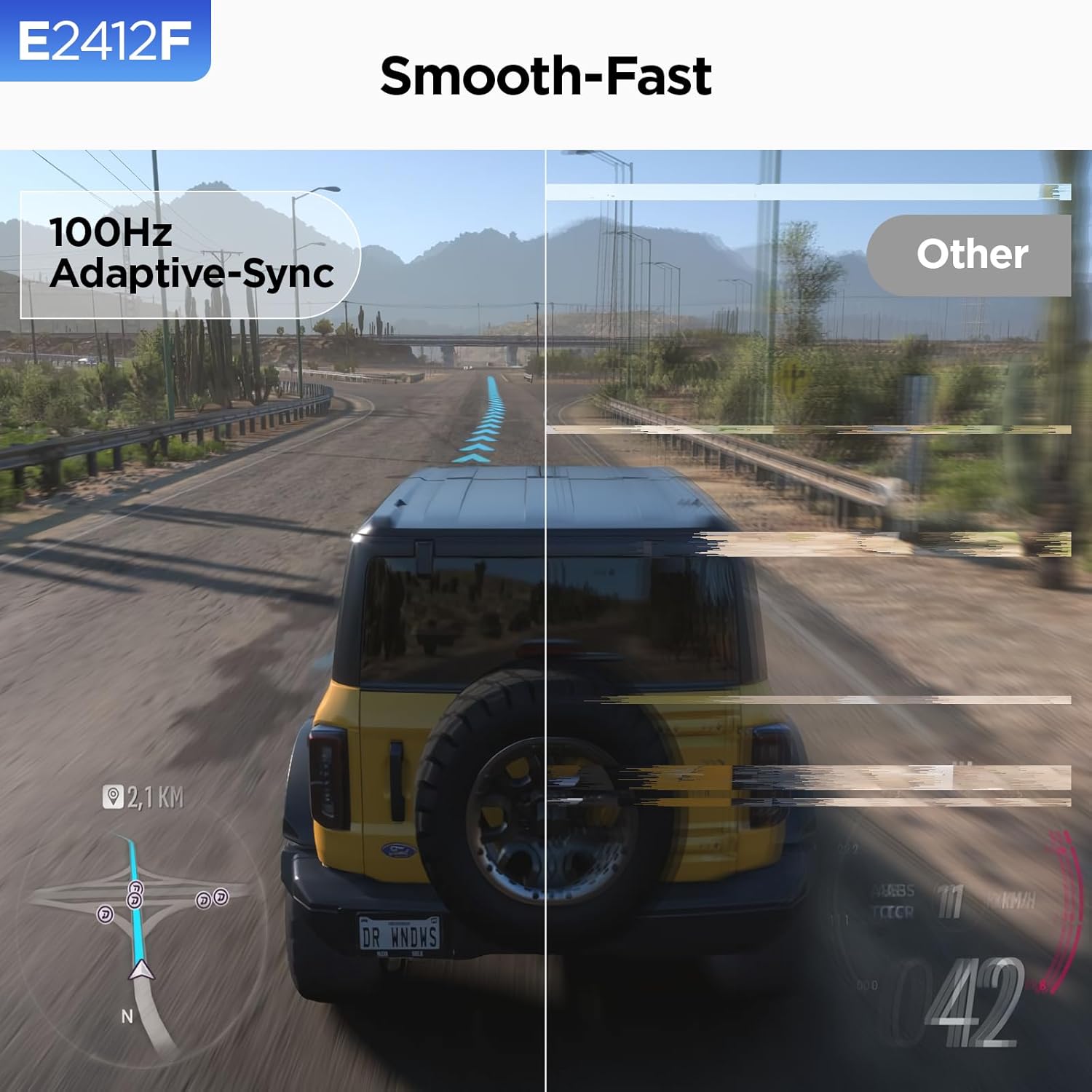
Figure 4.4: 100Hz Adaptive-Sync Performance
This visual comparison illustrates the difference in motion clarity and smoothness achieved with the monitor's 100Hz refresh rate and Adaptive-Sync technology.
Video 4.1: KOORUI UltraThin Monitor E2412F Elevate Efficiency Foster Focus
This video demonstrates the sleek design and various features of the KOORUI E2412F monitor, showcasing its suitability for enhancing productivity and focus in different environments.
5. Maintenance
To ensure the longevity and optimal performance of your KOORUI monitor, follow these maintenance guidelines:
- Cleaning the Screen: Use a soft, lint-free cloth specifically designed for electronics. For stubborn smudges, lightly dampen the cloth with water or a screen-cleaning solution. Never spray liquid directly onto the screen.
- Cleaning the Casing: Wipe the monitor's casing with a soft, dry cloth. Avoid using abrasive cleaners or solvents, as they can damage the finish.
- Ventilation: Ensure the monitor's ventilation openings are not blocked. Proper airflow prevents overheating.
- Storage: If storing the monitor for an extended period, disconnect it from power, clean it, and store it in a cool, dry place, preferably in its original packaging.
6. Troubleshooting
If you encounter issues with your monitor, please refer to the following common problems and solutions:
| Problem | Possible Cause | Solution |
|---|---|---|
| No image on screen | No power; Incorrect input selected; Loose video cable | Check power connection and outlet; Select correct input source via OSD menu; Ensure video cable (HDMI/VGA) is securely connected at both ends. |
| Image is blurry or distorted | Incorrect resolution; Cable interference | Set display resolution to 1920 x 1080p in your computer's display settings; Ensure video cable is not damaged and is properly shielded. |
| No sound from Audio Out | External speakers/headphones not connected; Volume too low; Audio settings on computer | Verify external audio device is connected and powered on; Adjust volume on external device and computer; Check computer's audio output settings. |
| Screen flickering | Refresh rate mismatch; Interference | Ensure refresh rate is set to 100Hz (for HDMI) or 60Hz (for VGA) in computer settings; Check for nearby electronic devices causing interference. |
7. Specifications
Detailed technical specifications for the KOORUI 24-inch Computer Monitor (Model 24N1A):
- Screen Size: 24 Inches (23.8 inches viewable)
- Panel Type: VA Display
- Resolution: Full HD 1920 x 1080p
- Aspect Ratio: 16:9
- Refresh Rate: 100Hz (via HDMI), 60Hz (via VGA)
- Contrast Ratio: 3000:1
- Color Gamut: 99% sRGB
- Color Depth: 10-bit (over 16.7 million colors)
- Viewing Angle: 178° (Horizontal/Vertical)
- Brightness: (Information not provided in source data, typical for this type of monitor is 250-300 cd/m²)
- Response Time: (Information not provided in source data, typical for this type of monitor is 5ms GtG)
- Connectivity: 1x HDMI 1.4, 1x VGA, 1x Audio Out, 1x DC Power Input
- VESA Mount Compatibility: 100 x 100 mm
- Tilt Adjustment: -5° to +15°
- Product Dimensions (LxWxH): 8.42 x 21.26 x 20.32 inches (with stand)
- Item Weight: 7.83 pounds
- Power Input: 240 Volts (via adapter)
8. Warranty and Support
KOORUI provides a 3-Year Limited Warranty for this product, covering manufacturing defects and malfunctions under normal use. For technical assistance, troubleshooting, or warranty claims, please contact KOORUI customer support.
You can also refer to the official PDF User Manual for more detailed information and support:
Download Official User Manual (PDF)

Figure 8.1: Warranty and Support Information
This image confirms the 3-year limited warranty and availability of technical customer support from KOORUI.
Related documents24N1A


Ask a question about this manual
Ask about setup, troubleshooting, compatibility, parts, safety, or missing instructions. Manuals+ will review the question and use this page’s manual context to help answer it.