
1. Introduction
The Doro 8100 is a 4G unlocked smartphone specifically designed for seniors, offering an intuitive and user-friendly experience. It combines essential smartphone features with Doro's signature ease-of-use and safety functions, such as the Response by Doro assistance button.

The Doro 8100 features a clear, easy-to-read display with large icons for simplified navigation.
2. What's in the Box
Upon unboxing your Doro 8100, please ensure all the following items are present:
- Doro 8100 Smartphone
- UK Mains Charger
- Quick Start Guide
3. Setup Guide
3.1. Inserting SIM and Micro SD Cards
To begin using your Doro 8100, you will need to insert a Nano SIM card for cellular connectivity and optionally a Micro SD card (up to 128GB) for expanded storage.
- Locate the SIM/SD card tray on the side of the phone.
- Use the provided SIM ejector tool (or a small paperclip) to gently press into the small hole on the tray until it pops out.
- Carefully place your Nano SIM card into the designated slot on the tray, ensuring the gold contacts face downwards.
- If using a Micro SD card, place it into its designated slot on the same tray.
- Gently push the tray back into the phone until it clicks into place. Ensure it is fully seated to maintain connection.
3.2. Initial Charging and Power On
Before first use, it is recommended to fully charge your Doro 8100.
- Connect the UK Mains Charger to a power outlet.
- Plug the USB-C end of the cable into the charging port at the bottom of your Doro 8100.
- Allow the phone to charge until the battery indicator shows 100%.
- To power on, press and hold the power button (usually on the side) until the Doro logo appears.
- Follow the on-screen prompts for initial setup, including language selection and Wi-Fi connection.
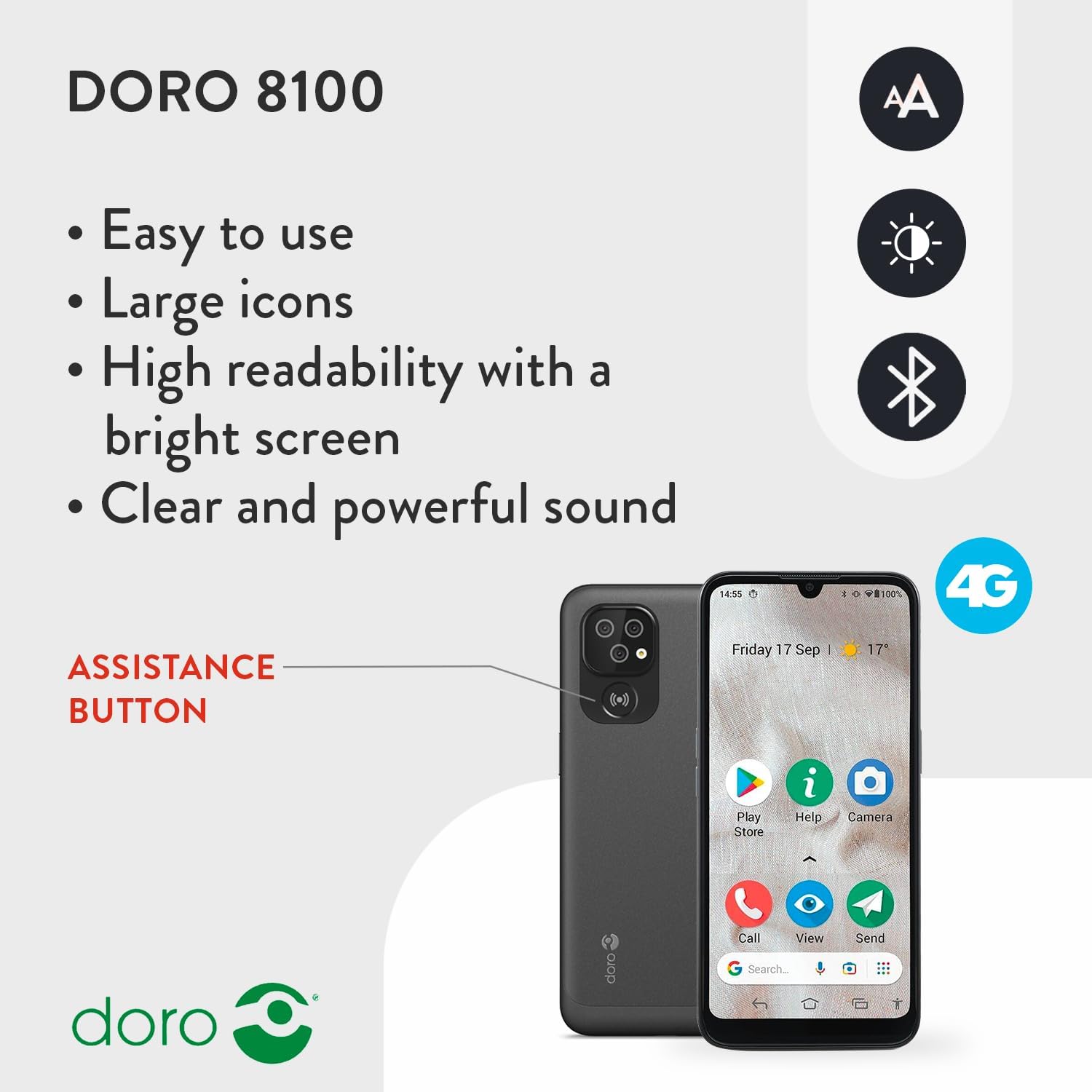
The Doro 8100 features an assistance button on the back for quick access to safety features.
4. Operating Your Doro 8100
4.1. Intuitive Menus and Display
The Doro 8100 features an intuitive menu system with large, clear icons, making navigation straightforward and easy to read on its 6.1-inch HD display.
4.2. Apps and Google Services
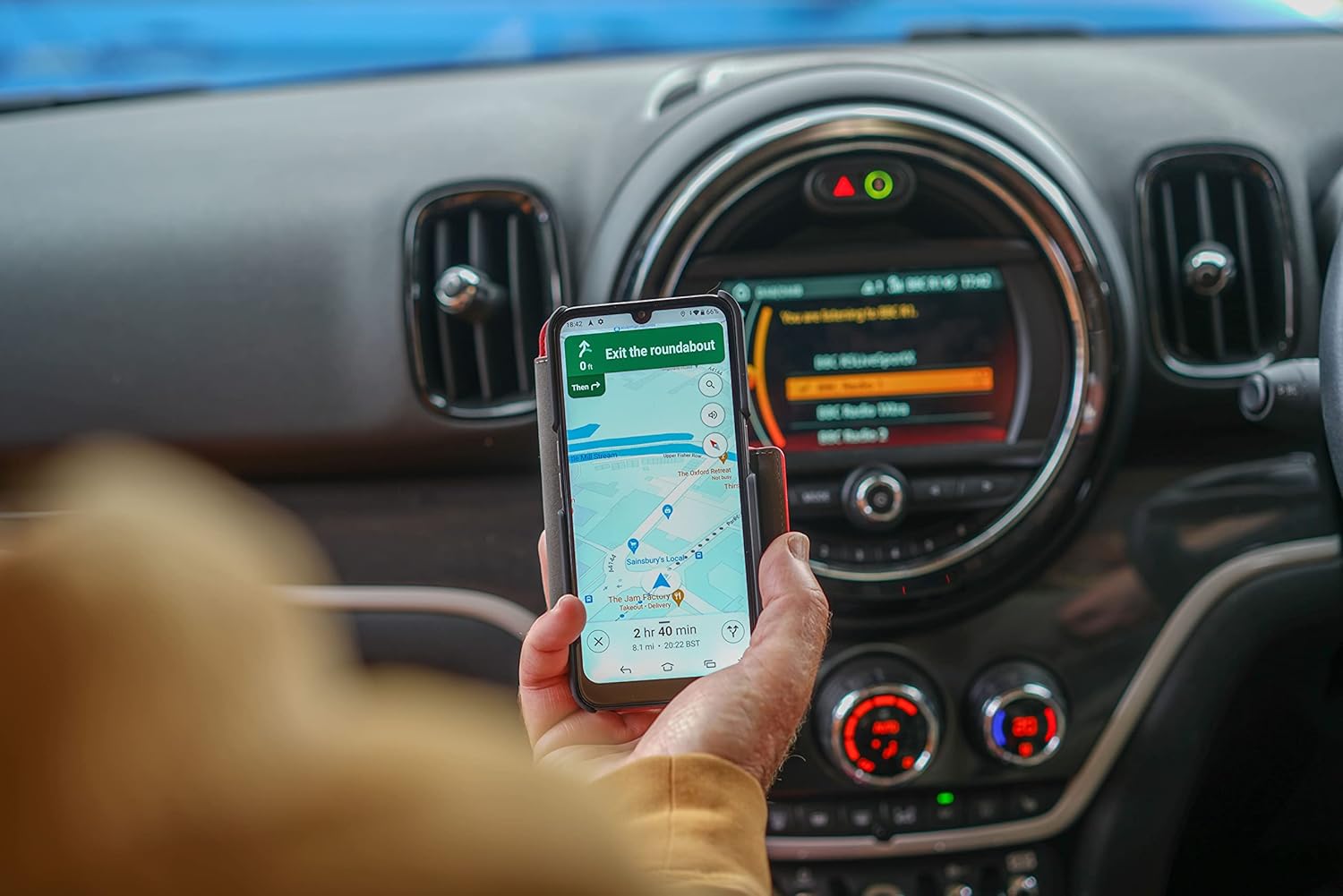
Your Doro 8100 comes with pre-installed Android and Google apps such as Gmail, Maps, and YouTube. You can also download and install any app of your choice from the Google Play Store. The Google Assistant is conveniently accessible from the homepage.
4.3. Response by Doro (Assistance Button)
A key safety feature, the Response button on the back of the Doro 8100, when pressed, alerts all configured contacts in the Response by Doro app. It shares your GPS location and can connect you on a voice call with your responders.
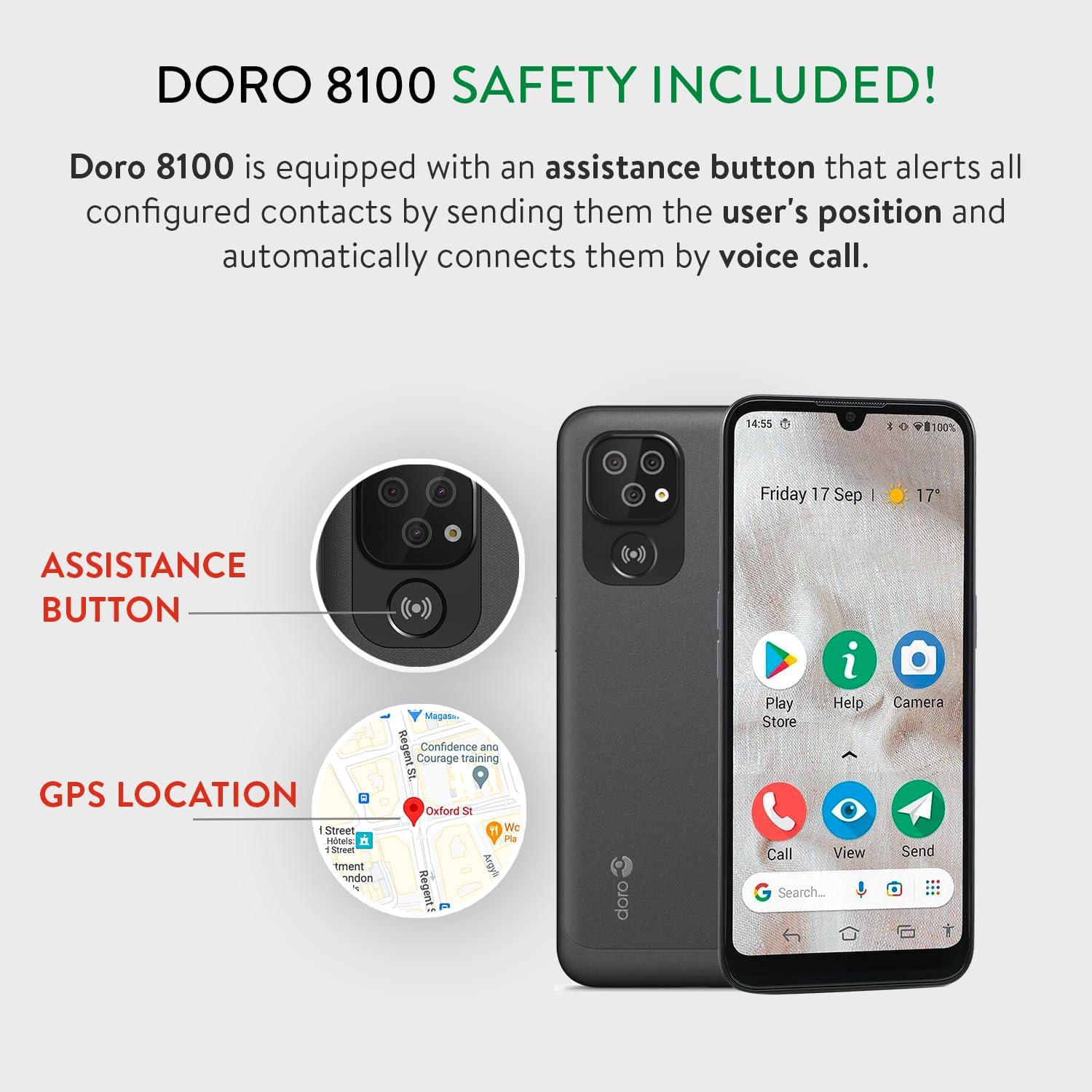
The assistance button is prominently located on the back of the Doro 8100 for easy access in emergencies.
4.4. TeamViewer Quick Support
For remote assistance from a trusted contact, the pre-installed TeamViewer Quick Support app allows temporary, full access to your smartphone, enabling them to help you directly from their own device.
4.5. Improved Sound
Benefit from HD Voice technology for clear conversations even in noisy environments. The Doro 8100 offers enhanced sound levels for ring signals and in-call volumes. It is Hearing Aid Compatible (HAC) with a Compatibility Rating of M3/T3.
4.6. Triple Camera System
Capture moments with the new triple-camera design, featuring a 13MP main lens, 2MP portrait lens, and 2MP macro lens. The front camera is 5MP. The simplified camera menu and large display make taking pictures enjoyable. The camera also supports QR code reading.

The Doro 8100's triple camera makes capturing photos simple and fun.
4.7. Water Resistance (IP54)
The Doro 8100 is resistant to water splashes and protected from limited dust ingress, classified as IP54. This means it can withstand light splashes but should not be submerged in water.
4.8. Face Recognition
For convenient and secure access, you can set up face recognition to unlock your device or sign into compatible applications.
4.9. Additional Features
The Doro 8100 includes various other useful features such as Internet access, Bluetooth, hands-free speakerphone, torch, calculator, calendar, compass, adjustable font and menu sizes, Wi-Fi access, Wi-Fi hotspot, and NFC.
5. Maintenance
5.1. Battery and Charging
The Doro 8100 is powered by a Lithium Ion battery and comes with a UK power adaptor. Always use the provided charger for optimal performance and safety. Charge the device regularly to ensure it is ready for use.
The Doro 8100 can be charged using its USB-C port or a compatible charging cradle.
6. Troubleshooting
This section provides solutions to common issues you might encounter with your Doro 8100.
- Device Unresponsive: If your phone is frozen or unresponsive, perform a soft reset by pressing and holding the power button for approximately 10 seconds until the device restarts.
- No Signal/SIM Card Not Recognized: Ensure your Nano SIM card is correctly inserted and fully seated in its tray. Remove and reinsert the tray to confirm proper contact.
- Micro SD Card Issues: If your Micro SD card is not recognized, ensure it is properly seated in its slot. Try removing and reinserting it. If the issue persists, try a different Micro SD card to rule out card compatibility issues.
- Battery Draining Quickly: Check for background apps consuming power. Reduce screen brightness. Ensure Wi-Fi, Bluetooth, and GPS are turned off when not in use.
- Assistance Button Alarm Triggered Accidentally: The assistance button requires three presses in quick succession to activate. Ensure you are not accidentally pressing it multiple times when handling the phone. You can adjust settings for the Response by Doro app if needed.
7. Specifications
| Feature | Detail |
|---|---|
| Brand | Doro |
| Model Name | Doro 8100 |
| Operating System | Android |
| Screen Size | 6.1 Inches |
| RAM Memory Installed Size | 2 GB |
| Memory Storage Capacity | 32 GB |
| Cellular Technology | 4G |
| Wireless Carrier | Unlocked for All Carriers |
| Connectivity Technology | Wi-Fi |
| Product Dimensions | 15 x 10 x 8 cm; 360 g |
| Batteries | 1 Lithium Ion batteries required (included) |
| Water Resistance | IP54 |
8. Warranty and Support
For warranty information and technical support, please refer to the official Doro website or contact Doro customer service directly. You can also visit the Doro Store on Amazon for additional resources and product information.


