
1. Introduction
This manual provides essential instructions for the safe and efficient use of your OPPO Reno7 Z Dual SIM 5G Smartphone, model CPH2343. Please read this manual thoroughly before using your device to ensure proper operation and to prevent damage.
2. Device Overview
Familiarize yourself with the physical components of your OPPO Reno7 Z smartphone.

Figure 2.1: Front and Back View of OPPO Reno7 Z. This image displays the smartphone from both the front, showing the display, and the back, highlighting the camera module and the OPPO branding.

Figure 2.2: Front View of OPPO Reno7 Z. The front of the device features the full-screen display with a punch-hole camera cutout at the top left.
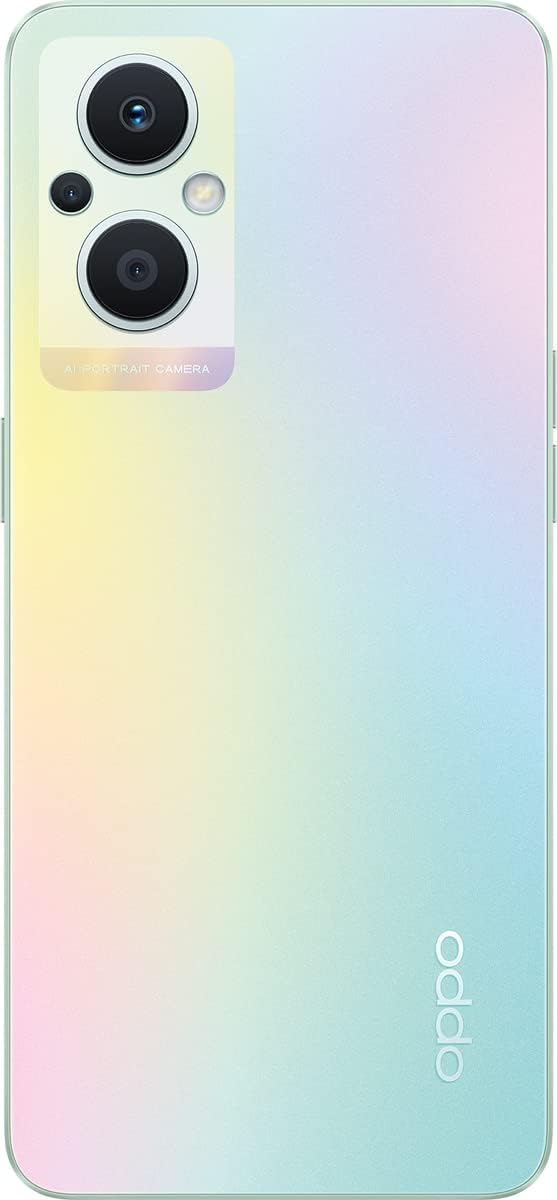
Figure 2.3: Back View of OPPO Reno7 Z. The rear panel showcases the dual orbit light camera module and the gradient 'Rainbow Spectrum' finish.

Figure 2.4: Right Side View of OPPO Reno7 Z. This view shows the power button and the SIM card tray slot.

Figure 2.5: Left Side View of OPPO Reno7 Z. This image highlights the volume up and down buttons.

Figure 2.6: Bottom View of OPPO Reno7 Z. The bottom edge features the USB-C charging port, 3.5mm headphone jack, and speaker grille.

Figure 2.7: Top View of OPPO Reno7 Z. The top edge typically contains a secondary microphone for noise cancellation.
3. Setup
3.1. Charging the Battery
Before first use, fully charge your device. The OPPO Reno7 Z supports 33W SUPERVOOC flash charging. Use the provided charger and cable for optimal charging speed.
- Connect the USB cable to the charging port at the bottom of the phone.
- Connect the other end of the cable to the power adapter.
- Plug the power adapter into a wall outlet.
- The charging indicator will appear on the screen.
3.2. Inserting SIM Cards
The OPPO Reno7 Z supports Dual SIM functionality. Use the SIM ejector tool to open the SIM card tray.
- Locate the SIM card tray on the side of the phone (refer to Figure 2.4).
- Insert the SIM ejector tool into the small hole next to the tray and push gently until the tray pops out.
- Place your Nano-SIM cards into the designated slots on the tray, ensuring the gold contacts face down.
- Carefully push the tray back into the phone until it clicks into place.
3.3. Powering On/Off
- To Power On: Press and hold the Power button (refer to Figure 2.4) until the OPPO logo appears.
- To Power Off: Press and hold the Power button, then select 'Power off' from the options on the screen.
- To Restart: Press and hold the Power button, then select 'Restart' from the options.
3.4. Initial Setup Wizard
Upon first power-on, follow the on-screen instructions to complete the initial setup, including language selection, Wi-Fi connection, Google account login, and security settings.
4. Operating Instructions
4.1. Basic Navigation
The OPPO Reno7 Z features a touchscreen interface. Use gestures such as tapping, swiping, pinching, and spreading to navigate the device.
- Tap: To select an item or open an app.
- Swipe: To scroll through screens or lists.
- Pinch/Spread: To zoom in or out on images and web pages.
4.2. Camera Usage
The device is equipped with a 64MP AI Triple Camera system. The dual orbit lights around the camera module illuminate for notifications and calls.
- Open the Camera app from the home screen or lock screen.
- Select desired shooting modes (e.g., Photo, Video, Portrait, Night).
- Tap the shutter button to capture photos or start/stop video recording.
- Utilize features like AI Scene Enhancement and Portrait Retouching for enhanced results.
4.3. Connectivity
Your smartphone supports various connectivity options:
- Wi-Fi: Connect to wireless networks for internet access. Go to Settings > Wi-Fi.
- Bluetooth: Pair with other Bluetooth devices like headphones or speakers. Go to Settings > Bluetooth.
- 5G Cellular: Access high-speed mobile data networks. Ensure your SIM card and plan support 5G.
4.4. Performance Optimization
The device features Hyper Boost technology to ensure stable frame rates and lower power consumption during high-load tasks like gaming.
- Regularly clear background apps to free up RAM.
- Manage storage by deleting unnecessary files and apps.
5. Maintenance
5.1. Battery Care
- Avoid extreme temperatures, which can degrade battery life.
- Use only OPPO-approved chargers and cables.
- Do not leave the phone charging for extended periods after it reaches 100%.
5.2. Cleaning Your Device
The OPPO Reno7 Z features an OPPO Glow design that is resistant to fingerprints and scratches.
- Use a soft, lint-free cloth to wipe the screen and back panel.
- Avoid using harsh chemicals or abrasive materials.
- Ensure ports are free of dust and debris.
5.3. Software Updates
Regularly check for and install software updates to ensure optimal performance, security, and access to new features. Go to Settings > About device > Software update.
6. Troubleshooting
6.1. Power On/Off Issues
If your device experiences issues with powering on or off, consider the following:
- Check Battery: Ensure the battery is sufficiently charged. Connect the charger and wait a few minutes before attempting to power on.
- Force Restart: If the device is unresponsive, press and hold the Power button and Volume Up button simultaneously for about 10-15 seconds until the device restarts.
- Software Glitch: If the issue persists, it might be a software-related problem. Consider performing a factory reset (back up your data first) or contacting customer support.
6.2. Connectivity Problems
- Wi-Fi: Ensure Wi-Fi is enabled and you are within range of a known network. Try forgetting the network and reconnecting.
- Bluetooth: Ensure Bluetooth is enabled on both devices. Try unpairing and re-pairing the device.
- Cellular Data: Check if mobile data is enabled and your SIM card is properly inserted. Verify your data plan with your carrier.
6.3. Apps Crashing or Freezing
- Close and reopen the app.
- Clear the app's cache and data (Settings > Apps > [App Name] > Storage > Clear cache/Clear data).
- Update the app to the latest version from the Google Play Store.
- If the issue persists, uninstall and reinstall the app.
7. Specifications
Key technical specifications for the OPPO Reno7 Z (Model CPH2343):
| Feature | Specification |
|---|---|
| Operating System | Android 11.0 |
| RAM Memory Installed | 8 GB |
| Memory Storage Capacity | 128 GB |
| CPU Model | Snapdragon |
| Screen Size | 6.43 Inches |
| Resolution | 2400 x 1080 |
| Main Camera | 64MP (Triple AI Camera) |
| Battery | Lithium Polymer (included), 33W SUPERVOOC Flash Charge |
| Wireless Communication | Cellular (5G), Wi-Fi, Bluetooth |
| Form Factor | Slate |
| Item Weight | 186 g |
| Model Number | CPH2343 |
8. Warranty and Support
For detailed warranty information, please refer to the warranty card included with your product or visit the official OPPO website. Warranty terms and conditions may vary by region.
For technical support, service, or further assistance, please visit the official OPPO support website or contact their customer service channels. Contact information can typically be found on the OPPO official website.


