
WONNIE 12345
WONNIE 9.5" Portable DVD Player User Manual
Model: 12345
1. Product Overview
The WONNIE 9.5" Portable DVD Player is designed for versatile entertainment on the go, featuring a 7.5" swivel screen and long-lasting battery. It supports multiple media formats and offers various connectivity options for an enhanced viewing experience.

Image: Front view of the WONNIE Portable DVD Player with its remote control.
Key Features:
- Immersive Viewing: 7.5" 1024×600 eye protection screen with 270° rotating and 180° flip functionality.
- Extended Battery Life: Up to 4-6 hours of video playback on a full charge.
- Multiple Power Modes: Includes certified AC adapter and 1.8m car charger.
- User-Friendly Controls: Unique button design and remote control for easy operation.
- Universal Compatibility: Plays region-free DVDs, CDs, and supports USB/SD card playback for various audio, video, and image formats.
- Enhanced Audio: Integrated dual stereo speakers and a 3.5mm headphone jack.
- Last Memory Function: Resumes playback from where you left off.
- TV Sync Capability: Connects to TV via AV In/Out function for larger screen viewing.
2. What's in the Box
Verify that all items are present in your package:
- 1 x Portable DVD Player for Kids
- 1 x Remote Control
- 1 x Car Charger
- 1 x AC Power Adaptor
- 1 x 3.5mm-RCA Cable
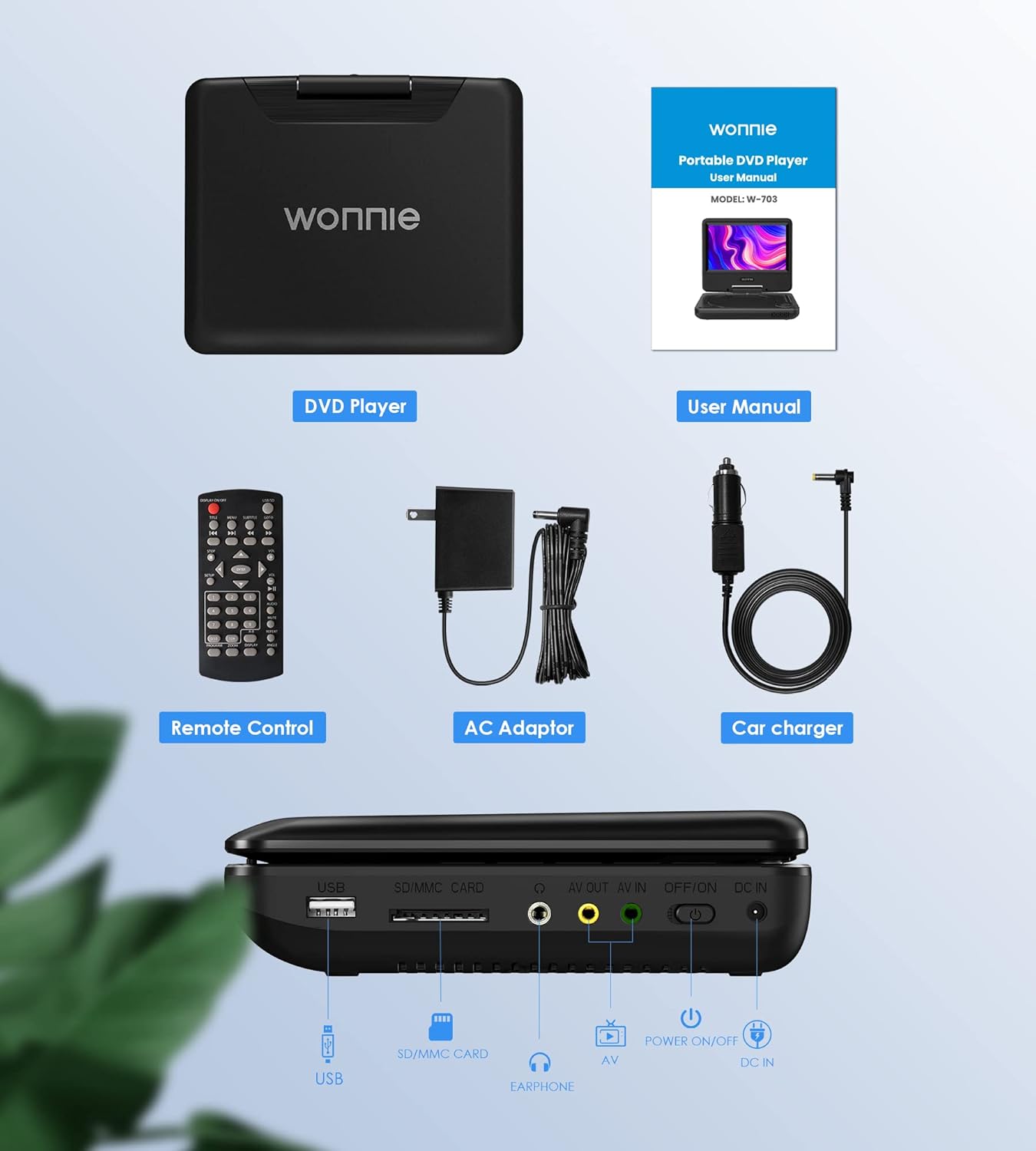
Image: All components included in the product package.
3. Setup
3.1 Initial Charging
Before first use, fully charge the portable DVD player. Connect the AC Power Adaptor to the DC IN port on the player and plug it into a wall outlet. The charging indicator light will show the charging status. A full charge provides approximately 4-6 hours of playback.

Image: Illustration of the three power options: built-in battery, AC adapter, and car charger.
3.2 Powering On/Off
Locate the ON/OFF switch on the side of the player. Slide the switch to the "ON" position to power on the device. To power off, slide the switch to the "OFF" position.

Image: Detailed view of the player's side ports and power switch.
3.3 Connecting to a TV (Optional)
To view content on a larger screen, use the included 3.5mm-RCA cable. Connect the cable to the AV OUT port on the DVD player and the corresponding AV IN ports (yellow for video, red/white for audio) on your television. Select the correct input source on your TV.
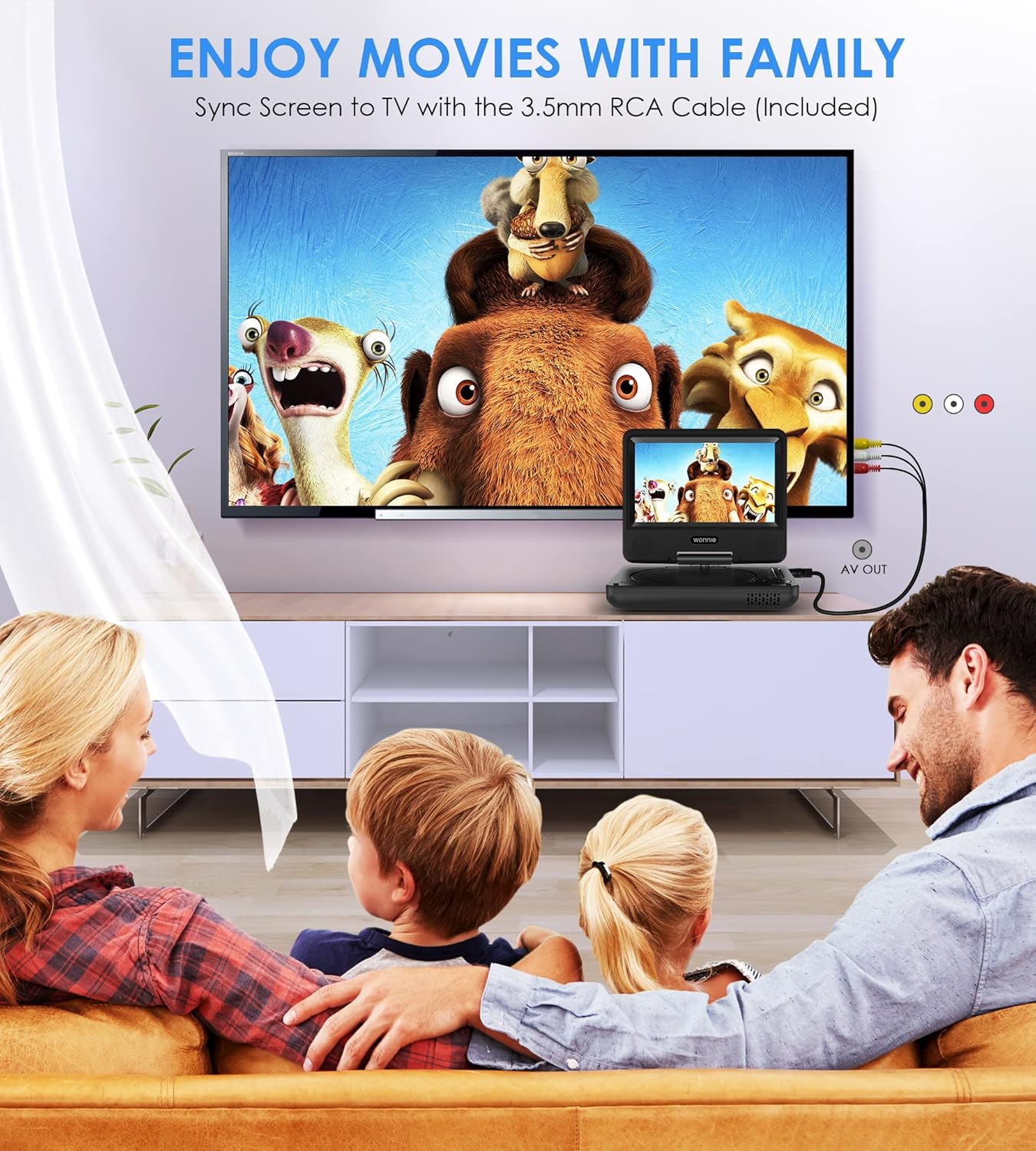
Image: A family enjoying a movie on a large TV screen, connected to the portable DVD player.
Note: When connected to an external display, the player's screen may turn off by default to optimize playback on the larger screen.
4. Operating Instructions
4.1 Inserting a Disc
Gently open the disc cover. Place the DVD or CD onto the spindle with the label side facing up. Press down lightly on the center of the disc until it clicks into place. Close the disc cover firmly.
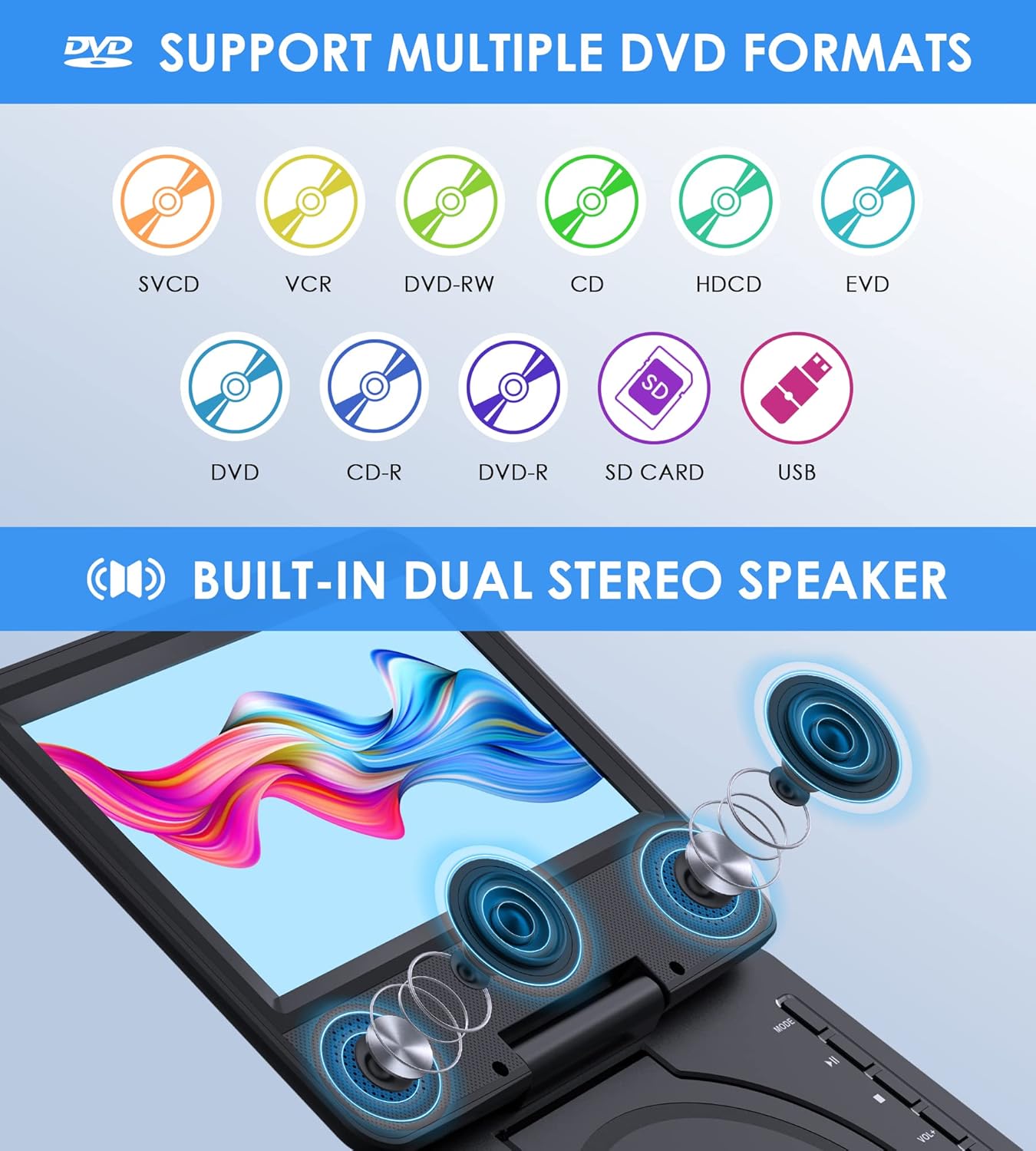
Image: Visual representation of supported media formats and the player's built-in dual stereo speakers.
The player supports region-free discs including DVD, DVD+R, DVD-R, DVD+RW, DVD-RW, CD, CD+R, CD-R, CD+RW, CD-RW, VCD, and SVCD. Blu-ray discs and pirated discs are not supported.
4.2 Basic Playback Controls
Use the buttons located on the player or the remote control for playback:
- PLAY/PAUSE: Press to start or pause playback.
- STOP: Press to stop playback.
- VOL+/VOL-: Adjust the volume level.
- PREV/NEXT: Skip to the previous or next chapter/track.
The player features a Last Memory Function, allowing it to resume playback from where you left off, even after powering down.
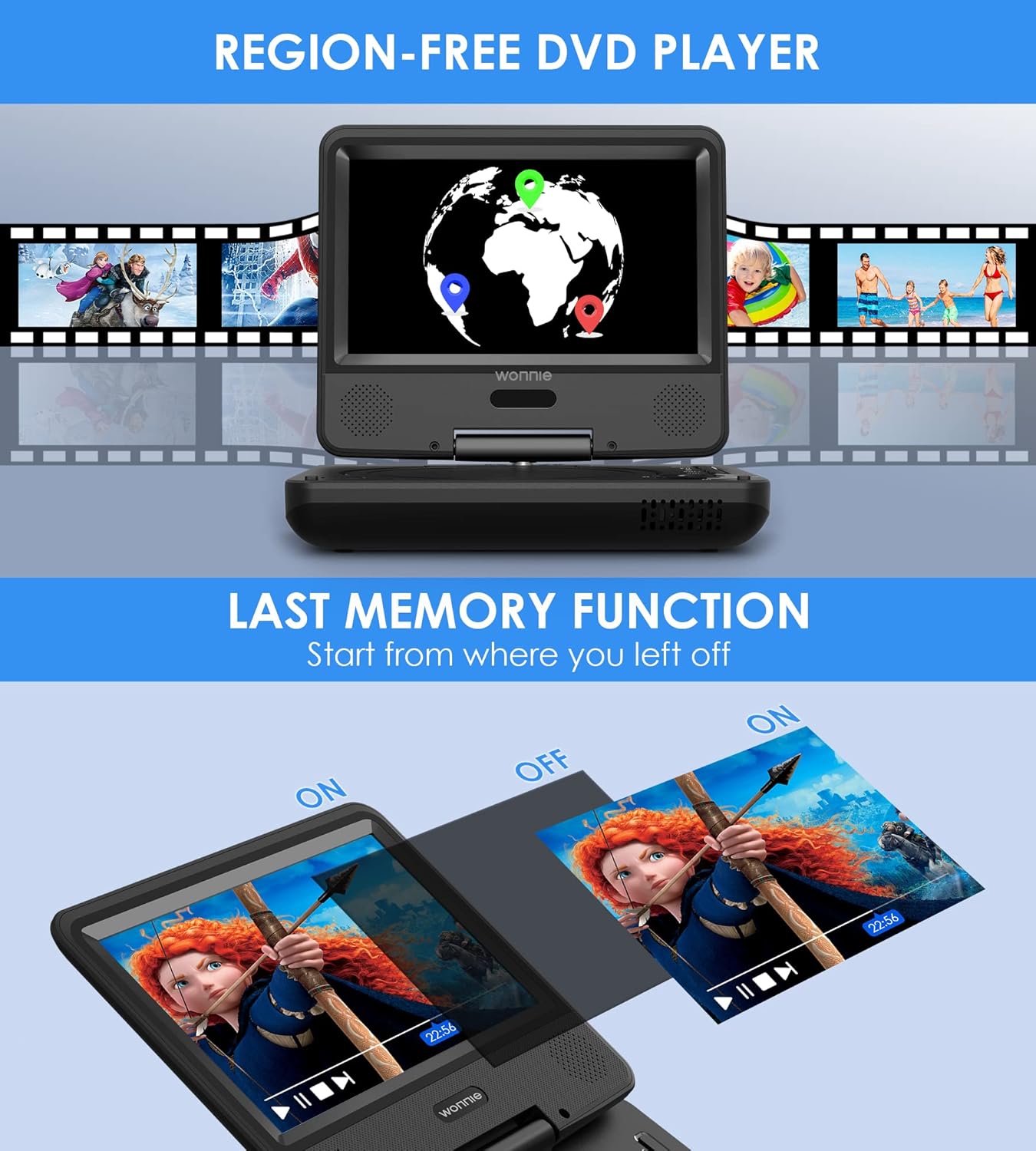
Image: Demonstration of the Last Memory Function, which allows the player to resume from the last watched point.
4.3 Using USB/SD Card
Insert a USB drive into the USB port or an SD/MMC card (max 32GB, FAT32, 720x576 pixels) into the SD/MMC CARD slot. The player supports pictures (JPG, JPEG), audio (MP3, WMA), and videos (AVI, MPEG 1, MPEG 2, MPG).

Image: Detailed view of the USB and SD/MMC card slots.
4.4 Swivel Screen Functionality
The 7.5" screen can rotate 270° and flip 180°, allowing for optimal viewing angles in various situations, including car use or tabletop viewing.
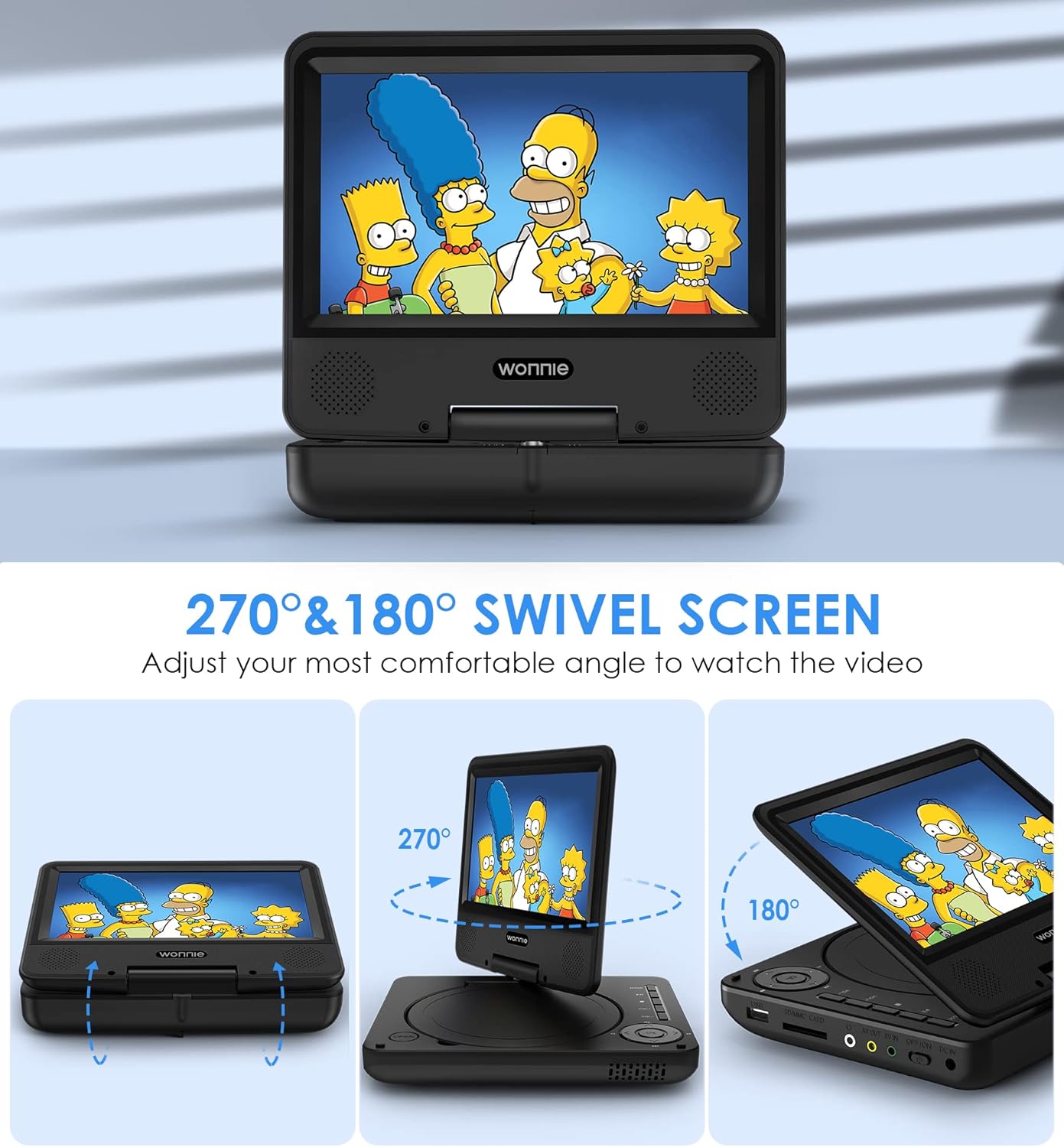
Image: Visual guide to the 270° rotation and 180° flip screen features.
4.5 Official Product Video
Video: An official product video from WONNIE demonstrating the portable DVD player's features, including its compact size, controls, swivel screen, and various ports.
5. Maintenance
5.1 Cleaning the Device
Use a soft, dry cloth to clean the exterior of the DVD player. For the screen, use a screen-specific cleaning solution and a microfiber cloth. Avoid using abrasive cleaners or solvents.
5.2 Disc Care
Handle discs by their edges to avoid fingerprints. Store discs in their cases when not in use to prevent scratches. Clean discs with a soft, lint-free cloth wiping from the center outwards.
5.3 Battery Care
To prolong battery life, avoid fully discharging the battery frequently. If storing the device for an extended period, charge it to about 50% and store in a cool, dry place.
6. Troubleshooting
| Problem | Possible Cause | Solution |
|---|---|---|
| Player does not power on. | Battery is depleted; Power switch is OFF. | Charge the player using the AC adapter or car charger; Ensure the ON/OFF switch is in the "ON" position. |
| Disc not loading or playing. | Disc is dirty, scratched, or unsupported format (e.g., Blu-ray, pirated); Disc not inserted correctly. | Clean the disc; Ensure the disc is inserted label-side up and clicked into place; Verify disc format is supported. |
| No sound from speakers. | Volume is too low; Headphones are connected. | Increase volume using VOL+ button or remote; Disconnect headphones if not needed. |
| Remote control not working. | Batteries are dead or incorrectly inserted; Obstruction between remote and player. | Replace remote batteries and ensure correct polarity; Remove any obstructions. |
| Cannot connect to TV. | Incorrect cable connection; TV input source not selected correctly. | Ensure AV cable is securely connected to AV OUT on player and AV IN on TV; Select the correct AV input on your TV. |
7. Specifications
| Feature | Detail |
|---|---|
| Model Number | 12345 |
| Screen Size | 7.5 Inches (9.5" diagonal player size) |
| Display Type | LCD |
| Product Dimensions | 9 x 6 x 2 inches |
| Item Weight | 2.2 pounds |
| Battery Type | 1 Lithium Polymer battery (included) |
| Battery Life | 4-6 hours (approx.) |
| Supported Disc Formats | DVD, DVD+R, DVD-R, DVD+RW, DVD-RW, CD, CD+R, CD-R, CD+RW, CD-RW, VCD, SVCD (Region-Free) |
| Supported USB/SD Formats | Pictures: JPG, JPEG; Audio: MP3, WMA; Videos: AVI, MPEG 1, MPEG 2, MPG (max 32GB FAT32, 720x576 pixels) |
| Connectivity | USB, SD/MMC Card, 3.5mm Headphone Jack, AV In/Out |
| Color | Black |
| Manufacturer | WONNIE |
8. Warranty and Support
WONNIE provides a new replacement or refund for reasons within 365 days of purchase. For professional technical support or any questions/concerns, please contact WONNIE customer service through "Get Product Support" on Amazon Station Message or via the after-sales email provided in your product packaging. Responses are typically provided within 24 hours.
Note: If any part is missing or damaged in the package, please contact customer service for a replacement.
Related documents12345

Ask a question about this manual
Ask about setup, troubleshooting, compatibility, parts, safety, or missing instructions. Manuals+ will review the question and use this page’s manual context to help answer it.