
1. Introduction
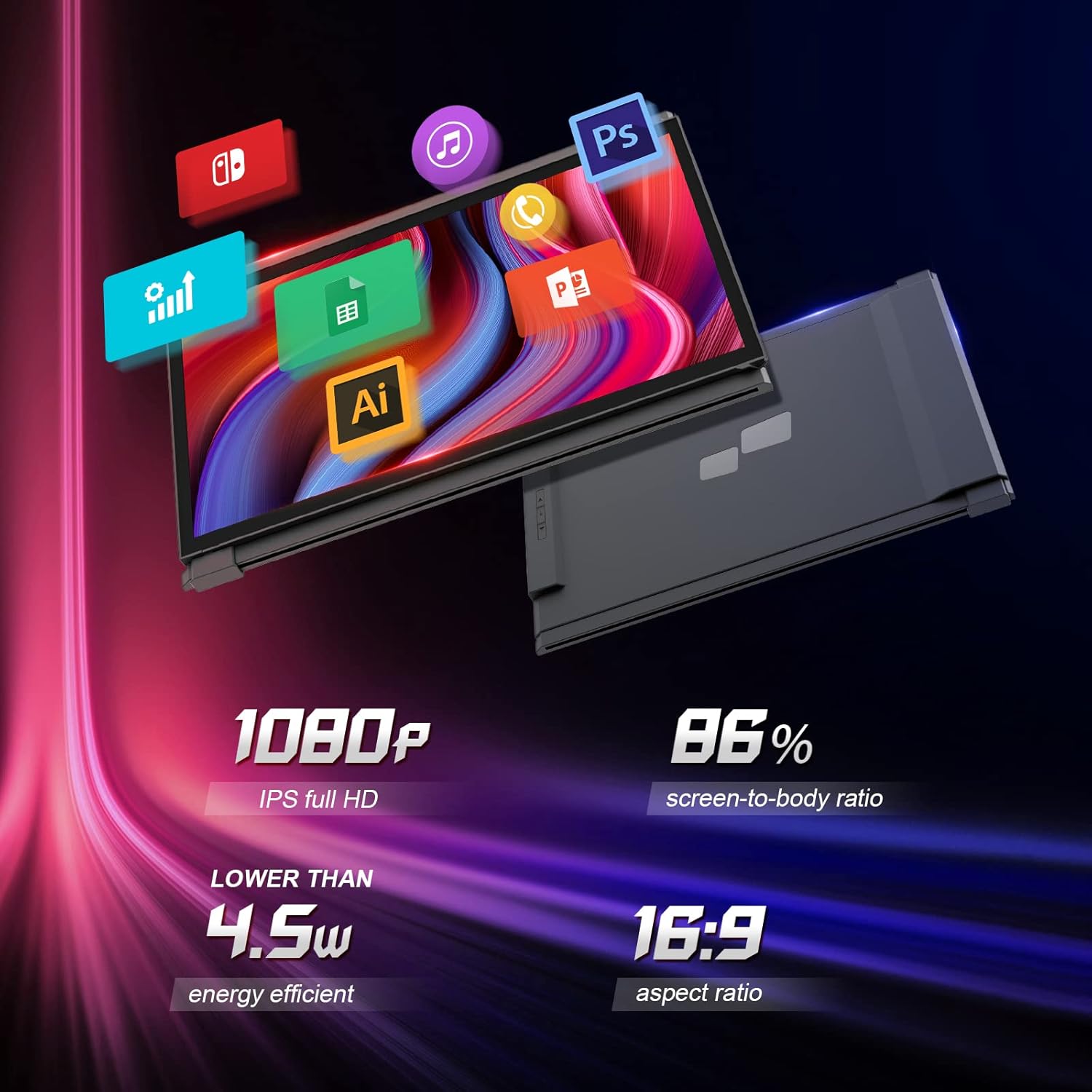
The Duex Plus is a 13.3-inch Full HD IPS portable monitor designed to expand your laptop's screen real estate, enhancing productivity and versatility. It features a lightweight, ultra-slim design and a magnetic mounting system for easy attachment and detachment. This manual provides essential information for setting up, operating, maintaining, and troubleshooting your Duex Plus monitor.
2. Setup Guide
Follow these steps to properly attach and connect your Duex Plus portable monitor to your laptop:
- Prepare your laptop: Ensure the back of your laptop screen is clean and dry.
- Attach the magnets: Use the provided magnetic plates and alignment template to securely attach the magnets to the back of your laptop. Ensure they are firmly pressed and allowed to set according to the adhesive instructions.
- Mount the monitor: Align the Duex Plus monitor with the attached magnets on your laptop. The monitor will securely snap into place.
- Connect the USB cable: Use the supplied USB-C cable to connect the Duex Plus monitor to an available USB-C port on your laptop. If your laptop only has USB-A ports, a separate adapter or cable may be required (USB 3.0 compatible for USB 2.0, a separate cable may be required).
- Power On: The monitor should automatically power on and display your extended desktop. If not, check your laptop's display settings.

The Duex Plus features a plug-and-play design, requiring no additional drivers for most operating systems. Simply connect the USB-C cable, and your system should automatically detect and configure the external display.
Video 2.1: Demonstration of attaching the Duex Plus portable monitor to a laptop, highlighting its secure magnetic attachment and seamless integration.
3. Operating Instructions
The Duex Plus offers various modes and flexible adjustments to suit your workflow:
- Sliding Mechanism: The monitor slides out from the back of your laptop screen, allowing for easy extension to either the left or right side.
- Auto-Orientation Sensor: The monitor automatically senses its orientation and adjusts the display accordingly, allowing for flexible left-side or right-side attachment without manual configuration.
- 270° Rotation: The screen can rotate up to 270 degrees, providing optimal viewing angles for various situations, including individual use or collaborative work.
- 180° Presentation Mode: For sharing ideas or presenting to others, rotate the monitor 180 degrees to face away from your laptop.
- Portrait (Vertical) Mode: Ideal for viewing long documents, code, or web pages.
- Landscape (Horizontal) Mode: Standard mode for general use, multimedia, and most applications.
- Kickstand Mode (Optional): With an optional kickstand, the Duex Plus can function as a standalone monitor.
- Display Settings: Configure your display settings (mirror or extend) through your operating system's display preferences to duplicate your main screen or extend your desktop.


Video 3.1: Overview of the Duex Plus as a portable solution for expanding laptop screen space, showcasing its ease of use and versatility.
Video 3.2: Demonstrating the efficiency of the Duex Plus monitor for fast-paced work environments and multitasking.
4. Compatibility
The Duex Plus is designed for broad compatibility with various devices and operating systems:
- Operating Systems: Windows, macOS, Chrome OS.
- Devices: Laptops (13"-15" recommended), Desktops, Nintendo Switch, Android Tablets/Phones (with DeX support).
- Connectivity: USB Type-C (for hybrid signal input and power), USB-A (may require separate cable/adapter for video signal).

5. Portability
Designed for users on the go, the Duex Plus is exceptionally portable:
- Lightweight: Weighing approximately 1.3 lbs.
- Ultra-slim: Thinnest point is 0.25 inches.
- Compact: Easily fits into most laptop bags alongside your device.

6. Specifications
Detailed technical specifications for the Duex Plus Portable Monitor:
| Feature | Detail |
|---|---|
| Brand | Duex |
| Model Name | Duex Plus Portable Second Screen for Laptop |
| Screen Size | 13.3 Inches |
| Resolution | FHD 1080p (1920 x 1080 Pixels Native) |
| Aspect Ratio | 16:9 |
| Screen Finish | Glossy |
| Contrast Ratio | 800:1 |
| Refresh Rate | 60 Hz |
| Display Technology | LCD |
| Viewing Angle | 178 Degrees |
| Brightness | 300 nit (adjustable) |
| Item Dimensions (D x W x H) | 0.25"D x 12.25"W x 8.46"H |
| Power Consumption | 4.5 Watts |
| Voltage | 15 Volts |
| Total USB Ports | 2 |
| Connectivity Technology | HDMI, USB |
| Hardware Connectivity | USB Type C |
| Color | Deep grey |
| Mounting Type | Clip-On Mount |
7. Maintenance
To ensure the longevity and optimal performance of your Duex Plus monitor, follow these maintenance guidelines:
- Cleaning: Use a soft, lint-free cloth to gently wipe the screen and exterior surfaces. For stubborn smudges, slightly dampen the cloth with water or a screen-safe cleaning solution. Avoid harsh chemicals or abrasive materials.
- Storage: When not in use, store the monitor in a cool, dry place, ideally in its original packaging or a protective sleeve to prevent scratches and damage.
- Handling: Handle the monitor with care. Avoid dropping it or subjecting it to excessive force, which can damage internal components or the screen.
- Cable Care: Do not bend or crimp the USB cable excessively. Store cables neatly to prevent tangling and damage.
8. Troubleshooting
If you encounter issues with your Duex Plus monitor, try the following troubleshooting steps:
- No Display/Black Screen:
- Ensure the USB-C cable is securely connected to both the monitor and your laptop.
- Try unplugging and re-plugging the cable.
- Check your laptop's display settings to ensure the external monitor is detected and configured for 'Extend' or 'Duplicate' mode.
- Test with a different USB-C port or cable if available.
- Flickering Screen:
- Ensure the cable connection is stable.
- Adjust the refresh rate in your laptop's display settings.
- Reduce the screen brightness if it's set too high.
- Incorrect Resolution/Scaling:
- Adjust the display resolution and scaling settings in your operating system. The native resolution is 1920x1080.
- Magnets Losing Adhesion:
- Ensure the laptop surface was properly cleaned before initial application.
- If magnets detach, clean the surfaces and reapply with new adhesive strips (if provided or purchased separately).
For further assistance, please refer to the official Mobile Pixels support website or contact customer service.
9. Warranty and Support
The Duex Plus Portable Monitor comes with a ONE YEAR MANUFACTURER WARRANTY. This warranty covers defects in materials and workmanship under normal use.
For warranty claims, technical support, or additional product information, please visit the official Duex or Mobile Pixels website:
- Official Website: www.mobilepixels.us
- Support Section: Look for the 'Support' or 'Contact Us' section on the website for FAQs, troubleshooting guides, and customer service contact details.
Please retain your proof of purchase for any warranty-related inquiries.


