
Introduction
Thank you for choosing the CURECURE 30'' Tower Fan. This manual provides important information regarding the safe operation, installation, maintenance, and troubleshooting of your new fan. Please read this manual thoroughly before use and retain it for future reference.
Important Safety Instructions
To reduce the risk of fire, electric shock, or injury, please observe the following safety precautions:
- Always unplug the fan from the power outlet before cleaning, servicing, or moving it.
- Do not operate the fan with a damaged cord or plug. If the cord or plug is damaged, contact customer support.
- Keep the fan away from water and moisture. Do not use it in bathrooms or other wet environments.
- Ensure the fan is placed on a stable, level surface to prevent tipping.
- Do not insert fingers or foreign objects into the fan's grilles while it is operating.
- Supervise children and individuals with reduced physical, sensory, or mental capabilities when the fan is in use.
- Do not block air openings or operate near curtains, drapes, or other materials that could block airflow.
- This fan is for indoor use only. Do not use outdoors.
Package Contents
Please check the package for the following items:
- CURECURE 30'' Tower Fan Unit
- Remote Control
- User Manual (this document)
Product Features
The CURECURE 30'' Tower Fan is designed for efficient and quiet cooling with user-friendly features:
- 3 Fan Speeds: Low, Medium, and High settings for customized airflow.
- 3 Operating Modes: Normal, Natural, and Sleep modes to suit various preferences.
- 70° Oscillation: Wide-angle oscillation for broad air distribution.
- Remote Control: Convenient wireless control of all fan functions.
- Built-in Timer: Programmable auto-off timer from 0.5 to 7.5 hours.
- LED Display & Touch Control: Intuitive interface for easy operation.
- Quiet Operation: Engineered for low noise levels (35 Decibels).
- Space-Saving Design: Compact tower design fits easily into any room.

Image: The CURECURE 30-inch Tower Fan, showcasing its tall, slender profile and white finish.
Setup Instructions
Follow these steps to set up your tower fan:
- Unpack: Carefully remove all components from the packaging.
- Base Assembly: Attach the fan base to the main unit. Ensure it is securely fastened according to the markings.
- Placement: Place the fan on a firm, level surface. Ensure there is adequate space around the fan for proper airflow and oscillation.
- Power Connection: Plug the power cord into a standard electrical outlet (AC adapter).

Image: The tower fan positioned in a living room, illustrating typical placement.
Operating Instructions
Your CURECURE Tower Fan can be operated using the touch control panel on the unit or the included remote control.
Control Panel & Remote Functions
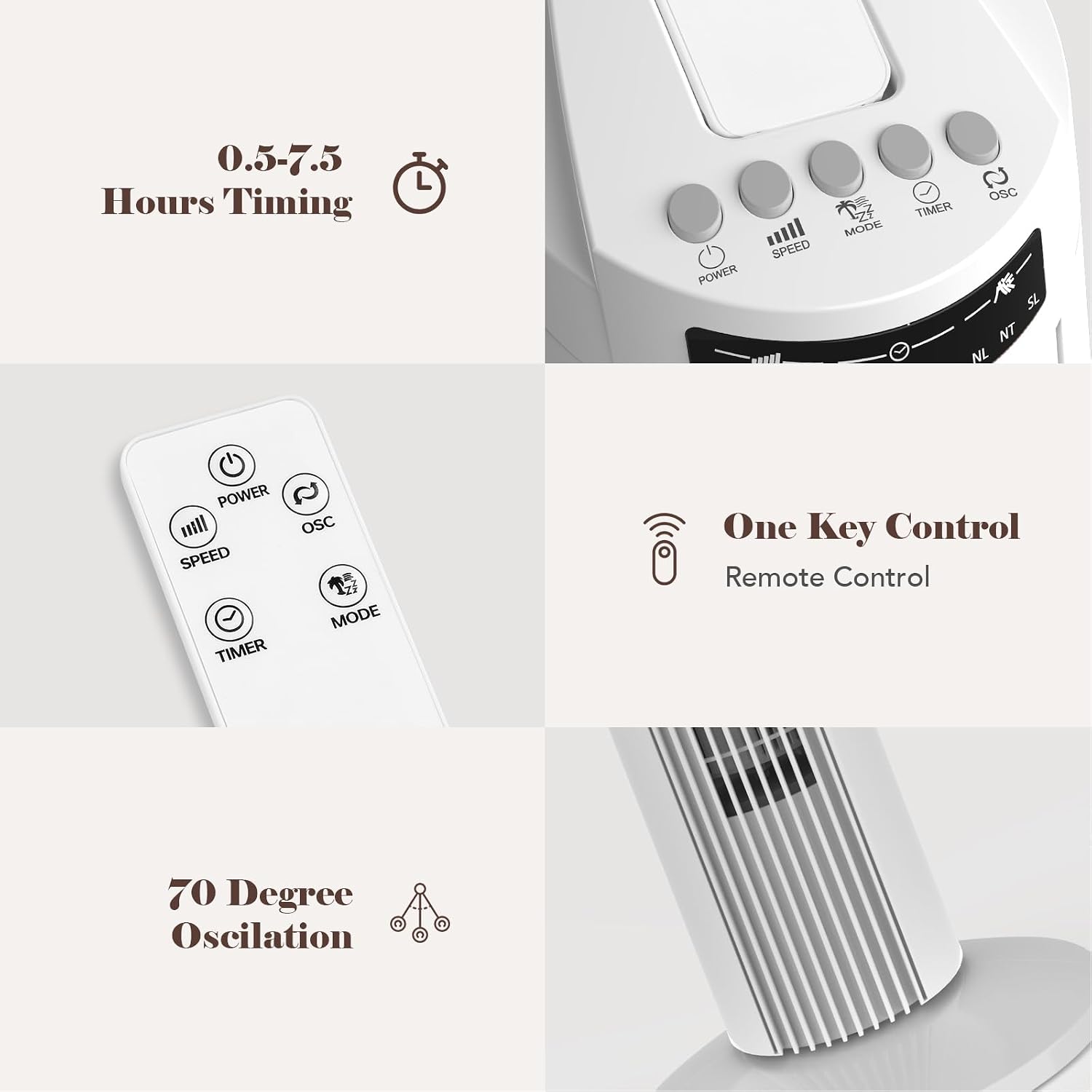
Image: Detailed view of the fan's control panel and remote control, highlighting the function buttons.
- Power Button (⏻): Press to turn the fan ON or OFF.
- Speed Button (|||): Press to cycle through fan speeds: Low (LO), Medium (MI), High (HI).
- Mode Button (⌁): Press to select operating modes: Normal, Natural, or Sleep.
- Normal Mode: Constant airflow at the selected speed.
- Natural Mode: Airflow varies to simulate a natural breeze.
- Sleep Mode: Gradually decreases fan speed and operates quietly for undisturbed rest.
- Timer Button (◷): Press to set the auto-off timer. Each press increases the timer setting by 0.5 hours, up to a maximum of 7.5 hours. The fan will automatically turn off after the set time.
- Oscillation Button (⟳): Press to turn the 70-degree oscillation ON or OFF.
Remote Control Usage
The remote control allows you to operate all fan functions from a distance. Ensure the remote has working batteries and point it towards the fan's display panel for optimal response.

Image: A user operating the fan with the remote control.
Maintenance
Regular cleaning helps maintain the fan's performance and extends its lifespan.
Cleaning
- Disconnect Power: Always unplug the fan from the power outlet before cleaning.
- Exterior Cleaning: Wipe the exterior surfaces of the fan with a soft, damp cloth. Do not use abrasive cleaners, waxes, or solvents as they may damage the finish.
- Air Inlet/Outlet Grilles: Use a vacuum cleaner with a brush attachment to gently remove dust and debris from the air inlet and outlet grilles.
- Drying: Ensure the fan is completely dry before plugging it back in and operating.
Storage
If storing the fan for an extended period, cover it with a plastic sheet or return it to its original packaging to protect it from dust. Store in a cool, dry place.
Troubleshooting
If you encounter issues with your fan, please refer to the following common problems and solutions:
| Problem | Possible Cause | Solution |
|---|---|---|
| Fan does not turn on. | No power supply. Power cord not securely plugged in. | Check if the power outlet is working. Ensure the power cord is firmly plugged into the outlet and the fan. |
| Weak or no airflow. | Air inlets/outlets are blocked. Fan speed is set too low. | Ensure grilles are clear of obstructions. Increase the fan speed setting. |
| Oscillation not working. | Oscillation function is turned off. | Press the Oscillation button on the control panel or remote to activate. |
| Remote control not working. | Batteries are dead or incorrectly inserted. Obstruction between remote and fan. | Replace batteries and ensure correct polarity. Remove any obstructions and point remote directly at the fan's display. |
If the problem persists after trying these solutions, please contact CURECURE customer support.
Specifications
| Brand | CURECURE |
| Model Number | TF-2902R |
| Color | White |
| Product Dimensions (D x W x H) | 76D x 13W x 14H Centimetres |
| Electric Fan Design | Floor Fan (Tower Fan) |
| Power Source | AC adapter |
| Number of Speeds | 3 |
| Noise Level | 35 Decibels |
| Wattage | 10 watts |
| Control Method | Remote, Touch |
| Special Features | Oscillating, Remote Controlled, Timer |
| Material Type | Plastic |
| Indoor/Outdoor Usage | Indoor |
Warranty and Support
CURECURE products are manufactured to high-quality standards. For information regarding warranty coverage, please refer to the warranty card included with your purchase or contact CURECURE customer support.
If you have any questions, require technical assistance, or need to report an issue, please contact our customer support team. Contact details can typically be found on the product packaging or the official CURECURE website.