
TREATLIFE B09V78N28M
TREATLIFE Zigbee Hub Gateway User Manual
Model: B09V78N28M
Introduction
The TREATLIFE Zigbee Hub Gateway is designed to connect and manage your TREATLIFE Zigbee smart devices, creating a comprehensive smart home automation system. This hub facilitates communication between your smart sensors and your home network, allowing for remote control and automation through the TREATLIFE App and compatibility with popular voice assistants.
Key Features:
- Exclusive Compatibility: Works solely with TREATLIFE Zigbee smart devices, including Water Leak Detectors, Motion Sensors, and Door Sensors.
- 2.4GHz Wi-Fi Network: Requires a 2.4GHz Wi-Fi network for stable connection (not compatible with 5GHz Wi-Fi).
- Effortless Setup: Plug-and-play design with no network cables required. Connects easily to the TREATLIFE App.
- Extensive Device Integration: Supports connection of up to 128 TREATLIFE Zigbee smart devices.
- Voice Control & Remote Management: Compatible with Alexa, Google Home Assistant, and Apple HomeKit for convenient control.
- Seamless Home Automation: Create custom routines and automations within the TREATLIFE App.
- Reliable Whole Home Coverage: Offers a range of up to 164ft from the hub to the Wi-Fi router, with automatic networking support for expansion.
Package Contents
- TREATLIFE Zigbee Hub Gateway
- User Manual (this document)
Setup Instructions
Follow these steps to set up your TREATLIFE Zigbee Hub Gateway:
- Power On the Hub: Plug the TREATLIFE Zigbee Hub Gateway into a standard electrical outlet. The hub is designed for plug-and-play operation and does not require network cables.

The image displays the TREATLIFE Zigbee Hub Gateway plugged directly into a wall outlet, illustrating its compact design and simple power connection.
- Download the TREATLIFE App: Download and install the TREATLIFE App on your smartphone from the App Store (iOS) or Google Play Store (Android).

This image shows a smartphone displaying the TREATLIFE App interface, indicating the next step of setting up the smart home hub through the application.
- Connect to 2.4GHz Wi-Fi: Ensure your smartphone is connected to a 2.4GHz Wi-Fi network. The hub is not compatible with 5GHz Wi-Fi networks.
- Add the Hub to the App: Open the TREATLIFE App, create an account or log in, and follow the in-app instructions to add the Zigbee Hub Gateway. The app will guide you through the pairing process.
- Pair TREATLIFE Zigbee Devices: Once the hub is successfully added, you can begin pairing your TREATLIFE Zigbee Water Leak Detectors, Motion Sensors, and Smart Door Sensors to the hub through the app. Refer to the individual device manuals for specific pairing instructions.

This diagram illustrates the central role of the TREATLIFE Zigbee Hub, connecting to multiple TREATLIFE sensors such as a water leak detector, motion sensor, and door sensor, highlighting its exclusive compatibility.
Operating Instructions
After successful setup, you can operate your smart home system using the TREATLIFE App and compatible voice assistants.
Using the TREATLIFE App:
- Device Management: View the status of all connected Zigbee devices, including battery levels and current states (e.g., door open/closed, motion detected).
- Scene Creation: Create custom scenes or routines to automate actions. For example, set a "Good Morning" scene to trigger specific actions from your connected devices.
- Notifications: Configure notifications to receive alerts on your smartphone when a sensor is triggered (e.g., water leak detected, door opened).
Voice Control Integration:
The TREATLIFE Zigbee Hub is compatible with Amazon Alexa, Google Home Assistant, and Apple HomeKit. To enable voice control:
- Open the respective voice assistant app (Alexa, Google Home, or HomeKit).
- Search for and enable the "TREATLIFE" skill or service.
- Link your TREATLIFE account when prompted.
- Discover devices. Your connected Zigbee devices should now be controllable via voice commands.
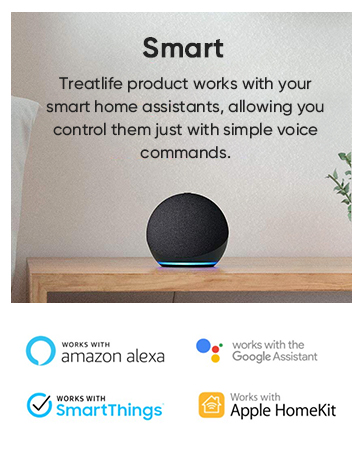
An Amazon Echo Dot is shown, representing the hub's compatibility with smart home assistants like Alexa and Google Home for voice control.
Maintenance
To ensure optimal performance and longevity of your TREATLIFE Zigbee Hub Gateway and connected devices, consider the following maintenance tips:
- Firmware Updates: Regularly check the TREATLIFE App for available firmware updates for your hub and devices. Updates often include performance improvements and security enhancements.
- Cleanliness: Keep the hub clean and free from dust. Use a soft, dry cloth for cleaning. Avoid using liquid cleaners.
- Stable Power Supply: Ensure the hub is plugged into a stable power source. Avoid outlets controlled by a switch that might accidentally turn off power to the hub.
- Network Stability: Maintain a stable 2.4GHz Wi-Fi network. Poor Wi-Fi signal can affect the hub's performance and connectivity with devices.
- Device Battery Replacement: For battery-powered Zigbee sensors, replace batteries promptly when the app indicates low power to ensure continuous operation.
Troubleshooting
If you encounter issues with your TREATLIFE Zigbee Hub Gateway, refer to the following common solutions:
- Hub not connecting to Wi-Fi:
- Ensure your Wi-Fi network is 2.4GHz. The hub is not compatible with 5GHz networks.
- Verify your smartphone is connected to the same 2.4GHz Wi-Fi network during setup.
- Check that your Wi-Fi router is within range and functioning correctly.
- Restart your Wi-Fi router and the Zigbee hub, then attempt the connection process again.
- Zigbee devices not pairing with the hub:
- Ensure the Zigbee device is a TREATLIFE brand product, as the hub is exclusively compatible with TREATLIFE Zigbee devices.
- Bring the Zigbee device closer to the hub during the pairing process.
- Check the battery of the Zigbee device, if applicable.
- Reset the Zigbee device according to its specific instructions and try pairing again.
- Confirm the hub is successfully connected to the TREATLIFE App and online.
- Voice control not working:
- Verify that the TREATLIFE skill/service is enabled and linked correctly in your Alexa, Google Home, or HomeKit app.
- Ensure your voice assistant device (e.g., Echo Dot) is online and functioning.
- Try rediscovering devices within your voice assistant app.
- Use the exact device names as configured in the TREATLIFE App.
- Poor signal or connectivity with Zigbee devices:
- The hub has a range of up to 164ft (50m) to the Wi-Fi router. Ensure devices are within this range.
- Obstacles like thick walls or large metal objects can interfere with Zigbee signals. Try repositioning the hub or devices.
- Zigbee networks can expand automatically. Adding more Zigbee devices (especially those that act as repeaters) can improve network coverage.
Specifications
| Brand | TREATLIFE |
| Model | B09V78N28M (Zigbee Smart Hub) |
| Color | White |
| Power Source | Corded Electric |
| Compatible Devices | TREATLIFE brand smart devices (Water Leak Detector, Motion Sensor, Door Sensor) |
| Control Method | App (TREATLIFE App) |
| Mounting Type | Tabletop Mount |
| Maximum Range | 164 Feet (50 meters) from hub to Wi-Fi router |
| Item Weight | 0.06 Kilograms |
Warranty Information
The TREATLIFE Zigbee Hub Gateway comes with a 2-year manufacturer's warranty. Please retain your proof of purchase for warranty claims. For detailed warranty terms and conditions, refer to the official TREATLIFE website or contact customer support.
Customer Support
For further assistance, technical support, or inquiries regarding your TREATLIFE Zigbee Hub Gateway, please contact TREATLIFE customer support through the following channels:
- TREATLIFE App: Access support features directly within the application.
- Official Website: Visit the TREATLIFE Store on Amazon for product information and support links.
- Email/Phone: Refer to the TREATLIFE official website for specific contact details.
Related documentsB09V78N28M

Ask a question about this manual
Ask about setup, troubleshooting, compatibility, parts, safety, or missing instructions. Manuals+ will review the question and use this page’s manual context to help answer it.