
ALIENPRO T1000
ALIENPRO T1000 Soundbar System User Manual
Model: T1000 | Brand: ALIENPRO
1. Introduction
Thank you for purchasing the ALIENPRO T1000 Soundbar System. This manual provides essential information for the safe and efficient operation of your new soundbar and wireless subwoofer. Please read this manual thoroughly before using the product and retain it for future reference.

Figure 1.1: The ALIENPRO T1000 Soundbar and its accompanying remote control. The soundbar is designed for desktop placement, offering a sleek audio solution for your entertainment setup.
2. Package Contents
Please check the package contents carefully. If any items are missing or damaged, contact your retailer.
- ALIENPRO T1000 Soundbar
- Wireless Subwoofer
- Remote Control
- Power Adapter/Cable
- Audio Cables (e.g., Optical, AUX, HDMI - specific types may vary)
- User Manual (this document)
3. Product Features
The ALIENPRO T1000 Soundbar System is engineered to enhance your audio experience with its advanced features:
- Powerful 100 Watts Maximum Speaker Output
- Wireless Subwoofer for deep bass
- Bluetooth Connectivity for wireless audio streaming from compatible devices
- Multiple Audio Input Options
- Stereo and Surround Sound Output Modes
- Compact and elegant design for desktop mounting
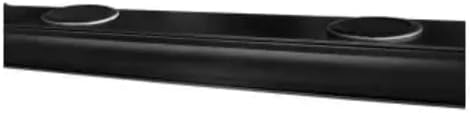
Figure 3.1: A detailed view of the ALIENPRO T1000 Soundbar's top surface, highlighting its integrated speaker elements and sleek finish.
4. Safety Instructions
To ensure safe operation and prevent damage, please observe the following safety precautions:
- Do not expose the unit to rain, moisture, or extreme temperatures.
- Do not block any ventilation openings.
- Do not place the unit near heat sources such as radiators, heat registers, stoves, or other apparatus (including amplifiers) that produce heat.
- Protect the power cord from being walked on or pinched.
- Only use attachments/accessories specified by the manufacturer.
- Unplug this apparatus during lightning storms or when unused for long periods of time.
- Refer all servicing to qualified service personnel.
5. Setup
5.1 Physical Placement
Place the soundbar on a stable, flat surface directly in front of your television or display. Ensure there are no obstructions in front of the soundbar that could block the sound. The soundbar is designed for desktop mounting.

Figure 5.1: The ALIENPRO T1000 Soundbar positioned beneath a television, demonstrating typical desktop placement for optimal audio projection.
5.2 Connections
- Power Connection: Connect the power adapter to the soundbar's power input and then plug it into a wall outlet.
- Audio Connection: Connect your audio source (e.g., TV, DVD player) to the soundbar using the appropriate audio cable (e.g., Optical, AUX, HDMI ARC if available). Refer to your soundbar's specific input ports.
5.3 Wireless Subwoofer Pairing
The T1000 system includes a wireless subwoofer. It should automatically pair with the soundbar upon powering on both units.
- Place the wireless subwoofer in a suitable location near the soundbar, ideally on the same side of the room.
- Connect the subwoofer to a power outlet.
- Power on both the soundbar and the subwoofer. They should automatically establish a wireless connection.
- If pairing fails, consult the troubleshooting section or refer to specific pairing instructions that may be printed on the subwoofer or in a quick start guide.
6. Operation
6.1 Basic Controls
The soundbar can be controlled using the buttons on the unit itself or the included remote control.

Figure 6.1: The remote control for the ALIENPRO T1000 Soundbar, featuring buttons for power, volume, input selection, playback, and sound modes.
- Power Button: Turns the soundbar on or off.
- Volume Up/Down: Adjusts the master volume level.
- Input/Source Button: Cycles through available audio inputs (e.g., Bluetooth, Optical, AUX).
- Play/Pause: Controls media playback in Bluetooth mode.
- Skip Tracks: Skips to the next or previous track in Bluetooth mode.
- Sound Mode Buttons: Selects different audio modes (e.g., Stereo, Surround, Movie, Music, 3D).
6.2 Input Selection
Press the "Input" or "Source" button on the remote control or soundbar to switch between connected audio sources. The current input mode is usually indicated by an LED light or a display on the soundbar.
6.3 Bluetooth Pairing
- Turn on the soundbar and select the Bluetooth input mode. The soundbar will enter pairing mode, indicated by a flashing LED.
- On your Bluetooth-enabled device (e.g., smartphone, tablet), enable Bluetooth and search for available devices.
- Select "ALIENPRO T1000" (or similar name) from the list of devices.
- Once paired, the LED indicator on the soundbar will stop flashing and remain solid. You can now stream audio wirelessly from your device.
6.4 Audio Modes
The ALIENPRO T1000 offers different audio modes to optimize your listening experience:
- Stereo: Standard two-channel audio.
- Surround: Simulates a multi-channel surround sound experience.
- Other Modes (e.g., 3D, Movie, Music): May be available via the remote control to enhance specific content types.
7. Maintenance
To keep your ALIENPRO T1000 Soundbar System in optimal condition:
- Cleaning: Use a soft, dry cloth to clean the surfaces of the soundbar and subwoofer. Do not use liquid cleaners or aerosol sprays.
- Ventilation: Ensure that the ventilation openings are not blocked to prevent overheating.
- Storage: If storing the unit for an extended period, unplug it from the power outlet and store it in a cool, dry place.
8. Troubleshooting
If you encounter issues with your soundbar, refer to the following common problems and solutions:
| Problem | Possible Cause | Solution |
|---|---|---|
| No power | Power cord not connected; Power outlet not active. | Ensure power cord is securely plugged in; Try a different power outlet. |
| No sound | Incorrect input selected; Volume too low; Mute function active; Incorrect audio cable connection. | Select correct input source; Increase volume; Deactivate mute; Check audio cable connections. |
| Bluetooth pairing fails | Soundbar not in pairing mode; Device too far; Interference. | Ensure soundbar is in Bluetooth pairing mode; Move device closer; Turn off other Bluetooth devices. |
| Subwoofer not connecting | Subwoofer not powered on; Out of range; Interference. | Ensure subwoofer is powered on; Move subwoofer closer to soundbar; Reduce wireless interference. |
9. Specifications
| Model Name | T1000 |
| Brand | ALIENPRO |
| Speaker Type | Soundbar with Wireless Subwoofer |
| Mounting Type | Desktop Mount |
| Connectivity Technology | Bluetooth |
| Max Speaker Output Power | 100 Watts |
| Frequency Response | 55 Hz |
| Audio Output Mode | Stereo, Surround |
| Power Source | Electric Cord, Battery (likely for remote) |
| Battery Life | 5 Hours (likely for remote control) |
| Compatible Devices | Smartphone (and other audio sources) |
| Dimensions (Soundbar) | 104.6 x 23.2 x 14.4 cm (approx. 41.2 x 9.1 x 5.7 inches) |
| Weight | 6.18 kg (approx. 13.6 lbs) |
10. Warranty and Support
For warranty information, technical support, or service inquiries, please refer to the warranty card included with your product or visit the official ALIENPRO website.
Please retain your proof of purchase for any warranty claims.
Ask a question about this manual
Ask about setup, troubleshooting, compatibility, parts, safety, or missing instructions. Manuals+ will review the question and use this page’s manual context to help answer it.