
Introduction
The Zoom V6-SP is a versatile vocal processor designed for both studio and live performance environments. It integrates professional vocal effects, a built-in looper, and a unique formant pedal to enhance vocal performances across various musical styles. This manual provides essential information for setting up, operating, and maintaining your V6-SP unit.

Image: The Zoom V6-SP Vocal Processor, showcasing its compact design and control layout.
Safety Precautions
To ensure safe operation and prevent damage to the unit or injury to yourself and others, please observe the following precautions:
- Power Supply: Use only the specified AC adapter (Zoom AD-16 or equivalent 9V DC, 300mA center negative). Using an incorrect adapter can cause malfunction, electric shock, or fire.
- Moisture: Do not expose the unit to rain or moisture. Do not use it near water or in damp conditions.
- Foreign Objects: Do not insert any metal objects or flammable materials into the unit's openings.
- Placement: Place the unit on a stable, level surface. Avoid extreme temperatures, direct sunlight, and excessive dust.
- Cleaning: Clean the unit with a soft, dry cloth. Do not use liquid cleaners or solvents.
Setup
Unpacking and Contents
The package for your Zoom V6-SP Vocal Processor typically includes:
- Zoom V6-SP Main Unit
- AC Adapter (may be sold separately in some regions)
- Instruction Manual (this document)
Connecting the Unit
Refer to the diagram below for proper connection of microphones, power, and output devices.
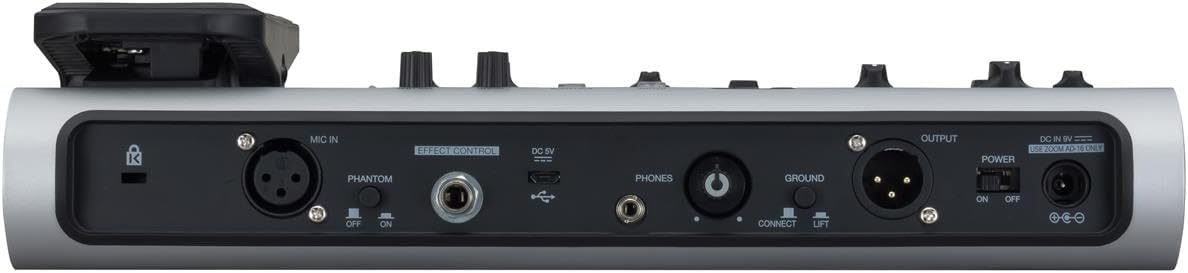
Image: Rear panel of the V6-SP, showing input/output jacks and power connection.
- Microphone Input (MIC IN): Connect your microphone to the XLR input. If using a condenser microphone requiring phantom power, ensure the PHANTOM switch is set to ON.
- Effect Control: This 1/4-inch jack is for connecting an optional expression pedal or footswitch for additional control.
- DC 9V: Connect the supplied AC adapter here. Ensure the power switch is in the OFF position before connecting.
- USB: Use this port for firmware updates or connecting to a computer for audio interface functionality (refer to Zoom's website for driver information).
- Phones: Connect headphones to this 1/4-inch stereo jack for monitoring your sound.
- Ground Connect/Lift: Use this switch to eliminate hum caused by ground loops. Set to LIFT if hum is present.
- Output (OUTPUT): Connect the XLR outputs to your mixer, audio interface, or PA system.
- Power Switch: Turn the unit ON or OFF using this switch.
After all connections are made, turn on the power switch. The display will illuminate, indicating the unit is ready for use.
Operating the V6-SP
The V6-SP features three main effect sections: Voice, Harmony, and Effect, along with a Formant pedal and Looper functionality. You can use up to three vocal processors simultaneously.

Image: Detailed view of the V6-SP's control panel, including Voice, Harmony, and Effect sections.
Control Sections Overview
- Voice Section: Offers 12 distinct voice effects such as Vocoder, Pitch Correct, Talkbox, Robot, and Whistle. Use the ADJUST knob to fine-tune parameters for the selected effect.
- Harmony Section: Provides 3-voice harmonizer capabilities. Select the key using the central KEY dial. Adjust harmony levels with the MIX knob.
- Effect Section: Includes over 10 studio-grade effects like Distortion, Chorus, Echo, Reverb (Room, Hall, Plate), and Telephone. The ADJUST knob controls effect parameters, while TIME and FEEDBACK knobs are available for time-based effects.
- Formant Pedal: The large pedal on the right allows real-time adjustment of your vocal character, shifting formants up or down for unique vocal textures.
- Memory/Looper Footswitches: The bottom row of footswitches controls memory banks and looper functions.
- MEMORY/LOOPER + (Hold/Bypass): Activates/deactivates the looper or bypasses effects.
- MEMORY (Play/Stop): Controls looper playback or switches memory patches.
- MEMORY (Record): Initiates looper recording or saves memory patches.
Saving and Recalling Patches
The V6-SP has 100 memory locations for storing user-created patches. To save a patch, adjust your desired effects and then press the STORE button. Use the footswitches to select a memory location and confirm. To recall a patch, simply use the memory footswitches to navigate through your saved presets.
Looper Functionality
The built-in looper allows for recording up to 3 minutes and 30 seconds of audio. Use the dedicated looper footswitches to record, play, and overdub vocal phrases. Refer to the detailed operational guide for specific looper commands and timings.

Image: A musician's foot operating the formant pedal on the V6-SP during a performance.
Maintenance
Proper maintenance ensures the longevity and optimal performance of your V6-SP.
- Cleaning: Regularly wipe the unit with a soft, dry cloth to remove dust and grime. Avoid abrasive cleaners or solvents that could damage the finish.
- Storage: When not in use for extended periods, store the unit in a cool, dry place away from direct sunlight and extreme temperatures.
- Footswitches and Knobs: Ensure footswitches and rotary knobs operate smoothly. Avoid applying excessive force.
- Firmware Updates: Check the official Zoom website periodically for firmware updates. Keeping your unit's firmware current can improve performance and add new features.
Troubleshooting
If you encounter issues with your V6-SP, consult the following common troubleshooting steps:
- No Power:
- Ensure the AC adapter is correctly connected to the DC 9V input and a working power outlet.
- Verify the power switch is in the ON position.
- No Sound Output:
- Check all audio cable connections (microphone, output to mixer/PA).
- Ensure the microphone is working and phantom power is enabled if required.
- Verify the VOLUME knob on the V6-SP is turned up.
- Check the input levels on your mixer or audio interface.
- If using headphones, ensure they are properly connected to the PHONES jack and the headphone volume is adjusted.
- Hum or Noise:
- Try setting the GROUND CONNECT/LIFT switch to LIFT.
- Ensure all cables are in good condition and properly shielded.
- Avoid placing the unit near strong electromagnetic interference sources.
- Effects Not Engaging:
- Check if the individual effect sections (Voice, Harmony, Effect) are activated (indicated by illuminated LEDs).
- Ensure you are not in bypass mode (e.g., by holding the MEMORY/LOOPER + footswitch).
If problems persist, consult the official Zoom support resources or contact customer service.
Specifications
| Feature | Detail |
|---|---|
| Model Number | V6-SP |
| Dimensions (L x W x H) | 12.6 x 7 x 3 inches (320 x 178 x 76 mm) |
| Item Weight | 4.72 pounds (2.14 kg) |
| Body Material | Metal and Plastic |
| Power Source | Corded Electric (AC Adapter) |
| Voltage | 9 Volts DC |
| Amperage | 300 Milliamps |
| Connector Types | XLR (MIC IN, OUTPUT), 1/4 inch (6.35mm) audio jack (Effect Control, Phones) |
| Hardware Interface | 1/4-inch Audio, USB |
| Signal Format | Analog |
| Looper Recording Time | Up to 3 minutes 30 seconds |
| Memory Locations | 100 user-created patches |
Warranty and Support
Warranty Information
The Zoom V6-SP Vocal Processor comes with a standard manufacturer's warranty. Please refer to the warranty card included with your product or visit the official Zoom website for detailed terms and conditions, including warranty duration and coverage.
Customer Support
For technical assistance, product inquiries, or service requests, please contact Zoom customer support. You can find contact information and additional resources, such as FAQs and driver downloads, on the official Zoom website:


