
1. Introduction
This manual provides essential information for the setup, operation, and maintenance of your Seagate One Touch Hub 18TB External Hard Drive. This device offers substantial storage capacity, convenient USB-C and USB 3.0 ports, and compatibility with both Windows and Mac operating systems.
For additional support and detailed documentation, please refer to the official Seagate User Guide (PDF).
2. What's in the Box
Verify that all items are present in the package:
- Seagate One Touch Desktop with HUB 18TB USB3.0
- USB 3.0 cable (compatible with USB-C ports via adapter, if included)
- Power adapter
- Quick Start Guide (physical or digital)
3. Product Overview
The Seagate One Touch Hub is designed for reliable data storage and convenient connectivity.

Image: The Seagate One Touch Hub 18TB External Hard Drive, showcasing its sleek black design and front-facing ports.
Key Features:
- Integrated USB Hub: Features a front-facing USB-C port and a USB 3.0 port for connecting and recharging devices, even when your computer is off.
- Password Protection: Secure your digital life with optional password protection.
- Cross-Platform Compatibility: Works out-of-the-box with both Windows and Mac computers.
- Seagate Toolkit Software: Includes backup software for one-click backups, scheduled backups, and file mirroring.
- Rescue Data Recovery Services: Enjoy peace of mind with included data recovery services.

Image: Close-up view of the front of the Seagate One Touch Hub, highlighting the USB-C and USB 3.0 ports for device connectivity and charging.
4. Setup
Follow these steps to set up your Seagate One Touch Hub:
- Connect the Power Adapter: Plug the power adapter into the drive's power port and then into a wall outlet.
- Connect the USB Cable: Connect one end of the provided USB 3.0 cable to the USB 3.0 port on the back of the One Touch Hub. Connect the other end to an available USB 3.0 (or higher) port on your computer. If your computer only has USB-C ports, use an appropriate adapter (not included unless specified).
- Power On: The drive will typically power on automatically once connected to power and your computer.
- Initial Recognition: Your computer's operating system should detect the new drive. Follow any on-screen prompts for initial setup.
- Install Seagate Toolkit: For full functionality, including backup and security features, install the Seagate Toolkit software. The installer is usually pre-loaded on the drive or can be downloaded from the official Seagate website.

Image: The Seagate One Touch Hub connected to a laptop, illustrating a typical setup for data management.
5. Operating Instructions
5.1 Data Transfer
- Drag and Drop: Open your computer's file explorer (Windows) or Finder (Mac), locate the Seagate One Touch Hub, and drag files or folders directly onto the drive.
- Seagate Toolkit Backup: Use the Seagate Toolkit software for automated backups. You can configure one-click backups, scheduled backups, or file mirroring to keep your data synchronized.

Image: The Seagate One Touch Hub integrated into a desktop workstation, illustrating its role in data backup and storage.
5.2 Using the USB Hub Ports
The front-facing USB-C and USB 3.0 ports can be used for:
- Device Charging: Connect and charge compatible devices such as smartphones or tablets.
- Peripheral Connectivity: Connect other USB devices like flash drives, keyboards, or mice.
5.3 Password Protection
To enable password protection for your drive, use the Seagate Toolkit software. This feature helps secure your data from unauthorized access.
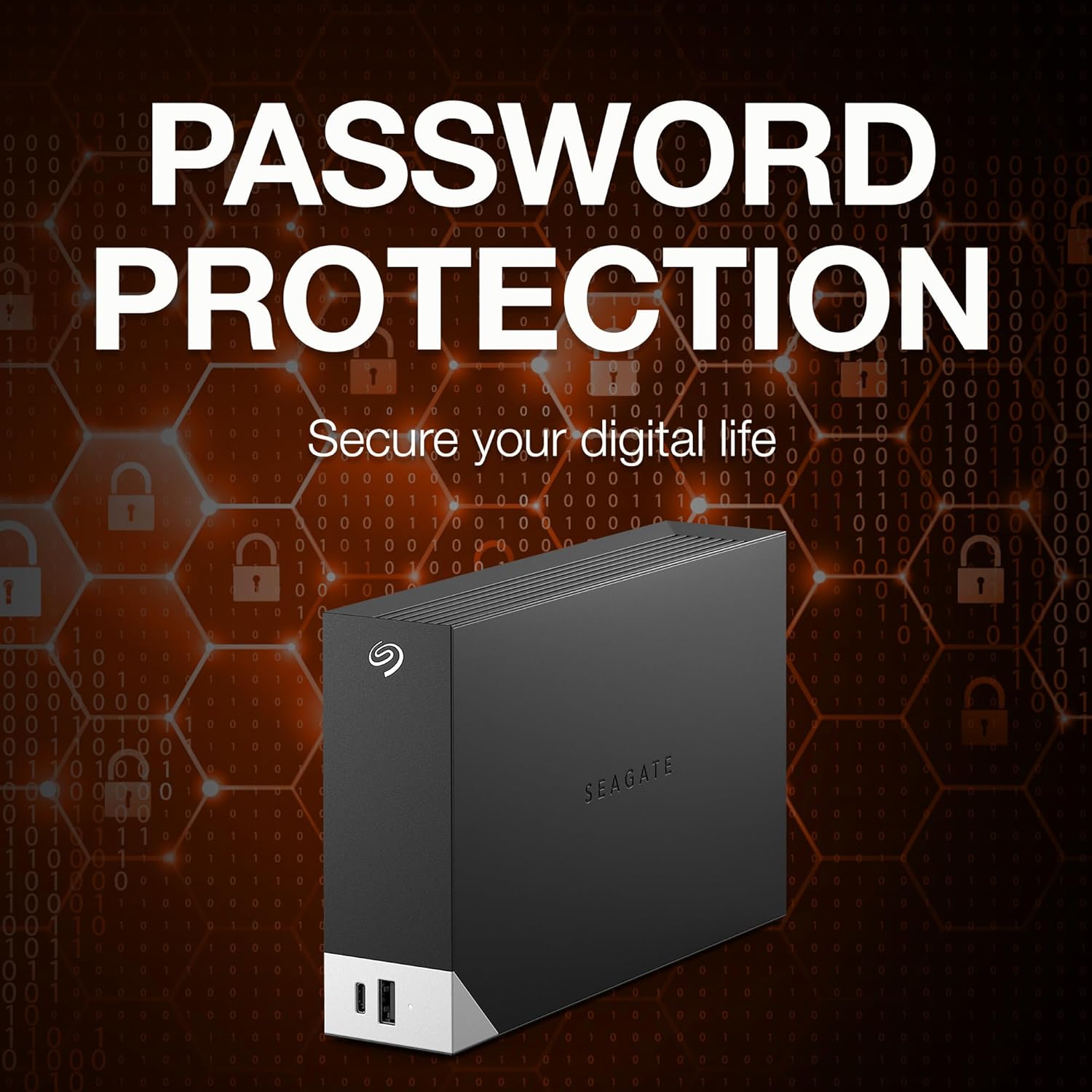
Image: The Seagate One Touch Hub overlaid with a visual representation of digital security and password protection.
6. Maintenance
- Safe Ejection: Always safely eject the drive from your computer before disconnecting the USB cable or power. This prevents data corruption.
- Physical Care: Keep the drive in a cool, dry place. Avoid exposing it to extreme temperatures, direct sunlight, or moisture. Do not drop or subject the drive to physical shocks.
- Regular Backups: While the drive itself is for storage, it is good practice to maintain backups of critical data on multiple devices or cloud services.
- Software Updates: Periodically check for updates to the Seagate Toolkit software to ensure optimal performance and security.
7. Troubleshooting
7.1 Drive Not Recognized
- Check Connections: Ensure the power adapter is securely plugged into the drive and a working outlet. Verify the USB cable is firmly connected to both the drive and your computer.
- Try Different Ports/Cables: Test with a different USB port on your computer or a different USB cable if available.
- Restart Computer: A simple restart can often resolve recognition issues.
- Check Disk Management (Windows) / Disk Utility (Mac): Verify if the drive appears in your operating system's disk management tools. It might need to be initialized or formatted.
7.2 Slow Transfer Speeds
- USB Port Type: Ensure you are connected to a USB 3.0 (or higher) port on your computer for optimal speeds. Connecting to a USB 2.0 port will result in slower transfers.
- Cable Quality: Use the provided high-quality USB cable.
- Background Processes: Close any unnecessary applications or background processes that might be consuming system resources.
7.3 USB Hub Ports Not Functioning
- Power Connection: Ensure the drive is connected to its power adapter, as the hub ports require external power.
- Device Compatibility: Verify that the connected device is compatible with USB charging or data transfer via a hub.
8. Specifications
| Model Number | STLC18000402 |
| Digital Storage Capacity | 18 TB |
| Hard Drive Type | Mechanical Hard Disk |
| Hard Drive Interface | USB 3.0 |
| Connectivity Technology | USB |
| Hardware Platform | Mac, PC |
| Item Weight | 2.75 pounds |
| Product Dimensions (LxWxH) | 8.74 x 3.07 x 9.17 inches |
| Color | Black |
| Special Feature | Hardware Encryption |

Image: A visual representation indicating the Seagate One Touch Hub's compatibility with both Windows and Mac operating systems.
9. Warranty and Support
9.1 Limited Warranty
The Seagate One Touch Hub includes a two-year limited warranty. Please retain your proof of purchase for warranty claims. For full warranty terms and conditions, refer to the documentation included with your product or visit the official Seagate support website.
9.2 Rescue Data Recovery Services
This product includes Rescue Data Recovery Services for added peace of mind. In the event of unexpected data loss due to technical faults, viruses, or natural disasters, Seagate's team of experts can assist in recovering your data.
- Our team of experts will restore your data in a secure, clean room laboratory.
- You will receive an encrypted storage device with your recovered data.
- You can track the whole process by text message, e-mail or online.

Image: The logo for Seagate's Rescue Data Recovery Services, indicating included data protection.
9.3 Customer Support
For technical assistance, product registration, or to learn more about Seagate products, visit the official Seagate support website or contact their customer service.


