
Introduction
Thank you for choosing the Oversteel Bulat 1080P Full HD Webcam. This manual provides detailed instructions for setting up, operating, and maintaining your webcam to ensure optimal performance. The Bulat webcam is designed for high-quality video communication, recording, and streaming, featuring a 1080p resolution at 60 frames per second, an integrated microphone, and an adjustable ring light.
Product Overview
Key Features
- 1080P Full HD Video: Equipped with a 2MP CMOS HD sensor, delivering sharp and clear video at resolutions up to 1920 x 1080 at 60fps. The 6G 2M glass lens ensures a crisp image.
- Integrated Microphone: Features a built-in microphone for clear audio capture, effective up to 10 meters, suitable for video conferences, meetings, and live broadcasts.
- Adjustable Ring Light: An integrated ring light provides uniform and flattering illumination. It offers adjustable brightness and color temperature (warm/cold light) to suit various lighting conditions.
- Plug & Play Connectivity: Simple USB connection (compatible with USB 2.0/3.0) with a 150 cm cable. No additional drivers or software are required for operation.
- Compact and Durable Design: Measuring 10 x 35 x 25 cm and weighing 135 grams, the webcam is portable and made from ABS material for durability.
What's in the Box
- Oversteel Bulat Webcam
Product Components
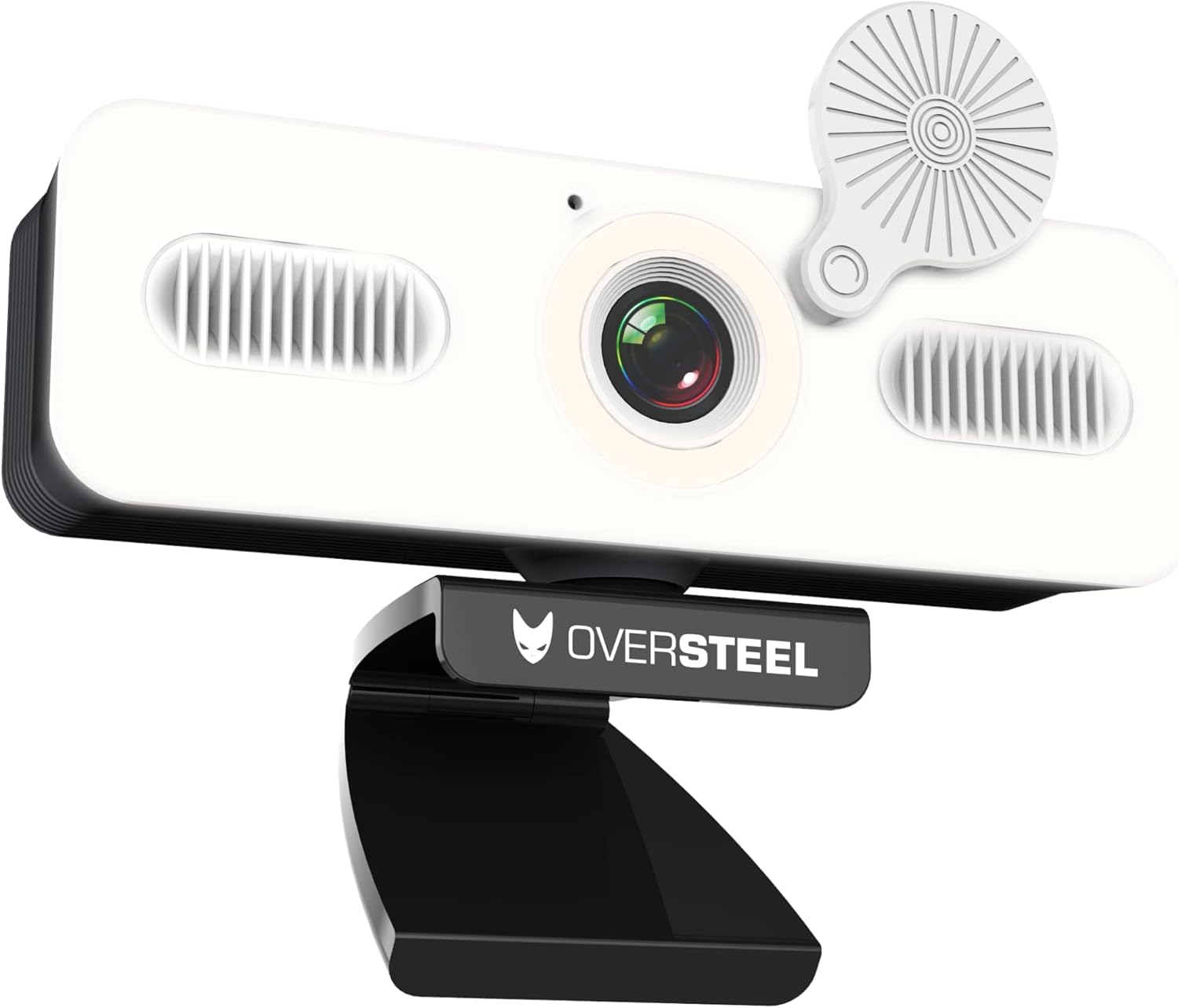
Image 1: Front view of the Oversteel Bulat Webcam, showing the camera lens, integrated ring light, and microphone grilles. The webcam is mounted on its adjustable stand.

Image 2: Oversteel Bulat Webcam with its privacy cover closed, highlighting the design and the integrated light.
Setup Instructions
- Unpack the Webcam: Carefully remove the Oversteel Bulat Webcam from its packaging.
- Position the Webcam:
- Place the webcam on top of your monitor or laptop screen using its integrated clip. Ensure it is stable and securely positioned.
- Alternatively, the webcam can be mounted on a tripod using the standard tripod thread located at the bottom of the stand (tripod not included).
- Connect to your Device: Plug the USB cable from the webcam into an available USB 2.0 or USB 3.0 port on your computer (PC, Mac, Laptop, Tablet, Chromebook).
- Automatic Installation: The webcam is Plug & Play. Your operating system will automatically detect and install the necessary drivers. This process may take a few moments. No manual driver installation is typically required.
- Verify Installation:
- Windows: Go to Device Manager and check under "Cameras" or "Imaging devices" for "Oversteel Bulat Webcam".
- macOS: Open System Preferences > Sound > Input and check for the webcam's microphone. For video, open an application like Photo Booth or FaceTime.

Image 3: The Oversteel Bulat Webcam securely mounted on top of a computer monitor, demonstrating its adjustable clip.
Operating Instructions
Using the Webcam for Video Calls and Recording
- Open Your Application: Launch your preferred video conferencing or recording software (e.g., Zoom, Microsoft Teams, Skype, Google Meet, OBS Studio, Photo Booth).
- Select the Webcam: In the application's settings, navigate to the video and audio input options.
- For video input, select "Oversteel Bulat Webcam" or a similar name.
- For audio input, select "Oversteel Bulat Microphone" or a similar name.
- Adjust Settings (Optional): Some applications allow you to adjust video resolution, frame rate, brightness, contrast, and other settings. Refer to your application's documentation for specific adjustments. The webcam supports 1080p resolution at 60fps.
- Start Your Session: Begin your video call, recording, or live stream.
Ring Light Operation
The Oversteel Bulat Webcam features an integrated ring light to enhance your illumination.
- Power On/Off: The ring light is controlled by a touch-sensitive button located on the webcam body, typically near the lens. Tap the button to turn the light on or off.
- Adjust Brightness: Press and hold the touch button to cycle through different brightness levels. Release the button when the desired brightness is achieved.
- Change Color Temperature: The light offers warm and cold light options. Tap the button repeatedly to switch between warm light, cold light, and mixed light modes.

Image 4: Comparison of the Oversteel Bulat Webcam's integrated ring light in warm and standard (cold) light modes, illustrating the adjustable color temperature feature.
Maintenance
- Cleaning the Lens: Use a soft, lint-free cloth specifically designed for camera lenses to gently wipe the webcam lens. Avoid using harsh chemicals or abrasive materials.
- Cleaning the Body: Wipe the webcam body with a dry or slightly damp soft cloth. Do not immerse the webcam in water or use excessive moisture.
- Storage: When not in use, store the webcam in a clean, dry place away from direct sunlight and extreme temperatures. Use the privacy cover to protect the lens from dust and scratches.
- Cable Care: Avoid bending or twisting the USB cable excessively to prevent damage.
Troubleshooting
| Problem | Possible Cause | Solution |
|---|---|---|
| No image or video |
|
|
| No sound or poor audio quality |
|
|
| Ring light not working |
|
|
| Video appears choppy or laggy |
|
|
Specifications
| Feature | Detail |
|---|---|
| Model Number | NAT-OV-BULAT-60 |
| Dimensions (D x W x H) | 10 x 35 x 25 cm |
| Weight | 190 g |
| Sensor Technology | CMOS |
| Video Capture Resolution | 1080p Full HD (1920 x 1080 pixels) |
| Video Capture Speed | 60 fps |
| Effective Still Image Resolution | 2.07 MP |
| Connectivity Technology | USB 2.0/3.0 |
| Special Feature | Built-in Ring Light (Warm/Cold) |
| Microphone | Integrated |
| Compatible Devices | PC, Laptop, Tablet, Chromebook |
| Operating System | Proprietary (firmware or embedded OS) |
| Video Format | MP4 |
| Audio Format | MP3 |
| Focus Type | Fixed Focus |
| White Balance | Automatic |
| Image Aspect Ratio | 16:9 |
| Water Resistance Level | Not water resistant |
Warranty and Support
Warranty Information
The Oversteel Bulat Webcam comes with a two-year manufacturer's warranty from the date of purchase. This warranty covers defects in materials and workmanship under normal use. It does not cover damage caused by misuse, accident, unauthorized modification, or external causes. Please retain your proof of purchase for warranty claims.
Customer Support
For technical assistance, troubleshooting, or warranty inquiries, please contact Oversteel customer support. Refer to the official Oversteel website for the most up-to-date contact information.
Online Resources: Visit the Oversteel Brand Store on Amazon for additional product information and support.


