
1. Introduction
This manual provides detailed instructions for the installation, operation, and maintenance of your Erisin ES8830M Android 14 Car Stereo. Please read this manual thoroughly before using the product to ensure proper operation and to prevent damage.
1.1 Product Overview
The Erisin ES8830M is an advanced 7-inch car stereo system designed for Alfa Romeo Mito models (2008-2019). It features an 8-Core processor, 4GB RAM, 64GB ROM, and runs on Android 14, offering a responsive and feature-rich in-car entertainment and navigation experience. Key functionalities include integrated GPS, wireless Apple CarPlay, wired Android Auto, Digital Sound Processor (DSP), DAB+ radio support, and Wi-Fi connectivity.
1.2 Compatibility
This 2-DIN car stereo is specifically designed for Alfa Romeo Mito vehicles manufactured between 2008 and 2019. Before installation, verify that the front panel dimensions of this stereo (232mm top width * 135mm height * 207mm bottom width) match the original multimedia player slot in your vehicle.

Figure 1.1: Erisin ES8830M Car Stereo Main Unit.

Figure 1.2: Overview of Erisin ES8830M features including Android 14, Octa Core CPU, RAM/ROM, CarPlay, Android Auto, DSP, 4G/WiFi, GPS, DAB+/TPMS/DVR/DVB-T2/OBD support, and CAM/AV input.
2. Safety Information
Always prioritize safety when installing and operating this device. Failure to follow these instructions may result in injury or damage to the product or vehicle.
- Professional Installation Recommended: Due to the complexity of car electrical systems, professional installation is highly recommended.
- Power Disconnection: Disconnect the vehicle's battery before beginning any installation work to prevent electrical shorts and damage.
- Wiring: Ensure all wiring is correctly connected according to the wiring diagram. Incorrect wiring can cause malfunctions or damage.
- Driving Safety: Do not operate the device in a way that distracts you from driving. Always keep your eyes on the road.
- Volume Control: Keep the volume at a level that allows you to hear outside traffic sounds.
- Environmental Conditions: Avoid exposing the unit to extreme temperatures, direct sunlight for prolonged periods, or excessive moisture.
3. Package Contents
Verify that all items listed below are included in your package. If any items are missing or damaged, contact your retailer.

Figure 3.1: Included accessories for the Erisin ES8830M car stereo. This image displays various cables, antennas, and adapters.
- Erisin ES8830M Main Unit
- Power Cable with ISO Connector
- Special Canbus Decoder Box (if applicable for your vehicle)
- RCA Audio Output Cable
- RCA AV Connecting Cable
- GPS Antenna
- 4G Antenna
- USB Adapter Cables (2x)
- Camera Input and Control Cable
- Din to ISO Radio Antenna Adapter
- User's Manual (English)
4. Setup & Installation
This section provides general guidelines for installing the Erisin ES8830M car stereo. Specific vehicle requirements may vary. Consult a professional installer if you are unsure about any steps.
4.1 Pre-Installation Check
- Confirm vehicle compatibility (Alfa Romeo Mito 2008-2019).
- Verify the dimensions of the head unit against your car's dashboard opening.
- Ensure all package contents are present.
4.2 Wiring Diagram
Refer to the wiring diagram for correct connections. Improper wiring can damage the unit or vehicle's electrical system.

Figure 4.1: Detailed wiring diagram for the Erisin ES8830M car stereo, showing connections for power, speakers, USB, GPS, and other peripherals.
4.3 Installation Steps (General)
- Disconnect Battery: Disconnect the negative terminal of your vehicle's battery.
- Remove Old Unit: Carefully remove the existing car stereo from the dashboard.
- Connect Wiring: Connect the power harness, speaker wires, GPS antenna, 4G antenna, USB cables, and any other necessary cables to the Erisin ES8830M unit according to the wiring diagram. Ensure secure connections.
- Test Connections: Before fully mounting, reconnect the battery and perform a basic function test (power on, radio, sound).
- Mount Unit: Securely mount the Erisin ES8830M into the dashboard opening.
- Reassemble Dashboard: Reassemble any removed dashboard panels.

Figure 4.2: Visual comparison of a car dashboard before and after the installation of the Erisin ES8830M car stereo.
5. Operating Instructions
This section covers the basic operation and key features of your Erisin ES8830M car stereo.
5.1 Basic Interface and Navigation
The unit features a capacitive touchscreen for intuitive control. The main menu provides access to various applications and functions.
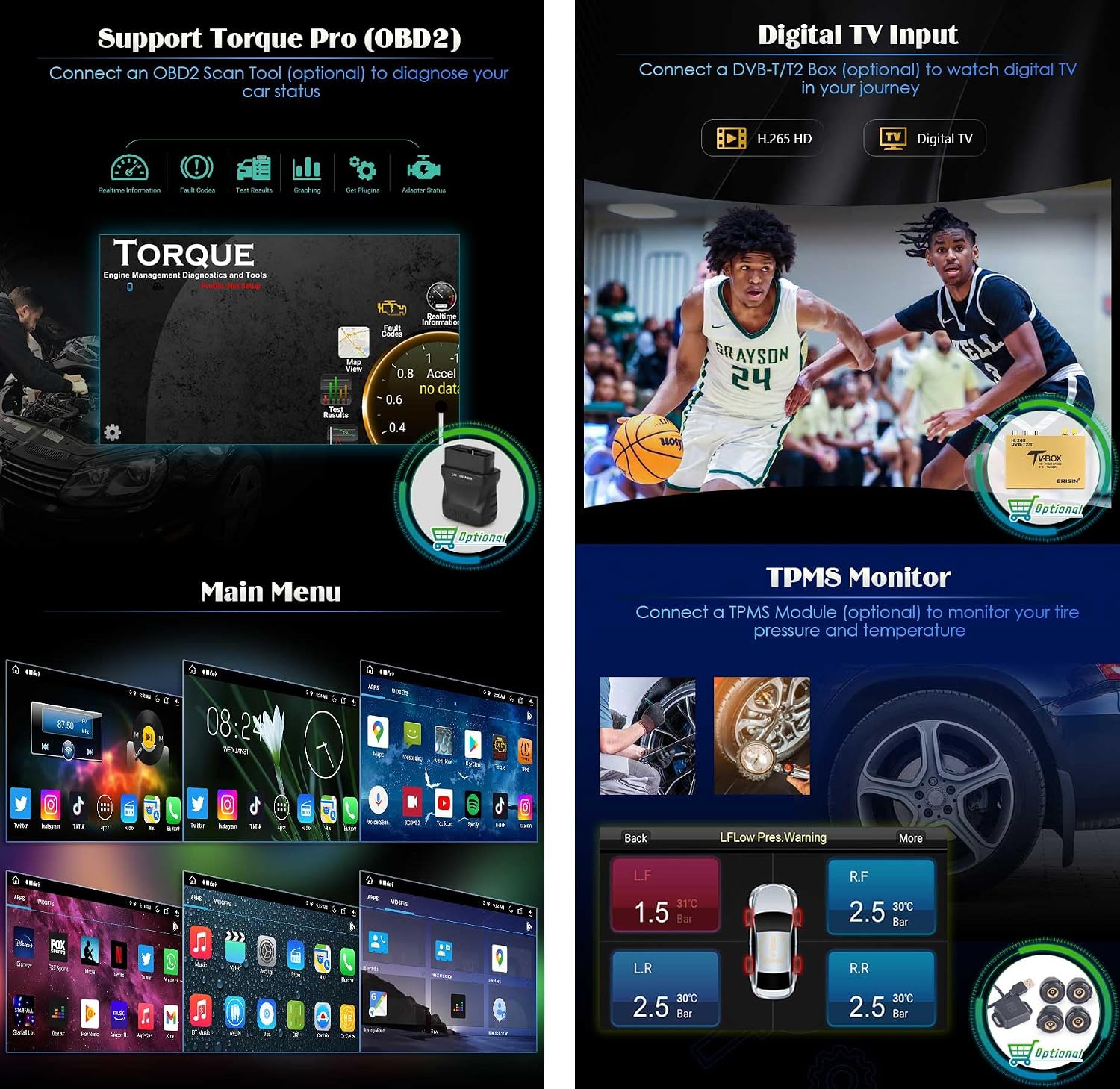
Figure 5.1: The main user interface of the Erisin ES8830M, displaying icons for music, video, settings, apps, radio, navigation, and Bluetooth.
5.2 GPS Navigation
The unit supports both online and offline GPS navigation. Pre-installed apps like Waze and Sygic are available, or you can download others from the Play Store. Offline maps can be sourced from map providers.
- To use GPS, ensure the GPS antenna is properly connected and positioned for optimal signal reception.
- Launch your preferred navigation application from the main menu.
- Navigation can be used concurrently with music or radio playback.

Figure 5.2: Display of the GPS navigation interface, showing online and offline map support with various navigation apps like Sygic, iGO, and Waze.
5.3 Wireless CarPlay & Wired Android Auto
Connect your smartphone for an integrated driving experience.
- Wireless CarPlay: Connect your iPhone via Bluetooth to enable CarPlay functionality.
- Wired Android Auto: Connect your Android phone via USB to enable Android Auto functionality.
- These features allow access to phone calls, music, navigation, and other apps directly on the car stereo display.

Figure 5.3: Illustration of integrated Apple CarPlay (wireless) and Android Auto (wired) interfaces on the car stereo, showing phone apps on the display.
5.4 Bluetooth Functionality
The integrated Bluetooth 5.0 module allows for hands-free calling and audio streaming.
- Pair your smartphone with the unit via Bluetooth settings.
- Make and receive calls directly from the stereo.
- Stream music from your phone to the car speakers.

Figure 5.4: Depiction of Bluetooth features including hands-free calls, contact synchronization, and call record synchronization, alongside audio streaming.
5.5 Digital Sound Processor (DSP)
The built-in DSP amplifier allows for advanced audio customization.
- Access the DSP settings from the main menu.
- Utilize the 30-band equalizer to adjust audio frequencies to your preference.
- Customize sound effects to optimize your listening environment.

Figure 5.5: Screenshot of the Digital Sound Processor (DSP) interface, showing a multi-band equalizer for audio adjustments.
5.6 Radio (FM/AM/RDS)
The unit includes an integrated radio tuner with support for FM, AM, and RDS functions.
- Select the Radio application from the main menu.
- Tune to desired stations manually or use the auto-scan feature.
- RDS (Radio Data System) provides additional information like station name and program type where available.

Figure 5.6: Display of the FM/AM radio interface, showing frequency tuning and station presets.
5.7 Internet Connectivity (Wi-Fi & 4G)
Stay connected with built-in Wi-Fi and 4G module support.
- Wi-Fi: Connect to available Wi-Fi networks (2.4GHz and 5GHz) for internet access.
- 4G: Insert a data micro-SIM card (not included) into the unit to utilize 4G internet connectivity and sharing.
- Access online applications such as browsers, streaming services (Netflix, Spotify, YouTube), and social media.

Figure 5.7: Illustration of Wi-Fi and 4G internet connectivity, showing web browsing and video streaming on the unit.
5.8 Split Screen Functionality
Multitask by running two applications side-by-side on the screen.
- Activate split screen mode from the system settings or by long-pressing the recent apps button.
- Select two compatible applications to display simultaneously, for example, navigation and music playback.

Figure 5.8: Example of the split screen feature, showing GPS navigation on one side and a music player on the other.
5.9 Steering Wheel Control (SWC)
Control basic functions of the stereo using your vehicle's steering wheel buttons.
- Access the Steering Wheel Control settings in the unit's system menu.
- Program the buttons on your steering wheel to control functions such as volume, track skipping, and mode selection.

Figure 5.9: Visual representation of steering wheel controls interacting with the car stereo interface for functions like volume and track changes.
6. Optional Accessories
The Erisin ES8830M supports various optional accessories to enhance its functionality. These accessories are sold separately.

Figure 6.1: Overview of various optional accessories compatible with the Erisin ES8830M, including DAB+ radio, rear camera, OBD II diagnostic tool, dash camera, 4G LTE modem, USB splitter, DVB-T/T2 box, external microphone, TPMS module, and USB card reader.
6.1 DAB+ Digital Radio (ES364)
- Connect an optional DAB+ receiver to access digital audio broadcasting channels.
- Provides higher quality audio and more station choices where DAB+ service is available.

Figure 6.2: Image of the optional DAB+ digital radio module (ES364).
6.2 Reversing Camera (ES580)
- Connect a reversing camera to the dedicated input for enhanced safety during parking.
- The display automatically switches to the camera view when the vehicle is in reverse.

Figure 6.3: Image of the optional reversing camera module (ES580).
6.3 OBD2 Diagnostic Tool (ES357)
- Connect an OBD2 scanner (e.g., Torque Pro compatible) to monitor vehicle diagnostics.
- View real-time engine data, fault codes, and performance metrics directly on the stereo screen.

Figure 6.4: Image of the optional OBD2 diagnostic tool (ES357).
6.4 DVR Input (ES570K)
- Connect a USB DVR (Digital Video Recorder) to record driving footage.
- View recordings directly on the large screen display.

Figure 6.5: Image of the optional DVR input module (ES570K).
6.5 TPMS (Tire Pressure Monitoring System) Module (ES341)
- Connect an optional TPMS module to monitor your tire pressure and temperature in real-time.
- Enhances driving safety by providing alerts for abnormal tire conditions.
6.6 DVB-T/T2 Digital TV Box (ES338-KD)
- Connect an optional DVB-T/T2 receiver to watch digital TV channels.
- Provides entertainment during stops or for passengers.
7. Specifications
| Feature | Description |
|---|---|
| Model Number | ES8830M |
| Operating System | Android 14 |
| Processor | 8-Core (2*A75+6*A55 64-bit 2000MHz CPU Architecture) |
| RAM | 4GB |
| Internal Storage (ROM) | 64GB |
| Extended Storage | 1 TF card / 2 USB up to 3*256GB |
| Display | 7-inch Capacitive Touch Screen |
| Compatibility | Alfa Romeo Mito (2008-2019) |
| Connectivity | Wireless Apple CarPlay, Wired Android Auto, Bluetooth 5.0, Dual Band Wi-Fi (2.4GHz/5GHz), 4G Module, USB, Ethernet |
| GPS Navigation | Integrated, supports online (Waze, Sygic) and offline maps |
| Audio Features | Built-in DSP Amplifier, 30-band Equalizer, Stereo Audio Output |
| Radio Tuner | FM/AM with RDS |
| Internet Applications | Browser, Netflix, Spotify, Tik Tok, YouTube |
| Control Method | Touch, App, Steering Wheel Control |
| Video Encoding | H.264, H.265/HEVC |
| Output Power | 45 Watts |
| HDMI Ports | 1 |
| Dimensions (DxWxH) | 20.7P x 23.2l x 13.5H cm |
| Weight | 3.5 Kilograms |
| Origin | China |

Figure 7.1: Dimensional diagram of the Erisin ES8830M car stereo, showing width, height, and depth measurements.
8. Maintenance
Proper maintenance ensures the longevity and optimal performance of your car stereo.
- Cleaning the Screen: Use a soft, lint-free cloth to gently wipe the touchscreen. For stubborn smudges, slightly dampen the cloth with water or a screen-safe cleaner. Avoid harsh chemicals or abrasive materials.
- Software Updates: Periodically check for software updates provided by Erisin to ensure the system runs efficiently and has the latest features and security patches.
- Avoid Extreme Temperatures: Do not expose the unit to prolonged direct sunlight or extreme cold, as this can affect performance and lifespan.
- Ventilation: Ensure the unit's ventilation areas are not blocked to prevent overheating.
9. Troubleshooting
If you encounter issues with your Erisin ES8830M, refer to the following common problems and solutions. If the problem persists, contact customer support.
| Problem | Possible Cause / Solution |
|---|---|
| Unit does not power on. | Check power connections and vehicle's fuse. Ensure the ignition is on. |
| No sound. | Verify speaker wiring connections. Check volume level and mute settings. Ensure correct audio source is selected. |
| GPS signal lost or inaccurate. | Ensure GPS antenna is properly connected and has a clear view of the sky. Move to an open area. |
| Bluetooth connection issues. | Ensure Bluetooth is enabled on both the unit and your phone. Delete previous pairings and re-pair. Restart both devices. |
| Touchscreen unresponsive. | Perform a soft reset (refer to the device's specific reset procedure). Ensure the screen is clean and free of debris. |
| CarPlay/Android Auto not connecting. | For CarPlay, ensure Bluetooth is on. For Android Auto, ensure USB cable is connected securely and is a data-transfer cable. Check phone settings for CarPlay/Android Auto permissions. |
10. Warranty & Support
Erisin products are designed for reliability and performance. This product comes with a standard manufacturer's warranty. Please refer to the warranty card included in your package or visit the official Erisin website for detailed warranty terms and conditions.
10.1 Customer Support
For technical assistance, troubleshooting not covered in this manual, or warranty claims, please contact Erisin customer support through their official website or the retailer from whom you purchased the product. Have your model number (ES8830M) and purchase details ready when contacting support.
