1. Introduction
Welcome to the Oversteel Invar USB Gaming Mouse user manual. This guide provides detailed instructions for setting up, operating, and maintaining your new gaming mouse. The Oversteel Invar is engineered for precision gaming, featuring a high-performance optical sensor, adjustable DPI, and customizable RGB lighting to enhance your gaming experience.
2. Product Overview
The Oversteel Invar mouse is designed with an ergonomic shape for comfortable use and features multiple buttons for enhanced control. Below are illustrations of the mouse and its key components.

Figure 2.1: Top view of the Oversteel Invar mouse, highlighting the scroll wheel, DPI buttons, and illuminated logo.
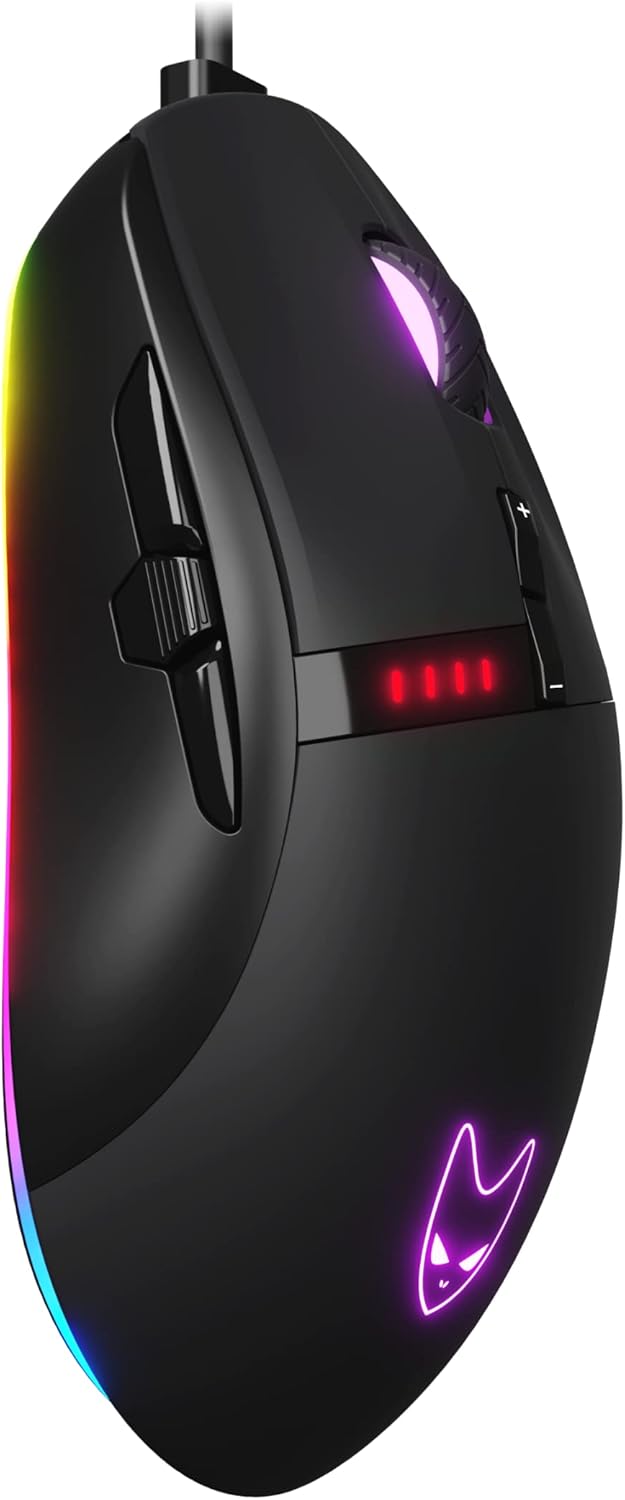
Figure 2.2: Angled view of the mouse, illustrating the primary and side buttons.

Figure 2.3: Side profile of the mouse, showcasing its ergonomic design and RGB lighting.
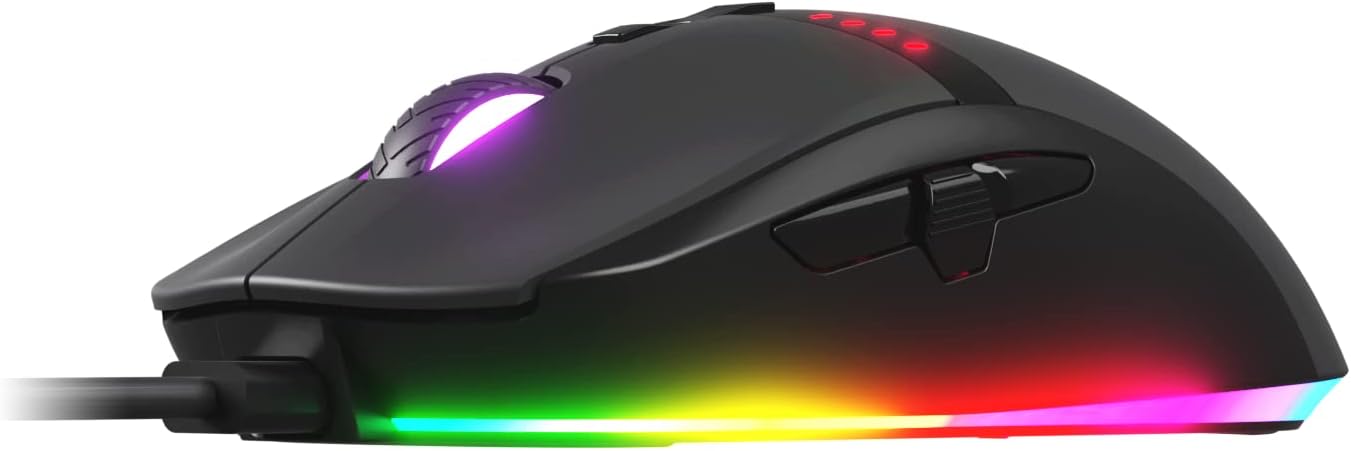
Figure 2.4: Detailed side view, highlighting the textured scroll wheel and overall finish.
Key Components:
- Left/Right Click Buttons: Standard primary input buttons.
- Scroll Wheel: For vertical scrolling and can also function as a clickable button.
- DPI Adjustment Buttons (+/-): Used to cycle through different DPI sensitivity levels.
- DPI Indicator: LED lights that show the current DPI setting.
- Side Buttons: Typically used for forward/backward navigation or can be programmed for other functions.
- Fire Button: A dedicated button for rapid-fire actions, particularly useful in FPS games.
- RGB Lighting Zones: Customizable LED lighting for aesthetic personalization.
3. Setup
Setting up your Oversteel Invar mouse is a straightforward process. Follow these steps to get started:
- Unpack the Mouse: Carefully remove the Oversteel Invar mouse from its packaging.
- Connect to Computer: Plug the USB connector of the mouse into an available USB port on your PC or Mac.
- Automatic Driver Installation: Your operating system (Windows or macOS) will typically detect the mouse automatically and install the necessary drivers. This may take a few moments.
- Verify Functionality: Once the drivers are installed, move the mouse to confirm cursor movement. The RGB lighting should also illuminate.
- Install Software (Optional but Recommended): For advanced customization, download and install the proprietary Oversteel Invar software from the official Oversteel website. Refer to Section 5 for more details.
4. Operating Your Mouse
The Oversteel Invar mouse offers several features to enhance your control and experience.
4.1 DPI Adjustment
The mouse features adjustable DPI (Dots Per Inch) settings, allowing you to change cursor sensitivity on the fly. This is crucial for adapting to different game types or tasks.
- Use the DPI + button to increase sensitivity.
- Use the DPI - button to decrease sensitivity.
- The DPI Indicator (red LEDs) will illuminate to show the current DPI level. The mouse supports DPI settings up to 12400.
4.2 RGB Lighting Modes
The Oversteel Invar includes customizable RGB lighting with up to 10 different lighting modes. These modes can be cycled through or configured using the dedicated software.
- Default modes can often be changed by a combination of buttons (e.g., DPI + side button) or through the software.
- Refer to the software section for advanced RGB customization.
4.3 Programmable Buttons
The mouse features up to 9 programmable buttons, including a dedicated fire button. These buttons can be assigned various functions, macros, or key combinations using the Oversteel Invar software.
- Fire Button: Activates a rapid-fire sequence, beneficial for games requiring quick, repeated clicks.
- Side Buttons: By default, these often function as 'forward' and 'backward' in web browsers or file explorers. Their functions can be remapped.
- All programmable buttons offer flexibility to tailor the mouse to your specific needs.
5. Oversteel Invar Software
To unlock the full potential of your Oversteel Invar mouse, it is recommended to install the proprietary software. This software provides comprehensive control over the mouse's features.
5.1 Software Installation
- Visit the official Oversteel website.
- Navigate to the support or downloads section and locate the software for the Invar USB Gaming Mouse.
- Download the installer file and follow the on-screen instructions to complete the installation.
- Restart your computer if prompted.
5.2 Software Features
- Button Assignment: Customize the function of each of the 9 programmable buttons.
- DPI Settings: Fine-tune DPI levels and assign them to the DPI switch.
- RGB Lighting Control: Select from 10 lighting modes, adjust colors, brightness, and effects.
- Macro Editor: Create and assign complex macros to any programmable button.
- Profile Management: Save different configurations as profiles for various games or applications.
6. Maintenance
Proper maintenance ensures the longevity and optimal performance of your Oversteel Invar mouse.
- Cleaning: Use a soft, dry cloth to wipe the surface of the mouse. For stubborn dirt, slightly dampen the cloth with water or a mild cleaning solution. Avoid harsh chemicals.
- Sensor Care: Keep the optical sensor on the underside of the mouse clean and free from dust or debris. Use a cotton swab or compressed air if necessary.
- Cable Management: Avoid sharp bends or excessive pulling on the USB cable to prevent damage.
- Storage: When not in use, store the mouse in a clean, dry environment away from extreme temperatures.
7. Troubleshooting
If you encounter issues with your Oversteel Invar mouse, refer to the following common solutions:
| Problem | Possible Solution |
|---|---|
| Mouse not responding / Cursor not moving |
|
| DPI settings not changing |
|
| RGB lighting not working or incorrect |
|
| Programmable buttons not functioning |
|
8. Specifications
| Feature | Detail |
|---|---|
| Brand | Oversteel |
| Model Name | Invar |
| Model Number | HU-XI-201 |
| Connectivity Technology | USB |
| Movement Detection Technology | Optical (Pixart 3327 Sensor) |
| DPI (Dots Per Inch) | Adjustable, up to 12400 DPI |
| Acceleration | 30G |
| Number of Buttons | 9 Programmable Buttons |
| Switch Type | Huano switches (rated for 20 million clicks) |
| RGB Lighting | 10 configurable LED lighting modes |
| Special Features | LED Light, Lightweight, Ergonomic Design |
| Compatible Devices | Personal Computer (PC), Mac |
| Operating System | macOS (and Windows, implied) |
| Color | Black |
9. Warranty and Support
For warranty information, technical support, or further assistance, please visit the official Oversteel website or contact their customer service department. Keep your proof of purchase for warranty claims.


