
1. Introduction
This manual provides detailed instructions for the installation, operation, and maintenance of your Cooler Master GM27-CFX 27-inch Curved Gaming Monitor. Please read this manual thoroughly before using the product to ensure proper setup and functionality. Keep this manual for future reference.
The Cooler Master GM27-CFX monitor features a 27-inch curved VA panel with a 1500R curvature, offering a Full HD (1920 x 1080) resolution, a 240Hz refresh rate, and a 0.5ms MPRT response time. It incorporates Quantum Dot technology for a wide DCI-P3 98% color gamut and supports Adaptive Sync for smooth visuals.
2. Package Contents
Before proceeding with the installation, please verify that all items listed below are present in your package:
- Cooler Master GM27-CFX 27-inch Curved Gaming Monitor
- Monitor Stand (Base and Neck)
- Power Adapter and Cable
- DisplayPort (DP 1.2) Cable
- HDMI (HDMI 2.0) Cable (x2)
- User Manual (this document)
- VESA Mount Screws (if applicable)
If any items are missing or damaged, please contact your retailer or Cooler Master support.
3. Setup and Installation
3.1 Assembling the Stand
- Carefully remove the monitor and stand components from the packaging. Place the monitor face down on a soft, clean surface to prevent scratches.
- Attach the stand neck to the monitor panel. Ensure it clicks securely into place or is fastened with screws as indicated in the quick start guide.
- Connect the stand base to the stand neck. Tighten any screws firmly to ensure stability.

Figure 1: Monitor dimensions and stand assembly overview. This image illustrates the monitor's physical dimensions and the basic structure of the stand.
3.2 Connecting the Monitor
Ensure all devices are powered off before making any connections.
- Power Connection: Connect the power adapter to the monitor's power input, then plug the power cable into a power outlet.
- Video Connection:
- For optimal performance (240Hz, Adaptive Sync), use the provided DisplayPort (DP 1.2) cable to connect the monitor to your computer's graphics card.
- Alternatively, use one of the two provided HDMI (HDMI 2.0) cables to connect to your computer or other video sources.
- Audio Connection (Optional): If your computer supports audio output via DisplayPort or HDMI, the monitor's built-in speakers will play audio.
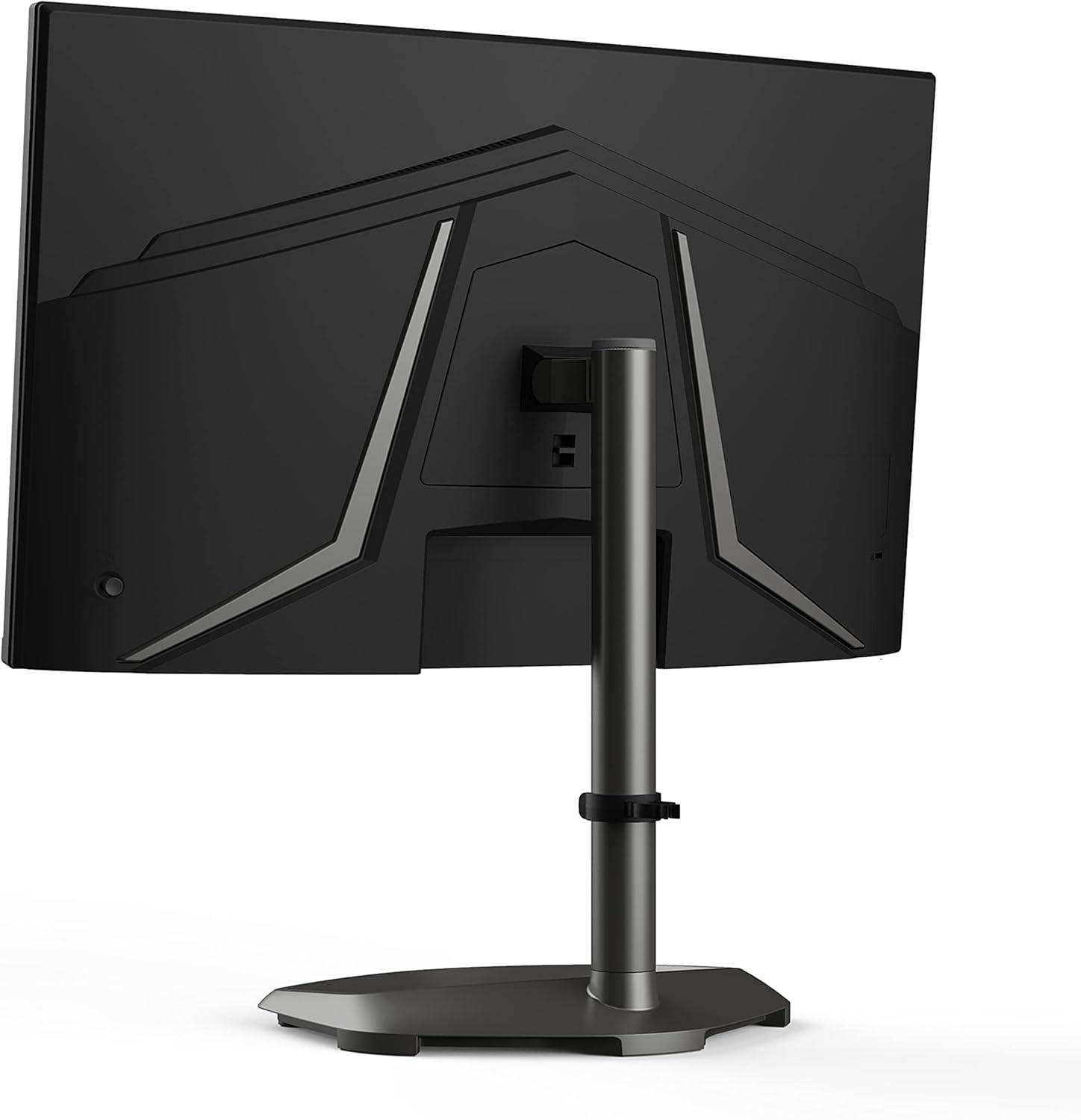
Figure 2: Rear view of the monitor, highlighting the various input ports including DisplayPort and HDMI.
3.3 VESA Mount Installation (Optional)
The monitor supports VESA mounting for wall mounts or monitor arms. To use a VESA mount:
- Remove the stand from the monitor panel.
- Attach your VESA-compatible mount (not included) to the monitor using the provided VESA mount screws. Refer to your VESA mount's instructions for specific details.
4. Operating the Monitor
4.1 Powering On/Off
Press the power button, usually located on the bottom or back of the monitor, to turn it on or off. The power indicator light will illuminate when the monitor is on.
4.2 On-Screen Display (OSD) Menu
The OSD menu allows you to adjust various monitor settings. Access it using the joystick or buttons typically found on the back or bottom of the monitor.
Key OSD Settings:
- Picture Settings: Brightness, Contrast, Sharpness, Color Temperature.
- Color Modes: Standard, Game, Movie, User-defined.
- Input Select: Manually switch between DisplayPort and HDMI inputs.
- Audio: Volume control for built-in speakers or headphone output.
- Gaming Features: Adaptive Sync, Overdrive, Black Stabilization.
4.3 Key Features and Adjustments
The GM27-CFX monitor offers several features to enhance your viewing experience:
- Full HD Resolution (1920 x 1080): Provides clear and detailed visuals for both work and entertainment.
- 240Hz Refresh Rate & 0.5ms MPRT Response Time: Delivers extremely fluid motion and reduced ghosting, crucial for fast-paced gaming.

Figure 3: Illustration of the visual difference provided by a 240Hz ultra-high refresh rate compared to conventional refresh rates.
- 1500R Curved Display: The curvature provides a more immersive viewing experience, especially in gaming.

Figure 4: The 27-inch curved display enhances immersion, particularly for gaming.
- Adaptive Sync: Synchronizes the monitor's refresh rate with your graphics card's frame rate to eliminate screen tearing and stuttering. Enable this feature in your graphics card settings and the monitor's OSD.

Figure 5: Visual demonstration of how Adaptive Sync prevents screen tearing for smoother visuals.
- Quantum Dot Technology & DCI-P3 98% Color Gamut: Provides vibrant and accurate colors for a rich visual experience.

Figure 6: The Quantum Dot VA panel delivers a wide 98% DCI-P3 color spectrum for enhanced color accuracy and vibrancy.
- Black Stabilization: Adjusts dark areas of the screen to improve visibility in dimly lit scenes without overexposing bright areas.

Figure 7: Black Stabilization feature enhances visibility in dark game scenes, paired with a high 3000:1 contrast ratio.
- Low Blue Light Eye Care: Reduces blue light emissions to minimize eye strain during prolonged use.

Figure 8: Low Blue Light Eye Care mode helps reduce eye strain, especially during nighttime use.
- Customized HDR Modes: Optimize your viewing experience with different HDR modes tailored for various content types like standard, game, or movie.

Figure 9: Various HDR modes can be customized to suit different content, such as standard, game, or movie viewing.
5. Maintenance
5.1 Cleaning the Monitor
- Always unplug the monitor from the power outlet before cleaning.
- Use a soft, lint-free cloth slightly dampened with water or a mild, non-abrasive screen cleaner.
- Do not spray cleaner directly onto the screen. Apply it to the cloth first.
- Avoid using harsh chemicals, abrasive pads, or solvents as they can damage the screen and casing.
5.2 General Care
- Avoid placing heavy objects on the monitor or its cables.
- Do not expose the monitor to direct sunlight, extreme temperatures, or high humidity.
- Ensure adequate ventilation around the monitor to prevent overheating.
6. Troubleshooting
If you encounter issues with your monitor, refer to the following common problems and solutions:
| Problem | Possible Cause | Solution |
|---|---|---|
| No image on screen |
|
|
| Image is blurry or distorted |
|
|
| Screen tearing or stuttering |
|
|
| No audio |
|
|
If the problem persists after trying these solutions, please contact Cooler Master support.
7. Specifications
| Feature | Detail |
|---|---|
| Brand | Cooler Master |
| Model | GM27-CFX |
| Screen Size | 27 Inches |
| Screen Resolution | 1920 x 1080 (FHD) |
| Max Screen Resolution | 1920 x 1080 |
| Refresh Rate | 240Hz |
| Response Time | 0.5ms (MPRT) |
| Panel Type | VA 8bit w/Quantum dot |
| Curvature | 1500R |
| Color Gamut | DCI-P3 98% |
| Adaptive Sync | Yes |
| Video Inputs | 1 x DisplayPort 1.2, 2 x HDMI 2.0 |
| VESA Mount Compatible | Yes |
| Item Weight | 15.37 pounds (approx. 6.97 kg) |
| Product Dimensions (LxWxH) | 24.02 x 10.75 x 16.93 inches (approx. 61 x 27.3 x 43 cm) |
| Date First Available | March 8, 2022 |
8. Warranty and Support
8.1 Warranty Information
Cooler Master products are covered by a limited warranty. For detailed warranty terms and conditions, please refer to the warranty card included with your product or visit the official Cooler Master website. Keep your proof of purchase for warranty claims.
8.2 Technical Support
If you require technical assistance or have questions not covered in this manual, please contact Cooler Master customer support. You can find contact information and support resources on the official Cooler Master website:


