
1. Introduction
This manual provides detailed instructions for the installation, operation, and maintenance of your JOOWIN AC1300 Dual Band USB 3.0 WiFi Adapter (Model: JW-924AC). This device is designed to provide high-speed wireless connectivity for your desktop or laptop computer, supporting both 2.4GHz and 5GHz bands for optimal performance. Please read this manual thoroughly before using the product to ensure correct setup and usage.
2. Package Contents
Please verify that all items are present in the package. If any item is missing or damaged, contact your retailer.
- JOOWIN AC1300 Dual Band USB 3.0 WiFi Adapter (JW-924AC)
- Driver CD
- User Manual (this document)
3. Product Overview
The JOOWIN JW-924AC is a high-performance wireless USB adapter featuring dual-band AC1300 speeds. It utilizes a USB 3.0 interface for efficient data transfer and includes two external high-gain antennas for enhanced signal reception and coverage.
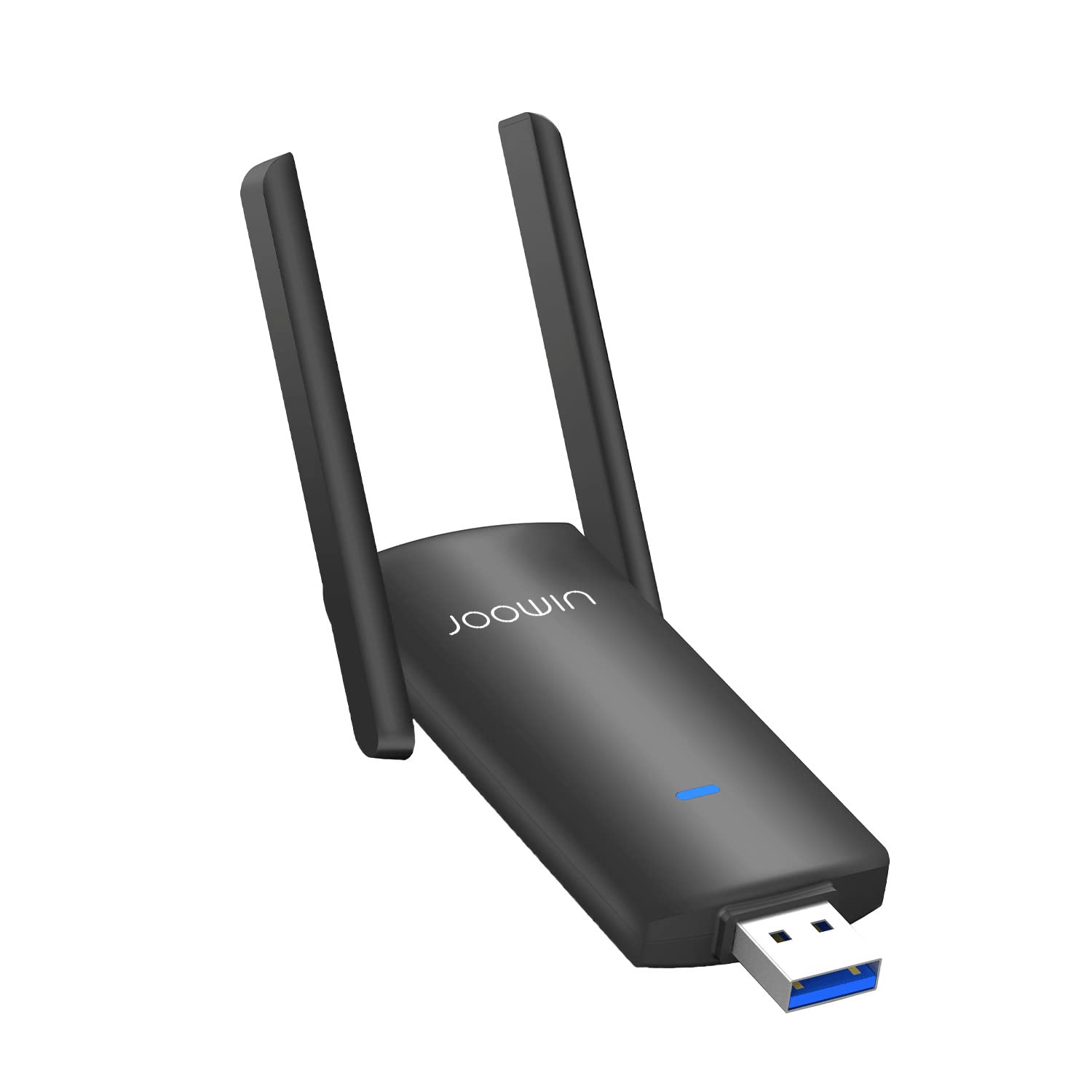
Image 1: JOOWIN AC1300 Dual Band USB 3.0 WiFi Adapter. This image shows the compact adapter with its two adjustable external antennas, designed for improved signal strength and range.
Key Features:
- AC1300 Dual Band: Supports 2.4GHz (up to 400Mbps) and 5GHz (up to 867Mbps) for flexible and fast wireless connections.
- USB 3.0 Interface: Provides up to 10 times faster data transfer speeds compared to USB 2.0.
- External Antennas: Two 3dBi omnidirectional antennas enhance signal reception and penetration.
- Soft-AP Mode: Allows the adapter to function as a Wi-Fi hotspot, sharing your wired internet connection.
- Wide Compatibility: Supports Windows 7/8/8.1/10/11 and Mac OS 10.9-10.15.
4. Setup Guide
Follow these steps to install your JOOWIN WiFi Adapter:
- Install the Driver:
- Insert the provided Driver CD into your computer's CD-ROM drive. Follow the on-screen instructions to install the driver software.
- Alternatively, if your computer does not have a CD-ROM drive or if the CD is damaged, download the latest driver from the official JOOWIN website. Search for model "JW-924AC" in the support or download section.
- Connect the Adapter:
Plug the JOOWIN USB WiFi Adapter into an available USB 3.0 port on your desktop or laptop computer. For optimal performance, use a USB 3.0 port (often colored blue).
- Connect to a WiFi Network:
- Once the driver is installed and the adapter is connected, your computer should detect the new wireless adapter.
- Open your computer's network settings (e.g., WiFi icon in the system tray for Windows, or Network Preferences for Mac OS).
- Scan for available WiFi networks.
- Select your desired network and enter the password if prompted.
Note: Ensure your operating system is up to date for best compatibility.
5. Operating Instructions
5.1 Standard WiFi Connection
After successful driver installation and adapter connection, the adapter will automatically enable wireless functionality. You can manage your WiFi connections through your operating system's standard network interface. The adapter will automatically select the optimal band (2.4GHz or 5GHz) based on network availability and signal strength.
5.2 Soft-AP Mode (Hotspot Function)
The Soft-AP mode allows your computer to act as a wireless access point, sharing its wired internet connection with other wireless devices. This feature is typically enabled and configured through the driver utility software installed with the adapter.
- Ensure your computer has a stable wired internet connection.
- Open the JOOWIN WiFi utility software (usually found in your system tray or applications folder).
- Locate the "Soft-AP" or "Hotspot" setting.
- Configure the network name (SSID) and password for your new wireless hotspot.
- Enable the Soft-AP function. Other devices can now connect to your computer's shared internet connection.
Note: Performance in Soft-AP mode may vary depending on your computer's hardware and network conditions.
6. Maintenance
- Cleaning: Use a soft, dry cloth to clean the adapter. Do not use liquid cleaners or solvents.
- Storage: When not in use, store the adapter in a cool, dry place away from direct sunlight and extreme temperatures.
- Antennas: Handle the antennas carefully. While they are designed to rotate 180°, avoid excessive force or bending.
- Driver Updates: Periodically check the official JOOWIN website for updated drivers to ensure optimal performance and compatibility.
7. Troubleshooting
- Q: The adapter is not detected by my computer.
- A: Ensure the adapter is firmly plugged into a USB port. Try a different USB port, preferably a USB 3.0 port. Verify that the driver has been installed correctly. Check Device Manager (Windows) or System Information (Mac OS) to see if the adapter is listed.
- Q: I cannot connect to any WiFi networks.
- A: Make sure your WiFi router is powered on and broadcasting a signal. Double-check the WiFi password. Ensure the adapter's driver is installed and functioning. Try restarting your computer and router.
- Q: The connection is slow or unstable.
- A: Ensure you are within range of your WiFi router. Obstacles like walls and other electronic devices can interfere with the signal. Try adjusting the position of the adapter's antennas. If your router supports both 2.4GHz and 5GHz, try connecting to the 5GHz band for potentially faster speeds and less interference, especially in crowded areas. Ensure your router's firmware is up to date.
- Q: The driver CD is not working or my computer lacks a CD drive.
- A: Download the latest driver directly from the official JOOWIN website. Use another computer with internet access to download the driver and transfer it via a USB flash drive.
8. Specifications
| Model | JW-924AC |
| Wireless Standard | IEEE 802.11ac/n/g/b/a |
| Interface | USB 3.0 |
| Frequency Band | 2.4GHz / 5GHz (Dual Band) |
| Data Transfer Rate | Up to 1300 Mbps (400Mbps on 2.4GHz, 867Mbps on 5GHz) |
| Antenna Type | 2 x 3dBi External Omnidirectional Antennas |
| Operating System Support | Windows 7/8/8.1/10/11, Mac OS 10.9-10.15 |
| Dimensions (approx.) | 15.09 x 9.19 x 2.21 cm (Package) |
9. Warranty and Support
JOOWIN products come with a standard manufacturer's warranty. For specific warranty terms and conditions, please refer to the warranty card included with your product or visit the official JOOWIN website. For technical support, driver downloads, or further assistance, please visit the JOOWIN support page or contact their customer service directly. Keep your purchase receipt for warranty claims.
Official JOOWIN Website: www.joowin.com (Note: This is a placeholder URL, please verify the actual official website for JOOWIN.)