
Introduction
This manual provides comprehensive instructions for the setup, operation, programming, and maintenance of your Ecarke Mini 4-Key Mechanical Gaming Keypad. Please read this manual thoroughly before using the device to ensure optimal performance and longevity.

Figure 1: Ecarke Mini 4-Key Mechanical Gaming Keypad
Package Contents
Verify that all items are present in the package:
- Ecarke Mini 4-Key Mechanical Gaming Keypad
- 1.5m USB-C Data Cable
Product Overview
The Ecarke Mini 4-Key Keypad is a compact, programmable mechanical keyboard designed for gaming and productivity. It features hot-swappable mechanical switches, RGB backlighting, and a durable ABS construction.

Figure 2: Keypad Dimensions and Technical Parameters. The keypad measures 9cm (3.54in) in length, 2.9cm (1.14in) in width, and 2.8cm (1.1in) in height. It uses Cherry MX Red switches and connects via a Micro USB interface. Compatible with Windows, Linux, macOS, and Android.
Key Features:
- Hot-Swappable Mechanical Switches: Allows for easy customization and replacement of switches without soldering.
- RGB Backlighting: Customizable lighting effects and colors.
- Compact and Portable Design: Ideal for various setups and on-the-go use.
- Multiple Function Modes: Supports full key customization, one-click password, multimedia control, mouse mode, and game controller mode.
- Durable Construction: Made with alloy ABS material and features non-slip mats for stability.

Figure 3: Overview of Mini 4-Keypad Capabilities, including Full Key Customization, One Click Password, Multimedia Control, Cherry Red Axis, Mouse Mode, Driver-free Plug-and-play, Compact and Portable, and Game Controller Mode.
Cherry Red Axis Switches:
The keypad is equipped with Cherry Red mechanical switches, known for their linear travel and low actuation force. This makes them suitable for rapid, successive key presses, often preferred in gaming.

Figure 4: Diagram of Cherry Red Axis Switch Components, showing the dust cover, red axis stem, metal contacts, and strong spring.
Construction and Design:
- Cable: Includes a 1.5m long USB data cable for flexible placement.
- Keycaps: Thickened ABS keycaps for durability.
- Stability: Four non-slip mats on the base prevent movement during use.

Figure 5: Details of the keypad's construction, highlighting the 1.5m USB cable, thickened ABS keycaps, and four non-slip base mats.
Setup and Installation
- Connect the Keypad: Plug the provided USB-C data cable into one of the USB-C ports on the keypad (located on the back or side) and the other end into an available USB port on your computer. The keypad is driver-free and plug-and-play for basic functionality.
- Download Programming Software: For customization and advanced features, download the programming software from the official source.
- Software download link: https://dl.sayobot.cn/setting.zip
- Alternatively, some users report success with a web-based configurator at sayodevice.com/device.
- Install Runtime (if necessary): If you encounter an error message stating "MSVCP140.dll was not found" during software execution, install the required runtime environment: https://dl.sayobot.cn/vcx86.exe
- Launch Software: After downloading and installing, launch the programming software. Ensure your keypad is connected.
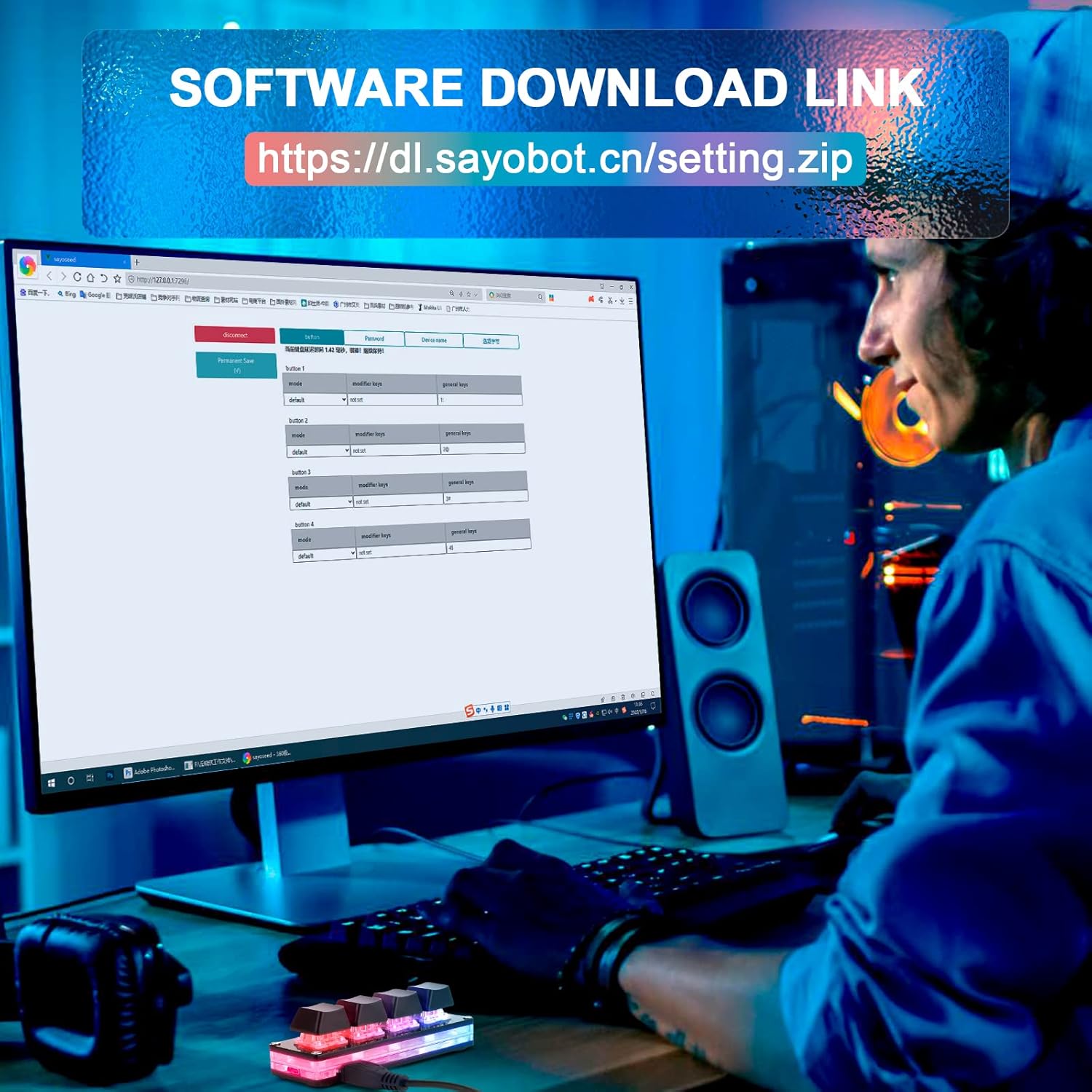
Figure 6: Screenshot showing the software download link and an example of the programming interface on a computer screen.
Programming and Customization
The programming software allows you to assign various functions to each of the four keys and customize the RGB lighting.
Key Function Assignment:
Within the software interface, you can assign the following types of functions to each key:
- Standard Keyboard Functions: Assign any single key press (e.g., A, B, C, 1, 2, 3).
- Shortcut Keys: Combine modifier keys (Ctrl, Alt, Shift, Win) with other keys (e.g., Ctrl+C for Copy, Ctrl+V for Paste).
- Multimedia Controls: Play, Pause, Volume Up/Down, Mute, Next/Previous Track.
- Mouse Functions: Simulate mouse clicks (left, right, middle), scroll wheel, or specific mouse movements.
- Custom Scripts/Macros: Program a sequence of key presses or actions.
- One-Click Password/Text Entry: Store and output a string of text with a single key press. Note: Some users have reported issues with non-ASCII characters or garbled output; test thoroughly.
The keypad supports multiple layouts, allowing you to switch between different sets of programmed functions. Refer to the software's specific instructions for managing and switching between these layouts.
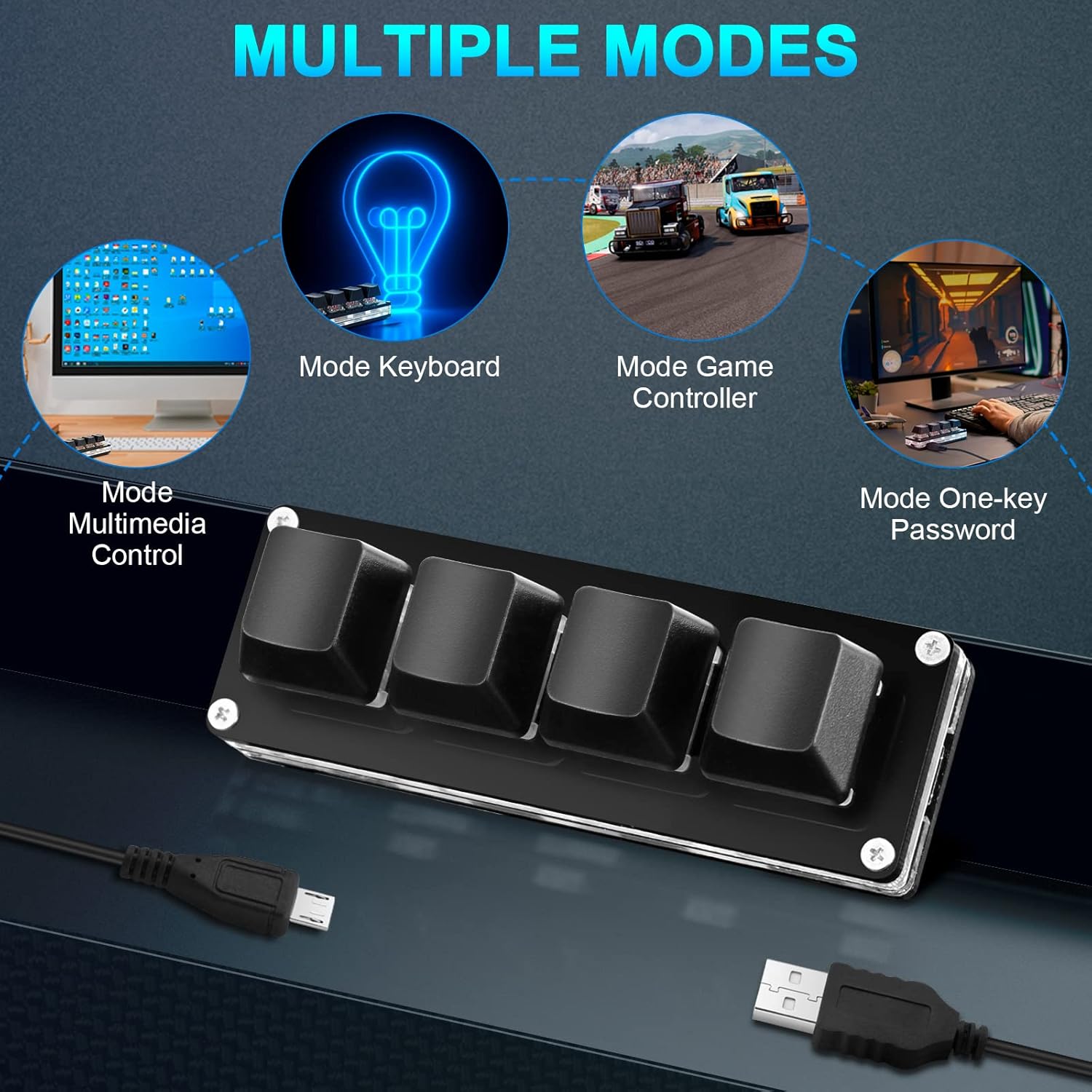
Figure 7: The keypad supports various operational modes, including standard keyboard input, game controller functions, multimedia control, and one-key password entry.
RGB Lighting Control:
The software also allows you to customize the RGB backlighting. You can:
- Change individual key colors.
- Set gradient modes and other lighting effects.
- Adjust brightness.
- Assign different lighting profiles to different key layouts.
Remember to save your changes within the software to apply them to the keypad.
Operating Instructions
Once programmed, the keypad operates as a standard input device. Simply press the assigned keys to execute their programmed functions. The settings are stored directly on the keypad, allowing you to use it with different computers without re-programming.
If you have programmed multiple layouts, use the designated key (if assigned) to switch between them. The RGB lighting may change to indicate the active layout, depending on your customization.
Maintenance
- Cleaning: Use a soft, dry cloth to clean the keypad. For stubborn dirt, a slightly damp cloth can be used, but ensure no liquid enters the device.
- Keycap Removal: Keycaps can be gently pulled straight up to remove them for cleaning or switch replacement.
- Storage: Store the keypad in a dry, dust-free environment when not in use.
- Avoid Liquids: The keypad is not water-resistant. Avoid exposure to liquids.
Troubleshooting
- Keypad Not Responding:
- Ensure the USB cable is securely connected to both the keypad and the computer.
- Try plugging the keypad into a different USB port on your computer.
- If using a USB hub, try connecting directly to the computer.
- Unplug and re-plug the keypad.
- Programming Software Issues:
- "MSVCP140.dll not found" error: Install the runtime from https://dl.sayobot.cn/vcx86.exe.
- Software language issues (Chinese text): While the software may have English language options, some menus might still display Chinese. Experiment with settings or refer to online communities for guidance.
- Text entry garbled: If using the one-click password/text entry feature, and the output is garbled, ensure you are using standard ASCII characters. Some users report inconsistencies with non-ASCII text.
- Changes not saving: Ensure you click the "Save" or "Apply" button within the software after making changes to transfer them to the keypad.
- RGB Lighting Not Working/Incorrect:
- Verify that lighting settings are correctly configured and saved in the programming software.
- Check if the keypad is in a mode that overrides custom lighting (e.g., a specific game mode).
Specifications
| Feature | Detail |
|---|---|
| Brand | Ecarke |
| Model Number | SKU065750002 |
| Number of Keys | 4 |
| Switch Type | Mechanical (Cherry MX Red equivalent) |
| Connectivity | USB, USB-C |
| Backlighting | RGB |
| Material | Plastic (ABS) |
| Special Features | Hot-swappable, Non-slip base, Programmable |
| Compatible Devices | Gaming Console, PC (Windows, Linux, macOS, Android) |
| Dimensions (L x W x H) | 9cm x 2.9cm x 2.8cm (3.54in x 1.14in x 1.1in) |
| Cable Length | 1.5m |
Warranty and Support
For warranty information and technical support, please refer to the retailer's return policy or contact Ecarke customer service through their official channels. Specific warranty terms may vary by region and retailer.