
Netum NT-2028
Netum NT-2028 1D Wireless Barcode Scanner User Manual
Model: NT-2028
1. Introduction
This user manual provides detailed instructions for the operation and maintenance of your Netum NT-2028 1D Wireless Barcode Scanner. Please read this manual thoroughly before using the device to ensure proper functionality and to prevent damage.
2. Safety Information
- Do not expose the scanner to extreme temperatures, humidity, or corrosive substances.
- Avoid direct eye exposure to the scanning light.
- Do not attempt to disassemble or modify the scanner. This will void the warranty.
- Use only the provided or recommended charging accessories.
3. Package Contents
Please check the package contents upon opening. If any items are missing or damaged, contact your vendor immediately.
- Netum NT-2028 1D Wireless Barcode Scanner
- USB Wireless Dongle
- USB Charging Cable
- User Manual (this document)
4. Product Overview
Familiarize yourself with the components of your barcode scanner.
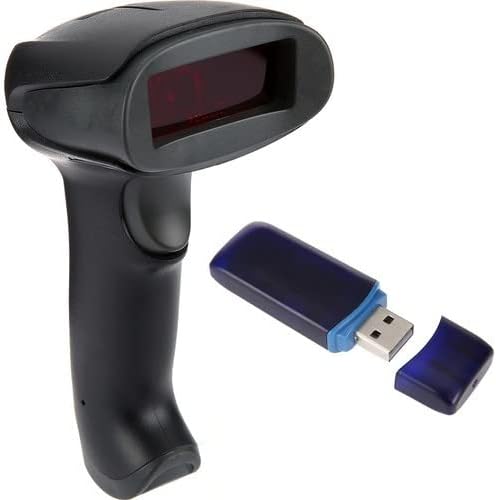
Figure 4.1: Netum NT-2028 Barcode Scanner and its accompanying USB wireless dongle. The scanner is black with a red scanning window, and the dongle is blue and black with a USB-A connector.

Figure 4.2: Front view of the Netum NT-2028 barcode scanner, highlighting the scanning window and ergonomic grip.

Figure 4.3: Side view of the Netum NT-2028 barcode scanner, showing the trigger button and the overall contoured design.
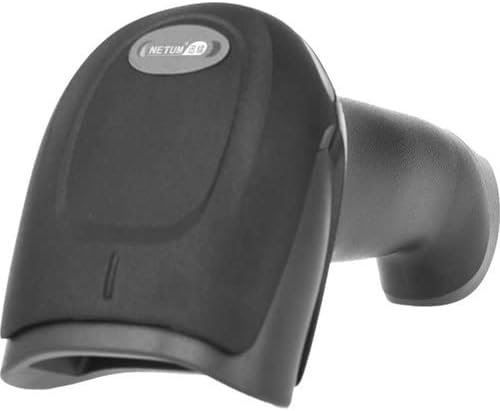
Figure 4.4: Top view of the Netum NT-2028 barcode scanner, displaying the Netum logo and the indicator light area.

Figure 4.5: Angled side view of the Netum NT-2028 barcode scanner, providing a clearer look at the trigger and the shape of the handle.
5. Setup
5.1 Charging the Scanner
Before first use, fully charge the scanner. Connect the USB charging cable to the scanner's charging port and the other end to a USB power adapter (not included) or a computer's USB port. The indicator light will show charging status and turn off when fully charged.
5.2 Connecting to a Computer
- Insert the USB wireless dongle into an available USB port on your computer.
- The computer will automatically detect and install the necessary drivers. This process may take a few moments.
- Once the drivers are installed, the scanner will automatically pair with the dongle. A successful connection is usually indicated by a specific sound or light on the scanner.
- Open a text editor (e.g., Notepad, Word) or any application where you want to input scanned data to test the connection.
6. Operating Instructions
6.1 Basic Scanning
- Ensure the scanner is powered on and connected to your computer.
- Point the scanning window at the barcode you wish to scan.
- Press and hold the trigger button. A red scanning line will appear.
- Align the red line across the entire barcode.
- Upon a successful scan, the scanner will emit a beep and/or the indicator light will flash. The scanned data will appear in your active application on the computer.
6.2 Scanning Modes (if applicable)
The NT-2028 typically operates in a trigger mode. For advanced configurations such as continuous scanning or inventory mode, refer to the supplementary programming guide usually provided with the product or available on the manufacturer's website. These modes often require scanning specific configuration barcodes.
7. Maintenance
7.1 Cleaning the Scanner
- Turn off the scanner before cleaning.
- Use a soft, clean cloth slightly dampened with water or a mild, non-abrasive cleaner to wipe the exterior of the scanner.
- For the scanning window, use a lens cleaning cloth to avoid scratches.
- Do not use harsh chemicals, solvents, or abrasive materials.
7.2 Battery Care
- Avoid fully discharging the battery frequently.
- If storing the scanner for an extended period, charge it to about 50% and store in a cool, dry place.
- Recharge the battery every 3-6 months during storage to prevent deep discharge.
8. Troubleshooting
| Problem | Possible Cause | Solution |
|---|---|---|
| Scanner does not turn on. | Low battery. | Charge the scanner fully. |
| No data output after scanning. | Not connected to computer; incorrect pairing; application not active. | Ensure USB dongle is properly inserted and recognized. Re-pair the scanner if necessary (refer to setup section). Ensure the target application window is active. |
| Scanner beeps multiple times without scanning. | Barcode damaged or unreadable; scanner out of range. | Try scanning a different, known good barcode. Ensure the scanner is within range of the USB dongle. |
| Scanned data is incorrect. | Incorrect symbology settings; partial scan. | Ensure the scanner is configured for the correct barcode type. Ensure the entire barcode is covered by the scanning line. |
9. Specifications
- Model: NT-2028
- Scanning Type: 1D Linear Barcodes
- Connectivity: 2.4GHz Wireless USB Dongle
- Power Source: Internal Rechargeable Battery
- Compatibility: Windows, macOS, Linux (Plug & Play)
- Dimensions: (Approximate, based on typical handheld scanner)
- Weight: (Approximate, based on typical handheld scanner)
Note: Specific dimensions and weight are not provided in the product data, but are typical specifications for such devices.
10. Warranty and Support
Netum products are designed for reliability and performance. This product comes with a standard manufacturer's warranty. For detailed warranty terms and conditions, please refer to the warranty card included in your package or visit the official Netum website.
For technical support, troubleshooting assistance, or to inquire about replacement parts, please contact Netum customer service through their official website or the contact information provided with your purchase.
Ask a question about this manual
Ask about setup, troubleshooting, compatibility, parts, safety, or missing instructions. Manuals+ will review the question and use this page’s manual context to help answer it.