Introduction
This manual provides essential instructions for the setup, operation, and maintenance of your LaCie 2big Dock 40TB External HDD. Please read this guide thoroughly to ensure proper use and to maximize the performance and longevity of your device.

Image: The LaCie 2big Dock 40TB External HDD, a black rectangular device with a blue indicator light and front-facing card slots and USB ports.
Package Contents
Verify that all items are present in your package:
- LaCie 2big Dock Thunderbolt 3 40TB unit
- Thunderbolt 3 cable
- USB 3.1 Type-C to Type-A cable (for USB 3.0/3.2 compatibility)
- External power supply
- Quick start guide
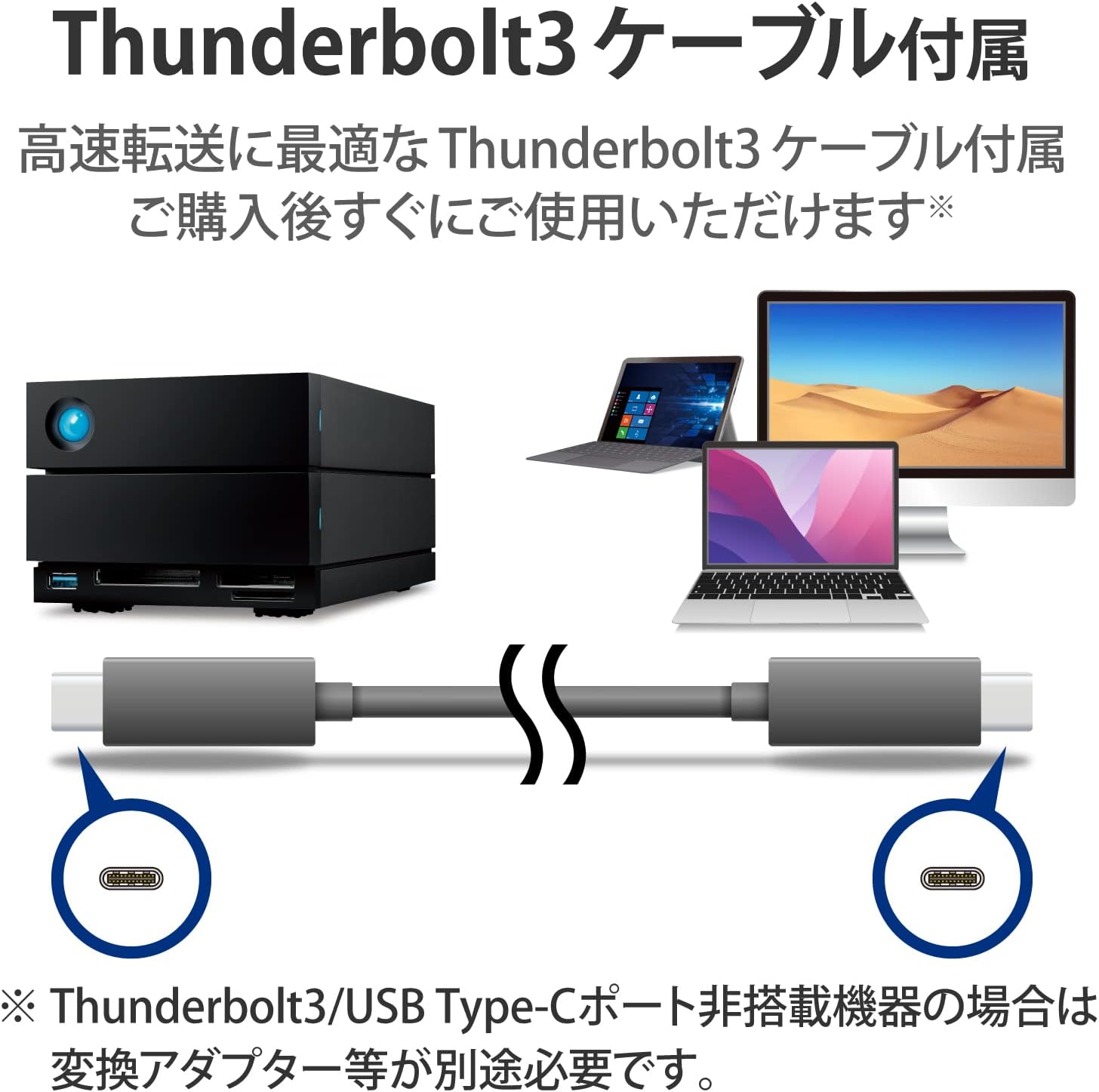
Image: The included Thunderbolt 3 cable, essential for high-speed connectivity, shown with the LaCie 2big Dock and a computer.
Setup
1. Connect the Power Adapter
Connect the provided power adapter to the LaCie 2big Dock's power input port and then to a functional power outlet. The device will power on automatically.
2. Connect to Your Computer
Use the included Thunderbolt 3 cable to connect the LaCie 2big Dock to a Thunderbolt 3 or Thunderbolt 4 port on your computer. For systems with USB 3.0/3.2 ports, use the USB 3.1 Type-C to Type-A cable for compatibility.

Image: The LaCie 2big Dock integrated into a workspace, demonstrating its connectivity with a laptop, external monitor, camera, and other devices.
3. Initializing the Device
Upon initial connection, your operating system may prompt you to initialize or format the drive. It is recommended to use the LaCie Toolkit software for guided setup, including RAID configuration and optimal formatting for your system.
4. Port Overview
The LaCie 2big Dock features various ports to enhance your workflow:
- Front Ports: Includes a USB 3.2 Gen 2 Type-A hub port for connecting peripherals, and dedicated slots for CFexpress Type B, CFast 2.0, and SD cards for direct media ingestion.
- Rear Ports: Features two Thunderbolt 3 ports for high-speed data transfer and daisy-chaining, a DisplayPort 1.4 for video output, the power input, and a sleep/wake button.

Image: A detailed diagram illustrating the location and type of front-facing ports (USB 3.2 Gen 2, CFexpress B, CFast 2.0, SD card) and rear-facing ports (Thunderbolt 3, DisplayPort 1.4) on the LaCie 2big Dock.
Operation
RAID Configuration
The LaCie 2big Dock supports multiple RAID configurations to suit different needs. These settings are managed through the LaCie Toolkit software.
- RAID 0 (Striping): This mode combines both internal drives into a single large volume, maximizing storage capacity and data transfer speeds. It does not provide data redundancy, meaning a single drive failure will result in data loss.
- RAID 1 (Mirroring): In this mode, data is duplicated across both drives, providing redundancy. If one drive fails, your data remains accessible on the other drive. The usable storage capacity is halved.
- JBOD (Just a Bunch Of Disks): This configuration presents each drive as an independent volume, offering maximum flexibility without the performance or redundancy benefits of RAID.

Image: A graphic illustrating the principles of RAID 0 (focused on speed), RAID 1 (focused on data safety), and JBOD (focused on flexibility).
Daisy Chaining
The dual Thunderbolt 3 ports enable daisy chaining, allowing you to connect up to five additional Thunderbolt devices, such as monitors, other storage devices, or docking stations, through a single port on your computer. This simplifies cable management and expands your workstation capabilities.

Image: A diagram demonstrating how the LaCie 2big Dock can be connected to a computer and then extend connectivity to a monitor and several other LaCie storage units in a daisy chain.
USB Power Delivery
The LaCie 2big Dock supports USB Power Delivery through its Thunderbolt 3 connection. This feature allows compatible laptops to be charged directly by the dock, reducing the need for a separate laptop power adapter and streamlining your desktop setup.

Image: The LaCie 2big Dock connected to a laptop, visually indicating that it is supplying power to the laptop, simplifying the power setup.
Maintenance
Drive Health Monitoring
Regularly monitor the health of your internal drives using the LaCie Toolkit software or your operating system's built-in disk utility. This helps in proactively identifying potential issues. Ensure the device has adequate ventilation to maintain optimal operating temperatures.
Cleaning Instructions
To clean the exterior of the LaCie 2big Dock, use a soft, dry, lint-free cloth. Avoid using abrasive cleaners, solvents, or aerosol sprays, as these can damage the device's finish or internal components.
Hot-Swappable Drive Replacement
The LaCie 2big Dock is equipped with hot-swappable IronWolf Pro enterprise-class drives. In the event of a drive failure, particularly in a RAID 1 configuration, a drive can be replaced without powering down the unit. Refer to the LaCie Toolkit or the comprehensive online manual for detailed instructions on safe drive removal and installation to prevent data loss or system instability.
Troubleshooting
Device Not Detected by Computer
- Verify that the power adapter is securely connected to both the device and a live power outlet, and that the device is powered on (indicated by the blue LED).
- Ensure the Thunderbolt 3 or USB cable is firmly connected to both the LaCie 2big Dock and the appropriate port on your computer.
- Attempt connecting with a different port on your computer or using an alternative, known-good cable.
- Restart your computer and the LaCie 2big Dock.
- Check your operating system's Disk Management (Windows) or Disk Utility (macOS) to see if the drive is recognized but requires initialization or formatting.
Slow Data Transfer Performance
- Confirm that you are connected to a Thunderbolt 3/4 or USB 3.2 Gen 2 compatible port on your computer using the correct cable for optimal speeds.
- Review your RAID configuration. RAID 1 prioritizes data redundancy over speed, while RAID 0 offers maximum performance.
- Close any bandwidth-intensive applications running in the background.
- Ensure the LaCie 2big Dock's firmware is up to date.
Frequent Drive Disconnections
- Inspect all cable connections for looseness.
- Adjust your computer's power management settings to prevent USB or Thunderbolt ports from entering a low-power state or turning off.
- Update your computer's operating system and relevant Thunderbolt/USB drivers.
- Ensure the device is in a well-ventilated area to prevent overheating, which can lead to instability.
Specifications
| Feature | Detail |
|---|---|
| Model Number | STLG40000400 |
| Capacity | 40 TB (2 x 20 TB Mechanical Hard Disks) |
| Internal Drives | IronWolf Pro enterprise-class, 7200 RPM |
| Interface | 2 x Thunderbolt 3, 1 x USB 3.2 Gen 2 Type-A (hub) |
| Data Transfer Speed | Up to 550 MB/s (in RAID 0 configuration) |
| RAID Modes Supported | RAID 0 (Striping), RAID 1 (Mirroring), JBOD |
| Front Card Slots | CFexpress Type B, CFast 2.0, SD Card |
| Video Output | DisplayPort 1.4 |
| Dimensions (LxWxH) | 8.54 x 4.65 x 3.67 inches (21.7 x 11.8 x 9.3 cm) |
| Weight | 8.49 pounds (3.85 kg) |
| Operating System Compatibility | Windows, macOS, iPadOS (USB-C compatible) |
| Power Delivery | Yes, via Thunderbolt 3 connection |

Image: A visual display of the different storage capacities available for the LaCie 2big Dock product line, including 16TB, 20TB, 28TB, 32TB, 36TB, and the featured 40TB model.
Warranty & Support
The LaCie 2big Dock includes a limited warranty protection plan. Additionally, it comes with Rescue Data Recovery Services, providing an extra layer of security for your valuable data. For comprehensive warranty details, product registration, and access to the full terms and conditions, please visit the official LaCie support website.
For technical assistance, software downloads (including LaCie Toolkit), firmware updates, and an extensive knowledge base, please refer to the LaCie support portal:

Image: The official logo for LaCie's Rescue Data Recovery Services, highlighting the included data protection benefit.

Image: The Adobe Creative Cloud logo accompanied by icons of various Adobe applications, indicating the product's suitability for creative professionals.


