
1. Introduction
This manual provides detailed instructions for the proper setup, operation, maintenance, and troubleshooting of your Ejoyous 4G USB Dongle LTE Stick Router. Please read this manual carefully before using the device to ensure optimal performance and safety.
2. Safety Information
- Do not expose the device to extreme temperatures, humidity, or direct sunlight.
- Avoid dropping or subjecting the device to strong impacts.
- Do not attempt to disassemble or modify the device. This will void the warranty.
- Keep the device away from water and other liquids.
- Use only compatible SIM cards.
3. Package Contents
Verify that all items are present in your package:
- 1 x Ejoyous 4G USB Dongle LTE Stick Router
- 1 x English User Manual
4. Product Overview
The Ejoyous 4G USB Dongle is a compact device that provides high-speed 4G LTE internet connectivity. It functions as both a USB modem and a Wi-Fi hotspot, allowing multiple users to connect simultaneously. Its small size makes it highly portable.
Key Features:
- High-speed wireless connection up to 100Mbps.
- Supports Wi-Fi sharing for up to 10 users.
- Plug and play functionality for easy setup.
- Integrated 4G/3G+ Wi-Fi antenna for reliable coverage.
- Built-in firewall capabilities for enhanced security.
- Compact and lightweight design.
Device Components:
The device features a standard USB 2.1 interface for connection to a laptop or power source, a 6-pin standard SIM card slot, and an indicator light.

Figure 4.1: Top view of the Ejoyous 4G USB Dongle.

Figure 4.2: The 4G USB Dongle connected to a laptop.
5. Setup
Follow these steps to set up your Ejoyous 4G USB Dongle:
- Insert SIM Card: Carefully open the cover of the dongle to reveal the SIM card slot. Insert a standard 6-pin SIM card into the designated slot. Ensure it is inserted correctly according to the diagram on the device.
- Connect to USB Port: Plug the dongle into an available USB 2.1 port on your laptop or a compatible USB power adapter. The device will power on automatically.
- Driver Installation (if required): For most operating systems (Windows 2000/2003/XP/Vista/7/10, OS 10.4 or higher), the necessary drivers will install automatically upon first connection. If prompted, follow the on-screen instructions.
- Network Detection: The device will automatically detect the 4G LTE network. The indicator light will change to show network status (e.g., solid blue for connected).

Figure 5.1: SIM card slot location.
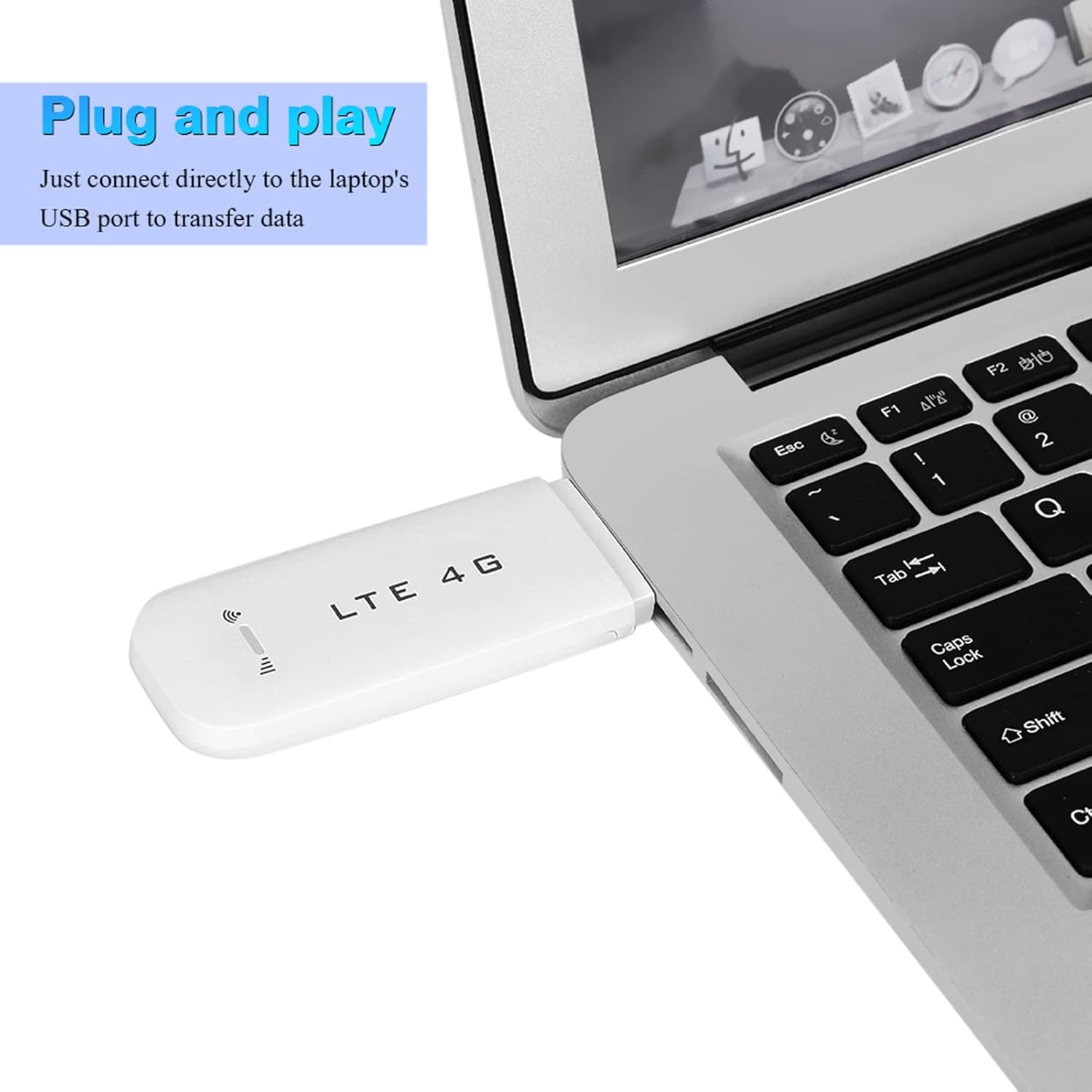
Figure 5.2: Connecting the dongle to a laptop.
6. Operating Instructions
6.1 Connecting to the Wi-Fi Hotspot
Once the dongle is connected and has established a 4G LTE connection, it will broadcast a Wi-Fi network. You can connect other devices (laptops, smartphones, tablets) to this network:
- On your Wi-Fi enabled device, search for available Wi-Fi networks.
- Select the network name (SSID) corresponding to your Ejoyous dongle. The default SSID and password are usually printed on a sticker on the device or in the manual.
- Enter the Wi-Fi password when prompted.
- Your device should now be connected to the internet via the dongle's Wi-Fi hotspot.
6.2 Wi-Fi Sharing
The Ejoyous 4G USB Dongle supports sharing its internet connection with up to 10 Wi-Fi users simultaneously. This allows multiple family members or friends to enjoy internet access from a single dongle.

Figure 6.1: Wi-Fi sharing capability of the dongle.
6.3 Supported Operating Systems
The device is compatible with 32/64-bit versions of Windows 2000, 2003, XP, Vista, 7, and 10, as well as OS 10.4 or higher. Note: This product is not applicable to Windows 8 and MacBook devices.
7. Maintenance
- Keep the device clean by wiping it with a soft, dry cloth.
- Avoid using harsh chemicals or abrasive cleaners.
- Store the device in a cool, dry place when not in use.
- Ensure the USB port and SIM card slot are free from dust and debris.
8. Troubleshooting
If you encounter issues with your Ejoyous 4G USB Dongle, refer to the following troubleshooting tips:
| Problem | Possible Cause | Solution |
|---|---|---|
| No internet connection | SIM card not inserted correctly or not activated; no 4G signal; incorrect APN settings. | Ensure SIM card is properly inserted and active. Check for 4G signal availability. Verify APN settings (usually automatic, but may require manual configuration for some carriers). |
| Slow internet speed | Weak 4G signal; network congestion; too many connected Wi-Fi users. | Move to an area with better 4G signal. Reduce the number of connected Wi-Fi devices. |
| Wi-Fi devices cannot connect | Incorrect Wi-Fi password; Wi-Fi disabled; device not broadcasting Wi-Fi. | Double-check the Wi-Fi password. Ensure the dongle is powered on and has established a 4G connection. |
| Dongle not recognized by computer | Driver issue; incompatible operating system; faulty USB port. | Try a different USB port. Ensure your operating system is supported (not Windows 8 or MacBook). Reinstall drivers if necessary. |
| Device frequently disconnects | Unstable 4G signal; overheating; software glitch. | Ensure stable 4G signal. Disconnect the device if it feels hot and allow it to cool. Restart the device and computer. |
9. Specifications
Detailed technical specifications for the Ejoyous 4G USB Dongle LTE Stick Router:
Figure 9.1: Dimensions of the 4G USB Dongle.
| Feature | Detail |
|---|---|
| Material | ABS |
| Type | With Wi-Fi function |
| Operating Frequency Band | LTE-FDD: B1 / B3 |
| Wireless Standard | IEEE 802.11b |
| Firewall Function | Supports firewall |
| Safety Standards | IC |
| System | FDD-LTE |
| Wi-Fi Frequency | 2.4GHz |
| Wi-Fi Protocol | 802.11b/g/n |
| Network Type | FDD-LTE, WCDMA / DC-HSPA+ |
| External Interface | USB 2.1, Standard 6-pin SIM card interface, Memory card connector (SIM card and memory card not included) |
| Frequency Band | FDD: B1 / B3, WCDMA: 2100MHz |
| Rate | UL50Mbps / DL100Mbps |
| Supported OS | 32/64 bit: Windows 2000/2003/XP/Vista/7/10, OS 10.4 or higher (Not applicable to Windows 8 and MacBook) |
| Input | 5V/1A |
| Power Consumption | <= 2W |
| Wi-Fi Security Mode | Open, WPA-PSK, WPA2-PSK |
| Dimensions | 95 x 35 x 12 mm / 3.7 x 1.4 x 0.5 inches |
| Weight | Approx. 56g |
10. Warranty Information
Ejoyous products are covered by a limited warranty from the date of purchase. This warranty covers defects in materials and workmanship under normal use. It does not cover damage caused by misuse, accidents, unauthorized modifications, or external causes. Please retain your proof of purchase for warranty claims.
11. Support
For technical assistance, warranty claims, or further inquiries, please contact Ejoyous customer support through the retailer where the product was purchased or visit the official Ejoyous website for contact information.
Please have your product model number (Ejoyousugbqrf270s1388-01) and proof of purchase ready when contacting support.