
1. Introduction
Thank you for choosing the Ejoyous 4G LTE USB WiFi Surfstick. This device is a portable mobile WLAN router designed to provide high-speed internet access on the go. It supports 4G LTE networks with FDD B1/B3 bands and can create a Wi-Fi hotspot for up to 10 users. This manual provides essential information for the proper setup, operation, and maintenance of your device.
2. Safety Information
- Do not expose the device to extreme temperatures, direct sunlight, or high humidity.
- Avoid dropping or subjecting the device to strong impacts.
- Do not attempt to disassemble or modify the device. This will void the warranty.
- Use only compatible SIM cards.
- Keep the device away from water and other liquids.
3. Package Contents
Please check the package for the following items:
- Ejoyous 4G LTE USB WiFi Surfstick
- English User Manual (this document)
4. Product Overview
The Ejoyous 4G LTE USB WiFi Surfstick is a compact device designed for easy portability and internet access.

Figure 1: Front view of the Ejoyous 4G LTE USB WiFi Surfstick.
4.1 Device Dimensions
The surfstick features a compact design for easy carrying.

Figure 2: Device dimensions (approximately 95mm x 35mm x 12mm).
5. Setup
5.1 Inserting the SIM Card
The device requires a standard SIM card (FDD B1/B3 compatible) for 4G LTE connectivity. Ensure the SIM card is activated and has an active data plan.
- Gently remove the back cover of the surfstick.
- Locate the SIM card slot.
- Insert the SIM card into the slot with the gold contacts facing down and the notched corner aligned correctly.
- Replace the back cover until it clicks into place.

Figure 3: SIM card slot location.
5.2 Powering On and Initial Connection
The surfstick is a plug-and-play device. It draws power directly from the USB port.
- Insert the Ejoyous 4G LTE USB WiFi Surfstick into an available USB port on your computer, laptop, or a USB power adapter.
- The device will automatically power on. An indicator light on the device will illuminate, typically indicating power and network status.
- Your computer may automatically detect and install necessary drivers. If not, a virtual CD-ROM drive containing drivers might appear, or you may need to access the device's web interface for setup.
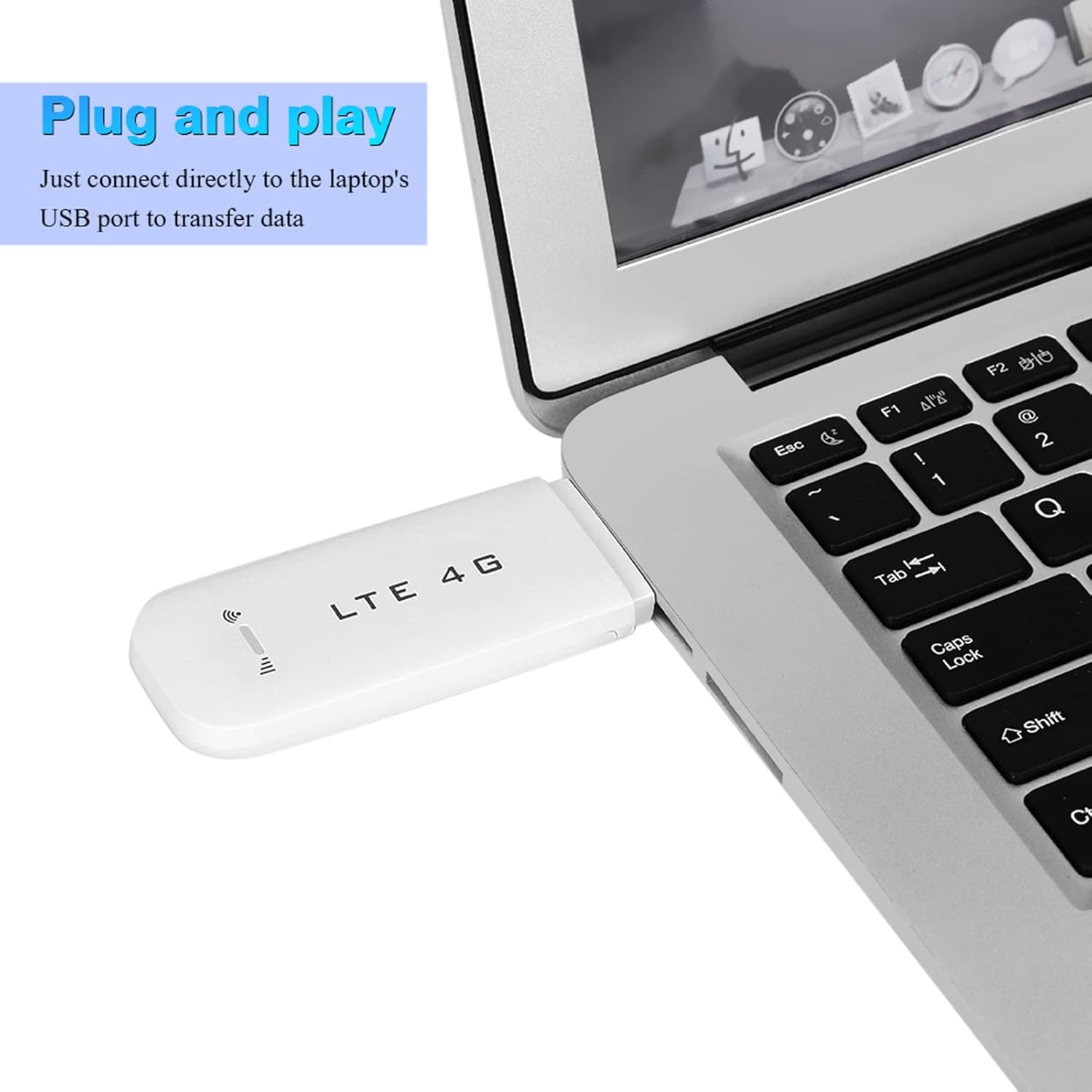
Figure 4: Connecting the surfstick to a laptop's USB port.
6. Operating
6.1 Connecting Devices via Wi-Fi
Once powered on and connected to the cellular network, the surfstick acts as a Wi-Fi hotspot, allowing up to 10 devices to connect simultaneously.
- On your Wi-Fi enabled device (smartphone, tablet, laptop), search for available Wi-Fi networks.
- Locate the network name (SSID) of your Ejoyous surfstick. The default SSID and password are usually printed on a label inside the device or on the packaging.
- Select the network and enter the Wi-Fi password when prompted.
- Your device should now be connected to the internet.

Figure 5: Wi-Fi sharing with multiple devices.
6.2 Accessing the Web Management Interface
For advanced settings, such as changing the Wi-Fi SSID, password, or managing firewall settings, you can access the device's web management interface.
- Ensure your computer or device is connected to the surfstick's Wi-Fi network.
- Open a web browser (e.g., Chrome, Firefox, Edge).
- Enter the default IP address for the device (usually 192.168.0.1 or 192.168.1.1) into the address bar and press Enter. This IP address can typically be found in the included documentation or on a label on the device.
- Enter the default username and password (commonly 'admin' for both) when prompted.
- You can now configure various settings of your surfstick.
6.3 Supported Operating Systems
The device is compatible with a range of operating systems:
- Windows: 2000, 2003, XP, Vista, 7, 10 (32/64-bit versions)
- macOS: OS 10.4 or higher
- Internal OS: Linux (for the device itself)
7. Maintenance
7.1 Cleaning
- Use a soft, dry cloth to clean the exterior of the device.
- Do not use liquid cleaners, aerosols, or solvents.
7.2 Storage
- Store the device in a cool, dry place when not in use.
- Avoid storing it in areas with extreme temperatures or high humidity.
8. Troubleshooting
If you encounter issues with your Ejoyous 4G LTE USB WiFi Surfstick, please refer to the following common problems and solutions:
| Problem | Possible Cause | Solution |
|---|---|---|
| No network signal / Cannot connect to 4G LTE | SIM card not inserted correctly; SIM card not activated or no data plan; Out of network coverage; Incorrect APN settings. | Ensure SIM card is properly inserted. Verify SIM card is active and has a data plan. Move to an area with better network coverage. Check APN settings via the web management interface. |
| Cannot connect to Wi-Fi hotspot | Incorrect Wi-Fi password; Device not powered on; Wi-Fi disabled. | Verify the Wi-Fi password. Ensure the surfstick is plugged into a powered USB port. Check Wi-Fi settings via the web management interface. |
| Slow internet speed | Weak 4G LTE signal; Network congestion; Data plan limits reached. | Move to an area with stronger signal. Reduce the number of connected devices. Check your data plan status with your service provider. |
| Cannot access web management interface | Incorrect IP address; Not connected to device's Wi-Fi; Incorrect login credentials. | Ensure you are connected to the surfstick's Wi-Fi. Verify the correct IP address. Use default login 'admin'/'admin' or check documentation for custom credentials. |
| SIM card requires PIN entry, but no prompt appears | SIM card PIN lock is active. | It is recommended to disable the PIN lock on your SIM card using a mobile phone before inserting it into the surfstick. The device's interface may not support PIN entry. |
9. Specifications
| Feature | Description |
|---|---|
| Brand | Ejoyous |
| Model Number | Ejoyousugbqrf270s1388 |
| Connectivity Technology | Wi-Fi, 4G LTE |
| Network Speed | Up to 100 Mbps |
| SIM Card Support | FDD B1 / B3 |
| Wi-Fi Standard | 802.11b |
| Frequency Band Class | Dual band |
| Special Feature | Firewall function |
| Compatible Devices | Computers (laptops, desktops), mobile devices (smartphones, tablets) |
| Supported Operating Systems | Windows 2000/2003/XP/Vista/7/10, macOS 10.4 or higher |
| Recommended Uses | Video games, Home, Professional |
| Included Components | Surfstick, English manual |
| Country of Origin | China |
Note: Specifications are subject to change without prior notice.
10. Warranty and Support
For warranty information and technical support, please refer to the documentation provided with your purchase or visit the official Ejoyous website. Specific warranty terms and support contact details may vary by region and retailer.