
1. Introduction
Thank you for choosing the Blindsmart Motorized Roller Shade. This manual provides detailed instructions for the installation, setup, operation, and maintenance of your new motorized shade system. Please read this manual thoroughly before installation and keep it for future reference.
Package Contents:
- 1x Blindsmart Motor (suitable for 36-38mm / 1-1/2 inch tube)
- 1x 1-Channel Remote Control
- 1x End Cap
- 2x Mounting Brackets
- 1x User Manual (this document)

Figure 1.1: Included components of the Blindsmart Motorized Roller Shade system.
2. Safety Information
- Ensure the power supply is disconnected before installation or maintenance.
- This motor is designed for indoor use only.
- Do not expose the motor to water or excessive humidity. It is not water resistant.
- Keep the remote control and motor out of reach of children.
- Ensure the roller shade tube is compatible with the motor's diameter (38mm / 1-1/2 inch).
- The maximum supported roller shade dimensions are 3 meters (118 inches) in length and 4 kg (8.82 lbs) in weight. Do not exceed these limits.
3. Product Overview
The Blindsmart Motorized Roller Shade system consists of a tubular motor, a 1-channel remote control, and mounting accessories. The motor integrates a Wi-Fi module for smart control via the Tuya or Smart Life app, and voice control through Alexa or Google Assistant.
Motor Compatibility:
This motor is specifically designed for roller shade tubes with a diameter of 38mm (1-1/2 inches) and a groove. Please verify your tube's specifications before installation.

Figure 3.1: Motor compatibility with 38mm (1-1/2 inch) grooved tubes and detailed views of motor components.
4. Installation and Setup
4.1 Physical Installation
- Measure and Verify Tube: Ensure your roller shade tube has an inner diameter of approximately 38mm (1-1/2 inches) and a groove for the motor's spline.
- Insert Motor: Slide the Blindsmart motor into one end of the roller shade tube, ensuring the motor's drive head engages with the tube's groove.
- Attach End Cap: Place the provided end cap onto the opposite end of the roller shade tube.
- Mount Brackets: Secure the two mounting brackets to your window frame or wall using appropriate screws (not included). Ensure they are level and spaced correctly to support the roller shade assembly.
- Install Shade: Place the roller shade assembly onto the mounted brackets, ensuring it is securely seated.

Figure 4.1.1: Confirming tube diameter.

Figure 4.1.2: Inserting the motor into the tube.

Figure 4.1.3: Attaching the end cap.

Figure 4.1.4: Bracket installation.
4.2 Remote Control Pairing
To pair the 1-channel remote control with the motor:
- Ensure the motor is powered on.
- Locate the small setting button on the motor (often near the power cable entry point). Press this button once. The motor will make a slight movement or sound.
- Within a few seconds, press the 'Up' button on your 1-channel remote control.
- The motor will respond with another slight movement or sound, indicating successful pairing.

Figure 4.2.1: Remote control pairing process.
4.3 App Connection (Tuya / Smart Life)
The motor connects directly to your 2.4GHz Wi-Fi network. No separate gateway is required.
- Download the 'Tuya Smart' or 'Smart Life' app from your mobile device's app store (available for iOS and Android).
- Register or log in to your account.
- Ensure your mobile device is connected to a 2.4GHz Wi-Fi network. The motor only supports 2.4GHz Wi-Fi.
- On the motor, press the setting button three times. The motor will make a 'Di' sound once, indicating it has entered network configuration state.
- Open the Tuya/Smart Life app. The app should automatically detect the new device. If not, tap '+' to add a device and select 'Curtain Motor' or similar from the device list.
- Follow the on-screen instructions in the app to complete the Wi-Fi connection. You will need to enter your Wi-Fi password.

Figure 4.3.1: Direct 2.4GHz Wi-Fi connection to the motor.

Figure 4.3.2: App connection process.
5. Operation
5.1 Remote Control
The 1-channel remote control allows for basic operation of your motorized roller shade.

Figure 5.1.1: 1-Channel Remote Control Button Instructions.
- Up/Open Button: Press to raise the shade.
- Stop Button: Press to stop the shade at its current position.
- Down/Close Button: Press to lower the shade.
- Inching Forward/Reverse: These buttons allow for fine adjustments of the shade's position.
- Indicator Light: Illuminates when a button is pressed.

Figure 5.1.2: Using the remote control.
5.2 App Control (Tuya / Smart Life)
The Tuya Smart or Smart Life app provides advanced control features for your motorized shade, including setting stroke limits and scheduling.
- Open/Close/Stop: Control the shade directly from the app interface.
- Stroke Limit & Reset: Set the upper and lower limits for the shade's travel. This prevents the shade from over-rolling or under-rolling. Refer to the app's specific instructions for setting these limits.
- Timing Control: Create schedules for your shade to automatically open or close at specific times of the day. This feature is useful for energy saving and convenience.

Figure 5.2.1: App interface for stroke limit and timing control.
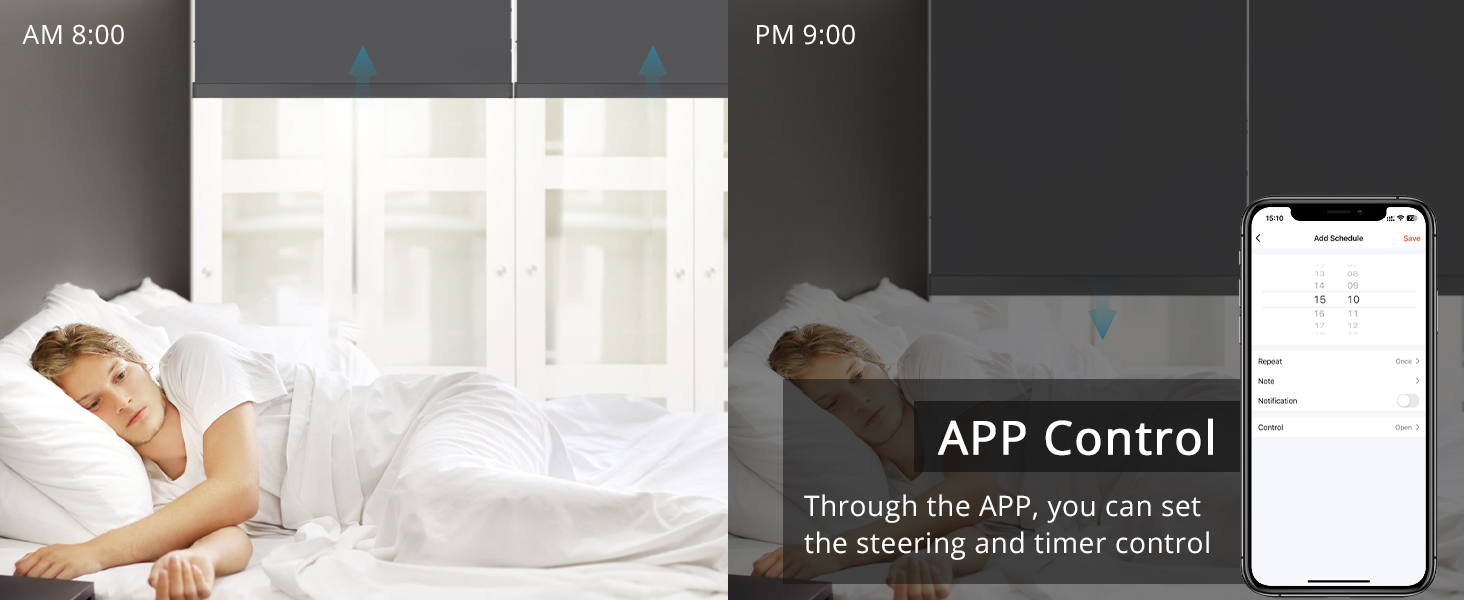
Figure 5.2.2: Example of app-controlled timing for shade operation.
5.3 Voice Control (Alexa / Google Assistant)
Once connected to the Tuya/Smart Life app, you can link your Blindsmart motor to Amazon Alexa or Google Assistant for convenient voice control.
- Open the Amazon Alexa or Google Home app.
- Enable the 'Tuya Smart' or 'Smart Life' skill/service.
- Link your Tuya/Smart Life account.
- Discover devices. Your motorized shade should appear.
- You can now use voice commands such as:
"Alexa, open the roller shade."
"Hey Google, close the living room blinds."

Figure 5.3.1: Voice control with Alexa.
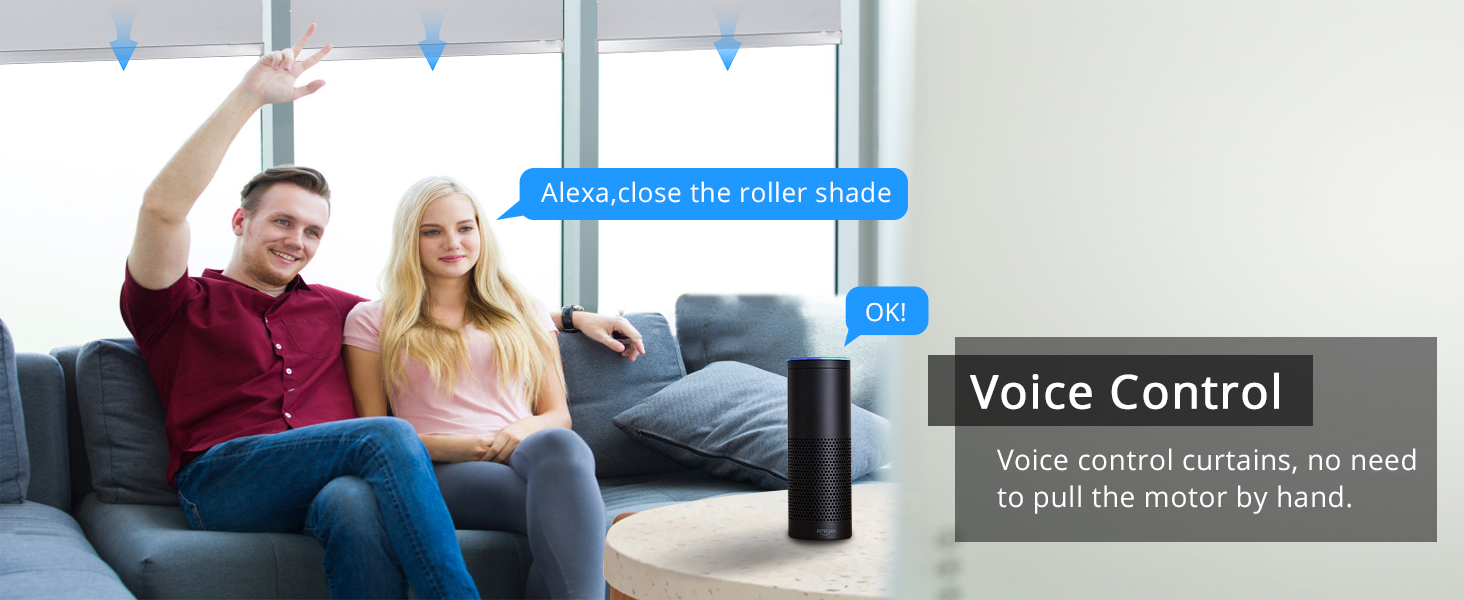
Figure 5.3.2: Voice control for smart blinds.
6. Specifications

Figure 6.1: Product dimensions and components.
| Feature | Specification |
|---|---|
| Model Number | ZM25TQWIFI-AU |
| Brand | Blindsmart |
| Material | Plastic |
| Product Dimensions (Motor) | Approx. 13"L x 2.5"W (354mm length) |
| Item Weight | 1.31 pounds |
| Tube Compatibility | 38 mm (1-1/2 inch) tube with groove |
| Max. Shade Length | 3 meters (118 inches) |
| Max. Shade Weight | 4 kg (8.82 lbs) |
| Control Type | Remote, Voice (Alexa/Google Assistant), App (Tuya/Smart Life) |
| Wi-Fi Frequency | 2.4GHz (only) |
| Operation Mode | Automatic |
| Power Cable Length | Approx. 140cm |
| UPC | 747976827384 |
7. Troubleshooting
If you encounter issues with your Blindsmart Motorized Roller Shade, please refer to the following common problems and solutions:
- Motor not responding to remote control:
- Ensure the motor is powered on.
- Check the battery in the remote control (AAA batteries are not included).
- Re-attempt the remote control pairing process (Section 4.2).
- Unable to connect to Wi-Fi / App:
- Verify your Wi-Fi network is 2.4GHz. The motor does not support 5GHz Wi-Fi.
- Ensure your mobile device is connected to the same 2.4GHz Wi-Fi network during setup.
- Confirm you are pressing the motor's setting button three times to enter network configuration mode.
- Move the motor closer to your Wi-Fi router to improve signal strength.
- Restart your Wi-Fi router and try connecting again.
- Shade does not move to desired upper/lower limit:
- Adjust the stroke limits within the Tuya/Smart Life app (Section 5.2).
- Ensure there are no obstructions preventing the shade from reaching its full travel.
- Voice control not working:
- Ensure the motor is successfully connected to the Tuya/Smart Life app.
- Verify that the 'Tuya Smart' or 'Smart Life' skill/service is enabled and linked in your Alexa or Google Home app.
- Try rediscovering devices in your voice assistant app.
8. Maintenance
The Blindsmart Motorized Roller Shade requires minimal maintenance.
- Cleaning: For the motor and remote, wipe with a soft, dry cloth. Do not use abrasive cleaners or immerse in water. For the shade fabric, follow the manufacturer's instructions, typically spot cleaning.
- Battery Replacement: Replace the remote control batteries (AAA) as needed when the indicator light dims or the remote becomes unresponsive.
9. Customer Support
For any installation assistance, troubleshooting, or product-related inquiries, please contact Blindsmart customer service. We are committed to providing support and resolving any issues you may encounter.
Please refer to your purchase platform or the Blindsmart official website for contact information.