
ELAMOR M22 Bluetooth Smart Lock
ELAMOR M22 Bluetooth Smart Lock User Manual
Comprehensive guide for installation, operation, maintenance, and troubleshooting of your ELAMOR M22 Smart Lock.
1. Product Overview
The ELAMOR M22 Bluetooth Smart Lock offers convenient keyless entry with multiple unlocking options, including app control, touchscreen keypad, and mechanical keys. Designed for durability and security, it integrates seamlessly into modern homes and offices.

Image: ELAMOR M22 Bluetooth Smart Lock with its accompanying smartphone application interface.
Key Features:
- Multiple Unlocking Methods: App Unlock, Touchscreen Keypad, Mechanical Keys.
- Durable Construction: Sturdy zinc alloy and stainless steel frame with IP54 waterproof rating.
- Smart Life App Control: Manage user codes, view visitor logs, and unlock remotely via Bluetooth.
- Auto-Lock Feature: Customizable 3-30 second auto-lock for enhanced security.
- Easy Installation: Designed for simple installation with minimal tools.
2. Setup Guide
2.1 What's Included
Before beginning installation, verify that all components are present in the package:
- Touch Keypad Assembly (Exterior)
- Interior Assembly
- Deadbolt Latch
- Deadbolt Strike Plate
- Buckle Box
- Mounting Plate
- Mechanical Keys (2)
- Various Screws (1-5/32" (33mm) x 2, 3/4" (19mm) x 2, 3/4" (19mm) x 4)

Image: All components included in the ELAMOR M22 Smart Lock package, laid out for verification.
2.2 Door Preparation
Ensure your door meets the following specifications for proper installation:
- Backset: 2-3/8" or 2-3/4" (60mm-70mm)
- Hole in Door Edge: 1" (25mm)
- Door Thickness: Between 1-3/8" and 2" (35mm and 50mm)

Image: A diagram illustrating the required door dimensions (backset, edge hole, thickness) for installing the smart lock.
2.3 Installation Steps
Follow these steps carefully to install your ELAMOR M22 Smart Lock. A Philips screwdriver is the only tool required.
Video: M22 Bluetooth Smart Lock Installation Guide. This video provides a step-by-step visual walkthrough of the entire installation process.
- Insert Latch Bolt: Insert the latch bolt into the door. Ensure the T-shaped hole is in the bottom position. Twist the latch to adjust the bolt length if necessary, making sure the latch bolt is retracted.
- Install Strike: Install the strike plate on the door frame using the provided 3/4" (19mm) screws (2ea) to fix the latch.
- Install Exterior Assembly: Route the cable through the door. Ensure the tail of the exterior assembly passes through the T-shaped hole and the stud passes through the latch. The key must be pulled out when installing. Push the keypad onto the door.
- Install Mounting Plate: Install the mounting plate using the 1-5/32" (33mm) screws (2ea). If the keypad and mounting plate are not placed correctly, loosen the mounting plate screws and make adjustments.
- Install Interior Assembly: Ensure a tight cable connection. Insert the tail of the exterior assembly into the T-shaped hole of the interior assembly. Secure with the 3/4" (19mm) screws (2ea).
- Install Batteries: Install 4 AA batteries into the interior assembly.
- Test Operation: Test the door lock/unlock process normally. Press the lock key; the latch bolt should extend by itself. Unlock by entering the default user code (123456).
- Connect to App: Connect the lock to the Smart Life App via Bluetooth. Follow the in-app instructions to add the device.

Image: A person using a Philips screwdriver to install the ELAMOR M22 Smart Lock, demonstrating the ease of installation.
3. Operating Instructions
3.1 Unlocking Methods
- Touchscreen Keypad: Enter your programmed user code on the illuminated keypad to unlock the door.
- Smart Life App: Open the Smart Life App on your smartphone. Within Bluetooth range (less than 32.8 ft/10 m), tap the unlock icon to open the door.
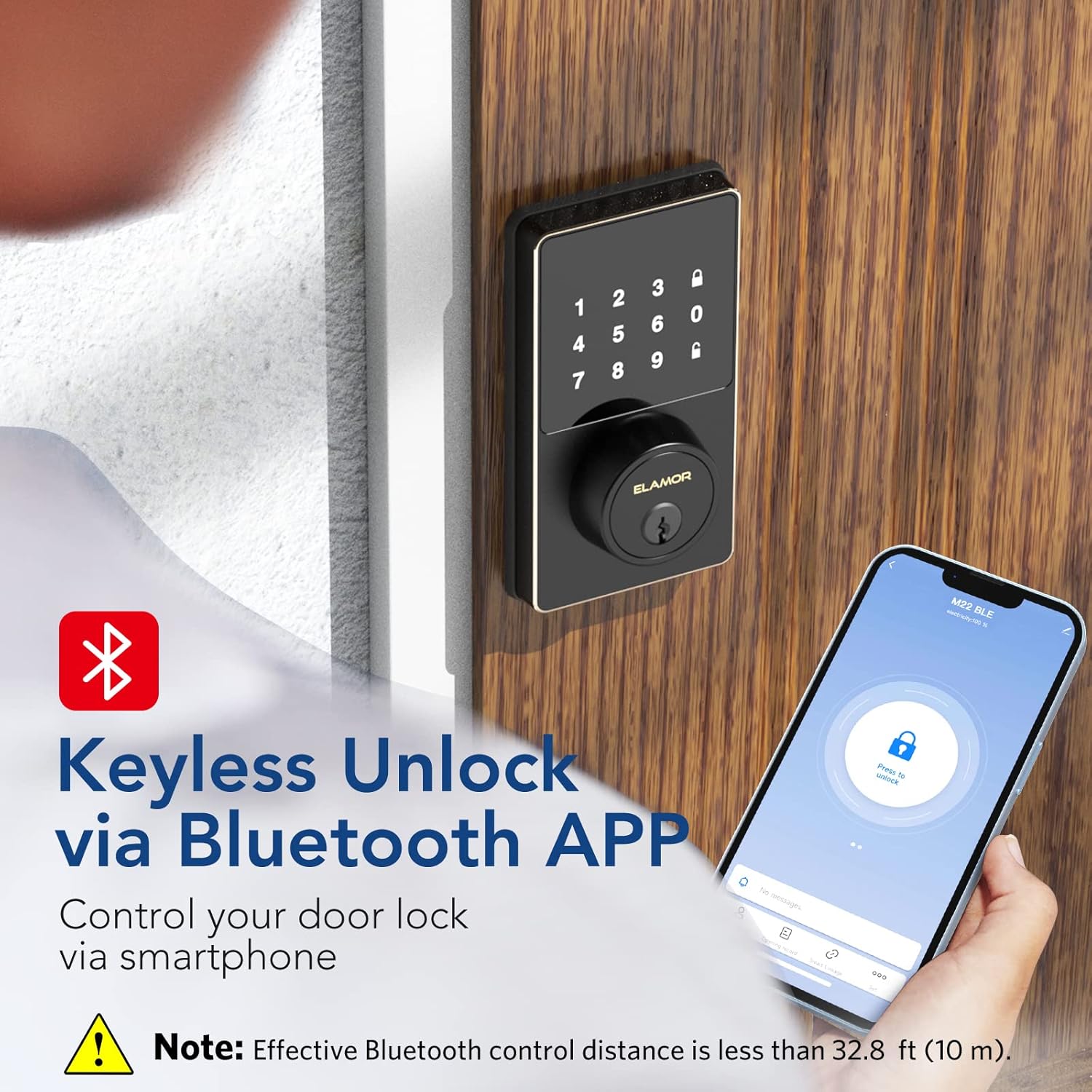
Image: A smartphone screen showing the Smart Life App interface with a prominent "Press to unlock" button for the ELAMOR M22 Smart Lock.
- Mechanical Key: Use the provided mechanical keys as a backup for manual unlocking.
3.2 Setting User Codes
The ELAMOR M22 Smart Lock supports up to 50 individual user codes. User codes can be managed and set visually through the Smart Life App. Refer to the app's specific instructions for adding, modifying, or deleting user codes.

Image: A visual representation of the smart lock's capability to store up to 50 individual user codes, suitable for multiple users.
You can also share permanent, temporary, or scheduled password access with friends and family directly from the app.

Image: A user interacting with the Smart Life App to share door access, illustrating the convenience of remote code management.
3.3 Auto-Lock Feature
The auto-lock feature can be customized to automatically lock the door after a set period (3-30 seconds). This provides peace of mind, ensuring your door is secured even if you forget to lock it manually.
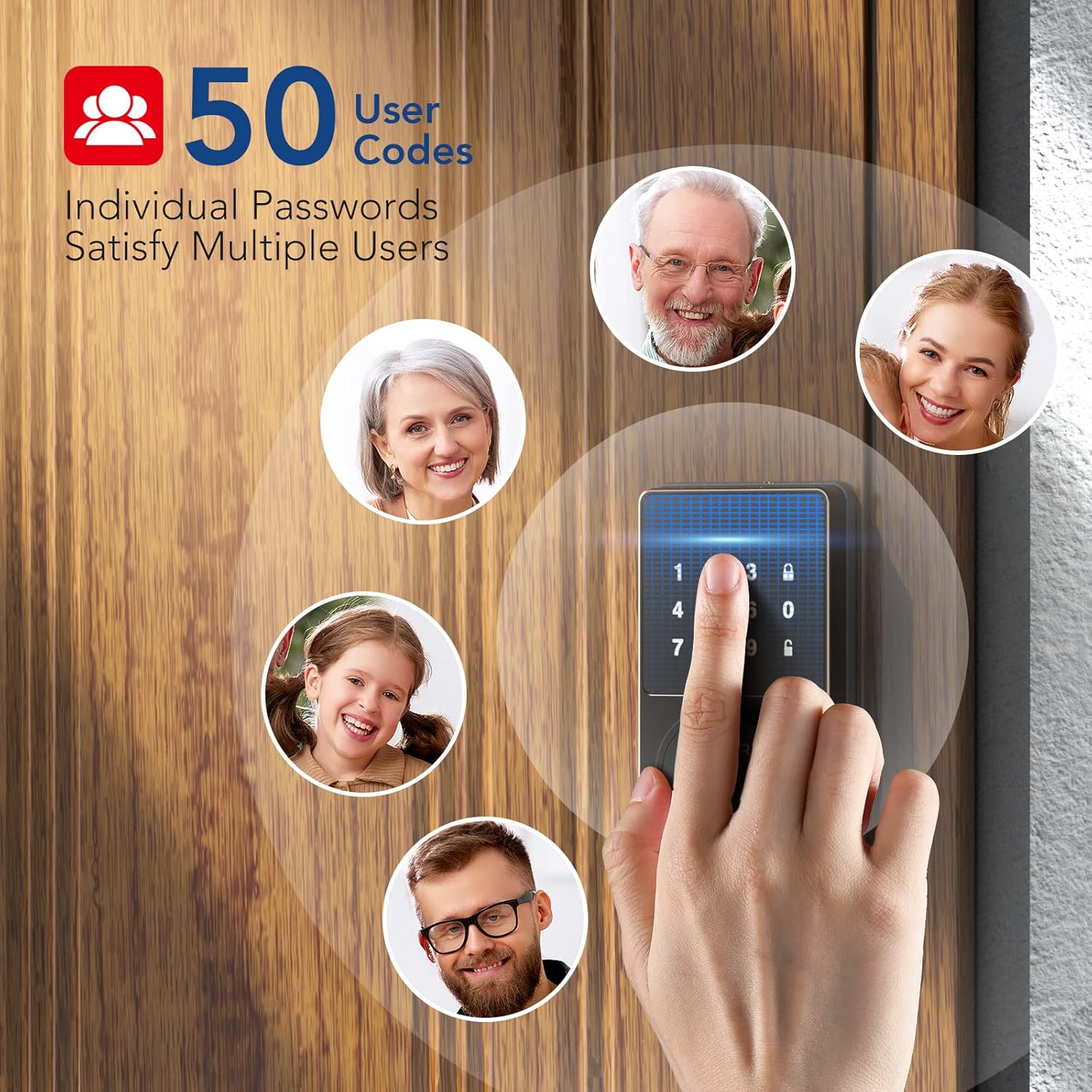
Image: A woman carrying packages, demonstrating the convenience of the auto-lock feature when hands are full.
4. Maintenance
4.1 Cleaning
To maintain the appearance and functionality of your smart lock, wipe the touchscreen and exterior surfaces with a soft, damp cloth. Avoid using abrasive cleaners or solvents, as these can damage the finish and electronic components.
4.2 Battery Replacement
The lock is powered by 4 AA batteries. When the battery level is low, the lock will provide a reminder. Replace all four batteries simultaneously with new, high-quality AA alkaline batteries to ensure optimal performance.

Image: The smart lock's keypad showing a visual indicator for low battery, prompting replacement.
5. Troubleshooting
- Keypad Not Responding or Code Not Working:
- Ensure batteries are correctly installed and have sufficient charge. Replace if necessary.
- Verify the code entered is correct.
- If the issue persists, try resetting the lock (refer to app instructions for reset procedure).
- App Connectivity Issues:
- Ensure Bluetooth is enabled on your smartphone and you are within the effective range (less than 32.8 ft/10 m).
- Restart the Smart Life App.
- Check for app updates.
- If the lock was previously connected to Wi-Fi (for M19 models), ensure your Wi-Fi network is stable.
- Excessive Battery Drain:
- Ensure the door and frame are properly aligned and the deadbolt operates smoothly without resistance. Friction can cause increased motor usage and battery drain.
- Use high-quality alkaline batteries.
- Frequent use of the auto-lock feature or repeated locking/unlocking can consume more power.
- Lock Not Responding After Working for a Period:
- Check and replace batteries.
- Perform a factory reset if other troubleshooting steps fail. Note that this will erase all user codes and settings.
6. Specifications
| Feature | Detail |
|---|---|
| Brand | ELAMOR |
| Model Name | M22 Bluetooth Smart Lock |
| Lock Type | Bluetooth Programmable Keypad Door Lock Deadbolt with Key |
| Material | Zinc |
| Color | Black |
| Item Dimensions (L x W x H) | 7.51 x 5.62 x 4.44 inches |
| Item Weight | 2.38 pounds |
| Power Source | Battery Powered (4 AA batteries, not included) |
| Connectivity Protocol | Bluetooth |
| Control Method | App, Keypad |
| Special Features | Smart Lock, Waterproof (IP54 rating) |
| Recommended Uses | Front Door, Home Use, Apartment, Office, Hotel, Garage, Wine Cellar, Flats |
| Global Trade Identification Number (GTIN) | 06975082590098 |
7. Warranty and Support
ELAMOR provides a 12-month warranty for the M22 Bluetooth Smart Lock. In case of any issues or inquiries, a 24-hour service team is available to assist you.
For technical support or warranty claims, please refer to the contact information provided with your product packaging or visit the official ELAMOR website.
Related documentsM22 Bluetooth Smart Lock


Ask a question about this manual
Ask about setup, troubleshooting, compatibility, parts, safety, or missing instructions. Manuals+ will review the question and use this page’s manual context to help answer it.