
MARVO KG954EN-R
Marvo KG954 Full Size Mechanical Rainbow Backlight Gaming Keyboard Instruction Manual
Model: KG954EN-R
Introduction
This manual provides comprehensive instructions for the setup, operation, maintenance, and troubleshooting of your Marvo KG954 Full Size Mechanical Rainbow Backlight Gaming Keyboard. Please read this manual carefully before using the product to ensure proper functionality and longevity.
The Marvo KG954 is a full-size mechanical gaming keyboard featuring professional blue switches, a rainbow backlight with 21 lighting modes, dedicated media keys, and a volume knob. It is designed with durable double-shot keycaps and 100% anti-ghosting for an optimal gaming and typing experience. The detachable USB Type-C cable offers convenient portability and setup.

Image: The Marvo KG954 mechanical gaming keyboard, showcasing its full-size layout, rainbow backlighting, and integrated volume knob on the top right.
Setup
Unpacking:
Carefully remove the keyboard and its accessories from the packaging. Ensure all components are present: the Marvo KG954 keyboard and the detachable USB Type-C cable.
Connecting the Keyboard:
Locate the USB Type-C port on the back or top edge of the keyboard. Insert the smaller end of the provided USB Type-C cable into this port. Connect the standard USB-A end of the cable to an available USB port on your computer (PC or Laptop).
Note: Ensure the cable is fully inserted into the keyboard's port. Some users have reported a tight fit or a need to adjust the cable for proper connection.
Driver Installation (Plug & Play):
The Marvo KG954 keyboard is typically plug-and-play. Your operating system (Windows, macOS, etc.) should automatically detect and install the necessary drivers. Wait for the installation to complete, which may take a few moments.
Software Installation (Optional):
For advanced customization of lighting effects, key assignments, and macros, Marvo provides dedicated software. Please visit the official MARVO website (MARVO Store) to download the latest software for the KG954 model. Follow the on-screen instructions for installation.
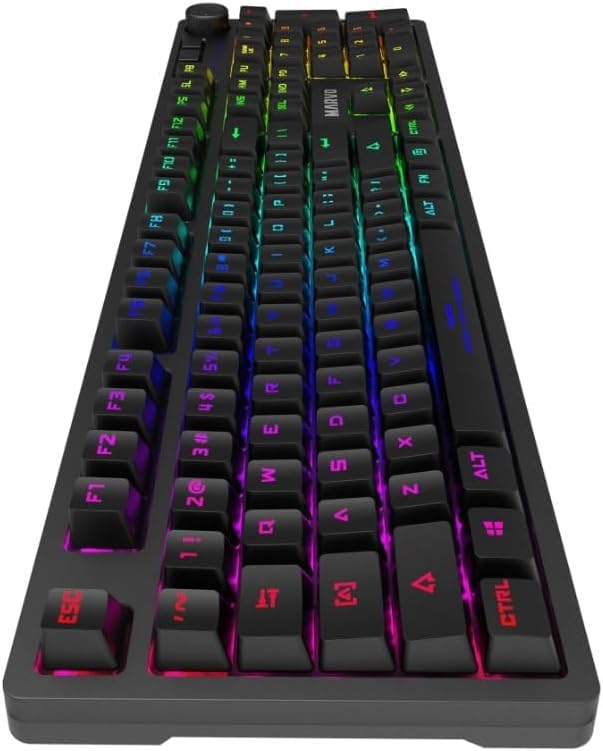
Image: A side profile view of the Marvo KG954 keyboard, highlighting the design and the location of the detachable USB Type-C port.
Operating Instructions
Basic Keyboard Functions
Once connected, the keyboard is ready for standard typing and gaming. All 108 keys are fully functional and feature 100% anti-ghosting, ensuring every key press is registered accurately, even during rapid, simultaneous inputs.
Dedicated Media Keys and Volume Knob
The Marvo KG954 includes dedicated media control keys and a volume knob for convenient audio management without interrupting your workflow or game.
- Volume Knob: Rotate clockwise to increase volume, counter-clockwise to decrease volume. Press the knob to mute/unmute audio.
- Media Keys: Specific keys are designated for Play/Pause, Stop, Previous Track, and Next Track. Refer to the keycap legends for their exact locations.
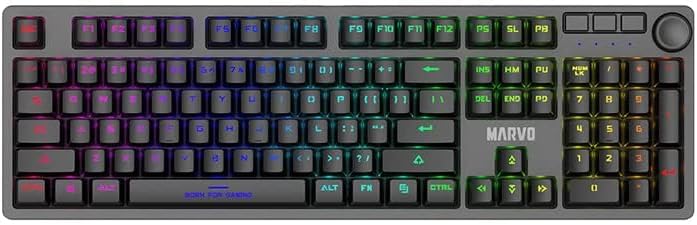
Image: An overhead view of the Marvo KG954 keyboard, clearly showing the full key layout, including the dedicated media keys and the volume knob.
Backlight Control
The keyboard features a vibrant rainbow backlight with 21 distinct lighting modes. These modes can be cycled through and adjusted using specific key combinations, typically involving the Fn (Function) key.
- Changing Lighting Modes: Press Fn + INS (Insert) to cycle through the 21 available lighting effects.
- Adjusting Brightness: Press Fn + ↑ (Up Arrow) to increase brightness, Fn + ↓ (Down Arrow) to decrease brightness.
- Adjusting Speed: Press Fn + ← (Left Arrow) to decrease effect speed, Fn + → (Right Arrow) to increase effect speed.
- Customization: For more advanced customization and per-key lighting, use the dedicated Marvo software.
Function Key Combinations (Fn Key)
The Fn key, located near the right Alt key, can be combined with other keys to access secondary functions, including multimedia controls and system shortcuts. Refer to the keycap legends for specific Fn combinations.
- Fn + F1-F12: Typically control multimedia playback, volume, and other system functions.
- Fn + Windows Key: Locks/unlocks the Windows key to prevent accidental presses during gaming.
Maintenance
Proper maintenance ensures the longevity and optimal performance of your Marvo KG954 keyboard.
Cleaning the Keyboard:
Regularly clean the keyboard to prevent dust and debris buildup. Use a soft, lint-free cloth slightly dampened with water or a mild cleaning solution. Avoid harsh chemicals or abrasive materials. For cleaning between keycaps, use compressed air or a small brush.
Keycap Care:
The double-shot keycaps are designed for durability and feature an anti-fingerprint coating. If you need to remove keycaps for deeper cleaning or switch replacement, use a keycap puller to avoid damaging the keycaps or switches. Gently pull straight up to remove. Realign and press down firmly to reattach.
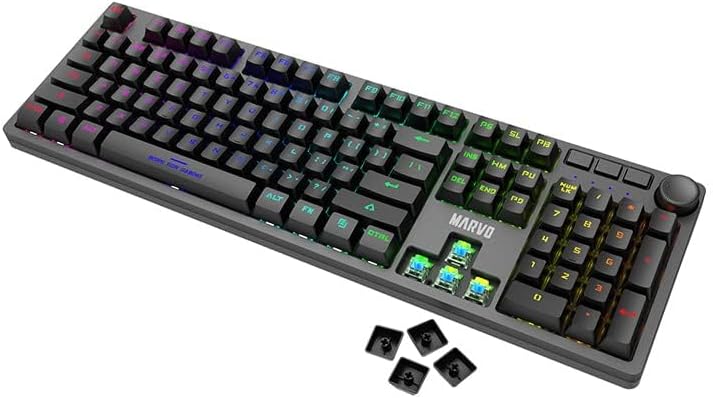
Image: The Marvo KG954 keyboard with several keycaps removed, revealing the blue mechanical switches underneath, illustrating the double-shot keycap design.
Detachable USB Type-C Cable:
Handle the detachable cable with care. Avoid bending or twisting the cable excessively, especially near the connectors. When disconnecting, pull from the plug, not the cable itself. Store the cable neatly when not in use.
Troubleshooting
If you encounter issues with your Marvo KG954 keyboard, refer to the following common solutions:
Keyboard Not Responding:
- Ensure the USB Type-C cable is securely connected to both the keyboard and your computer's USB port. Try a different USB port.
- Restart your computer.
- Check if the keyboard is recognized in your computer's Device Manager (Windows) or System Information (macOS).
- If using a USB hub, try connecting the keyboard directly to the computer.
Backlight Not Working or Incorrect:
- Ensure the backlight is not turned off (check brightness settings using Fn + ↑).
- Cycle through lighting modes using Fn + INS.
- If using the Marvo software, ensure settings are correctly applied and the software is running.
- Try resetting the keyboard to factory defaults (refer to software or manufacturer's website for specific instructions if available).
Specific Keys Not Working:
- Check for physical obstructions or debris under the keycap. Carefully remove the keycap and clean the switch area.
- Ensure the keycap is properly seated on the switch stem.
- Test the keyboard on another computer to rule out a software or operating system issue.
Cable Connection Issues:
- Some users have reported that the provided cable's connector might be slightly too wide for the keyboard's port, requiring careful insertion or a slight modification to the cable's plastic housing. Ensure the cable is fully seated.
- If the cable is damaged, replace it with a compatible USB Type-C to USB-A cable.
Specifications
The following table details the technical specifications of the Marvo KG954 Mechanical Gaming Keyboard:
| Feature | Specification |
|---|---|
| Model Number | KG954EN-R |
| Key Type | Mechanical |
| Switch Type | Blue Switch |
| Switch Rating | 50 million presses |
| Keys | 108 |
| Keycap | Double-shot with anti-fingerprint coating |
| Backlight | Rainbow backlight with 21 lighting modes |
| Dedicated Media Keys | Yes (with Volume Knob) |
| Anti-Ghosting | 100% |
| Connectivity | Detachable USB Type-C Cable |
| Compatible Devices | Laptop, PC |
| Product Dimensions | 435 x 193 x 39 mm (17.13"L x 7.6"W x 1.54"H) |
| Item Weight | 1250g (2.75 pounds) |
| Color | Black |
| Included Components | USB Cable |
| Software Support | Yes |
Warranty and Support
For warranty information, technical support, or further assistance with your Marvo KG954 keyboard, please refer to the official MARVO website or contact their customer service. Details regarding warranty periods and terms of service are typically provided with your purchase or available online.
You can find more information and support resources by visiting the official MARVO Store: MARVO Store on Amazon.
Ask a question about this manual
Ask about setup, troubleshooting, compatibility, parts, safety, or missing instructions. Manuals+ will review the question and use this page’s manual context to help answer it.