
1. Introduction
Welcome to the user manual for your new Altec Lansing Fury Wireless Speaker. This ultra-portable speaker is designed to be an ideal travel and adventure companion, offering powerful sound and true wireless stereo pairing capabilities. This manual provides detailed instructions on how to set up, operate, maintain, and troubleshoot your speaker.
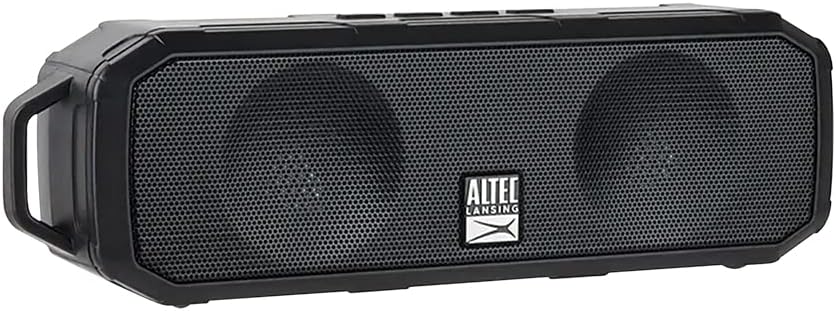
Figure 1: Altec Lansing Fury Wireless Speaker
2. Important Safety Instructions
- Read all instructions carefully before using the product.
- Keep this manual for future reference.
- Do not expose the speaker to extreme temperatures, humidity, or direct sunlight.
- Do not disassemble, repair, or modify the speaker yourself. Refer all servicing to qualified personnel.
- Clean only with a dry cloth.
- Ensure the charging port cover is securely closed when not charging to maintain IPX5 water resistance.
3. What's in the Box
Verify that all items listed below are included in your package:
- 1 x Altec Lansing Fury Wireless Speaker
- 1 x Micro USB Charging Cable
- 1 x Carabiner Clip
- 1 x Quick Start Guide

Figure 2: Package Contents
4. Product Overview
The Altec Lansing Fury Wireless Speaker features intuitive controls and a robust design for various environments.

Figure 3: Speaker Controls and Ports
Controls Layout
| Button/Indicator | Function |
|---|---|
| Power / Play / Pause / Answer / Siri Button | Press and hold to power on/off. Press to play/pause music. Press to answer/end calls. Press and hold to activate Siri/Google Assistant. |
| Volume Up / Next Track Button | Press to increase volume. Press and hold for next track. |
| Volume Down / Previous Track Button | Press to decrease volume. Press and hold for previous track. |
| LED Indicator | Indicates power status, charging status, and Bluetooth pairing status. |
| Microphone (MIC) | For hands-free calling and voice assistant commands. |
| Micro USB Port | For charging the speaker. |
5. Getting Started
5.1 Charging the Speaker
Before first use, fully charge your speaker. A full charge takes approximately 2-3 hours.
- Open the protective cover of the Micro USB port on the side of the speaker.
- Connect the Micro USB charging cable to the speaker's Micro USB port.
- Connect the other end of the USB cable to a USB power adapter (not included) or a computer's USB port.
- The LED indicator will illuminate during charging and turn off when fully charged.
- Once charging is complete, securely close the protective cover to maintain water resistance.
5.2 Powering On/Off
- To Power On: Press and hold the Power button for approximately 3 seconds until you hear an audible prompt and the LED indicator lights up.
- To Power Off: Press and hold the Power button for approximately 3 seconds until you hear an audible prompt and the LED indicator turns off.
6. Operation
6.1 Bluetooth Pairing
The Fury Wireless Speaker offers universal compatibility, allowing you to pair with any Bluetooth-enabled device up to a 30-foot range.
- Ensure the speaker is powered on and the LED indicator is blinking, indicating it's in pairing mode.
- On your Bluetooth-enabled device (smartphone, tablet, laptop), go to the Bluetooth settings.
- Search for available devices and select "Altec Lansing Fury" or "IMW340N".
- Once paired, the LED indicator will stop blinking and remain solid, and you will hear a confirmation sound.
- The speaker will automatically reconnect to the last paired device when powered on, if the device is within range and Bluetooth is enabled.

Figure 4: Universal Bluetooth Compatibility
6.2 Using Voice Assistant ("Just Ask")
Wake up Siri or Google Assistant for news, weather updates, and more with a simple voice command.
- Ensure your speaker is connected to a Bluetooth-enabled device with an active internet connection.
- Press and hold the Power button for approximately 2 seconds (after powering on) to activate your device's voice assistant.
- Speak your command clearly into the speaker's microphone.

Figure 5: Just Ask Voice Assistant Feature
6.3 Hands-Free Calling
Answer phone calls with ease thanks to the built-in noise-free microphone.
- Answer Call: Press the Power button once when a call comes in.
- End Call: Press the Power button once during a call.
- Reject Call: Press and hold the Power button for 2 seconds when a call comes in.
6.4 True Wireless Stereo (TWS) Pairing
Pair two Altec Lansing Fury Wireless Speakers together for an enhanced stereo sound experience.
- Ensure both Fury speakers are powered on and not connected to any Bluetooth device.
- On one speaker (this will be your primary speaker), double-press the Power button. The speaker will enter TWS pairing mode.
- The two speakers will automatically connect to each other. You will hear a confirmation tone once connected.
- Once TWS paired, connect your Bluetooth device to the primary speaker as described in section 6.1.
6.5 Audio Playback
- Play/Pause: Press the Power button once.
- Volume Up: Press the Volume Up button.
- Volume Down: Press the Volume Down button.
- Next Track: Press and hold the Volume Up button.
- Previous Track: Press and hold the Volume Down button.

Figure 6: Extended Playback Time
7. Care and Maintenance
- Clean the speaker with a soft, dry cloth. Do not use abrasive cleaners or solvents.
- Keep the speaker away from excessive heat, cold, humidity, and dust.
- Ensure the charging port cover is sealed when not in use to maintain water resistance.
- Store the speaker in a cool, dry place when not in use for extended periods.

Figure 7: IPX5 Water Resistance
8. Troubleshooting Guide
If you encounter any issues with your speaker, refer to the table below for common problems and solutions.
| Problem | Possible Cause | Solution |
|---|---|---|
| Speaker does not power on. | Battery is depleted. | Charge the speaker fully using the provided Micro USB cable. |
| Cannot pair with Bluetooth device. | Speaker is not in pairing mode. Device's Bluetooth is off. Speaker is too far from device. | Ensure speaker LED is blinking. Turn on Bluetooth on your device. Move speaker closer to device (within 30 feet). Forget previous pairings on your device and try again. |
| No sound or low volume. | Volume on speaker or device is too low. Speaker is not connected. | Increase volume on both the speaker and your connected device. Ensure speaker is successfully paired. |
| Sound distortion. | Volume is too high. Device is too far from speaker. | Reduce volume. Move speaker closer to device. |
| Voice assistant not responding. | Not connected to internet. Incorrect button press. | Ensure connected device has internet access. Press and hold the Power button for 2 seconds to activate. |
9. Technical Specifications
| Feature | Specification |
|---|---|
| Model Name | Fury Wireless Speaker |
| Model Number | IMW340N-BLK |
| Color | Black |
| Water Resistance Rating | IPX5 |
| Playtime | Up to 6 Hours (at 50% volume) |
| Charging Time | 2-3 Hours |
| Bluetooth Range | Up to 30 Feet |
| Connectivity Technology | Bluetooth |
| Audio Output Mode | Stereo |
| Mounting Type | Tabletop |
| Batteries | 1 Lithium Polymer battery (included) |
| Package Dimensions | 23.2 x 11.6 x 7 cm |
| Item Weight | 430 g |
| Manufacturer | ATI Electronics Shenzhen Co. Ltd. |
10. Warranty Information and Support
10.1 Warranty
The Altec Lansing Fury Wireless Speaker comes with a One-Year Hassle-Free Replacement Warranty. This warranty covers all manufacturing defects. Please note that it does not cover defects resulting from wear and tear, product modification, or misuse.
10.2 Customer Support
For further assistance, troubleshooting, or warranty claims, please contact Altec Lansing customer support. Refer to the contact information provided on the product packaging or the official Altec Lansing website.


