
1. Introduction
Thank you for choosing the Clean Air Optima CA-704 SMART Dehumidifier and Air Purifier. This device is designed to improve your indoor air quality by effectively removing excess moisture and filtering airborne pollutants. It combines powerful dehumidification with advanced air purification technology, including a HEPA filter, ionizer, and UV-C lamp, to create a healthier and more comfortable living environment. Please read this manual thoroughly before operating the device to ensure safe and optimal performance.

Image 1.1: The Clean Air Optima CA-704 SMART Dehumidifier and Air Purifier, shown with a smartphone displaying the companion app.
2. Safety Instructions
To reduce the risk of fire, electric shock, or injury, always follow these basic safety precautions:
- Read all instructions before using the appliance.
- Ensure the power supply voltage matches the rating label on the appliance.
- Do not operate the appliance with a damaged cord or plug.
- Keep the appliance away from water and other liquids.
- Do not insert objects into any openings.
- Unplug the appliance before cleaning or performing any maintenance.
- This appliance is for indoor use only.
- Do not block air inlets or outlets.
- Keep out of reach of children.
3. Product Overview
3.1 Components
The Clean Air Optima CA-704 SMART Dehumidifier and Air Purifier features a multi-stage filtration system and intuitive controls.

Image 3.1: Diagram illustrating the 5-stage filtration system. (1) Activated Carbon Filter, (2) Pre-filter, (3) TRUE HEPA H13 filter + Nano silver coating, (4) UV-C lamp, (5) Ionizer.
The device incorporates the following key components:
- Control Panel: Located on the top, it allows manual operation and displays current settings.
- Air Inlet/Outlet: For air circulation and purification.
- Water Tank: Collects condensed moisture.
- Filter Compartment: Houses the multi-stage filters.
- Caster Wheels: For easy mobility.

Image 3.2: Top view of the control panel with digital display and buttons, alongside a smartphone showing the Clean Air Optima app interface.

Image 3.3: Front view of the device highlighting the circular air quality indicator light, which changes color based on air quality.
4. Setup
Follow these steps to set up your dehumidifier and air purifier:
- Unpacking: Carefully remove the device from its packaging. Retain packaging for future storage or transport.
- Positioning: Place the device on a flat, stable surface. Ensure there is at least 20 cm (8 inches) of clear space around all sides for proper airflow.
- Filter Installation: Open the filter compartment (usually located at the back or side). Remove all protective plastic packaging from the filters. Insert the filters in the correct order as indicated by the device or diagram (refer to Image 3.1). Close the compartment securely.
- Power Connection: Plug the power cord into a grounded electrical outlet.
- Initial Power On: Press the power button on the control panel. The device will perform a self-check.
- Smart Function Setup (Optional): Download the Clean Air Optima app from your smartphone's app store. Follow the in-app instructions to connect your device to your Wi-Fi network for remote control and monitoring.

Image 4.1: Bottom view showing integrated caster wheels for easy movement, and a side view highlighting the recessed handle.
5. Operating Instructions
5.1 Control Panel Functions
The control panel allows you to manage all device functions:
- Power Button: Turns the device on or off.
- Mode Button: Cycles through operating modes (e.g., Dehumidify, Air Purify, Auto).
- Humidity Setting: Adjusts the desired humidity level (e.g., 30% to 80%). The device will operate until this level is reached.
- Fan Speed: Selects fan speed (Low, Medium, High).
- Timer: Sets an operating duration (e.g., 1-24 hours).
- UV-C Lamp: Activates or deactivates the UV-C sterilization function.
- Ionizer: Activates or deactivates the ionizer function.
- Sleep Mode: Reduces fan speed and dims display lights for quiet operation.
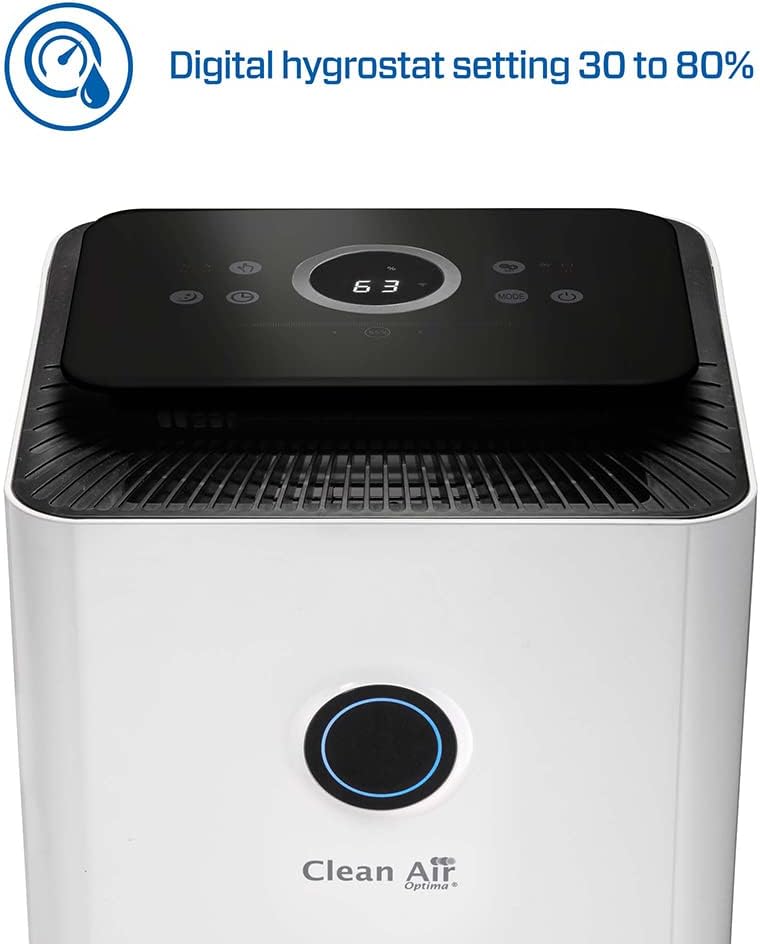
Image 5.1: Close-up of the control panel display showing a digital humidity setting, indicating the adjustable range from 30% to 80%.
5.2 Operating Modes
- Dehumidification Mode: The device will actively remove moisture from the air until the set humidity level is achieved.
- Air Purification Mode: The device will continuously filter the air using its multi-stage system.
- Auto Mode: The device automatically adjusts its operation based on detected humidity and air quality levels.
5.3 Water Tank
When the water tank is full, the device will automatically stop operating and an indicator light will illuminate. Carefully remove the water tank, empty it, and reinsert it securely to resume operation.
6. Maintenance
Regular maintenance ensures optimal performance and extends the lifespan of your device.
6.1 Cleaning the Exterior
Wipe the exterior of the device with a soft, damp cloth. Do not use abrasive cleaners or solvents.
6.2 Cleaning the Pre-filter
The pre-filter should be cleaned every 2-4 weeks, depending on air quality. Remove the pre-filter and rinse it under running water. Allow it to air dry completely before reinserting.
6.3 Filter Replacement
The HEPA and Activated Carbon filters have a limited lifespan and should be replaced every 6-12 months, or when the filter indicator light illuminates. Refer to the product packaging or manufacturer's website for replacement filter models. Always unplug the device before replacing filters.
6.4 Water Tank Cleaning
Clean the water tank regularly to prevent mold and bacterial growth. Rinse with clean water and, if necessary, use a mild detergent. Ensure it is thoroughly rinsed and dried before reinserting.
7. Troubleshooting
If you encounter issues, refer to the following table:
| Problem | Possible Cause | Solution |
|---|---|---|
| Device does not turn on. | No power supply. | Check if the power cord is securely plugged in and the outlet is functional. |
| No dehumidification. | Water tank full or not properly inserted. Humidity setting too high. | Empty and reinsert water tank. Lower the desired humidity setting. |
| Weak airflow or unusual noise. | Clogged filters. Obstruction in air inlet/outlet. | Clean or replace filters. Remove any obstructions. |
| Smart function not connecting. | Incorrect Wi-Fi password. Device too far from router. | Verify Wi-Fi credentials. Move device closer to router or check router settings. |
If the problem persists after attempting these solutions, please contact customer support.
8. Specifications
Key technical specifications for the Clean Air Optima CA-704 SMART Dehumidifier and Air Purifier:
- Brand: Clean Air Optima
- Model Number: CA-704 Smart
- Dehumidification Capacity: Up to 10 Litres/day
- Power: 160 Watts
- Dimensions (L x W x H): 25 x 25 x 50 cm
- Weight: 5.66 Kilograms
- Recommended Floor Area: Up to 40 square meters
- Water Tank Volume: 10 Litres
- Number of Speeds: 2
- Special Features: Integrated Hygrostat, Air Purifier Function (5-stage filtration: Activated Carbon, Pre-filter, TRUE HEPA H13 + Nano silver coating, UV-C lamp, Ionizer)

Image 8.1: Diagram illustrating the dimensions of the device: 250 mm (width), 250 mm (depth), and 480 mm (height).
9. Warranty and Support
For warranty information, please refer to the documentation provided with your purchase or contact Clean Air Optima customer service directly. Information regarding the availability of spare parts is not provided in this manual. For any technical support or service inquiries, please reach out to the manufacturer or your retailer.


