
1. Introduction
This manual provides instructions for the AIDITIYMI RC902V Far1 Voice Remote Control, designed as a replacement for specific TCL Mini LED 8K Smart TV models. Please read this manual carefully to ensure proper setup and operation of your new remote control.
Package Contents:
- 1 x AIDITIYMI RC902V Far1 Voice Remote Control
- Note: 2x AAA Alkaline Batteries are not included and must be purchased separately.
2. Setup
2.1 Battery Installation
The remote control requires two (2) AAA alkaline batteries for operation. Ensure correct polarity when inserting batteries.
- Locate the battery compartment cover on the back of the remote control.
- Slide the cover downwards to open the compartment.
- Insert two new AAA alkaline batteries, matching the (+) and (-) terminals as indicated inside the compartment.
- Slide the battery compartment cover back into place until it clicks securely.

Image: Back of the remote control with the battery cover removed, illustrating the battery insertion points.

Image: Back of the remote control with the battery cover securely in place.
2.2 Pairing the Remote Control
This remote control requires pairing with your TCL Mini LED 8K Smart TV to enable full functionality, especially voice control. The pairing process may vary slightly depending on your TV's software version. Refer to your TV's user manual for specific pairing instructions if these steps do not work.
- Ensure your TV is powered on.
- Point the remote control towards the TV.
- Press and hold the "OK" button (center of the directional pad) and the "Home" button (house icon) simultaneously for a few seconds.
- A pairing message should appear on your TV screen, indicating that the remote is pairing or has successfully paired.
- Once paired, test the remote's functions, including voice control, to confirm successful setup.
If pairing fails, try replacing the batteries or moving closer to the TV and repeating the steps.
3. Operating Instructions
The AIDITIYMI RC902V Far1 remote control features a standard layout with dedicated buttons for various functions and quick access to popular streaming services.
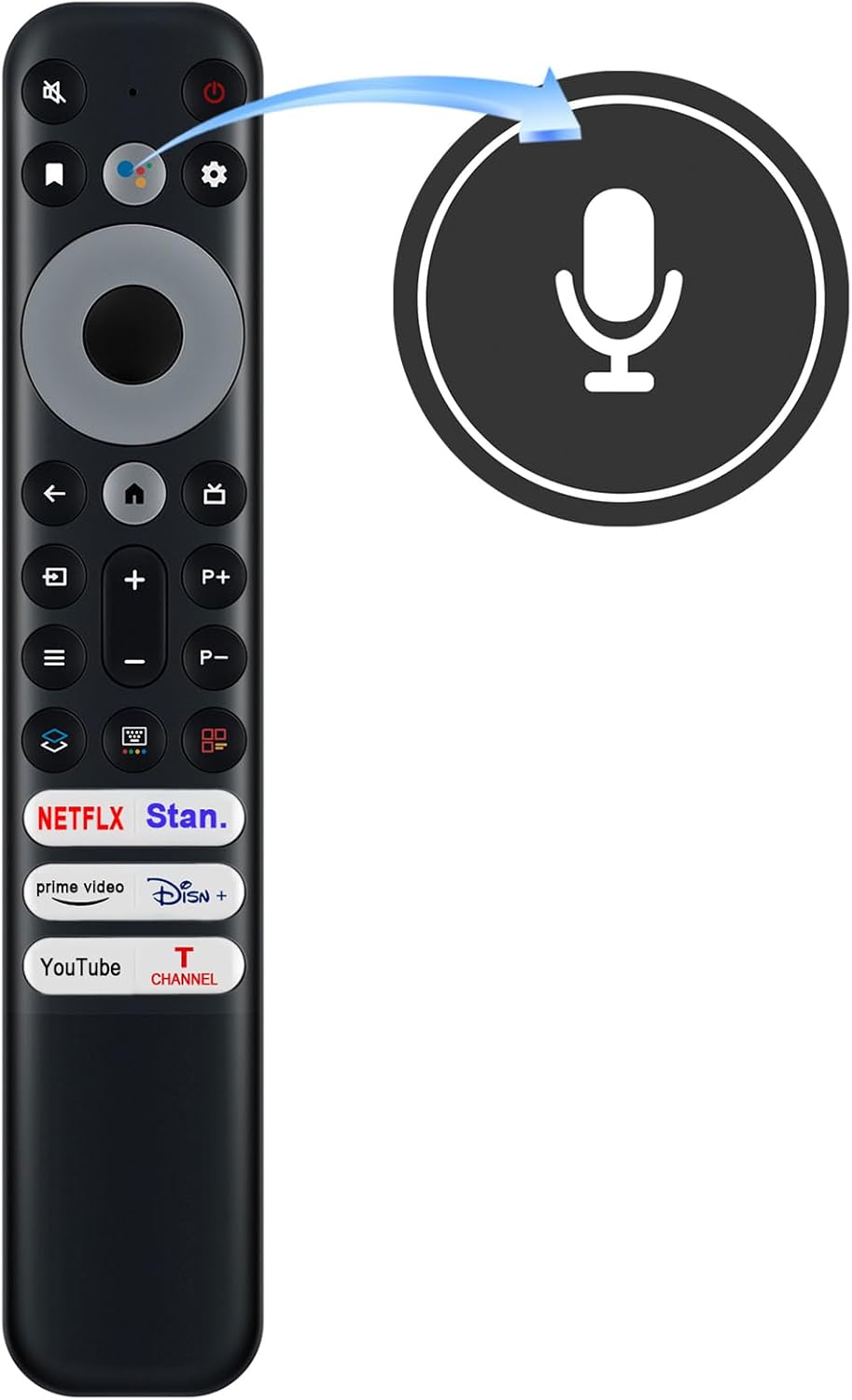
Image: Front view of the remote control highlighting the voice control button.
3.1 Button Functions
- Power Button: Turns the TV on or off.
- Voice Control Button (Microphone Icon): Press and hold to activate voice commands. Speak clearly into the remote.
- Directional Pad (Up/Down/Left/Right): Navigates menus and selects options.
- OK Button: Confirms selections.
- Back Button: Returns to the previous screen or menu.
- Home Button (House Icon): Accesses the TV's main home screen.
- Volume Up/Down (+/-): Adjusts the TV volume.
- Channel Up/Down (P+/P-): Changes TV channels.
- Mute Button: Mutes or unmutes the TV audio.
- Settings Button (Gear Icon): Opens the TV's settings menu.
- Input/Source Button: Selects input sources (HDMI, AV, etc.).
- Dedicated App Buttons: Direct access to Netflix, Stan, Prime Video, Disney+, YouTube, and TCL Channel.

Image: Angled view of the remote control, displaying the full button layout.
4. Maintenance
4.1 Cleaning the Remote Control
To maintain the remote control's appearance and functionality:
- Wipe the surface with a soft, dry cloth.
- For stubborn dirt, lightly dampen the cloth with water or a mild, non-abrasive cleaner.
- Do not use harsh chemicals, solvents, or abrasive cleaning pads, as these can damage the remote's finish or internal components.
4.2 Battery Replacement
Replace batteries when the remote control's response becomes sluggish or stops working. Always replace both batteries at the same time with new AAA alkaline batteries. Do not mix old and new batteries or different types of batteries.
5. Troubleshooting
-
Remote not responding:
- Check if the batteries are inserted correctly with the correct polarity.
- Replace old batteries with new AAA alkaline batteries.
- Ensure there are no obstructions between the remote control and the TV's infrared receiver.
- Re-pair the remote control with the TV (refer to Section 2.2).
-
Voice control not working:
- Ensure the remote is properly paired with the TV. Voice control requires a paired connection.
- Press and hold the voice control button while speaking.
- Speak clearly and at a normal volume.
- Check your TV's settings to ensure voice control is enabled.
-
Specific app buttons not working:
- Ensure the TV is connected to the internet.
- Verify that the apps are installed and updated on your TV.
- Some app buttons may require the remote to be fully paired.
6. Specifications
| Brand | AIDITIYMI |
| Model Number | RC902V (Mfr Part Number: NCLIU-RC902V-TOTUS) |
| Compatible Devices | TCL Mini LED 8K Smart TV (Models: 65X925, 75X925) |
| Controller Type | Voice Control |
| Connectivity Technology | Infrared (IR) and Bluetooth (for Voice Control) |
| Maximum Range | 10 Meters |
| Power Source | 2 x AAA Batteries (Not Included) |
| Color | Black |
| Special Feature | Ergonomic Design, Voice Control, Dedicated App Buttons |
| Item Weight | 0.07 Kilograms |
7. Warranty and Support
For warranty information or technical support, please contact the seller or manufacturer directly through your purchase platform. Keep your purchase receipt or order number handy for faster service.
If you are unsure whether this remote control is compatible with your specific TV model, please reach out to the seller for assistance before purchase or use.