
1. Introduction
Thank you for choosing the VOYEE WE-07 Wired Game Controller. This manual provides detailed instructions for setting up, operating, and maintaining your controller. The WE-07 is designed for a responsive and immersive gaming experience on both PC and PlayStation 3 platforms.

Image: The VOYEE WE-07 wired game controller, featuring a black and red design with prominent VOYEE branding and illuminated rumble effects, indicating its dual shock capabilities.
2. Product Features
- Wired Connectivity: Equipped with a 1.8-meter (5.9ft) USB cable for a stable connection and comfortable gaming distance.
- Dual Shock Vibration: Built-in dual motion motors provide varied intensity feedback for an authentic gaming experience.
- Ergonomic Design: Features a special matte layer for a comfortable grip during extended gaming sessions.
- Wide Compatibility: Supports Windows 7/8/8.1/10/11 PC games (DInput and XInput modes) and is fully compatible with Sony PlayStation 3 consoles.

Image: An illustration highlighting the internal dual shock rumble motor within the VOYEE WE-07 controller, emphasizing its vibration feedback capability.
3. Controller Layout
Familiarize yourself with the buttons and controls of your VOYEE WE-07 controller:

Image: A detailed diagram of the VOYEE WE-07 controller, labeling all buttons and joysticks, including R1/R2/L1/L2 buttons, LED indicators, SELECT, START, HOME, D-Pad, Left/Right Joysticks, and A/B/X/Y buttons.
- Left Joystick: For directional movement.
- Right Joystick: For camera control or aiming.
- D-Pad: Directional pad for precise input.
- Action Buttons (A, B, X, Y): For in-game actions.
- Shoulder Buttons (L1, R1): Top-mounted buttons.
- Trigger Buttons (L2, R2): Bottom-mounted analog triggers.
- SELECT Button: Typically for menu navigation or specific game functions.
- START Button: Typically for pausing or starting games.
- HOME/P3 Button: For accessing system menus or PlayStation 3 home screen.
- LED Indicators (1-4): Show player number or connection status.
4. Setup Instructions
Connecting your VOYEE WE-07 controller is a straightforward process:
4.1. Connecting to a PC (Windows 7/8/8.1/10/11)
- Locate an available USB port on your computer.
- Plug the USB connector of the VOYEE WE-07 controller into the USB port.
- Your computer will automatically detect and install the necessary drivers. This may take a few moments.
- Once installed, the controller will be ready for use. You may need to configure the controller settings within your game or platform (e.g., Steam) for optimal performance.
The controller supports both DInput (DirectInput) and XInput modes. Most modern PC games use XInput, which is automatically recognized. For older games, DInput might be used.
4.2. Connecting to a PlayStation 3 (PS3)
- Ensure your PS3 console is powered on.
- Plug the USB connector of the VOYEE WE-07 controller into an available USB port on your PS3.
- The PS3 will recognize the controller. The LED indicators on the controller will light up to show the assigned player number.
- The controller is now ready for use with your PlayStation 3 games.

Image: A close-up of the VOYEE WE-07 controller's USB cable connecting to a device, illustrating the wired connection process.
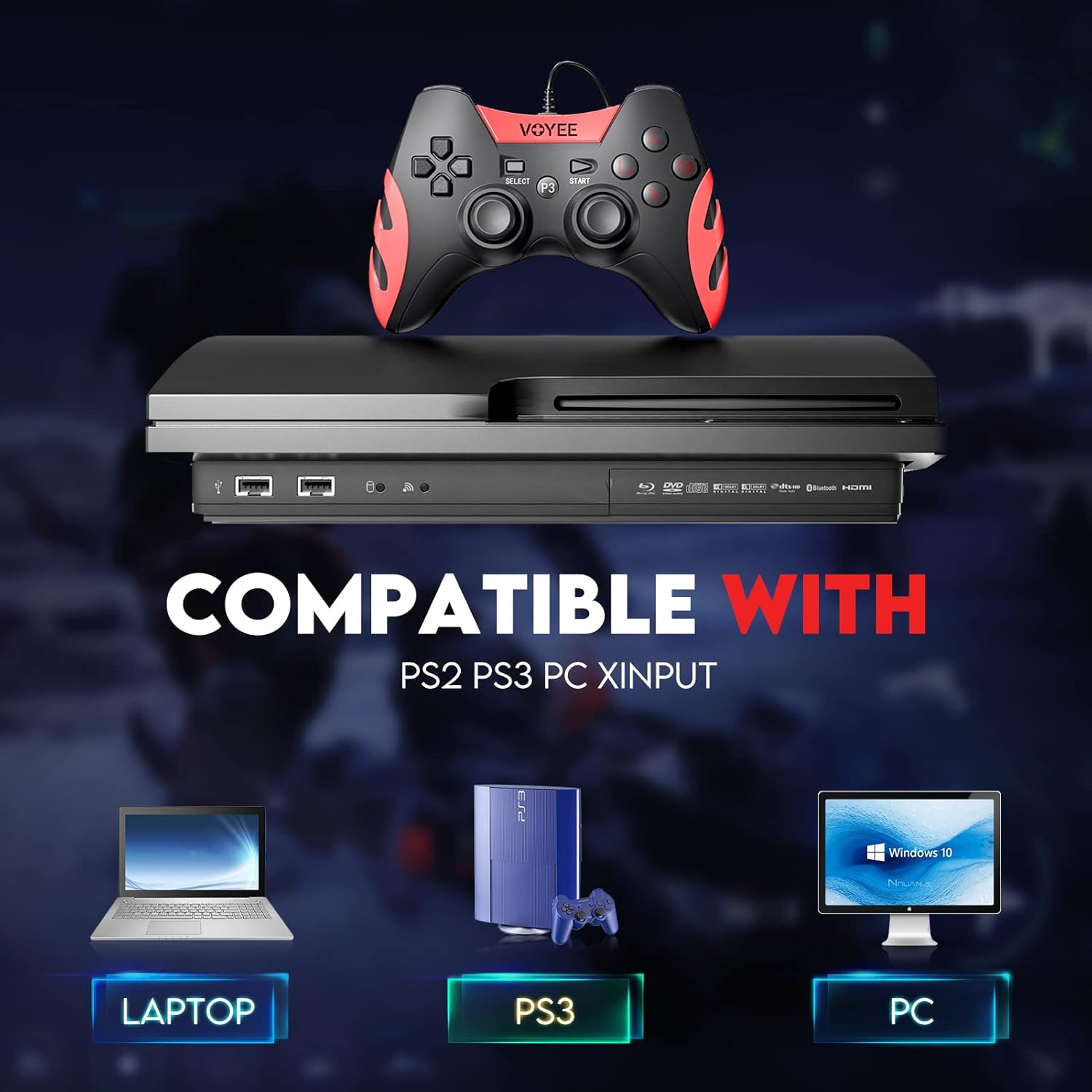
Image: A graphic demonstrating the VOYEE WE-07 controller's compatibility with various platforms, including laptops, PlayStation 3 consoles, and desktop PCs, highlighting its versatility.
5. Operating Instructions
Once connected, the VOYEE WE-07 controller functions similarly to standard gamepads. Here are some general operating tips:
- Game Control: Use the joysticks and D-Pad for movement and navigation. The action buttons (A, B, X, Y) and shoulder/trigger buttons (L1, R1, L2, R2) perform in-game actions as defined by the specific game.
- Vibration Feedback: The dual shock motors will provide tactile feedback during gameplay, enhancing immersion. This feature is automatically enabled when supported by the game.
- HOME/P3 Button: Press this button to access the system menu on PS3 or to bring up the game overlay on PC (depending on the game or platform).
- Ergonomics: The controller's matte finish and ergonomic design are intended for comfortable use during long gaming sessions.
6. Troubleshooting
If you encounter issues with your VOYEE WE-07 controller, please refer to the following common solutions:
| Problem | Solution |
|---|---|
| Controller not recognized by PC/PS3. |
|
| Vibration feedback is not working. |
|
| Buttons or joysticks are unresponsive. |
|
7. Maintenance
To ensure the longevity and optimal performance of your VOYEE WE-07 controller, follow these maintenance guidelines:
- Cleaning: Use a soft, dry cloth to wipe the surface of the controller. For stubborn dirt, slightly dampen the cloth with water. Avoid using harsh chemicals or abrasive cleaners.
- Storage: Store the controller in a cool, dry place away from direct sunlight and extreme temperatures. Avoid placing heavy objects on the controller.
- Cable Care: Do not sharply bend or pull the USB cable. Always grasp the plug when disconnecting, not the cable itself.
- Avoid Drops: Protect the controller from drops and impacts, which can damage internal components.
8. Specifications
| Model | WE-07 |
| Brand | VOYEE |
| Connectivity | Wired USB |
| Cable Length | 1.8 meters (5.9 ft) |
| Compatible Devices | PC (Windows 7/8/8.1/10/11), PlayStation 3 |
| Controller Type | Gamepad, Joystick (DInput & XInput) |
| Additional Features | Dual Shock Vibration, Ergonomic Design, Matte Finish |
| Button Quantity | 17 |
9. Warranty and Support
VOYEE provides a 365-day warranty for the WE-07 wired gamepad controller from the date of purchase. This warranty covers manufacturing defects under normal use.
If you encounter any problems or have questions regarding your VOYEE WE-07 controller, please do not hesitate to contact our customer service team via e-mail. Our friendly customer service is available to assist you.
For support, please visit the official VOYEE website or refer to your purchase documentation for contact information.