
Introduction
The SPC ZEUS 4G is a smartphone designed for seniors, featuring the Android 11 Go operating system. It provides access to popular applications like WhatsApp and others available on the Google Play Store. With 4G connectivity, it ensures fast loading and downloading of documents and content. This device is user-friendly, offering an 'Easy Mode' with large, vibrant icons for simplified navigation. It also includes physical buttons for call management and a prominent SOS button for emergencies.
Package Contents
Please verify that all the following items are included in your product box:
- SPC Zeus 4G Smartphone
- Battery
- User Manual
- Charger
- Handset
- USB Cable (Type C)
- Protective Case
Device Overview
The SPC ZEUS 4G smartphone combines a modern touchscreen with essential physical buttons for ease of use. Its design focuses on accessibility for seniors.

Front view of the SPC ZEUS 4G smartphone, showcasing the simplified Easy Mode interface with large, clear icons for essential functions like WhatsApp, Phone, Camera, and Contacts. Physical call answer/end buttons are visible at the bottom.

Rear view of the SPC ZEUS 4G smartphone, highlighting the main camera, LED flash, and the prominent SOS button. The SPC logo and 'ZEUS 4G' branding are also visible.

An infographic illustrating the main features of the SPC ZEUS 4G, including its 5.5-inch screen, Easy Mode with XXL icons, physical buttons, SOS button, front and rear cameras for video calls, and the included protective case.
Setup
1. Inserting SIM Card(s)
The SPC ZEUS 4G supports Dual SIM functionality (1 NanoSIM and 1 MicroSIM). Carefully open the SIM tray using the provided tool (if applicable) or by gently removing the back cover. Insert your SIM card(s) into the designated slots, ensuring correct orientation. Close the tray or replace the back cover securely.
2. Charging the Device
Connect the provided USB Type-C cable to the phone's charging port and the other end to the charger. Plug the charger into a power outlet. The reversible Type-C connector allows for easy connection in any orientation. A full charge is recommended before first use.
3. Initial Power On
Press and hold the power button (usually located on the side) until the screen lights up. Follow the on-screen prompts to complete the initial setup, including language selection and Wi-Fi connection.
4. Setting up Easy Mode
Upon initial setup or through the settings menu, you can activate the 'Easy Mode'. This mode displays large icons and simplified menus, specifically designed for enhanced readability and ease of use. You can also adjust the font size through 4 levels to ensure optimal visibility on the 5.5-inch IPS touchscreen.
5. Remote Configuration
The device supports remote configuration, allowing certain basic functions to be set up from another phone via SMS messages. Refer to the detailed instructions in the full user manual for specific commands and procedures.
Operating Instructions
1. Easy Mode Navigation
In Easy Mode, the home screen features large, clear icons for frequently used applications. Swipe right on the home screen to access your 6 most frequent contacts, which can be customized with photos for easier identification. A 'Shortcuts' section allows quick access to essential settings.

This image illustrates the simplified interface of the SPC ZEUS 4G in Easy Mode, showing large application icons, a screen dedicated to favorite contacts, and the 'Shortcuts' menu for quick access to settings like Wi-Fi, Bluetooth, and font size adjustment.
2. Making Calls
Use the large 'Phone' icon on the home screen to access the dialer or your contact list. The physical buttons at the bottom of the phone allow you to answer and end calls directly, providing a tactile and intuitive experience.
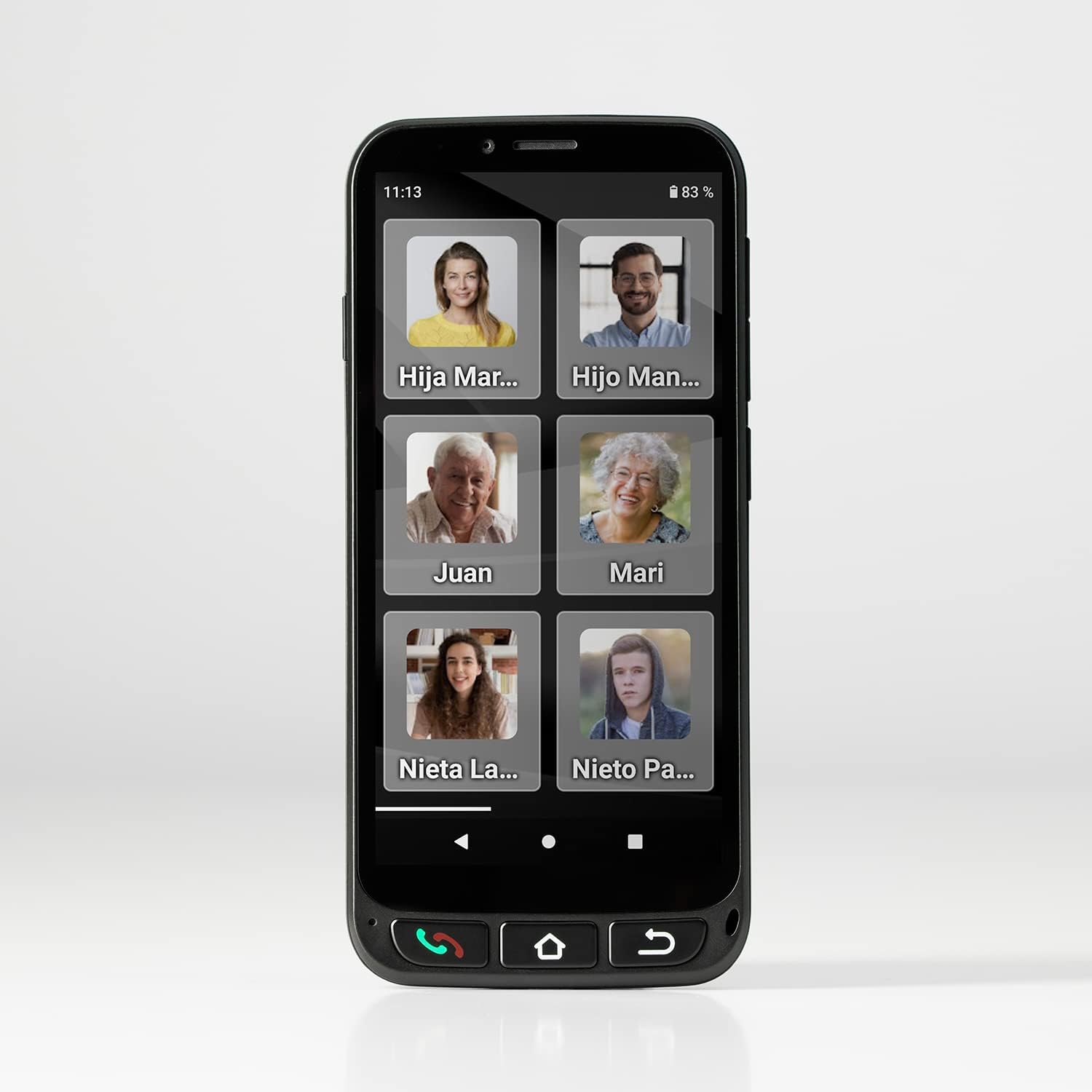
The SPC ZEUS 4G display showing six favorite contacts, each with a photo for easy recognition, accessible by swiping right on the home screen.
3. SOS Function
The dedicated SOS button on the back of the phone is for emergencies. When pressed and held, it will automatically call and send an SMS message with your geolocation to three pre-configured emergency contacts. Ensure these contacts are set up correctly in the phone's settings.

A close-up view of the prominent SOS button located on the back of the SPC ZEUS 4G smartphone, designed for quick access in emergency situations.
4. Smart Notifications and Ringtone
- Smart Notification: Sends a notification to a selected number if a missed call is recorded or if the battery level drops below 15%.
- Smart Ringtone: Automatically increases the ringtone volume if two missed calls are registered within a 3-minute period.
5. Applications and Other Features
The SPC ZEUS 4G runs on Android 11 Go, providing access to the Google Play Store. You can download and use various applications, including WhatsApp for video calls. Other practical features include a flashlight, alarm, FM radio, and hands-free mode.
Maintenance and Care
To ensure the longevity and optimal performance of your SPC ZEUS 4G smartphone, follow these care guidelines:
- Protection: The phone comes with a soft silicone back cover to protect it from impacts and absorb shocks from drops. Always use the protective case.
- Temperature: Do not expose the device to high temperatures. Avoid direct sunlight for extended periods and extreme cold.
- Cleaning: Use a soft, dry cloth to clean the screen and body of the phone. Avoid using harsh chemicals or abrasive materials.
- Water Exposure: This device is not waterproof. Avoid exposure to water or excessive moisture.

The SPC ZEUS 4G smartphone, protected by its clear silicone case, resting on a newspaper, illustrating its readiness for daily use.
Troubleshooting
If you encounter issues with your SPC ZEUS 4G, consider the following general troubleshooting steps:
- Device Unresponsive/Frozen Screen: If the screen becomes unresponsive, try restarting the device. Press and hold the power button for approximately 10-15 seconds until the phone powers off and then restart it.
- Battery Draining Quickly: Check for background applications consuming power. Reduce screen brightness. Ensure Wi-Fi, Bluetooth, and GPS are turned off when not in use. If the issue persists, consider a factory reset (back up your data first).
- Call/Network Issues: Ensure your SIM card is correctly inserted and activated. Check network signal strength. Try restarting the phone. If problems persist, contact your mobile service provider.
- Software Updates: Regularly check for and install software updates. Updates often include bug fixes and performance improvements.
- Factory Reset: As a last resort, if software issues persist, you may perform a factory reset. Warning: This will erase all data on your phone. Back up important information before proceeding.
Specifications
| Operating System | Android 11 Go |
| RAM | 1 GB |
| Internal Storage | 16 GB (expandable via Micro SD up to 512 GB) |
| Display | 5.5-inch IPS Touchscreen |
| Resolution | 1080 x 1920 |
| Cellular Technology | 4G |
| SIM Type | Dual SIM (1 NanoSIM, 1 MicroSIM) |
| Cameras | Front and Rear (5 Mpx) |
| Battery Capacity | 2400 mAh (nominal) |
| Talk Time | Up to 6 hours |
| Dimensions (L x W x H) | 15.8 x 0.98 x 7.3 cm |
| Weight | 154 g |
| Model Number | 2351116N |
| Connectivity | Wi-Fi, Bluetooth, GPS, USB Type C |
Safety Information
- Temperature Exposure: Do not expose the device to high temperatures.
- SAR (Specific Absorption Rate): The SAR value for this mobile phone is 2400 W/kg. French regulations require that the SAR does not exceed 2 W/kg. Please consult local regulations for compliance.
Warranty and Support
For warranty information, please refer to the documentation provided with your purchase or visit the official SPC website. For technical support or further assistance, please contact SPC customer service through their official channels.


