
ALLIMITY QYSY-AK1-QYSY
ALLIMITY Replacement Remote Control User Manual
Model: QYSY-AK1-QYSY
Introduction
This manual provides instructions for the ALLIMITY QYSY-AK1-QYSY Replacement Remote Control. This remote is designed to function as a direct replacement for your original remote, covering all essential functions without requiring any programming.
Compatible Models:
- Amiko HD8840, Impulse-SAT, Impulse-T2/C, Micro-HD, Synaps-CHD-3100, Micro Mini-Combo-Extra
- ECO-TC-200, CHD-8270+, HD8140-C-SE, HD8140-T2/C, HD8142-Twin-C, HD8150
- HD8265+, HD8275+, HD8340, SSD-570, SSD-580, STHD-8800, STHD-8820, T60
- HD8155, HD8240, HD8250+, HD8255+, HD8260+, HD8360
- Mini-Combo-HD, Mini-Combo-HD-SE, Mini-HD, Mini-HD-RE, Mini-HD-SE, Mini-HD-T2/C, Mini-HD265
- Mira, SHD-7900, SHD-8000, SHD-8110, SHD-8140 HD-SE
- EVO-TC100, EVO-TC300, Synaps-CHD-3000
Setup
The ALLIMITY QYSY-AK1-QYSY remote control requires no programming. Simply insert the batteries, and it is ready for use.
1. Installing Batteries
- Locate the battery compartment on the back of the remote control.
- Slide the battery compartment cover downwards or press the latch and lift to open.
- Insert two new AAA alkaline batteries, ensuring the positive (+) and negative (-) terminals match the diagrams inside the compartment.
- Close the battery compartment cover securely.
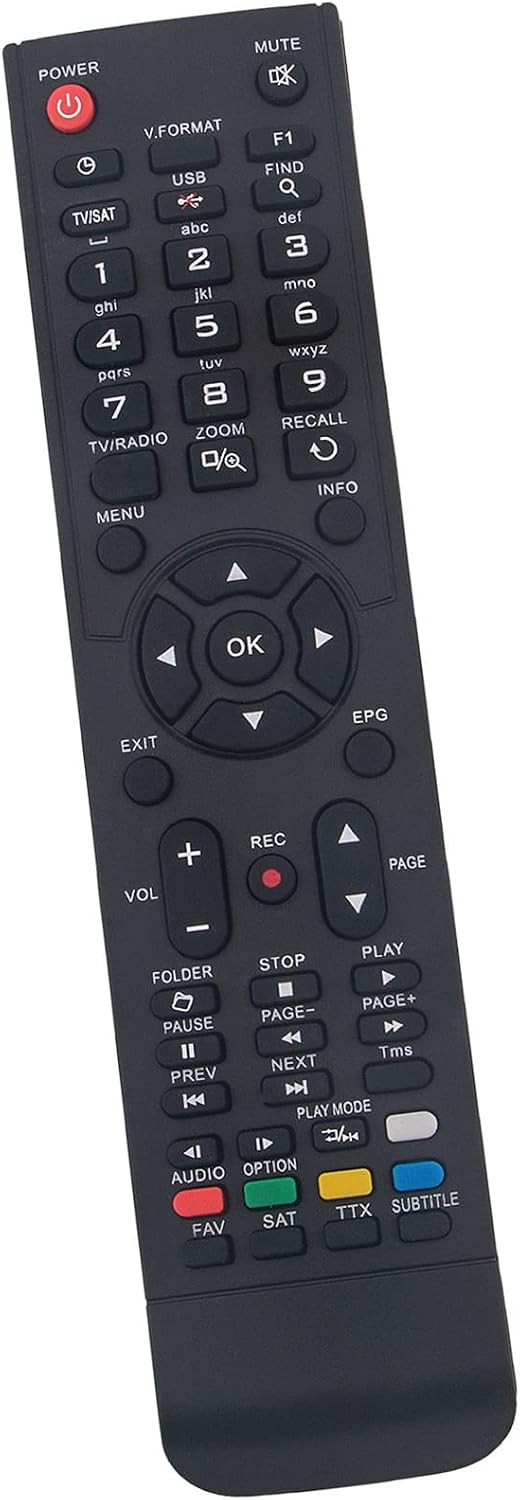
Image: Front view of the ALLIMITY replacement remote control, showing all buttons and layout.
Note: Always replace both batteries at the same time. Do not mix old and new batteries, or different types of batteries.
Operating Instructions
This remote control is designed to replicate the functions of your original remote. Point the remote directly at your device (e.g., satellite receiver, set-top box) for optimal performance.
Key Functions Overview
| Button | Function |
|---|---|
| POWER (Red) | Turns the device on or off. |
| MUTE | Mutes or unmutes the audio. |
| V.FORMAT | Changes video format settings. |
| USB | Accesses USB media functions. |
| F1, F2, F3 | Function keys, specific to device model. |
| FIND | Initiates search function. |
| Numeric Keypad (0-9) | Direct channel selection or data input. |
| TV/SAT | Switches between TV and Satellite modes. |
| TV/RADIO | Switches between TV and Radio modes. |
| ZOOM | Adjusts screen zoom level. |
| RECALL | Recalls the previously viewed channel. |
| MENU | Opens the main menu. |
| INFO | Displays program information. |
| Navigation Cluster (Up, Down, Left, Right, OK) | Navigates menus and confirms selections. |
| EXIT | Exits current menu or screen. |
| EPG | Opens the Electronic Program Guide. |
| VOL +/- | Adjusts volume up or down. |
| REC (Red Dot) | Starts recording. |
| PAGE +/- | Navigates through pages in menus or EPG. |
| FOLDER | Accesses media folders. |
| PAUSE | Pauses playback. |
| STOP | Stops playback or recording. |
| PREV (Rewind) | Rewinds media or goes to previous track. |
| NEXT (Fast Forward) | Fast forwards media or goes to next track. |
| PLAY | Starts or resumes playback. |
| PLAY MODE | Changes playback mode (e.g., repeat, shuffle). |
| AUDIO | Selects audio track or language. |
| OPTION | Accesses additional options. |
| TTX | Opens Teletext. |
| SUBTITLE | Activates or deactivates subtitles. |
| FAV (Red) | Accesses favorite channels list. |
| SAT (Green) | Selects satellite input. |
| Colored Buttons (Red, Green, Yellow, Blue) | Context-sensitive functions, typically indicated on-screen. |

Image: Angled view of the ALLIMITY replacement remote control, highlighting the ergonomic design.
Maintenance
- Cleaning: Wipe the remote control with a soft, dry cloth. Do not use abrasive cleaners or solvents.
- Battery Replacement: Replace batteries when the remote's response becomes sluggish or stops working. Always use new alkaline batteries of the specified type (AAA).
- Storage: If the remote control will not be used for an extended period, remove the batteries to prevent leakage and damage.
- Avoid Moisture: Keep the remote control away from water and high humidity.
- Avoid Extreme Temperatures: Do not expose the remote to direct sunlight or extreme heat/cold.
Troubleshooting
| Problem | Solution |
|---|---|
| Remote control is not working. |
|
| Some buttons are not responding. |
|
| Device responds intermittently. |
|
Specifications
- Brand: ALLIMITY
- Model Number: QYSY-AK1-QYSY
- Connectivity Technology: Infrared (IR)
- Battery Type: 2 x AAA Alkaline Batteries (not included)
- Maximum Range: 10 Meters (approx. 33 feet)
- Special Feature: No programming required
- Compatible Devices: Amiko HD8840, ECO-TC-200, CHD-8270+, HD8140-C-SE, HD8265+, HD8275+, HD8340, SSD-570, T60, HD8155, HD8240, SHD-8110, EVO-TC300, and many more listed in the Introduction.

Image: Another angled view of the ALLIMITY replacement remote control, showing the button layout from a different perspective.
Warranty and Support
Information regarding warranty and specific support contacts is not available in the provided product details. For any issues or inquiries, please refer to your purchase documentation or contact the retailer where the product was purchased.
Related documentsQYSY-AK1-QYSY

Ask a question about this manual
Ask about setup, troubleshooting, compatibility, parts, safety, or missing instructions. Manuals+ will review the question and use this page’s manual context to help answer it.