
ANTELA C23
ANTELA C23 Indoor WiFi Security Camera User Manual
Model: C23
1. Product Overview
The ANTELA C23 Indoor WiFi Security Camera is designed to provide comprehensive surveillance for your home or office. Featuring 1080P Full HD resolution, dual-band 2.4GHz/5GHz WiFi connectivity, and pan-tilt-zoom (PTZ) capabilities, it offers a wide viewing angle and clear imagery. Equipped with two-way audio, enhanced night vision, and intelligent motion detection, this camera ensures you stay connected and informed about your indoor environment. It is also compatible with smart home systems like Amazon Alexa and Google Assistant.

Image: The ANTELA C23 camera shown next to a smartphone displaying a live view of a cat, illustrating its monitoring capabilities.
2. Package Contents
- ANTELA C23 Indoor WiFi Security Camera
- Power Adapter
- USB Power Cable
- Mounting Bracket
- Mounting Screws and Wall Plugs
- User Manual (this document)
3. Product Features
- 1080P Full HD Video: Provides clear and smooth live video and recordings. The camera delivers crisp 1080P resolution, ensuring detailed monitoring.
- Dual-Band WiFi Connectivity (2.4GHz/5GHz): Supports both 2.4GHz and 5GHz WiFi networks for flexible and stable connection options.
- 355° Pan & 90° Tilt: Offers extensive coverage with horizontal rotation of 355 degrees and vertical tilt of 90 degrees, allowing you to monitor every corner of a room.
- Two-Way Audio: Built-in microphone and speaker enable real-time communication with people or pets on the camera's side.
- Enhanced Night Vision: Equipped with IR LEDs, providing clear black and white vision up to 9 meters (30 feet) in low-light or no-light conditions.
- Motion Detection & Smart Tracking: Automatically detects movement and sends real-time notifications to your smartphone. The smart tracking function can follow moving objects within its field of view.
- Secure Storage Options: Supports local storage via a Micro SD card (up to 128GB, not included) and cloud storage services for recorded video playback.
- Smart Home Compatibility: Works seamlessly with Amazon Alexa and Google Assistant for voice control and integration into your smart home ecosystem.

Image: Visual comparison demonstrating the superior clarity of 1080P Full HD video compared to 720P.

Image: A scene depicting the camera's dual-band WiFi capability, showing a live feed on a smartphone.

Image: A visual representation of the two-way audio feature, showing a child and a dog with speech bubbles.

Image: A grayscale image of a person sleeping, demonstrating the camera's enhanced night vision up to 9 meters.

Image: An illustration of the motion detection feature, showing children playing with target circles and a smartphone displaying an alert.
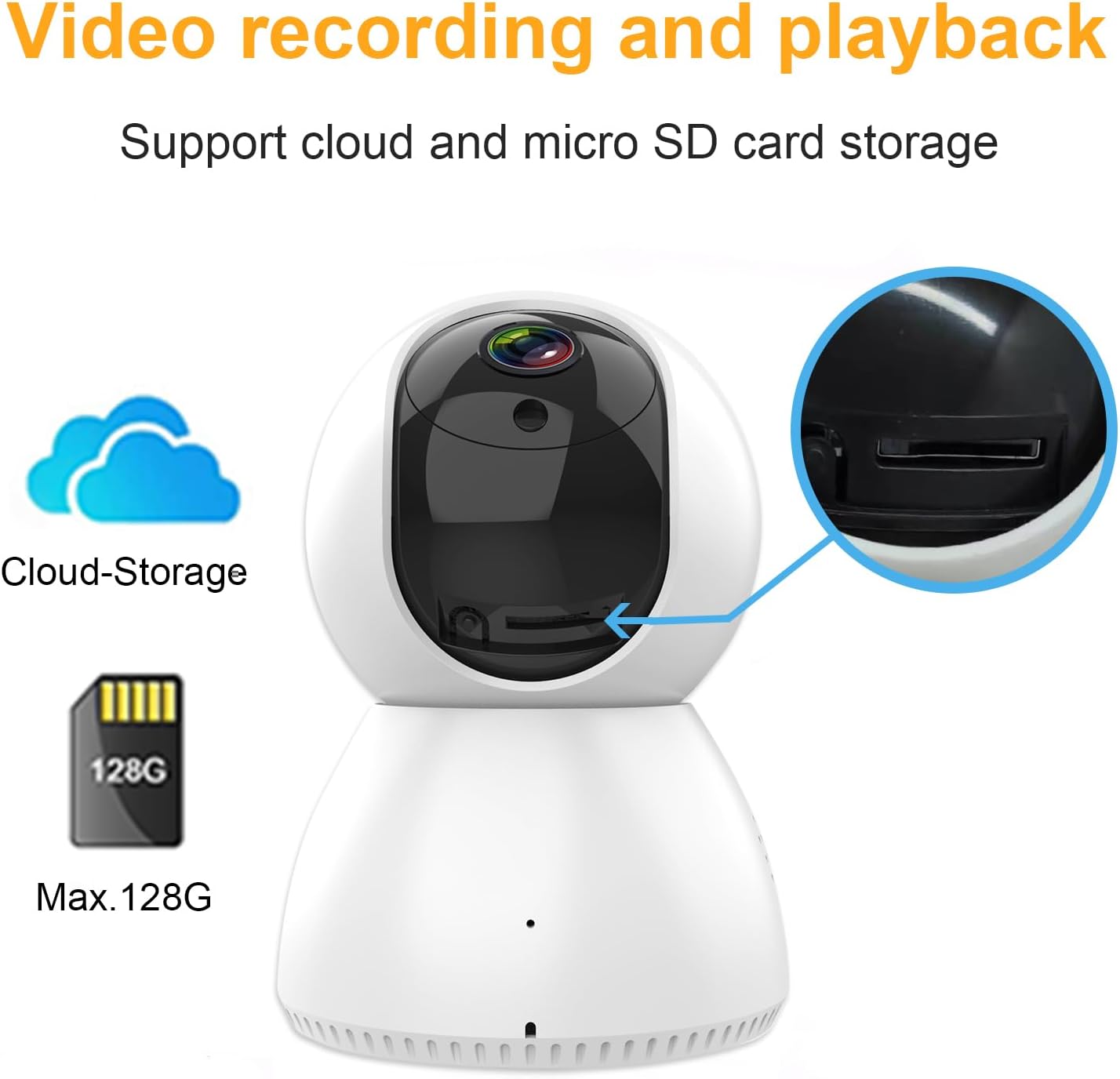
Image: A diagram illustrating the camera's support for both cloud storage and local Micro SD card storage (up to 128GB).
4. Setup Guide
4.1 App Download and Account Registration
- Scan the QR code on the product packaging or search for "YI IOT" in your smartphone's app store (App Store for iOS, Google Play Store for Android).
- Download and install the "YI IOT" app.
- Open the app and register a new account or log in if you already have one.
4.2 Powering On the Camera
- Connect the USB power cable to the camera's power port.
- Plug the power adapter into a standard electrical outlet.
- The camera will power on, and its indicator light will begin to flash, indicating it's ready for setup.
4.3 Connecting to WiFi and Pairing with App
- In the YI IOT app, tap the "+" icon to add a new device.
- Select your camera model from the list.
- Follow the on-screen instructions to connect the camera to your 2.4GHz or 5GHz WiFi network. Ensure your phone is connected to the same WiFi network during setup.
- The app may generate a QR code. Hold your phone's screen in front of the camera lens (approx. 15-20 cm away) until you hear a confirmation sound from the camera.
- Once connected, the camera's indicator light will turn solid, and you will see the live feed in the app.
4.4 Mounting the Camera
The camera supports wall mounting. Use the included mounting bracket, screws, and wall plugs to securely attach the camera to a desired location. Ensure the camera has a clear line of sight and is within range of your WiFi signal.
5. Operating Instructions
5.1 Live View and PTZ Control
- Open the YI IOT app and select your camera from the device list to view the live feed.
- Use the directional controls within the app to pan (rotate horizontally 355°) and tilt (rotate vertically 90°) the camera lens.
5.2 Two-Way Audio
- While in live view, tap the microphone icon in the app to speak through the camera's speaker.
- Tap the speaker icon to listen to audio from the camera's environment.
5.3 Motion Detection and Alerts
- Navigate to the camera settings in the app to enable or disable motion detection.
- Adjust sensitivity levels and set up alert schedules as needed.
- When motion is detected, you will receive a push notification on your smartphone with a video clip.
5.4 Video Recording and Playback
- Insert a Micro SD card (up to 128GB, Class 10 or higher recommended) into the camera's SD card slot for local storage.
- In the app, you can access recorded footage from the SD card or your cloud storage subscription.
- Use the timeline or event list to review past recordings.
5.5 Night Vision
- The camera automatically switches to night vision mode in low-light conditions.
- You can manually toggle night vision on/off in the app settings if desired.
5.6 Smart Home Integration (Alexa/Google Home)
- Follow the instructions in your Amazon Alexa or Google Home app to enable the "YI IOT" skill/action.
- Link your YI IOT account.
- You can then use voice commands to view your camera feed on compatible smart displays (e.g., "Alexa, show me the living room camera").
6. Maintenance
- Cleaning: Use a soft, dry cloth to clean the camera lens and body. Do not use liquid cleaners or aerosols.
- Placement: Avoid placing the camera in direct sunlight, near heat sources, or in areas with high humidity.
- Firmware Updates: Regularly check the YI IOT app for firmware updates to ensure optimal performance and security.
7. Troubleshooting
| Problem | Possible Cause / Solution |
|---|---|
| Camera offline / Cannot connect to WiFi |
|
| Poor image quality |
|
| Motion detection alerts are too frequent or not working |
|
| SD card not recording or recognized |
|
| App displays advertisements frequently |
|
8. Specifications
| Feature | Detail |
|---|---|
| Model Number | C23 |
| Video Resolution | 1080P Full HD |
| Pan/Tilt Range | 355° Horizontal / 90° Vertical |
| Night Vision Range | Up to 9 meters (30 feet) |
| Wireless Connectivity | WiFi (2.4GHz / 5GHz) |
| Audio | Two-Way Audio (Built-in Mic & Speaker) |
| Storage Options | Micro SD Card (Max. 128GB), Cloud Storage |
| Power Input | 5V (Wattage: 5 watts) |
| Mounting Type | Wall Mount |
| Material | Plastic |
| Dimensions (L x W x H) | 8.5 x 9 x 14 cm |
| Weight | 350 g |
| Compatible Devices | Smartphone (iOS/Android), Amazon Alexa, Google Assistant |
9. Warranty and Support
For warranty information and technical support, please refer to the official ANTELA website or contact their customer service directly. Keep your purchase receipt as proof of purchase for any warranty claims.
For further assistance, you may visit the ANTELA Brand Store on Amazon.
Related documentsC23


Ask a question about this manual
Ask about setup, troubleshooting, compatibility, parts, safety, or missing instructions. Manuals+ will review the question and use this page’s manual context to help answer it.