
1. Introduction
The Dilwe T11 Smart Voice Translator is a portable, real-time translation device designed to facilitate communication across language barriers. Featuring a 2.4-inch touchscreen, it supports multi-language voice and photo translation, making it suitable for travel, business, and educational purposes.
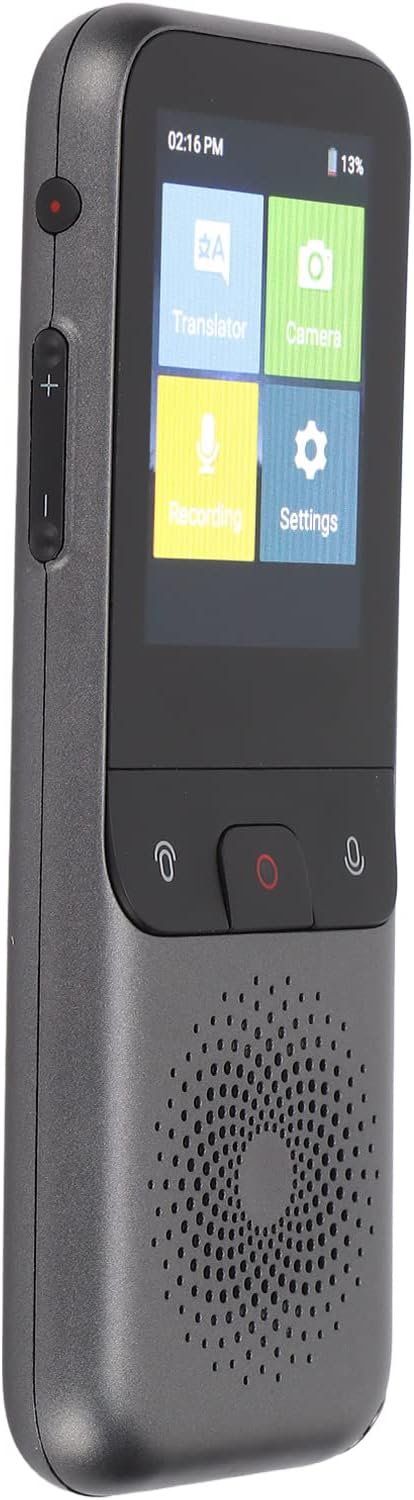
Figure 1.1: The Dilwe T11 Smart Voice Translator device.
2. Package Contents
Verify that all items are present in the package:
- 1 x Dilwe T11 Smart Voice Translator
- 1 x Data Cable (Type-C)
- 1 x User Manual (this document)

Figure 2.1: Translator device and included data cable.
3. Device Overview
Familiarize yourself with the physical components of your T11 translator.
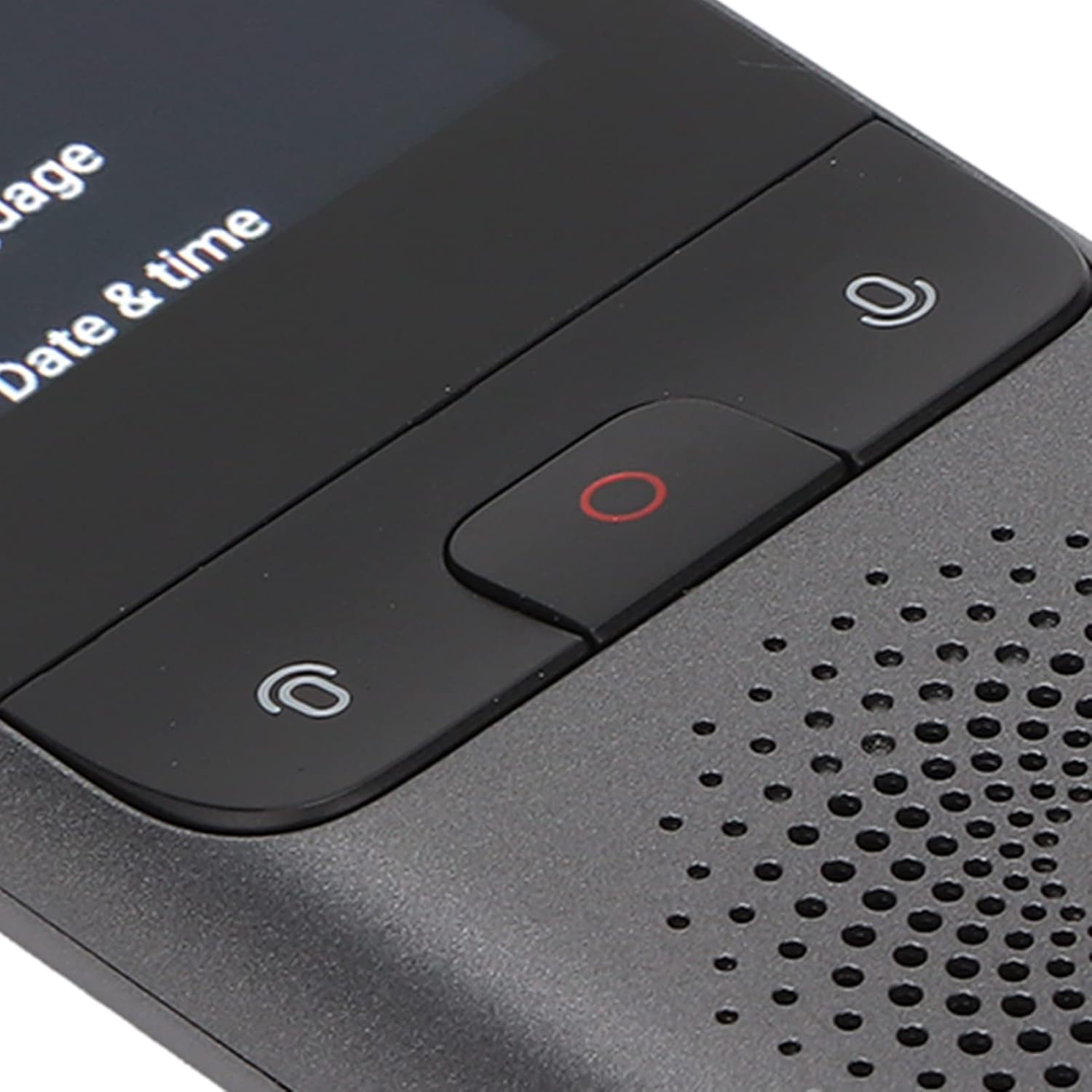
Figure 3.1: Front control buttons for translation input.
- Power Button: Located on the side, used for powering on/off and screen wake/sleep.
- Volume Buttons: Located on the side, used to adjust audio output.
- Microphone Buttons: Two buttons on the front for initiating voice input for translation.
- Record Button: Central red button on the front for recording functions.
- Speaker: Located at the bottom front for audio output.
- Type-C Interface: For charging and data transfer.
- Headphone Jack: For private listening.
- Camera: Rear-facing camera for photo translation.
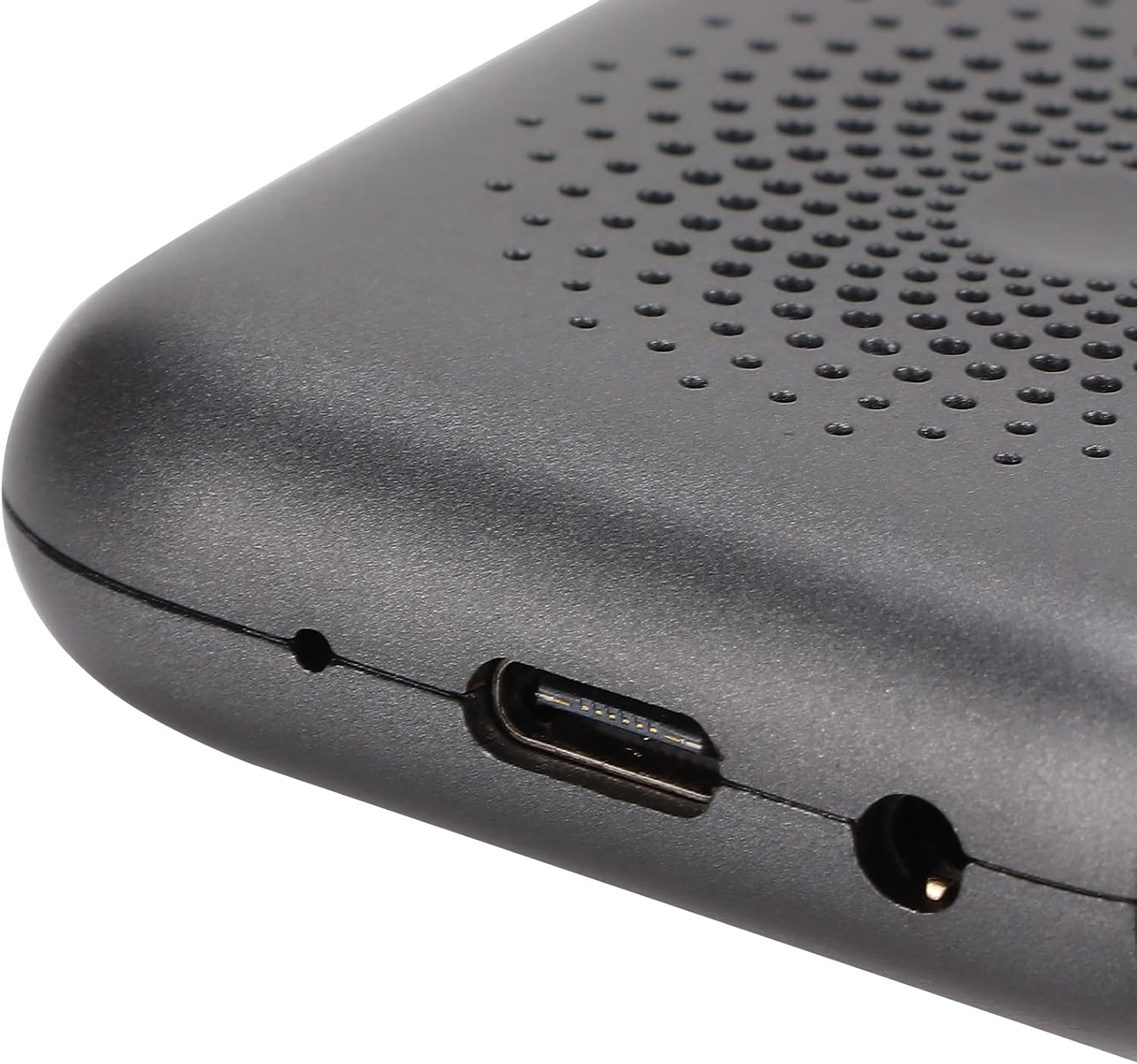
Figure 3.2: Type-C charging port and headphone jack.
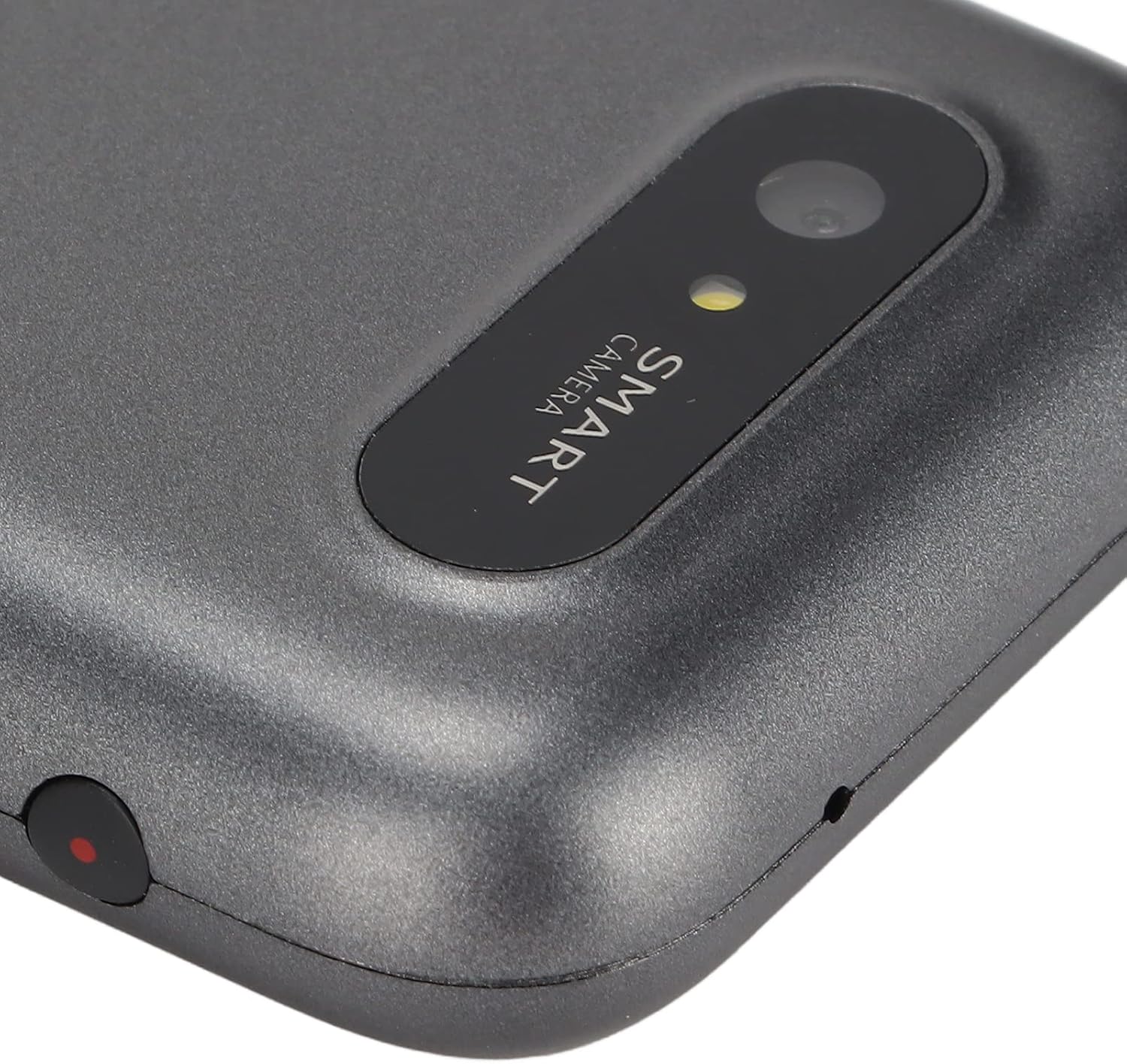
Figure 3.3: Rear-facing camera for photo translation.
4. Setup and Initial Use
4.1. Charging the Device
Before first use, fully charge the device using the provided Type-C data cable and a compatible USB power adapter (not included). The device has a built-in 1500mAh lithium battery.
4.2. Powering On/Off
- To power on: Press and hold the power button for 3 seconds until the screen illuminates.
- To power off: Press and hold the power button for 3 seconds, then select "Power Off" on the screen.
4.3. Network Connection
For most translation functions, an internet connection is required. The T11 supports Wi-Fi networking.
- From the home screen, tap the "Settings" icon.
- Select "Wi-Fi" from the settings menu.
- Toggle Wi-Fi on and select your desired network.
- Enter the password if prompted and connect.
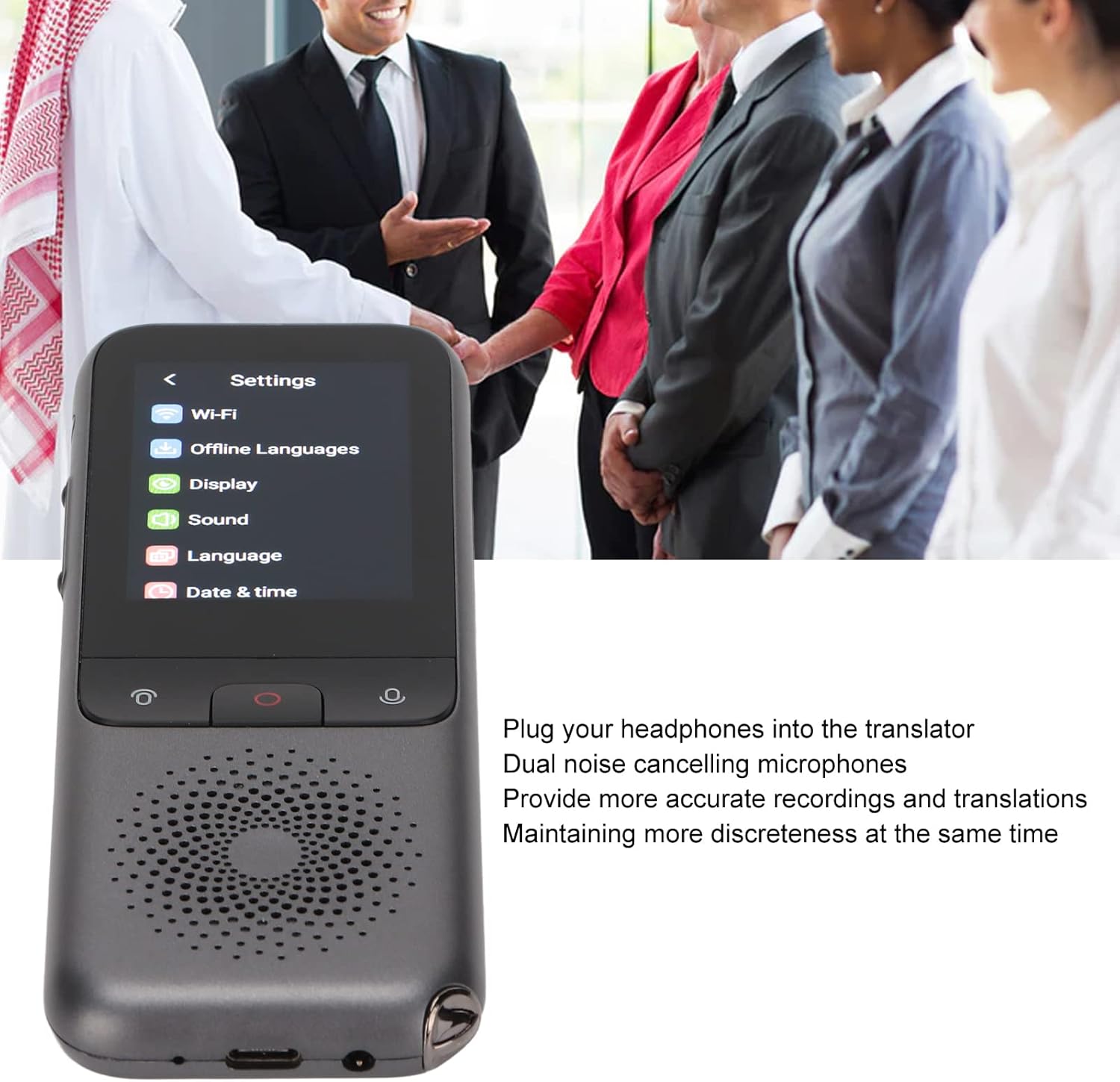
Figure 4.1: Accessing the settings menu to configure Wi-Fi.
4.4. Initial Language Selection
Set your preferred interface language and default translation languages in the settings menu.
Video 4.1: Demonstrates connecting the charging cable and powering on the Dilwe T11 translator device.
5. Operating Instructions
5.1. Voice Translation (Online)
The T11 supports 112 online languages for real-time two-way voice translation.
- From the home screen, tap the "Translator" icon.
- Select the source and target languages on the screen.
- Press and hold the microphone button corresponding to the language you will speak.
- Speak clearly into the device.
- Release the button, and the device will translate and speak the translation aloud.
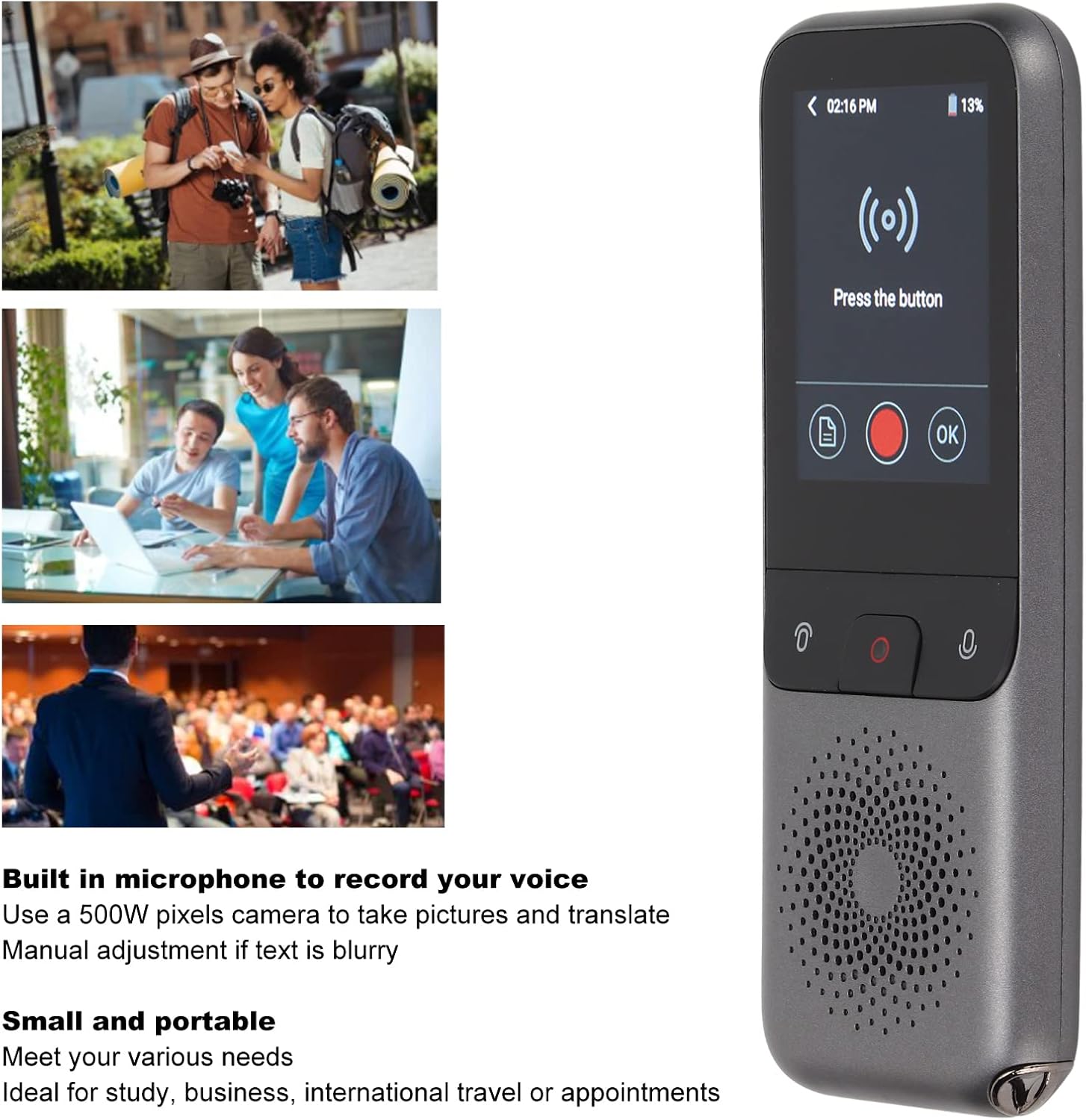
Figure 5.1: Using the voice translation feature in a real-world scenario.
5.2. Photo Translation
The 500W pixel camera allows for translation of text from images.
- From the home screen, tap the "Camera" icon.
- Point the camera at the text you wish to translate. Ensure good lighting and focus.
- Tap the screen to capture the image.
- Select the source and target languages.
- The device will display the translated text.
5.3. Recording Translation
The device supports recording translation for specific languages (Mandarin, Simplified Chinese; Taiwanese, Traditional Chinese; Cantonese; English (US)).
- From the home screen, tap the "Recording" icon.
- Press the central red record button to start recording.
- Speak or place the device near the audio source.
- Press the record button again to stop.
- Select the recorded audio and choose the target language for translation.
5.4. Offline Translation
The T11 supports offline translation for 10 languages: Simplified Chinese, Traditional Chinese, English, German, Spanish, French, Japanese, Korean, Russian, and Thai.
- Go to "Settings" and then "Offline Languages".
- Download the language packs you require for offline use.
- Once downloaded, you can perform voice translation between these languages without an internet connection.
5.5. Using Headphones
For private listening or in noisy environments, plug headphones into the 3.5mm audio jack. The device features dual noise-canceling microphones for clearer input.

Figure 5.2: The settings menu, illustrating the device's use in various professional settings.
6. Maintenance and Care
- Keep the device dry. Avoid exposure to water or excessive humidity.
- Clean the screen and body with a soft, dry cloth. Do not use abrasive cleaners.
- Avoid dropping the device or subjecting it to strong impacts.
- Store the device in a cool, dry place when not in use.
- Regularly update the device firmware for optimal performance and new features.
7. Troubleshooting
7.1. Device Not Powering On
- Ensure the device is fully charged. Connect it to a power source and wait a few minutes before attempting to power on again.
- Press and hold the power button for at least 5-10 seconds to perform a hard reset.
7.2. Translation Inaccurate or Not Working
- Check your internet connection (Wi-Fi). Most online translation requires a stable connection.
- Verify that the correct source and target languages are selected.
- Speak clearly and at a moderate pace. Avoid background noise.
- For photo translation, ensure the text is well-lit, in focus, and not blurry.
- If using offline translation, confirm that the required language packs are downloaded.
7.3. Poor Audio Quality
- Adjust the volume using the side buttons.
- Ensure the speaker is not obstructed.
- If using headphones, check the headphone connection and try another pair if available.
8. Specifications
| Model | T11 |
| Material | ABS |
| Color | Grey |
| Battery Capacity | Built-in 1500mAh Lithium Battery |
| Running Memory | 2G |
| Storage Capacity | 32G |
| Screen Size | 2.4 Inch |
| Resolution | 240 x 320 |
| Networking Method | Wi-Fi |
| Camera | 500W Pixels |
| Data Interface | Type-C Interface |
| Online Supported Languages | 112 |
| Offline Supported Languages | 10 (Simplified Chinese, Traditional Chinese, English, German, Spain, French, Japanese, Korean, Russian, Thai) |
| Recording Translation Languages | 4 (Mandarin, Simplified Chinese; Taiwanese, Traditional Chinese; Cantonese; English (US)) |
| Package Dimensions | 6.42 x 3.03 x 1.5 inches |
| Item Weight | 7.9 ounces |
| Manufacturer | Dilwe |
9. Warranty and Support
For warranty information and technical support, please refer to the documentation provided at the time of purchase or contact Dilwe customer service. Keep your purchase receipt for warranty claims.
You may also visit the official Dilwe store for additional product information and support resources: Dilwe Store on Amazon.