
1. Introduction and System Overview
This manual provides detailed instructions for the installation, operation, and maintenance of your Yeewise 2K Wi-Fi 6 Wireless Security Camera System. This all-in-one kit is designed for easy setup and reliable 24/7 surveillance, featuring dual-lens cameras, AI auto-tracking, and a built-in 12-inch HD monitor with NVR.
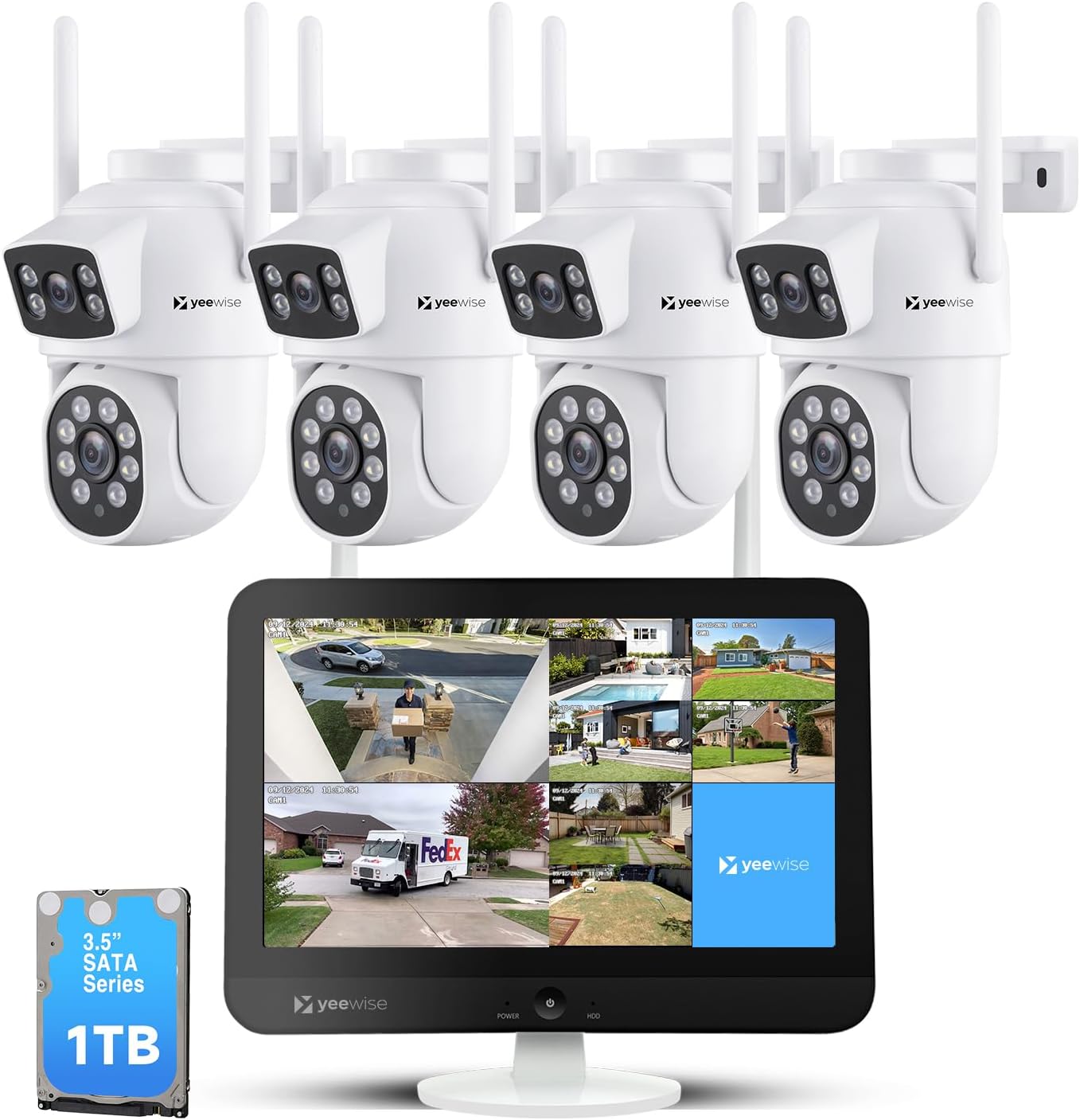
Figure 1.1: Yeewise 2K Wi-Fi 6 Wireless Security Camera System Components
2. Package Contents
Please verify that all items listed below are included in your package. If any items are missing or damaged, please contact customer support.

Figure 2.1: Included Package Items
- 16 Channel WiFi NVR Built-in Monitor (with 1TB Hard Drive pre-installed)
- 4 x Dual Lens Auto Tracking WiFi Security Cameras
- Power Adapter for NVR
- 4 x Power Adapters for Cameras
- HDMI Cable
- Network Cable
- USB Mouse
- Mounting Accessories (screws for cameras)
3. System Setup
The Yeewise security camera system is designed for plug-and-play operation, making setup quick and straightforward.
3.1 Initial Connection
- Power on the Monitor: Connect the NVR monitor to a power outlet using its dedicated power adapter.
- Power on the Cameras: Connect each camera to a power outlet using its dedicated power adapter.
- View Cameras (Locally): Once powered on, the cameras will automatically connect to the NVR. You should see the camera feeds displayed on the monitor within minutes.

Figure 3.1: Plug and Play Setup Steps
3.2 Camera Placement and Wi-Fi Coverage
For optimal performance, consider the following:
- Cameras can be installed up to 330 ft away from the NVR in open areas.
- The system features Auto WiFi Relay, allowing a closer camera to act as a Wi-Fi repeater for a further camera, boosting its range.
- The system supports Wi-Fi 6 and dual-band (2.4GHz/5GHz) for stable and fast connections.

Figure 3.2: Stable and Long Range Wi-Fi Connection
4. Operating Instructions
4.1 Dual Lens and Dual View Operation
Each camera features a dual-lens design: a stationary lens for wide-area monitoring and a PTZ (pan-tilt-zoom) tracking lens. This allows for simultaneous monitoring and recording of two different areas or perspectives.
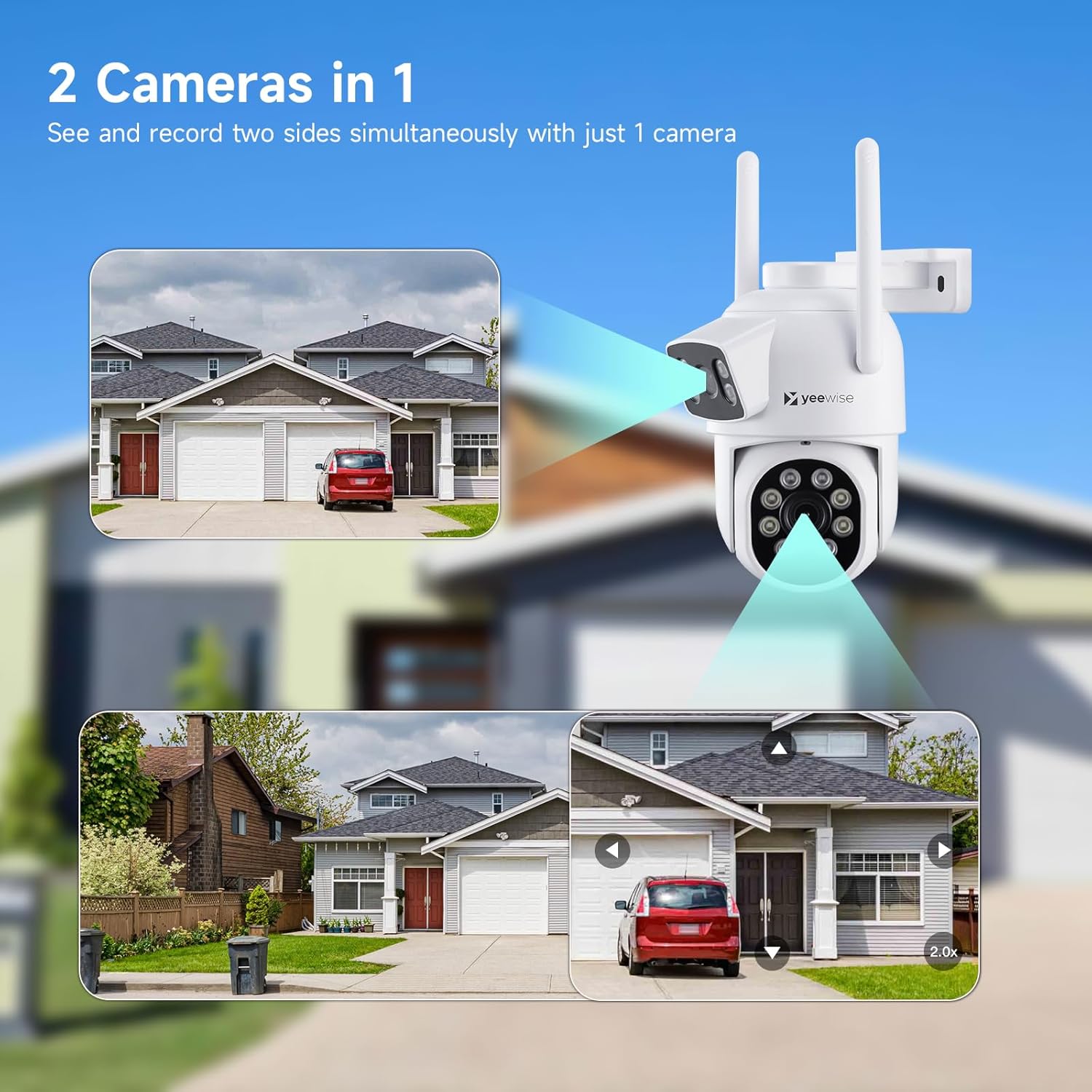
Figure 4.1: Two Cameras in One
To achieve the optimal monitoring view with the dual-lens cameras, you can customize the split-screen view modes on the NVR monitor:
- Right-click the mouse on the monitor to open the main menu.
- Navigate to Split screen > Custom View.
- Select Dual Lens Camera to enable the customized split-screen display for dual-lens cameras.

Figure 4.2: Optimal Monitoring View Configuration
4.2 AI Auto Tracking
The lower PTZ lens can actively follow a moving subject, while the upper stationary lens maintains a fixed, wide view. This ensures continuous coverage and minimizes blind spots.

Figure 4.3: AI Auto Tracking in Action
4.3 Night Vision Modes
The cameras offer three night vision modes for clear visibility in low-light conditions:
- Infrared Night Vision: Standard black and white view using IR illumination.
- Color Night Vision: Provides full-color images in low light.
- Smart Night Vision: Automatically switches between IR and color based on detected motion or light conditions.
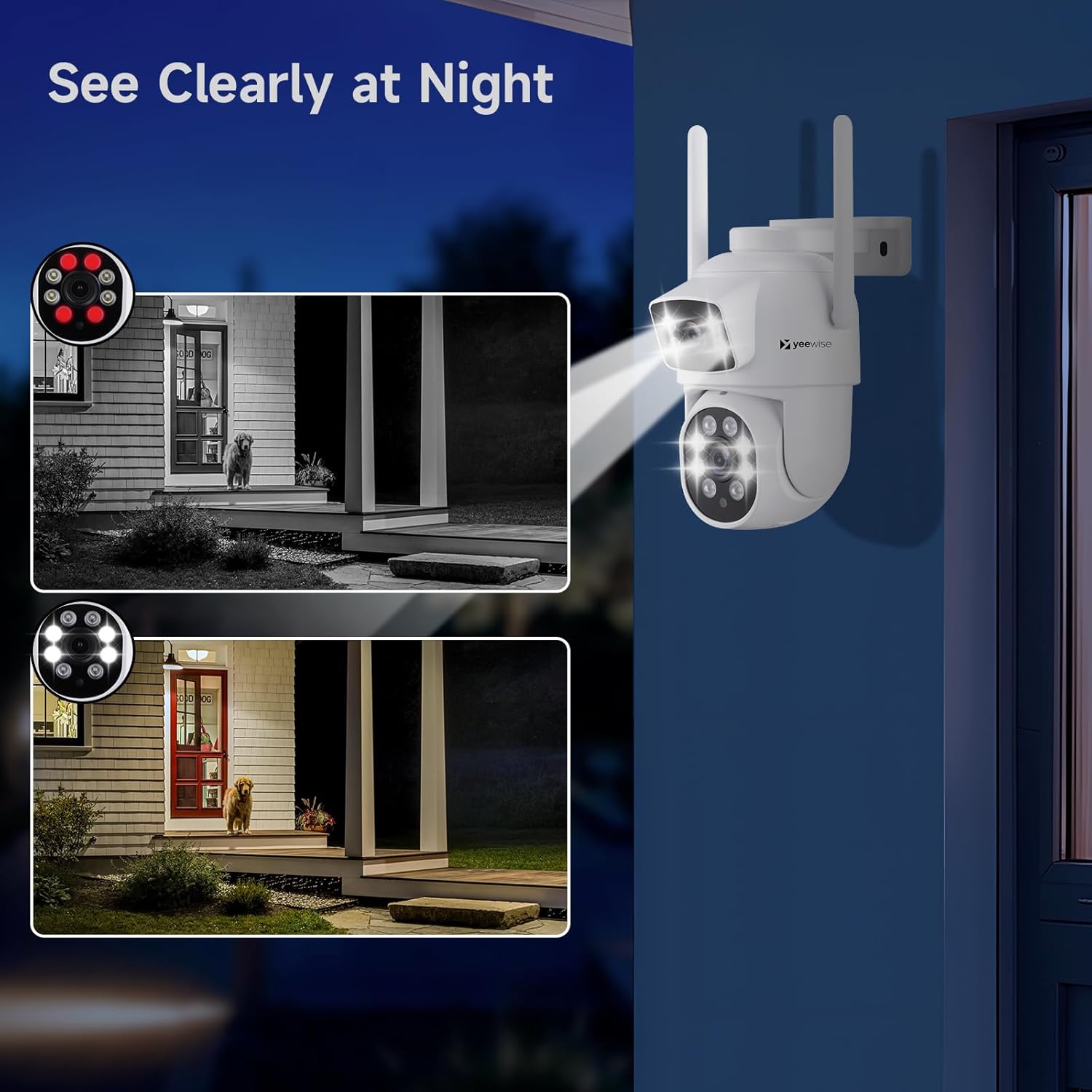
Figure 4.4: Night Vision Capabilities
4.4 24/7 Recording and Smart Alerts
With a pre-installed 1TB HDD, the system provides continuous 24/7 recording. You will receive alerts only when a person or motion is detected.
- Notifications: Receive push notifications, emails, loud siren alarms from cameras, or buzzer alarms from the NVR upon detection.
- Remote Access: Use the free mobile app to access live views and playbacks remotely from your smartphone or tablet via Wi-Fi or 3G/4G connection.

Figure 4.5: All-in-One App for Remote Access
5. Maintenance
To ensure the longevity and optimal performance of your security system, regular maintenance is recommended.
- Clean Lenses: Periodically clean camera lenses with a soft, dry cloth to prevent dust and smudges from affecting image clarity.
- Check Connections: Ensure all power and network cables are securely connected to prevent interruptions.
- Firmware Upgrades: Keep your system's firmware updated to benefit from improved features, performance enhancements, and security patches.
5.1 Firmware Upgrade Procedure
A new firmware version may be available online to improve your viewing experience. Follow these steps to upgrade:
- Right-click the mouse on the monitor to open the main menu.
- Click System setting > General setting.
- Click Firmware Upgrade.
- Click Online upgrade.

Figure 5.1: Firmware Upgrade Interface
6. Troubleshooting
If you encounter issues with your Yeewise security camera system, refer to the common problems and solutions below.
| Problem | Possible Cause | Solution |
|---|---|---|
| No image on monitor | NVR or camera not powered on; loose cable connections. | Check power adapters for NVR and cameras. Ensure all cables are securely connected. |
| Camera not connecting to NVR | Out of Wi-Fi range; interference; camera not paired. | Relocate camera closer to NVR or use Auto WiFi Relay feature. Reduce interference from other wireless devices. Refer to manual for re-pairing instructions if needed. |
| Poor image quality | Dirty lens; low light conditions; network bandwidth. | Clean camera lens. Ensure adequate lighting or switch to appropriate night vision mode. Check network stability. |
| No motion alerts | Motion detection settings incorrect; app notifications disabled. | Verify motion detection settings in NVR and mobile app. Ensure app notifications are enabled on your smart device. |
| Cannot access remotely | Internet connection issue; app not configured correctly. | Ensure NVR is connected to the internet. Check mobile app settings and ensure proper network configuration. |
7. Specifications
| Feature | Specification |
|---|---|
| Brand | yeewise |
| Model Number | KNMBD4 |
| Connectivity Technology | Wireless |
| Video Capture Resolution | 2K |
| Special Features | Dual Lens WiFi Cameras, AI Auto Tracking, NVR Built-in 12" HD Monitor |
| Number of Channels | 16 (expandable) |
| Memory Storage Capacity | 1 TB HDD (pre-installed, supports up to 6TB) |
| Color | White |
| Power Source | Corded Electric |
| Item Dimensions (L x W x H) | 13 x 7 x 7 inches |
| Recommended Uses | Indoor Outdoor Security and Surveillance |
| Compatible Devices | Apple iPhones, Android Phones, Apple iPad, Android Tablet, Personal Computers |
| Signal Format | Digital |
| Other Camera Features | Dual Lens Pan Tilt Zoom WiFi Security Camera |
| Low Light Technology | Three Night Vision Modes: Infrared Night Vision, Color Night Vision, Intelligent |
| Night Vision Range | 80 Feet |
| Frame Rate | 30+ FPS |
| Recording Mode | Multiple Recording Modes: Continuous, Motion Detection and Time-Scheduled Recording |
| Optical Sensor Technology | CMOS |
| Total USB Ports | 2 |
| Hardware Interface | 802.11 ac/b/g/n |
| Lens Type | Dual Lens |
| Video Input | HDMI, Ethernet (RJ45) |
| Viewing Angle | 360 Degrees (PTZ) |
| Item Weight | 9.22 pounds |
| UPC | 655887707346 |
| Country of Origin | China |
8. Warranty and Support
Yeewise is committed to providing reliable products and excellent customer service.
- One Year Warranty: Your product is covered by a one-year warranty for replacement only, no repair.
- Lifetime Tech Support: Yeewise offers lifetime technical support for your security camera system.
- 30-Day Return Policy: Enjoy a 30-day worry-free return period.
- Free Local Storage: You own your recordings with no mandatory subscription fees.


For further assistance or technical support, please refer to the official user guide PDF available on the product page or contact Yeewise customer service directly.


