
Introduction
This manual provides detailed instructions for the setup, operation, maintenance, and troubleshooting of your Ecarke 6-Key Mini Mechanical Gaming Keyboard. Please read this manual thoroughly before using the product to ensure proper functionality and longevity.
Product Overview
The Ecarke 6-Key Mini Mechanical Gaming Keyboard is a compact, programmable keypad designed for gaming and productivity. It features mechanical switches, customizable RGB backlighting, and onboard memory for storing macro settings. Its plug-and-play design ensures ease of use across various operating systems.

A top-down view of the Ecarke 6-Key Mini Mechanical Gaming Keyboard, showcasing its compact design and six keycaps.
Key Features:
- USB HID standard, plug-and-play functionality.
- Programmable macro keys with onboard storage.
- Customizable RGB LED backlighting.
- Cherry MX Red equivalent mechanical switches for responsive feedback.
- Multiple operating modes including keyboard, game controller, multimedia, and one-key password.
- Compact and portable design.
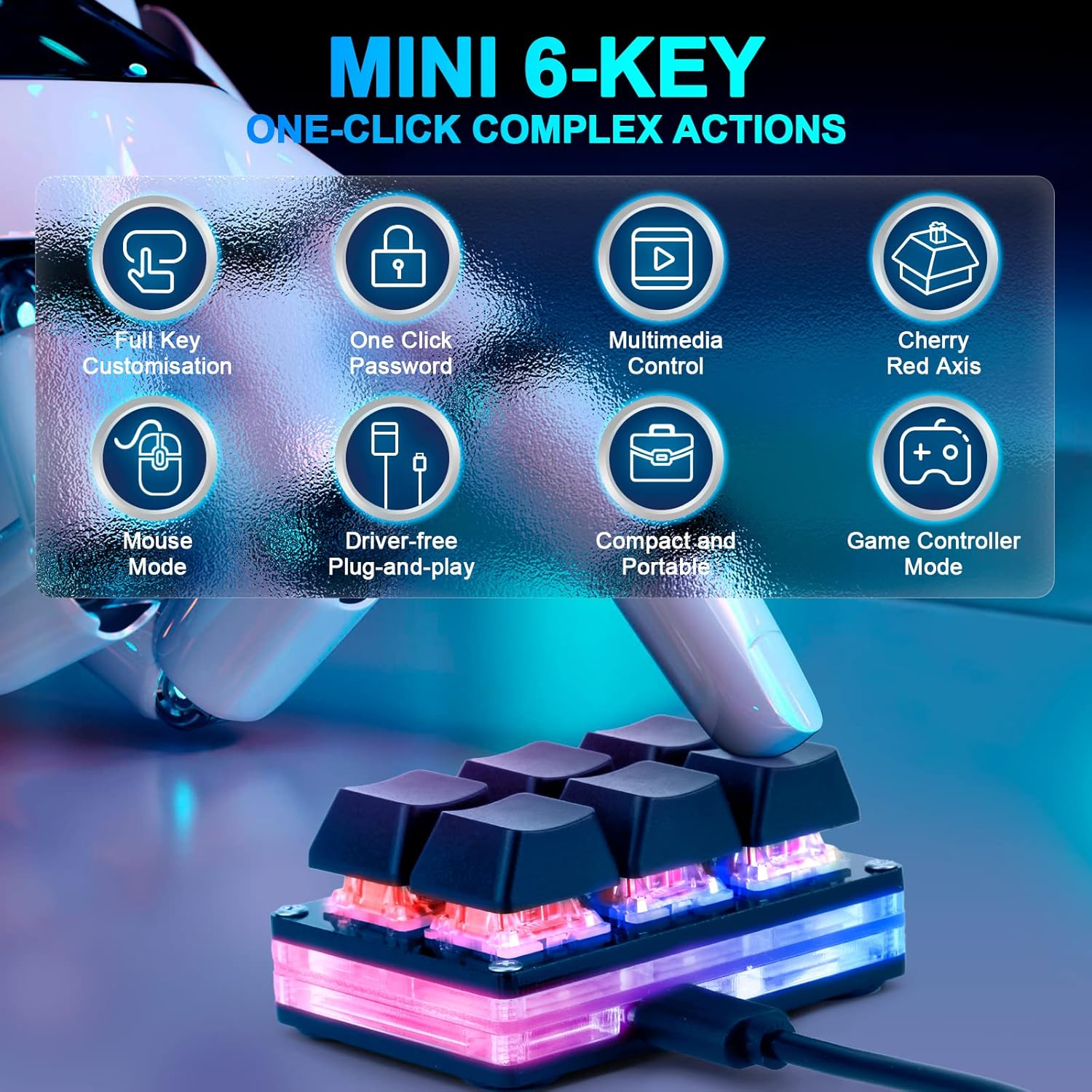
An illustrative image highlighting the key features of the Ecarke 6-Key Mini Keyboard, including full key customization, one-click password, multimedia control, Cherry Red Axis, mouse mode, driver-free plug-and-play, compact and portable design, and game controller mode.
Setup
- Connect the Keyboard: Plug the provided USB-C cable into the keyboard's USB-C port and the other end into an available USB port on your computer.
- System Recognition: The keyboard is a standard HID device and should be automatically recognized by your operating system (Windows, macOS, Linux, Android). No additional drivers are required for basic functionality.
- Initial Backlight: The colorful LED backlight will illuminate upon connection, defaulting to an irradiation mode with constantly bright and slowly changing colors.
Operating Instructions
Basic Key Functionality:
The keyboard functions as a standard input device. By default, keys may not have assigned functions until programmed.
Programming Macros and Key Functions:
The Ecarke 6-Key Mini Mechanical Gaming Keyboard allows for extensive customization of each key's function, including macros, multimedia controls, and text input.
- Software Access: To program the keyboard, you need to use the dedicated setting program. This is typically accessed via a web-based interface.
Access the programming software at: https://sayodevice.com/device or use the provided download links if a local application is preferred.
- Configuration: Follow the on-screen instructions within the software to assign functions to each key. Functions can include single key presses, key combinations, macros (sequences of key presses), multimedia controls, or text strings.
- Onboard Storage: Settings are saved directly onto the keyboard's onboard memory. This means that once programmed, the keyboard will retain its settings even when connected to a different computer or device, without needing to re-install software.
- Mac Compatibility: If you intend to use the keyboard with a Mac, perform the initial programming on a Windows PC first. Once programmed, the settings will transfer and function on your Mac.

An image showing a computer screen displaying the software interface for programming the keyboard, with a user interacting with the setup. The image also displays software download links.
LED Backlight Control:
The colorful LED backlight can be individually adjusted. The setting program allows you to turn the backlight on/off and select different key press action display modes. The default mode is a constantly bright, slowly changing color illumination.
Multiple Modes:
The keyboard supports various operational modes, which can be configured via the programming software:
- Keyboard Mode: Standard key input.
- LED Control Mode: Customize backlight effects.
- Game Controller Mode: Emulate game controller inputs.
- Multimedia Control Mode: Control media playback (play/pause, volume, etc.).
- One-key Password Mode: Input pre-defined text strings or passwords.
- Mouse Mode: Emulate mouse movements or clicks.

An illustrative image depicting the various modes supported by the Ecarke 6-Key Mini Keyboard, including Keyboard & LED Control, Game Controller, Multimedia Control, and One-key Password modes.
Maintenance
Cleaning:
To clean the keyboard, disconnect it from your computer. Use a soft, dry cloth to wipe the surface. For deeper cleaning, you may carefully remove the keycaps.
Keycap Removal:
Keycaps can be removed by gently pulling them straight up. This allows access to the switches for cleaning or replacement. Ensure to re-orient keycaps correctly if they have a specific profile.
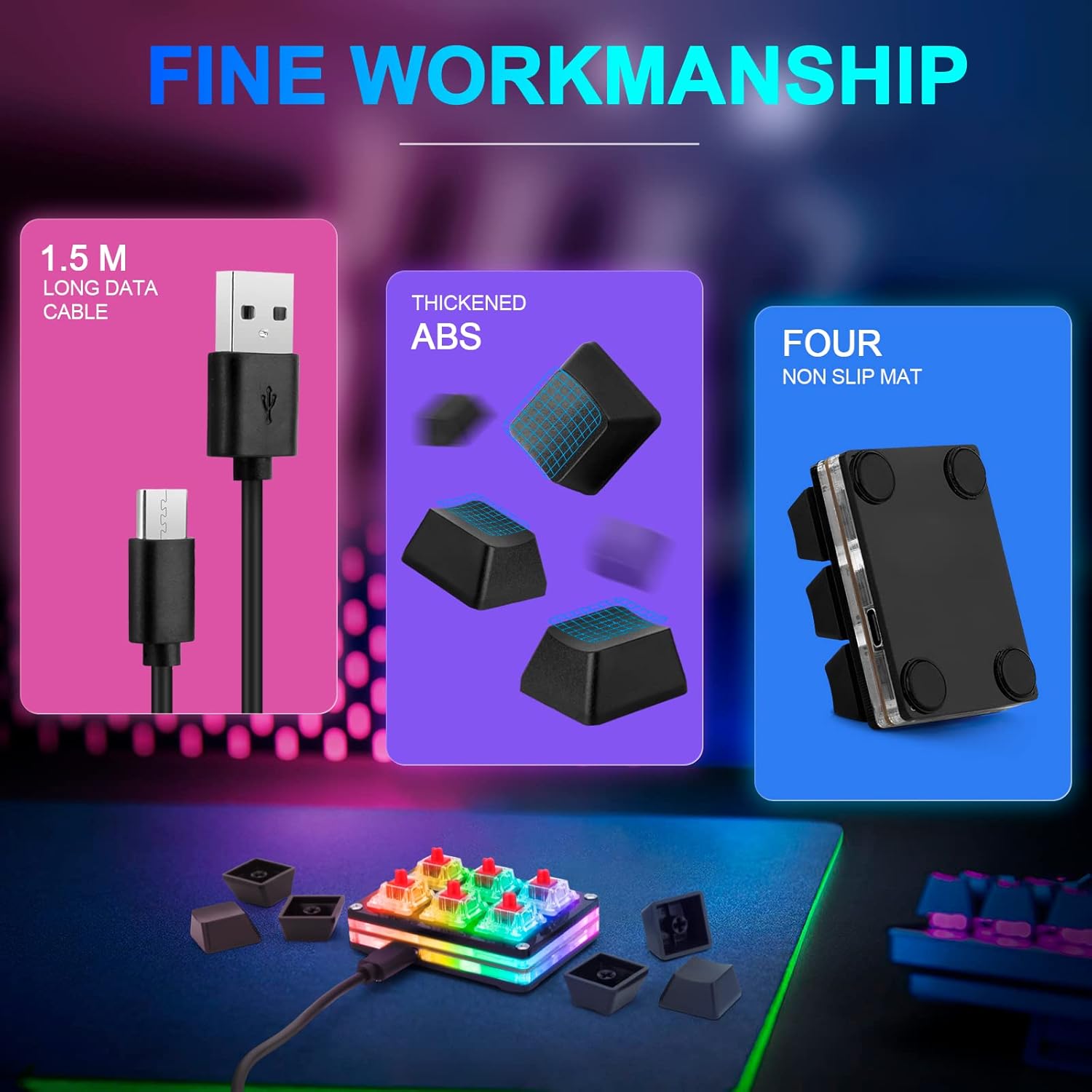
An image illustrating the components of the keyboard, including the 1.5m long data cable, thickened ABS keycaps, and four non-slip mats on the base. It also shows keycaps removed from the switches.
Troubleshooting
- Keyboard Not Recognized:
- Ensure the USB cable is securely connected to both the keyboard and the computer.
- Try connecting to a different USB port.
- Restart your computer.
- Keys Not Responding After Programming:
- Verify that the settings were successfully saved to the keyboard's onboard memory using the programming software.
- If using on a Mac, ensure programming was initially done on a Windows PC.
- Software Interface Issues (e.g., Chinese text):
- While the software may have some untranslated elements, ensure the language setting within the application is set to English if available.
- Refer to community forums or the manufacturer's support for updated software versions or guides.
- Backlight Not Working:
- Check backlight settings within the programming software to ensure it is enabled and configured as desired.
- Disconnection Issues:
- If the keyboard disconnects after locking or turning off your laptop, try unplugging and re-plugging the USB cable to re-establish the connection.
Specifications
| Name | 6-Key Gaming Keyboard |
| Switches | Cherry MX Red (equivalent) |
| Size | 6.3 x 4.3 x 2.8 cm (2.48 x 1.69 x 1.1 inches) |
| Color Support | RGB |
| Connectivity Technology | USB Type-C Interface |
| Compatible Devices | Windows, Linux, macOS, Android |
| Item Weight | 3.52 ounces |
| Material | Plastic |
| Included Components | USB Cable |

An image detailing the physical parameters and specifications of the Ecarke 6-Key Mini Keyboard, including its dimensions, switch type, color support, connectivity, and compatible devices.

A detailed diagram illustrating the components of a Cherry Red Axis mechanical switch, including the dust cover, metal contacts, and strong spring, explaining its linear path and low actuation force.
Warranty and Support
For warranty information or technical support, please refer to the Ecarke official website or contact your retailer. Keep your purchase receipt for warranty claims.